
You record an urgent voice note while walking between meetings, but playback reveals an aggressive, low-frequency roar drowning out your words. Learning how to fix air draft noise on voice memos without sacrificing clarity is critical when you cannot afford to re-record. Generic advice often confuses room air velocity with vocal plosives, pushing users toward blunt equalization cuts that hollow out speech and destroy natural acoustic warmth.
A dedicated ai voice message translator eliminates ambient airflow disturbances while keeping your authentic vocal identity completely intact. You will learn how to isolate environmental draft interference from vocal frequencies, apply non-destructive cleanup, and retain low-end richness. Crucially, standard noise gates often accentuate draft rumble right at syllable boundaries, a pitfall resolved later in this guide.
Key Takeaway: To eliminate continuous air draft noise without muffling spoken audio, bypass aggressive low-pass filters that strip legitimate vocal resonance. Processing through an ai voice message translator targets turbulent room air rumble while preserving the speaker's genuine tone, cadence, and clarity. This guidance applies specifically to mobile and desktop voice notes degraded by ambient drafts, fans, or ventilation.
Apply this practical cleanup workflow when recording in drafty settings:
- Situation: An operator records a spontaneous voice memo in a home office while an air conditioner pushes turbulent air directly across the microphone.
- Action: Instead of re-recording or slicing frequencies on a manual timeline, the speaker runs the raw audio through targeted acoustic cleanup to isolate the air draft from conversational speech.
- Outcome: The turbulent rumble vanishes, producing clear, authoritative audio that retains its original vocal warmth and cadence in a single take.
Understanding why this turbulence occurs indoors is the first step toward preventing it. Before applying corrective workflows, diagnosing why modern smartphone microphones pick up subtle room drafts so aggressively reveals the mechanical limits of your hardware.
Why Voice Memos Sound Like Static or Draft Noise Indoors
Indoor voice memos sound like harsh static because moving air from interior ventilation hits the microscopic casing of the phone, generating mechanical turbulence directly against the internal sensor.
Microphone draft noise is low-frequency acoustic turbulence generated when laminar airflow crosses the physical port opening of an audio capture device. In modern smartphones, this acoustic entry point is a tiny pinhole channel measuring barely a millimeter wide. Think of that opening like an open car window on the highway: even a smooth, gentle exterior breeze creates a continuous, thrumming roar inside the cabin.
Microphone draft noise occurs when gentle, ambient airflow, such as continuous air from an HVAC vent or ceiling fan, moves across a smartphone's acoustic port. Even when an office feels quiet, continuous laminar draft enters the tiny microphone chamber, creating high-pressure turbulence directly on the sensor diaphragm. This physical disturbance generates persistent rumble and static-like friction beneath the speaker's vocal frequencies. Because the air movement is steady rather than an explosive breath pop, phones fail to suppress it automatically, leaving a harsh background hiss across spontaneous voice recordings.
At a mechanical level, the issue stems from MEMS bottom-port microphone clipping dynamics. Micro-electro-mechanical systems (MEMS) sensors convert physical acoustic pressure into electrical signals inside a microscopic silicon chamber. When a steady air current strikes this opening, continuous laminar draft from AC vents creates low-end capsule saturation below 120Hz without clipping the master digital meter.
This dynamic confuses most users because the visual recording meter never flashes red or warns of distortion:
- Invisible overload: The energy concentrates below 120Hz, saturating the physical capsule while the operating system calculates overall volume as safe.
- Acoustic masking: The resulting electrical distortion mimics white noise or tape hiss across middle frequencies.
- Vocal thinning: Traditional aggressive filters try to cut this noise by slicing off everything beneath fundamental speech tones, leaving the speaker sounding hollow and distant.
If you record fast spontaneous updates, you can measure your speaking rate to verify your delivery pace, but adjusting your cadence will not stop room air currents from entering the microphone port. Instead of re-recording or relying on crude high-pass filters that thin out your vocal presence, using automated acoustic distraction and noise cleanup isolates turbulent low-end drafts while preserving your natural vocal warmth.
While post-recording cleanup can salvage damaged files, adjusting your physical capture method prevents air turbulence before it ever reaches the silicon sensor. A simple mechanical shift in how you hold your phone eliminates the vast majority of room drafts at the source.
How Stop Air Drafts While Recording Voice Memos
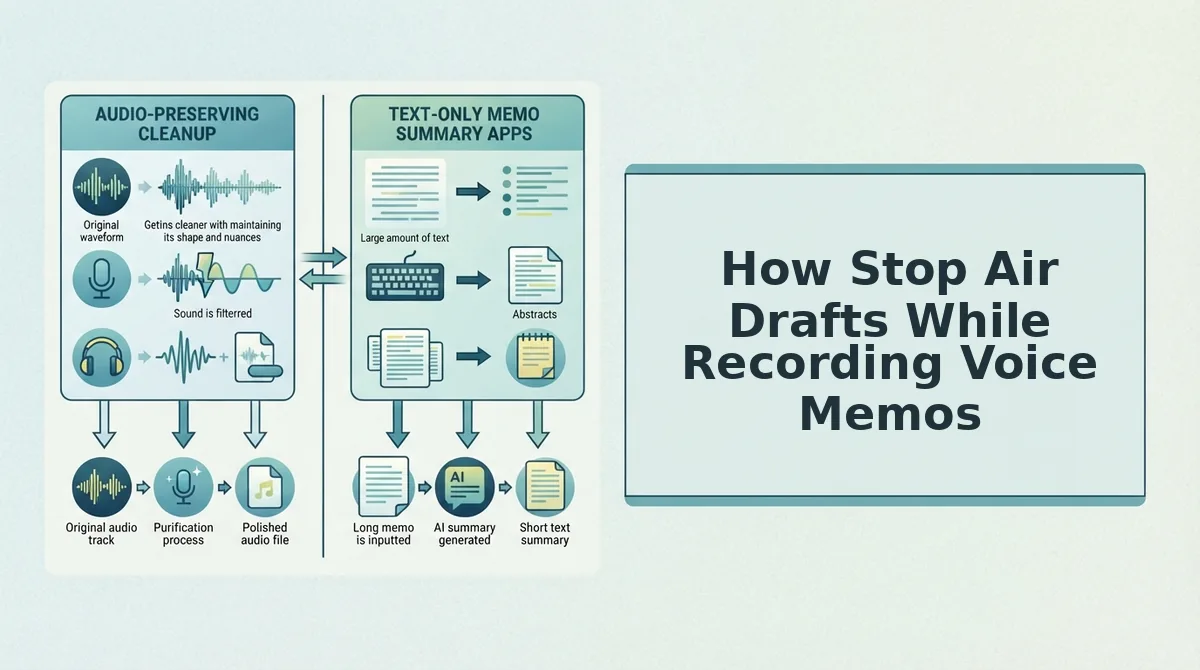
To eliminate air drafts on voice memos, position your smartphone at a 45-degree angle off-axis from your mouth rather than pointing the bottom microphone capsule directly at your lips. This mechanical adjustment diverts high-velocity breath streams away from the diaphragm while retaining full vocal clarity.
Most advice tells you to cup your hand around the phone or hold the receiver tight against your mouth. That instinct is wrong. Cupping creates a resonant acoustic chamber that traps turbulent air, causing low-end boominess and severe treble loss.
Off-axis recording is the technique of angling a microphone away from the direct line of a speaker's mouth to prevent turbulent air from hitting the capsule. The 45-degree off-axis alignment avoids the direct acoustic vector of nasal and plosive breath while preserving 200Hz to 4kHz speech intelligibility. You do not need windscreens, foam covers, or heavy post-processing filters to capture clean audio on the first attempt.
Prerequisites: A smartphone or handheld voice recorder, an open voice memo application, and two minutes to set your physical baseline.
- Raise the phone to chin height (Estimated time: 5 seconds). Lift your device so the bottom edge rests level with your chin rather than centered directly in front of your lips. You should feel your airway pointing straight forward into open space rather than pushing air straight downward into the microphone port.
- Rotate the device 45 degrees outward (Estimated time: 5 seconds). Pivot the bottom microphone grille away from your mouth's center line until the phone sits at a clear diagonal angle. The primary microphone capsule should now face past your cheek rather than directly down the center of your exhaled breath stream.
- Establish a four-to-six-inch recording distance (Estimated time: 5 seconds). Maintain a fixed gap between your face and the microphone to prevent proximity effect distortions. You should hear a balanced, natural vocal tone without low-end rumble when reviewing test recordings at this distance.
- Record a ten-second plosive test sentence (Estimated time: 30 seconds). Tap record and speak a phrase packed with hard consonants, such as "prioritize weekly project blueprints." Check the visual waveform in your recording app; successful alignment shows clean dynamic peaks without flat-topped clipping or sustained low-frequency wind spikes.
Why does this mechanical fix work better than software muffling?
Software-based high-frequency dampening cuts the air hiss by removing the top end of your voice entirely. That leaves speech sounding muddy and dull. Diverting the physical breath vector stops air drafts at the point of origin, leaving speech crisp, intelligible, and completely unmuffled.
However, real-world recording conditions are rarely ideal, and spontaneous voice notes often catch unexpected air currents anyway. When you cannot re-record an important memo, built-in smartphone tools provide your first line of defense.
How to Fix Air Draft Noise on Voice Memos on iPhone
To fix air draft noise on voice memos using an iPhone, use the native Enhance Recording feature inside the Voice Memos app to isolate speech and suppress low-frequency rumble. This native DSP filter cleans steady background rumble in seconds without requiring external hardware or third-party editing suites.
Imagine recording a decisive two-minute project update for your team, only to realize the HVAC register overhead blew gusts directly into the microphone. You do not need to re-record the update from scratch if the core vocal track remains intact.
Before starting this two-minute fix, ensure your iPhone runs iOS 14 or later and that you have saved the affected audio file in the default Voice Memos app library.
- Open the Voice Memos app from your home screen and tap the specific recording you want to clean. The audio tile expands to display the blue waveform, duration timer, and playback controls.
- Tap the More Actions button, represented by the circle containing three horizontal dots on the left side of the track card. A context menu slides up from the bottom of your screen displaying file options.
- Select Edit Recording from the action list. The interface transitions into the full-screen waveform editor with scrubbing playheads and trimming handles visible.
- Tap the Enhance Recording icon, styled as a miniature magic wand in the upper-left corner of the editing window. The wand icon highlights blue to confirm the filter is active across the audio track.
- Press the Play button to preview the adjusted audio. You should hear a noticeable drop in steady low-end HVAC drone while your vocal cadence remains audible.
- Tap Done in the bottom-right corner to save the noise reduction directly to the original file. The updated waveform replaces your raw draft in the voice memo list.
iOS Enhance Recording is a built-in mobile audio processing algorithm designed to separate human speech formants from constant environmental noise. The native phase cancellation handles stationary broadband hiss reliably, but it frequently fails on non-stationary turbulence like turbulent wind gusts or uneven air drafts. Sudden pressure drops from wind create erratic audio spikes that phase cancellation cannot predict, often clipping vocal transients or producing a hollow, underwater artifact instead of clean speech.
When Apple’s built-in wand turns your recording into a muffled, watery mess, you need a recovery strategy that restores lost frequencies. Bypassing the native algorithm allows advanced processing to rebuild speech without crushing vocal tone.

What to Do When Apple Enhance Recording Fails to Remove Air Drafts
When Apple Voice Memos Enhance Recording fails on air drafts, disable the native filter and switch to neural speech isolation. Apple relies on aggressive spectral gating, which clamps down on low frequencies indiscriminately whenever air turbulence strikes the microphone diaphragm. This suppression produces a hollow, muffled recording that sounds like you are speaking underwater. Neural speech isolation is an audio processing method that separates human vocal tracks from acoustic turbulence without discarding vocal tone. Standard high-pass filters hollow out human fundamental frequencies between 85Hz and 255Hz, whereas neural models identify speech patterns and rebuild the vocal profile cleanly.
If Apple's native wand ruins your voice memo, follow these ranked steps to recover clarity:
- Disable the native Enhance toggle before exporting. Turning off Apple’s automatic filter immediately returns the audio to its uncompressed, raw state. Leaving the wand active compounds digital artifacts because secondary repair tools cannot distinguish between natural speech and Apple's underwater phase distortion. Open the memo, tap the waveform options slider, deselect Enhance Recording, and export the untouched audio file.
- Process the raw audio through neural speech isolation. Modern browser-based neural engines evaluate acoustic speech structures dynamically rather than clamping down on fixed frequency bands. This matters because traditional filters treat low-end draft noise and fundamental human voice frequencies as the same problem. Upload your unedited recording to clean up voice memos instantly without touching manual timeline controls.
- Apply targeted notch attenuation instead of a high-pass filter. Parametric notch cuts surgically lower narrow wind draft spikes while keeping nearby voice frequencies completely intact. Sweeping high-pass filters hollow out human fundamental frequencies (85-255Hz), leaving male and female voices sounding thin and robotic. Use an equalizer to isolate and reduce the narrow draft band rather than wiping out your entire bass spectrum.
- Normalize output gain to recover suppressed vocal clarity. Gain normalization calculates perceived loudness across your entire memo and lifts conversational speech back to standard listening levels. Apple's native filter routinely drops master volume while trying to tame air gusts, making conversational updates difficult to hear. Use basic loudness normalization to restore consistent volume without introducing clipping or background noise.
- Refine spoken sentence structure alongside noise removal. Acoustic draft noise frequently occurs when recording on the go, which tends to produce fragmented phrasing and verbal fillers. Removing acoustic draft rumble alone still leaves an unstructured voice memo that sounds unfocused to clients and teammates. Use a dedicated speech cleaner to repair conversational grammar while stripping out air drafts simultaneously.
Stop wasting time re-recording drafty voice notes or settling for muffled iPhone audio. Drop your raw recording into VClar to eliminate wind noise, remove awkward fillers, and export a confident, professionally polished voice memo in one take.
Choosing the right balance between hardware prevention and software restoration depends heavily on your daily recording routine. Comparing the most common approaches reveals where each method excels, and where it falls short.
Comparing Physical Guards, Built-In Filters, and AI Audio Cleaners
Physical guards, native operating system filters, and AI audio cleaners solve air draft noise at different stages of the recording workflow, trading off physical convenience against vocal fidelity. Choosing the correct approach depends on whether you are stopping wind turbulence at the capsule or salvaging a compromised take after recording.
Picture walking outside between meetings while dictating an urgent project update: an unexpected draft hits your phone microphone, threatening to bury your message under static. If you cannot re-record, hardware shields are useless, while built-in smartphone toggles often strip fundamental vocal warmth.
An AI audio cleaner is an automated speech processing tool that separates vocal frequencies from ambient acoustic turbulence without flattening natural pitch. To determine the right approach for your setup, evaluate how each method balances acoustic integrity and friction:
| Correction Method | Setup Time | Artifact Risk | Frequency Preservation | Draft Severity Tolerance | Best For |
|---|---|---|---|---|---|
| Physical Guards (Foam windscreens, deadcats) | Pre-recording prep required | None | Full vocal fidelity retained | High | Desk creators and planned mobile studio setups |
| Built-In Filters (Native OS enhancement toggles) | Instant (single tap) | Moderate (hollow, robotic speech) | Low (aggressive low-end cut) | Low | Casual notes with mild, steady background hum |
| AI Speech Enhancers (Specialized voice cleanup engines) | Immediate post-recording upload | Low (neural voice modeling) | High (preserves vocal timbre and tone) | High | Founders, consultants, and sales reps sending spontaneous notes |
Which method should you deploy?
- Choose physical guards if you record from a fixed desk and want zero digital processing altering your raw audio.
- Choose built-in OS filters if you need a zero-friction, free toggle for casual reminders and can tolerate a thinner, tinny voice tone.
- Choose an AI speech enhancer if you capture spontaneous thoughts in unpredictable environments and need decisive, professional audio without re-recording loops.
Our recommendation: Prevent draft turbulence physically whenever practical, but rely on an AI audio cleaner when working on the move. Hardware cannot fix an existing file, and native smartphone filters often over-muffle speech by sweeping away low-frequency vocal weight along with the air draft.
To help you troubleshoot edge cases and refine your mobile audio setup, here are answers to the most common questions about resolving air draft interference on voice recordings.
Frequently Asked Questions About Voice Memo Draft Noise
Air draft noise on voice memos stems from turbulent air striking the microphone diaphragm, which creates low-frequency distortion that basic equalization cannot fix without gutting vocal body.
Why does holding a phone closer make AC draft noise worse?
Holding your phone closer worsens rumble because the acoustic proximity effect boosts low frequencies while air currents strike the diaphragm directly. This concentrated turbulence overloads the capsule. Keep the microphone six inches away at a forty-five-degree angle to preserve vocal presence without magnifying draft noise.
Why do voice memos sound muffled after noise removal?
Voice memos sound muffled when aggressive high-pass filters strip essential frequencies below 150 Hz alongside the draft. Because human voice fundamentals live in this lower register, sweeping cuts eliminate natural acoustic warmth, leaving the speaker sounding hollow, distant, or trapped underwater.
How do I detect air drafts before recording a memo?
Detect room air turbulence before recording using two rapid physical checks:
- Watch your audio meter: erratic baseline jumping before you speak indicates continuous HVAC airflow.
- Hold a tissue near the mic port: any visible flutter confirms air velocity that will distort the diaphragm.
Can a phone case stop draft noise on voice notes?
Standard phone cases cannot stop draft noise because smooth silicone and plastic redirect moving air straight into exposed mic cutouts. Only open-cell foam covers or porous fabric barriers diffuse air velocity before it reaches the diaphragm, preventing low-frequency distortion.
Armed with the right mechanical techniques and processing tools, you no longer have to compromise between background noise and vocal clarity. Putting these principles into practice ensures every voice message sounds crisp, natural, and authoritative.
Send Clear Voice Messages in One Take Without Background Roar
Achieving clean voice audio without muffled frequencies requires deflecting turbulence at the capsule while stripping residual low-end rumble with targeted neural processing rather than destructive low-pass filters.
Picture stepping into a breezy corridor between meetings, recording a critical project update, and sending it immediately without dreading the playback. The secret to skipping the re-recording loop is pairing physical airflow management with automated speech restoration.
- Angle the microphone 45 degrees: Keep the device just below your lower lip so turbulent drafts glide across the sensor ports instead of striking the diaphragm dead-on.
- Run automated speech refinement: Upload your spontaneous memo to VClar to strip wind interference, repair conversational syntax, and remove filler words from audio without losing your authentic vocal timbre.
Upload your raw voice note directly to VClar to clean background draft noise and preserve crisp vocal presence in one take.
Acoustic clarity never requires a silent recording studio; it requires isolating your natural vocal resonance from moving air before the message reaches your listener.