
You just spent four minutes re-listening to your own voice note to find the one sentence fragment that makes you sound unprepared. That's the reality of spoken communication: your brain edits on the fly, and the grammar slips through. If you've ever wished you could highlight spoken grammar edits in voice notes the way a document editor marks up text, you're not alone, and the solution is simpler than you think.
You're right to be frustrated. Voice notes capture ideas faster than typing, but they also capture every false start, filler, and half-finished thought. This article will show you exactly what grammar highlighting means for audio, the three edit types you'll encounter, and how to apply them without losing your natural delivery. Stick around: the third edit type is the one almost nobody catches, and it's why most "clean" voice notes still sound unpolished. VClar's AI voice message translator handles all three automatically, so you can send the first take with confidence.
What Highlighting Spoken Grammar Edits Actually Means
Highlighting spoken grammar edits is the process of visually marking and correcting grammatical errors, fragments, and verbal disfluencies in a voice note transcript while preserving the original audio's tone, cadence, and speaker identity.
Think of it like track changes in a word processor, except instead of redlining a document, you're marking up a spoken sentence. The transcript shows what you actually said, what should change, and why. The audio gets cleaned to match.
At the simplest level, this means flagging filler words like "um," "like," and "you know" in a transcript. At an intermediate level, it means identifying sentence fragments and run-ons that are grammatically incorrect but common in spontaneous speech. At the advanced level, it means detecting circular phrasing, where a speaker repeats the same idea twice in slightly different words, and condensing it into one decisive statement.
Most tutorials miss this distinction entirely. Trevor Nace's iPhone voice memo video covers trimming and pause removal, not grammar visualization. Gravenberg Tutorials' CapCut word highlighting applies to video captions for aesthetic purposes, not grammar correction markup. Neither shows you what changed grammatically in your spoken sentence.
Here's the key difference: transcript-level grammar markup shows you the edit as text, the fragment, the correction, the reason. Audio waveform editing only shows you where sound was cut. One tells you why you sounded unclear; the other just makes the file shorter. For anyone who wants to improve how they speak, not just how their audio files look, transcript-level markup is the only approach that teaches while it cleans.
The Three Types of Spoken Grammar Edits You'll See
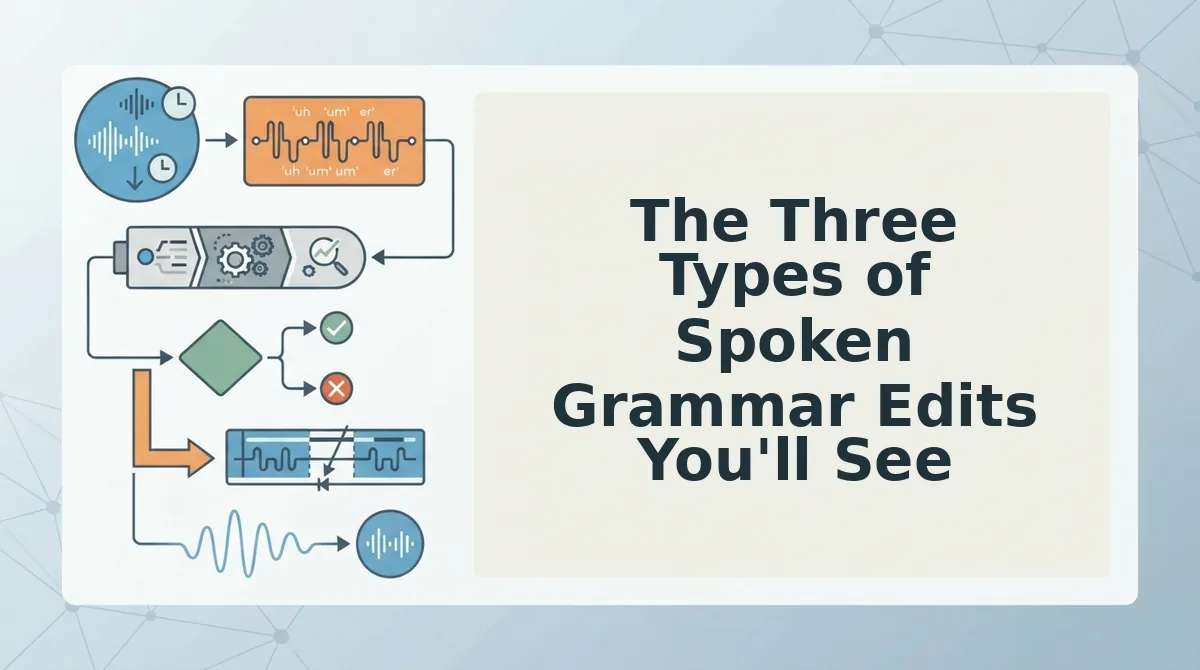
Spoken grammar errors fall into three predictable categories: filler words, sentence fragments, and circular phrasing. Each requires a different correction strategy, and recognizing them is the first step to eliminating them.
- Filler words and false starts. These are the "ums," "ahs," "likes," and abandoned sentence openings that pad your speech while your brain catches up. They matter because they dilute authority, a message with ten fillers sounds hesitant, even if the content is strong. Use a tool like VClar's filler word remover to strip them from the audio timeline without leaving awkward gaps.
- Sentence fragments. A fragment is an incomplete thought that lacks a subject or verb, like saying "Because the deadline moved" and never finishing the sentence. Fragments matter because they force the listener to guess your meaning. The fix is completing the thought in the transcript and letting the audio engine smooth the correction into your natural voice.
- Circular phrasing. This is when you say the same thing twice in different words, "We need to finalize the pricing, basically we have to lock it down." Circular phrasing matters because it doubles your message length without adding information. The fix is condensing both clauses into one direct statement. English Speaking Success confirms these three patterns, fillers, fragments, and circular phrasing, dominate spontaneous speech errors.
Consider this raw voice note: "So basically we need to, um, circle back on the, like, pricing thing because it's not, you know, finalized." A highlighted edit would show: filler removal (so, basically, um, like, you know), fragment completion ("because it's not finalized" becomes a complete clause), and circular condensation ("circle back on the pricing thing" becomes "revisit the pricing"). The result: "We need to revisit the pricing because it's not finalized." Same voice, same intent, half the words, zero hesitation.
Once you can spot these three edit types in your own speech, the next step is applying them systematically. Here's how to highlight grammar edits in a voice note step by step.
How to Highlight Grammar Edits in a Voice Note Step by Step
Highlighting spoken grammar edits means viewing a side-by-side transcript of your original voice note and the cleaned version, with every change marked. You need a voice note file (MP3, M4A, WAV, or OGG), a VClar account, and about 2 minutes total.
- Open the VClar dashboard and click "New Voice Note." You should see an upload panel with drag-and-drop support and a record button for live capture.
- Upload your audio file or record directly in the browser. Processing starts automatically after upload. A progress bar appears, and you should see a "Processing complete" notification within 30-60 seconds for a typical 2-minute note.
Here's where most people get stuck: they expect the tool to just play back a "better" version. Instead, look for the transcript comparison view, that's where the highlighting lives.
- Click the "Compare Transcripts" tab above the audio player. You should see two columns: "Original Transcript" on the left and "Cleaned Transcript" on the right. Grammar edits appear as highlighted text in the right column, with strikethrough text in the left column showing what was removed or changed.
- Review the worked example below to understand the markup. A messy founder voice note like: "So um basically we need to like circle back on the Q3 numbers because they're not, they don't match what finance sent over." becomes: "We need to circle back on the Q3 numbers because they don't match what finance sent over." VClar labels each edit type: fragment repair ("they're not, they don't" to "they don't"), filler removal ("um," "basically," "like"), and syntax restructuring (reordering the opening clause).
- Click any highlighted edit to hear the before-and-after audio for that segment. You should see a small play icon next to each markup. This lets you verify the fix without replaying the entire note.
- Toggle "Show Only Grammar Edits" in the filter bar above the transcript. You should see the view collapse to just the changed segments, hiding unchanged text. This is the fastest way to scan a long note.
- Export the cleaned transcript or audio using the "Export" button in the top right. You should see format options for TXT, SRT, and audio download. The exported transcript includes the highlighted markup if you select "Include edit annotations."
If you want to fix grammar in voice messages without manually editing a transcript, this comparison workflow replaces the old loop of record, listen, cringe, re-record. You record once, scan the highlights, and ship the clean version.
Why Side-by-Side Views Beat Re-Listening
A side-by-side transcript view shows every grammar edit at a glance, while re-listening forces you to hunt for changes one playback at a time. Re-listening to find a single grammar fix can take 3-5 minutes; a visual comparison shows all edits in under 30 seconds.
| Method | Time to Review a 2-Minute Note | What You See | Best For |
|---|---|---|---|
| Re-listening to the original | 2-4 minutes per pass | Only audio; you must mentally track errors | Casual listeners checking tone or delivery |
| Manual transcript diffing (copy-paste into a doc, mark changes yourself) | 10-20 minutes | Full control over markup, but you do all the work | Editors who need custom annotation styles |
| VClar side-by-side comparison view | Under 30 seconds to scan | Highlighted edits with strikethrough originals and edit-type labels | Founders, sales reps, and creators who send voice notes daily |
Manual transcript diffing is a legitimate option if you need bespoke markup for a client deliverable or legal review. Re-listening has its place when you are evaluating vocal delivery, pacing, or emotional tone, things a transcript cannot capture.
But for grammar review specifically, audio is the slowest medium. You cannot skim audio. A side-by-side view turns a linear listening task into a scannable visual one. VClar's comparison view is one option among manual transcript diffing methods, and it exists precisely because scanning beats re-listening for edit review.
FAQ About Highlighting Spoken Grammar Edits
Highlighting spoken grammar edits means viewing a transcript where every correction, filler removals, fragment repairs, syntax changes, is visually marked against the original. You see what changed without replaying the audio.
How do you highlight spoken grammar edits in voice notes after recording?
Upload the voice note to a tool like VClar, open the transcript comparison view, and the platform automatically marks every grammar edit with highlights and strikethrough text. You can click any highlight to hear the before-and-after audio for that specific segment.
Can I see grammar changes without listening to the whole recording?
Yes. A side-by-side transcript view shows all grammar changes at once, so you can scan a 2-minute note in under 30 seconds. Toggle the "Show Only Grammar Edits" filter to hide unchanged text and review only the corrections.
Why does my voice note transcript show strikethrough text?
Strikethrough text represents words removed or replaced during grammar cleaning, such as fillers, false starts, or repeated phrases. The replacement text appears highlighted in the cleaned column so you can verify each change before exporting.
What types of grammar edits get highlighted in voice notes?
Common highlighted edits include filler word removal ("um," "like," "basically"), fragment repair (merging incomplete sentences), and syntax restructuring (reordering clauses for clarity). Each edit type is labeled so you know why the change was made.
Do I need to edit the transcript manually after highlighting?
No. The highlighting is for review, not editing. You can accept all changes and export the cleaned transcript or audio directly. If you want more control, our spoken English grammar cleaner guide covers manual override options.
Ready to stop re-listening to your own voice notes? Clean up your next voice note in one pass.
Clean Up Your Next Voice Note in One Pass
Highlighting spoken grammar edits isn't a review chore, it's a decision shortcut. You see the fix, you approve it, you move on. No re-listening loops. No second-guessing your delivery.
The three edit types, filler removal, grammar correction, and false-start trimming, work together because they target different failure points in spontaneous speech. Fillers buy you thinking time. Grammar slips happen when your mouth outruns your brain. False starts are abandoned thoughts. One pass handles all three.
Here's the synthesis that matters: side-by-side views turn editing into confirmation, not reconstruction. You're not rebuilding your message. You're approving what you already said, cleaned up.
Your next step is simple: run your next voice note through VClar's grammar correction tool and review the highlighted edits before sending. The engine preserves your authentic voice, accent, and cadence while fixing the grammar, no synthetic TTS clone, just you, clearer. If you're working across languages, the voice note translator applies the same edit-highlighting workflow to multilingual messages.
You don't need a perfect first take. You need a clean final one, and now you can get there without losing your voice.