
You've recorded the same 30-second voice memo five times, and every take still sounds like you're thinking out loud instead of speaking with authority. One Reddit user admitted to re-recording a client voice memo five times before finally hitting send, a loop that eats 15 minutes for a message that should take 30 seconds. If you're tired of that cycle, you're not alone, and you don't need to keep doing it.
You're right that a rough memo undermines your credibility, especially when it lands in a client's inbox. By the end of this guide, you'll know how to clean up a voice memo on iPhone using a three-step Cleanup Ladder: trim dead air, remove background noise, and polish the spoken words themselves. Most tutorials stop at trimming and Studio Sound, but the third step, fixing filler words and grammar, is where the real transformation happens. VClar handles that final layer automatically, preserving your voice while removing the ums, false starts, and awkward phrasing. Stick around: the surprising reason your "clean" memo still sounds unprofessional is revealed in Step 3.
Step 1: Trim Dead Air and False Starts
Trimming removes unwanted sections of a recording; enhancing improves what remains. Most tutorials conflate these two actions, but they solve different problems. Apple Support's Voice Memos user guide confirms the trim tool is the only built-in editing feature for removing dead air on iPhone.
Prerequisites: An iPhone running iOS 16 or later, and a voice memo already recorded in the Voice Memos app. Total time: under 2 minutes.
- Open the Voice Memos app and tap the recording you want to clean. The waveform view appears with playback controls at the bottom.
- Tap the three-dot menu (⋯) above the waveform, then select Edit Recording. The waveform switches to edit mode with a yellow trim frame.
- Tap the trim icon (a square with arrows pointing inward) in the top-right corner. Yellow handles appear at both ends of the waveform.
- Drag the left handle to the point where your actual speech begins, past any silence, throat-clearing, or "okay, so…" false starts. You should see the waveform's flat sections disappear from the selection.
- Drag the right handle to where your message ends, cutting any trailing dead air or fumbling outro.
- Tap Trim, then Save. You should see the recording length drop and the remaining waveform start and end with visible speech peaks.
Trimming dead air and false starts is the fastest way to make a voice memo sound intentional rather than improvised. A 45-second memo with 8 seconds of silence and two false starts becomes a tight 35-second message that respects the listener's time. However, trimming only removes what surrounds your words, it does nothing for background hum, traffic noise, or the "ums" scattered throughout your actual sentences. Those require the next two steps.
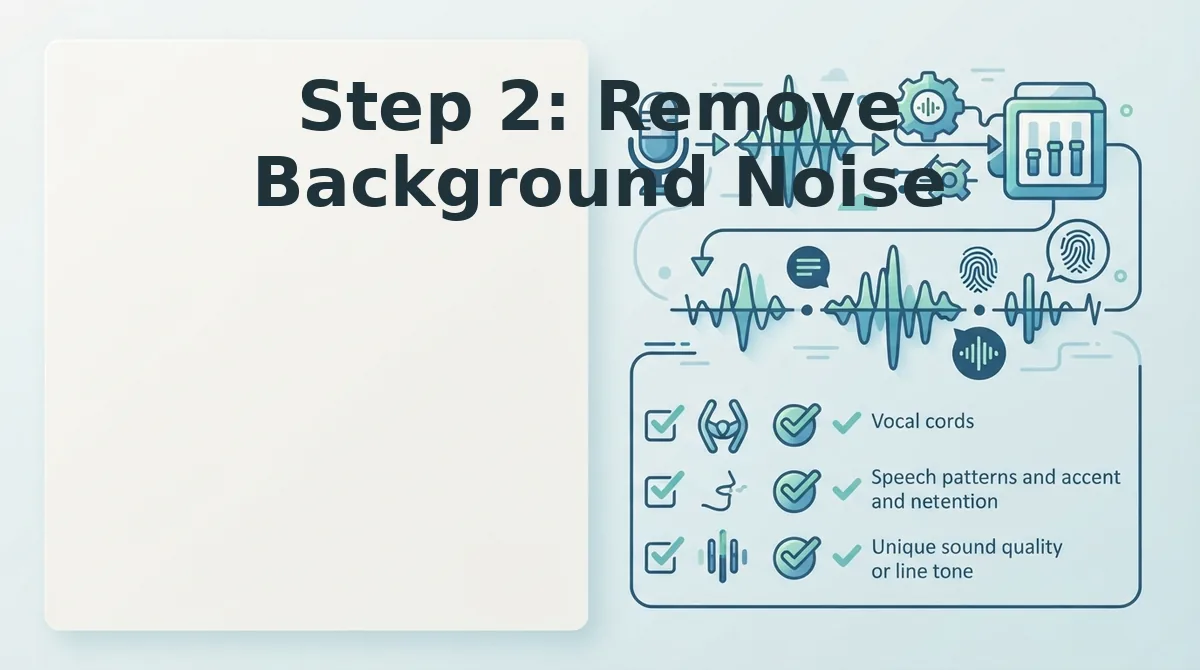
Step 2: Remove Background Noise
Background noise removal is the process of isolating your voice from ambient sounds, hums, traffic, keyboard clicks, or room echo, so the listener hears only what you intended to say. Think of it like wiping condensation off a mirror: the reflection was always there, but removing the fog makes it instantly clearer.
Simple approach: Studio Sound. Open your memo in Voice Memos, tap the three-dot menu, and select Edit Recording, then tap the magic wand icon to apply Studio Sound. This feature, available on iPhone 12 and later, uses on-device processing to reduce steady background noise. You should hear an immediate drop in room hum and a more focused vocal presence.
Intermediate approach: reposition and re-record. If Studio Sound produces a hollow or "underwater" quality, the recording environment is the problem. Move closer to the microphone (6-8 inches is ideal), face away from noise sources, and record in a room with soft surfaces, carpets, curtains, or even a closet full of clothes absorb echo better than bare walls.
Advanced approach: know when Studio Sound fails. Studio Sound is excellent for steady hums, air conditioners, refrigerators, distant traffic, but struggles with wind, overlapping voices, and echo. A 9to5Mac video with 455K views demonstrates these limits in real-world recordings: wind gusts create artifacts, and two people talking simultaneously confuses the algorithm. In those cases, trimming the affected section or re-recording is more reliable than any filter.
Once your audio is free of dead air and background noise, the memo sounds cleaner, but it still may not sound professional. That's where Step 3 comes in.
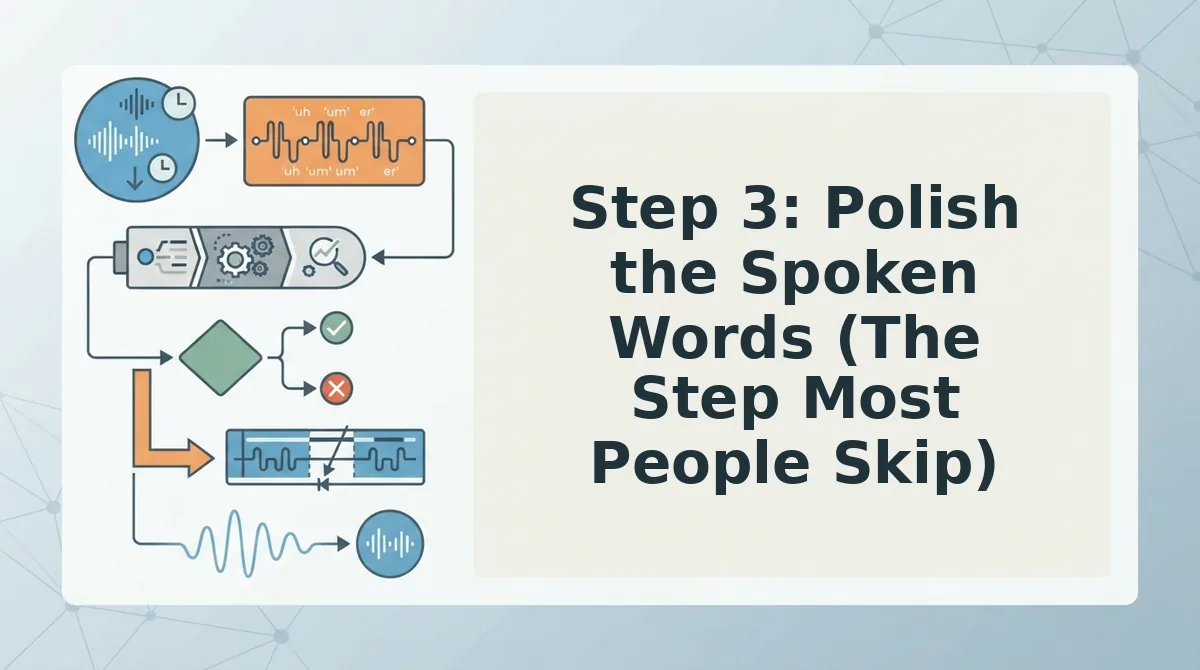
Step 3: Polish the Spoken Words (The Step Most People Skip)
Trimming and noise reduction fix the audio, but they don't fix the words. Most people stop after Step 2 and send a memo that still contains "um," "like," and half-finished sentences. Polishing the spoken content is what turns a rough note into a decisive message.
Prerequisites: A trimmed, noise-reduced voice memo from Steps 1 and 2, plus a free VClar account at vclar.com.
- Upload your cleaned memo to VClar. Open the VClar dashboard, click Upload Audio, and select the memo from your iPhone's Voice Memos folder. You should see a processing indicator within seconds, followed by a waveform preview of your full recording.
- Run filler word removal. Click Clean Audio and select Remove Fillers. VClar detects and deletes ums, ahs, "like," "basically," and false starts directly from the audio timeline, not just the transcript. Expect processing to take under 30 seconds for a one-minute memo. You should see a green checkmark next to "Fillers removed" when complete.
- Apply grammar correction. Click Fix Grammar to repair sentence fragments, subject-verb mismatches, and run-on phrasing in both the audio and the generated transcript. VClar preserves your voice, accent, and cadence while restructuring only the grammar. You should see a side-by-side transcript showing original vs. corrected text.
- Review the result. Play back the polished audio and read the corrected transcript. A 45-second memo with 7 fillers and 2 fragments typically becomes a 32-second decisive message with a clean transcript. If anything sounds off, re-run the step or manually adjust the transcript.
No top competitor addresses filler word removal in audio natively. Apple's built-in tools only trim and reduce noise. VClar's core feature is the missing step between "recorded" and "ready to send," and it pairs naturally with grammar correction for voice messages in one workflow.
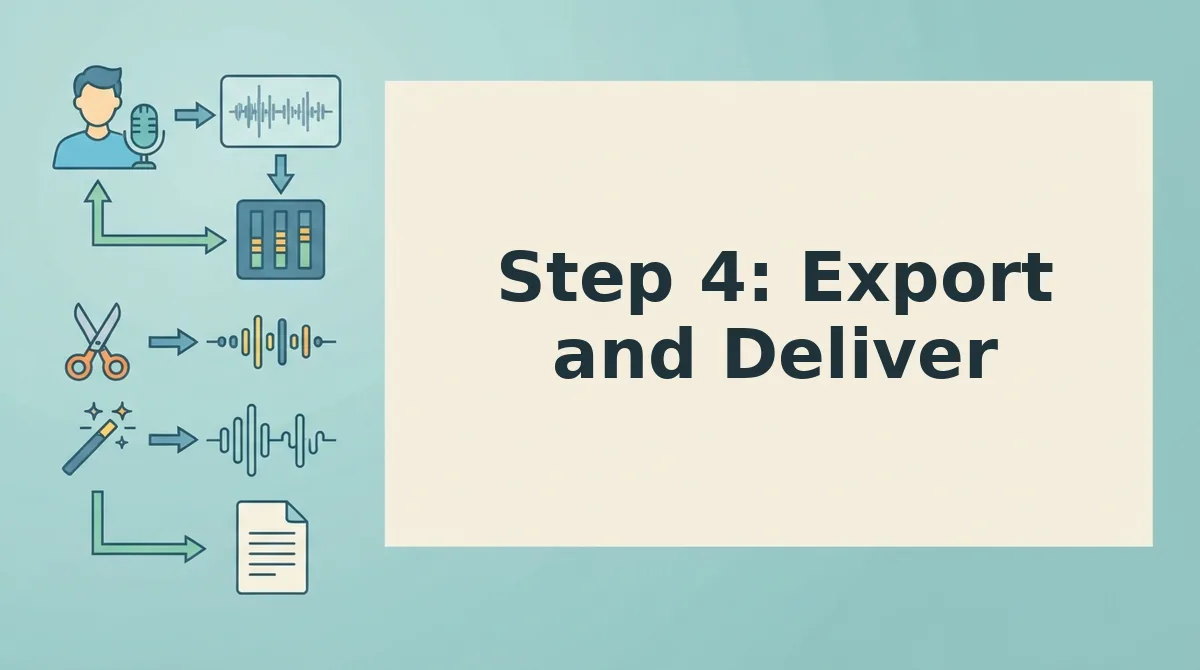
Step 4: Export and Deliver
Clean audio plus a clean transcript equals professional communication. Export both formats so your recipient can listen or read, whichever fits their context.
- Export the polished audio file. Click Export Audio in VClar and choose M4A or MP3. The polished file keeps your original voice and cadence but removes fillers and grammar errors, so it sounds like you on your best take, without re-recording.
- Export the corrected transcript. Click Export Transcript to download a text file or copy the corrected text to your clipboard. A clean transcript lets recipients skim your message in meetings, noisy environments, or when they can't play audio.
- Send both when the audience is mixed. Cross-platform teams often need both audio and transcript, a sales lead may listen while commuting, while a product manager reads the same message in Slack. VClar's browser-based export covers both without extra apps or file converters.
- Translate before exporting if needed. If your recipient speaks another language, click Translate to translate voice notes into the target language while preserving your tone. Export the translated audio and transcript together for international teams or clients.
Native iPhone Tools vs. AI Enhancement: A Decision Matrix
iPhone's built-in Voice Memos editor handles basic cleanup well, but it stops at the audio layer. AI enhancement goes further by fixing the words themselves. Here's how to choose based on what you need.
| Feature | iPhone Voice Memos (Built-in) | VClar AI Enhancement |
|---|---|---|
| Trim dead air and false starts | Yes, manual trim handles | Yes, plus automatic false-start detection |
| Basic noise reduction | Yes, built-in enhancement toggle | Yes, acoustic distraction removal |
| Filler word removal from audio | No | Yes, core feature |
| Grammar correction in audio and transcript | No | Yes, preserves voice and cadence |
| Translation across languages | No | Yes, voice-preserving translation |
| Best for | Quick trims before sending to friends or colleagues who don't mind casual delivery | Founders, sales teams, and creators who need one-take confidence and polished, professional delivery |
If you only need to cut silence at the start or end, the built-in editor is enough. If your memo contains "um," "like," or a sentence that trails off, VClar's AI handles what Apple's tools can't. For more on common cleanup questions, see the FAQ below.
FAQ: Cleaning Up Voice Memos on iPhone
iPhone voice memos can be cleaned up by trimming dead air, reducing background noise with the built-in Enhance Recording tool, and using an AI voice enhancer like VClar to remove filler words and correct grammar without re-recording.
How do I clean up a voice memo on my iPhone without re-recording?
Open the Voice Memos app, tap the recording, then tap the three-dot menu and select Edit Recording. Drag the trim handles to cut dead air and false starts. For deeper cleanup, export the file and run it through VClar to remove fillers and polish spoken grammar in one pass.
Can I remove background noise from an existing voice memo?
Yes. Tap the memo, select Edit Recording, then tap the magic wand icon to apply Enhance Recording, which reduces ambient noise and echo. For stronger noise removal on already-recorded audio, upload the file to VClar, which strips acoustic distractions while preserving your voice's natural tone.
How do I make my voice memo sound professional?
Combine three steps: trim silence and false starts, apply Enhance Recording to clean the audio, and run the file through VClar to remove ums, ahs, and repeated phrases. The result is a decisive, polished message that still sounds like you speaking naturally.
Can I remove filler words from a voice memo?
Yes. VClar detects and removes verbal fillers like "um," "like," "basically," and "you know" from uploaded audio, seamlessly editing the timeline so the message sounds direct. iPhone's native Voice Memos app does not offer filler word removal.
Why does my voice memo sound muffled or distant?
Muffled audio usually comes from holding the phone too far away, covering the microphone, or recording in a room with hard surfaces that create echo. Hold the phone 6-8 inches from your mouth and use Enhance Recording to compensate for distance and room acoustics.
The Two-Minute Cleanup Ladder
The full cleanup ladder, trim, enhance, polish, export, takes under two minutes when you combine iPhone's native editing tools with VClar's AI pass. What starts as a rough, hesitant memo becomes a message you can send to a client, investor, or team without a second take.
Start with the medium step: run your next memo through the filler word remover and hear the difference. Then go further, upload a raw voice memo and let VClar handle the full polish. If you're a founder sending updates to investors or remote teams, voice notes for founders shows how one-take clarity compounds across every message you send.
Your voice already carries the authority. The cleanup just removes what's standing in front of it.