
You record a 90-second voice memo for a client, nail the tone, and then realize the last sentence just… stops. No verb. No resolution. Just a fragment hanging in the air. You hit delete and start over. Again. The real problem isn't the fragment, it's the re-record loop that turns a 90-second message into a 20-minute ordeal. If you've ever wondered how to fix incomplete sentences in audio without rerecording, you're not alone: founders, sales reps, and freelancers lose hours every week re-recording voice memos because of one broken clause.
Here's the contrarian truth: re-recording is the time-waster, not the fragment itself. Raw voice memos naturally contain verbal fillers, awkward pauses, and disjointed grammar that undermine your authority, but you don't need a second take to fix them.
In this guide, you'll learn what actually makes a spoken sentence incomplete, how to audit any recording for fragments in under two minutes, and three concrete ways to repair broken audio without touching the record button. Along the way, you'll discover a surprising reason why your brain produces more fragments when speaking than when typing, and why that's actually a feature, not a flaw. Tools like VClar can remove filler words and tighten phrasing while preserving your natural voice, so one take is all you need.
What Makes a Spoken Sentence Incomplete?
An incomplete sentence in audio is any spoken utterance that lacks a complete grammatical structure, typically a missing subject, missing verb, or an abandoned thought that never reaches a logical endpoint. In speech, fragments are the norm, not the exception.
Think of a spoken sentence like a bridge. A complete sentence has two solid supports: a subject (who or what) and a verb (what they're doing). When one support is missing, the bridge collapses mid-span. In writing, you can backspace and rebuild the bridge before anyone sees it. In speech, you're building the bridge while walking across it, at roughly 150 words per minute, with no backspace key.
Voice messages produce four distinct fragment types, each with a different root cause:
- Trailing clause: The sentence starts strong but fades before the verb arrives. Example: "The Q3 numbers from the Southeast region…", and then silence.
- Missing verb: The subject is clear, but the action never appears. Example: "The new pricing page, which we discussed last Tuesday…"
- Abandoned thought: The speaker pivots mid-sentence to a new idea, leaving the first thought unresolved. Example: "I think the best approach is, oh, and did you see the email from Legal?"
- Truncated ending: The recording cuts off before the final clause completes. This often happens when the speaker hits send too early or the recording app stops unexpectedly.
Why does speech produce more fragments than writing? When you type, you can pause, reread, and revise before committing words to the page. When you speak, your mouth moves at conversational speed while your brain is still assembling the next clause. The result is a higher rate of false starts, abandoned structures, and trailing thoughts. This isn't a personal failing, it's how working memory operates under real-time constraints. The good news: audio fragments are fixable after the fact, without sacrificing the authentic delivery that made the message worth recording in the first place.
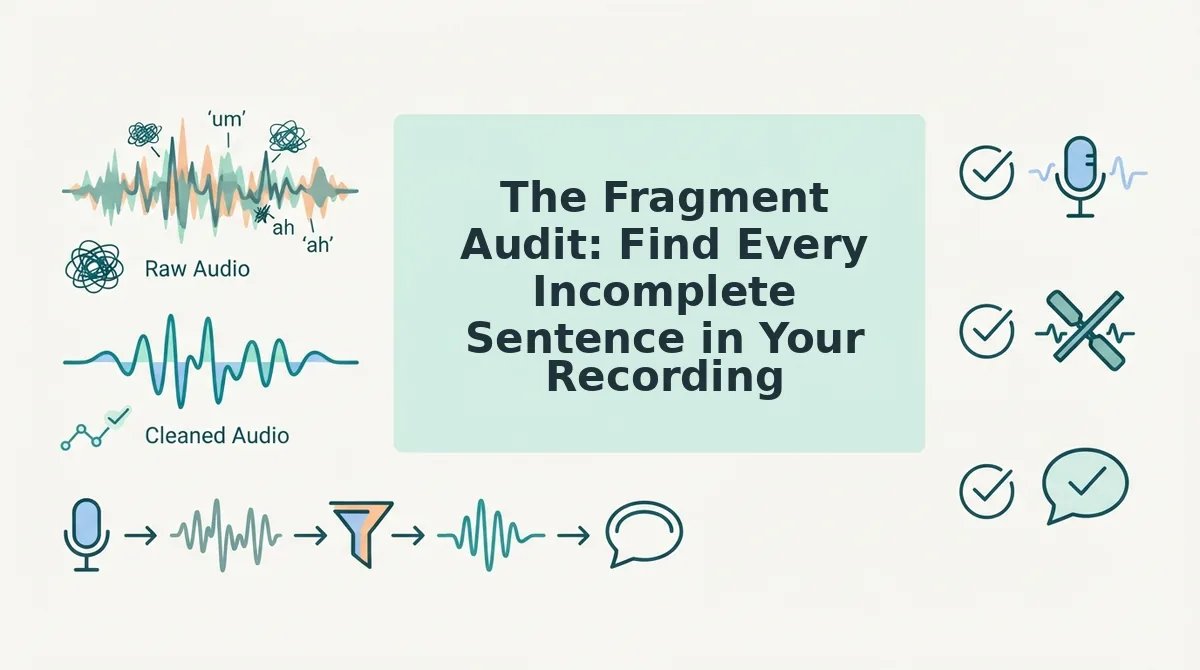
The Fragment Audit: Find Every Incomplete Sentence in Your Recording
A fragment audit is a three-question diagnostic you run against any voice memo to identify incomplete sentences before editing. You'll need your raw audio file and either a transcript or a pair of headphones. Total time: under two minutes for a 60-second recording.
- Play the recording and listen for dead air mid-thought. Open your audio file in any player and listen through once at normal speed. Mark every moment where your voice trails off or pauses awkwardly before a sentence resolves. You should end with a list of timestamps, typically 2-4 per minute of raw speech.
- Run the subject-verb check on each sentence. Read through the transcript or replay each marked segment. Ask: does this sentence have both a subject and a verb? If either is missing, flag it as a fragment.
- Check the final 3 seconds of the recording. Listen to the last three seconds specifically. Did the message cut off before the final clause finished? Truncated endings are the most common fragment type in voice memos and the easiest to miss because they happen at the moment you stop paying attention.
Once you've flagged every fragment, you have two paths: manually splice and re-record individual phrases, or use a tool that repairs the audio timeline automatically. VClar detects incomplete structures and tightens phrasing while preserving your natural tone, accent, and cadence, so the fixed message still sounds like you. If you'd rather clean up the grammar yourself first, you can fix grammar in voice message files with a targeted pass before applying audio-level repairs.
With your fragment list in hand, the next step is choosing a repair method that doesn't send you back to the record button.
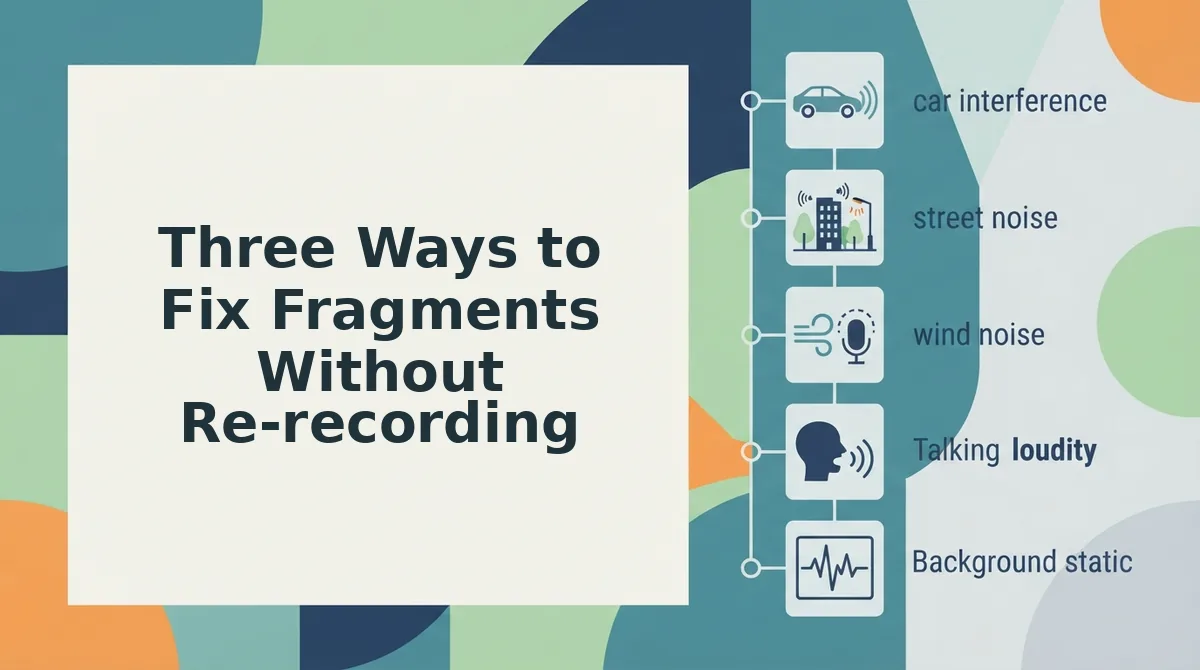
Three Ways to Fix Fragments Without Re-recording
You can repair incomplete sentences in an existing recording by removing the broken fragment, correcting its grammar, or regenerating the truncated ending, no second take required. Each method maps to a specific fragment type, so the fix takes minutes, not another recording session.
Prerequisites: Your original audio file (WAV, MP3, or M4A), a transcript of the recording, and an AI audio editor such as VClar or Descript. If you don't have a transcript yet, generate one with any speech-to-text tool before starting.
Method 1: Remove the fragment for fillers and false starts
- Open your audio file in an AI editor that supports remove filler words from audio workflows, such as VClar's filler word remover.
- Select the transcript view and locate every fragment that starts with a filler ("um," "like," "you know") or repeats the first two words of a sentence ("I think. I think we should...").
- Click the fragment in the transcript, then choose Delete or Remove Selection. The tool should splice the audio timeline automatically so the surrounding words flow together without a gap.
- Play back the edited section. You should hear the sentence begin cleanly at the first meaningful word, with no audible cut or jump. Expect this to take under 2 minutes per fragment.
Method 2: Correct the grammar for missing verbs and broken syntax
- Upload your recording to a tool that offers spoken grammar correction, such as VClar's grammar fixer.
- Open the corrected transcript and compare it against the original. Look for sentences where the tool inserted a missing verb ("We ready" to "We are ready") or reordered a broken clause.
- Click each correction to preview the audio change. The tool should apply the fix while preserving your voice, tone, and cadence, not a synthetic voiceover.
- Export the corrected audio. You should hear the sentence now complete and grammatically sound, with your original vocal identity intact. Budget 3-5 minutes for a 2-minute recording.
Method 3: Regenerate or extend the ending for truncated audio
- Open the recording in an editor with a regenerate feature, such as Descript's Regenerate tool, which rebuilds the final seconds of audio from context.
- Select the truncated sentence in the transcript, the one that cuts off mid-clause ("and then we'll need to, ").
- Click Regenerate and choose the length you want to extend. The tool should reconstruct a plausible ending based on the surrounding speech patterns.
- Review the generated ending against your intent. If it doesn't match, adjust the transcript text and regenerate again. You should see a green checkmark or completion indicator when the audio is fully rebuilt. Allow 5-10 minutes for this method, since it may require two or three regeneration passes.
If none of these methods fully resolves the fragment, the recording itself may be too damaged, but in most cases, one of the three fixes restores a complete sentence without ever pressing record again.
Why AI Voice Tools Drop the Last Sentence (and How to Prevent It)
Render truncation is a processing error where an AI voice tool cuts off the final clause of a recording because it misreads the silence at the end as the end of speech. Think of it like a photocopier that stops scanning before the last line of a page because the paper sensor triggered early, the content is there, but the machine decided the job was done.
The most common trigger is silence detection: the tool's threshold for "no more audio" is set too aggressively, so a natural pause before your final sentence gets interpreted as the end of the file. A second cause is render truncation, where the export process finishes before the full audio buffer is written to disk.
To prevent it, re-upload the same file and check whether the ending appears, a re-processing pass often fixes the issue. If not, adjust the silence detection threshold in your tool's settings so it waits longer before cutting. As a final safeguard, use a tool like VClar that preserves the full audio timeline rather than trimming based on silence heuristics.
The Fragment Was Never the Problem
The incomplete sentence isn't the issue, the re-record loop is. Every time you stop to fix a fragment, you lose momentum, and the next take introduces new hesitations. The contrarian move is to stop editing after recording and start speaking with one-take confidence, knowing the tool will clean up the fragments for you.
Your next step: upload your roughest voice message to VClar and watch it remove fillers, correct grammar, and preserve your natural delivery in a single pass. When you trust the cleanup, you stop second-guessing the take, and that's when your voice messages start sounding decisive on the first try.