
You've recorded the same voice note four times, and it still trails off before you reach the point. The average professional sends 3-5 takes per voice message, losing 4-6 minutes per message to re-record loops, and the final cut often still sounds unpolished. If that sounds familiar, you're not alone: voice notes are faster than typing, but spontaneous speech rarely lands cleanly on the first pass.
Here's the good news: you don't need to become a polished public speaker to fix incomplete spoken thoughts in audio. You need a repeatable structure before you hit record and a cleanup workflow after you stop. This guide walks you through why voice notes trail off, how to structure your thoughts in under 60 seconds, and how to clean up the audio you've already recorded, including a surprising reason your environment matters more than your vocabulary.
By the end, you'll have a pre-recording framework and a post-recording cleanup process that turns rambling voice memos into decisive, one-take messages. VClar's audio cleanup removes filler words and tightens phrasing without changing your voice, so even imperfect takes become usable.
Why Your Voice Notes Trail Off Mid-Sentence
An incomplete spoken thought is a sentence that starts with intent but loses its grammatical or logical thread before reaching a conclusion, the audio equivalent of a path that stops halfway to the destination.
Most advice blames the speaker: "slow down," "think before you talk." But voice notes have a recording-specific problem that live conversation doesn't. In a live chat, the other person's reactions keep you anchored. In a voice note, you're speaking into a void, and your brain has no external feedback loop to catch a drifting thought.
Think of it like typing an email while someone keeps walking past your desk. Each interruption doesn't just pause you, it resets the sentence you were building. The same thing happens in audio when your environment interrupts your mental thread.
The Abandoned Clause Framework identifies three causes of mid-sentence drop-off in voice notes:
- Speed mismatch: Your mouth speaks at roughly 150 words per minute, but your brain generates ideas much faster. The sentence starts before the thought finishes forming, so it runs out of track.
- Mid-sentence self-correction: You realize halfway through that the phrasing isn't right, so you restart the clause, leaving the original clause hanging in the audio.
- Environment-triggered distraction: A notification, a passing car, or a door opening breaks your working memory, and the sentence you were mid-way through simply evaporates.
| Cause | What it sounds like | What actually happened |
|---|---|---|
| Speed mismatch | "So the Q3 numbers are looking, actually, what I meant was…" | Thought outpaced speech; sentence started before the idea was complete |
| Self-correction | "We should move the launch to, no, wait, the demo first…" | Speaker revised mid-clause and abandoned the original structure |
| Environment distraction | "And the key metric for retention is, sorry, one sec…" | External stimulus broke working memory mid-sentence |
Consider a founder recording an investor update while walking to a meeting. Ambient noise, a honking car, a construction drill, breaks concentration mid-thought, and the sentence about burn rate never reaches its conclusion. The founder isn't a bad communicator; the recording environment actively worked against them. This is why voice notes for founders need a different approach than live speaking: the medium itself introduces failure points that don't exist in conversation.
Understanding which of the three causes is sabotaging your recordings is the first step. The second is building a structure that prevents the thought from running out of track in the first place.
Fix It Before You Record: Structure Your Thoughts
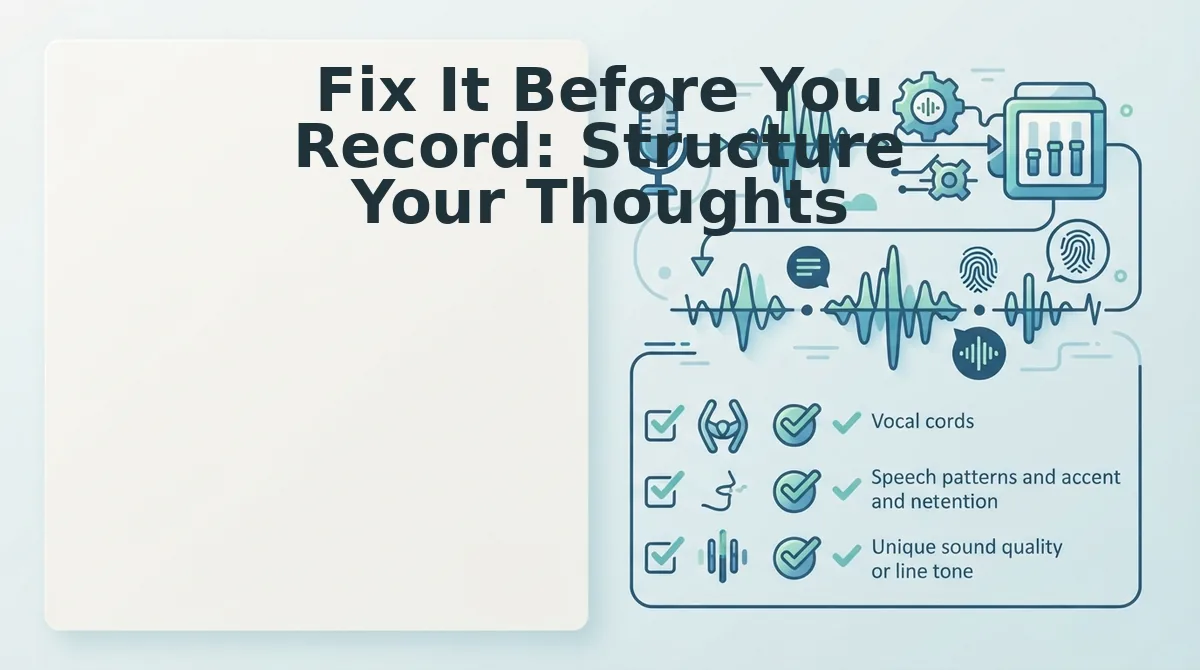
Before you hit record, spend 30-60 seconds structuring your message. The 3-Point Rule, state your point, give one example, close with an action, gives your brain a complete thought path to follow, so the sentence never runs out of track mid-recording.
Prerequisites: Your phone's voice memo app or VClar's recorder, and a quiet moment to jot 3-5 keywords. No special tools required.
- Write 3-5 keywords, not full sentences. Open your notes app and type the core nouns and verbs of your message, for example, "Q3 revenue, churn drop, ask: approve budget." This is the Bullet Before You Speak method adapted for async audio. You should see a short list that fits on one screen without scrolling.
- Apply the 3-Point Rule to your keywords. Arrange your list into three parts: the point (what you're saying), one example (evidence or context), and the action (what the listener should do). If you can't assign each keyword to one of the three slots, cut it. You should have exactly three lines: Point, Example, Action.
- Say the first sentence out loud once, silently. Before recording, speak only the opening line, "The Q3 numbers are in, and churn dropped 12%." This primes your mouth for the first clause so you don't start cold. You should feel the sentence complete itself without trailing off.
- Hit record and follow your three lines in order. Open your voice memo app, tap record, and speak through Point to Example to Action without pausing to rethink. If you lose your place, glance at your keyword list, not your full script. You should finish the message in one take, under 60 seconds for most updates.
Even with this structure, spontaneous speech still produces fillers and false starts. That's where post-recording cleanup comes in. VClar removes ums, ahs, and repeated starts while keeping your natural tone intact.
But what if you've already recorded a message that trails off? Here's how to fix it after the fact.
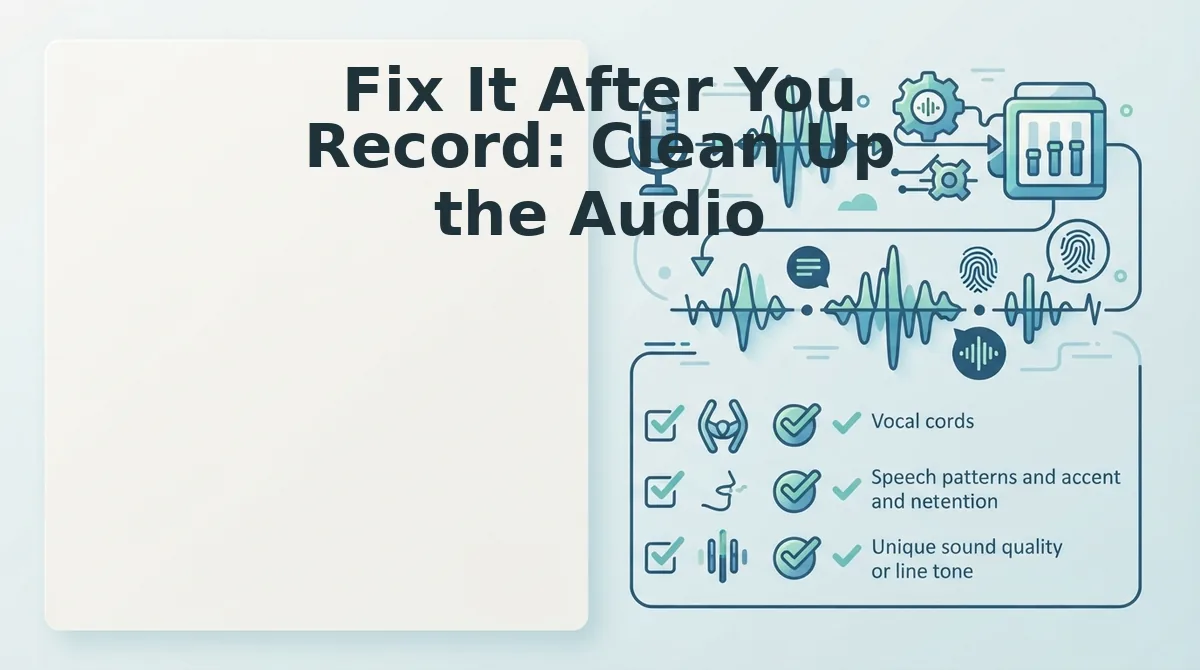
Fix It After You Record: Clean Up the Audio
You can repair incomplete spoken thoughts after recording by running the audio through an AI voice message translator that removes fillers, fixes grammar, and tightens fragmented phrasing in one pass. You'll need the raw audio file (MP3, M4A, or WAV) and a VClar account.
- Upload your voice note. Open VClar and drag your audio file into the upload area, or tap the record button to capture a new message. Wait for the processing indicator to finish, you should see a waveform preview appear on screen.
- Select the cleanup mode. Click the Enhance tab, then toggle on Filler Removal and Grammar Repair. These settings tell the engine to remove filler words from your audio and fix grammar in voice messages automatically without changing your vocal tone.
- Run the repair. Click Process Audio. Expect 10-30 seconds of processing for a 45-90 second clip. You should see a green checkmark next to each completed cleanup task.
- Review the transcript. Open the Transcript panel and scan for trailing clauses, false starts, and abandoned points that the AI flagged or restructured. Listen to the cleaned audio side-by-side with the original using the A/B toggle.
- Run a second pass if needed. If your recording had heavy background noise or strong regional accent patterns, click Process Again to let the engine refine edge cases it missed on the first pass.
AI repair works best on voice notes between 45 and 90 seconds. Longer recordings give the engine more context to reconstruct incomplete sentences, while extreme background noise or heavily accented speech may require a second pass to fully resolve fragmented phrasing.
Before you export, run a quick self-review checklist: scan the transcript for trailing clauses that end without a verb, false starts where you repeated the first three words of a sentence, and abandoned points you never returned to. If any remain, re-record just that segment and merge it in.
Once the audio sounds decisive and complete, export the cleaned file or copy the polished transcript directly into your message thread.
FAQ
How do I fix incomplete spoken thoughts in an audio note?
Upload the recording to an AI voice message translator like VClar, enable filler removal and grammar repair, and process the audio. The tool reconstructs fragmented sentences, removes verbal hesitations, and outputs a polished version while preserving your natural voice and cadence.
Why do I trail off when recording voice messages?
Trailing off happens when your speaking speed outpaces your sentence planning. You start a thought, realize the structure isn't fully formed, and your voice drops before the clause resolves. Recording with a one-sentence outline in mind reduces this pattern significantly.
Can AI fix grammar in voice recordings?
Yes. AI speech enhancement tools detect grammatical errors in spoken audio, correct subject-verb agreement, tense shifts, and incomplete clauses, then output a cleaned transcript and repaired audio without altering the speaker's tone, accent, or pacing.
How do I stop rambling in audio notes?
Pause for two seconds after each complete thought before starting the next one. This creates natural sentence boundaries that make rambling easier to hear and gives AI cleanup tools cleaner segments to process. Recording in 45-90 second chunks also limits drift.
Make Every Voice Note Land Complete
Incomplete spoken thoughts aren't a speaking flaw, they're a planning gap. When you structure your point before recording and run the audio through an AI cleanup pass afterward, you close that gap from both directions. The result is a voice message that sounds like your clearest thinking, not your first draft.
AI is a safety net, not a replacement for clear thinking. The tool catches what your brain skips, but the habit of pausing before you speak is what prevents the fragments from forming in the first place. Use both: structure first, repair second.
Your next step is to upload one rough voice note to VClar and run it through the cleanup workflow. Then, if you want to build the underlying skill, improve your spoken grammar over time with the guides on the VClar blog. The first clean take is closer than you think.