
You record a voice message that sounds exactly like you, confident, warm, and persuasive. Then you hit translate, and the result sounds like a GPS navigation system reading a tax form. The problem isn't the translation itself. It's the pipeline that most tools use to get there.
If you've ever tried to translate voice message without losing tone, you already know the frustration: the words are technically correct, but the personality is gone. You agree that tone matters, it's why you chose voice over text in the first place. This guide promises to show you exactly where tone gets stripped away and how to prevent it, step by step. You'll learn why translated voice messages sound robotic, how to clean up your audio before translation, and how to translate the audio itself rather than a flattened transcript.
One YouTube creator's video title puts it bluntly: "In Your Tone." That's the differentiator users actually care about. VClar's AI voice message translator is built around this exact principle, preserving your authentic vocal identity through every step. But before we get to the fix, there's a surprising finding about where tone actually dies that most articles never mention.
Why Do Translated Voice Messages Sound Robotic?
The robotic voice problem is a pipeline problem. Most translation tools convert your speech to text, translate the text, then generate a synthetic voice from that translated text, and tone dies at step three.
Here's the root cause in simple terms. A transcript-first translation pipeline is a three-stage process: raw audio to text to translated text to synthetic text-to-speech (TTS) output. Your original vocal qualities, pitch variation, pacing, emphasis, emotional inflection, never survive the first conversion. Once your voice becomes plain text, all the paralinguistic information is gone, and no TTS engine can reconstruct it.
Think of it like faxing a handwritten letter. The words arrive, but the pressure of the pen, the slant of the letters, the doodle in the margin, all the things that made it yours, are flattened into a generic reproduction. That's what transcript-first translation does to your voice.
An audio-native translation pipeline works differently: raw audio to cleanup (filler removal, grammar correction) to audio-native translation. The translation engine works directly with the acoustic signal, preserving your cadence, accent, and emotional delivery while converting the language. The result sounds like you speaking another language, not a machine reading a script.
Here's the self-contained answer to the question most people actually search: Translated voice messages sound robotic because conventional translation tools use a transcript-first pipeline that strips away all acoustic features, pitch, rhythm, emphasis, and emotional tone, before generating synthetic speech. An audio-native approach that translates the acoustic signal directly preserves these qualities, so the output retains the speaker's authentic voice, cadence, and intent.
If you want to avoid the robotic result, you need a voice message translator that works at the audio level, not the transcript level. But before you even translate, there's a step most people skip entirely, and it's the difference between a confusing message and a clear one.
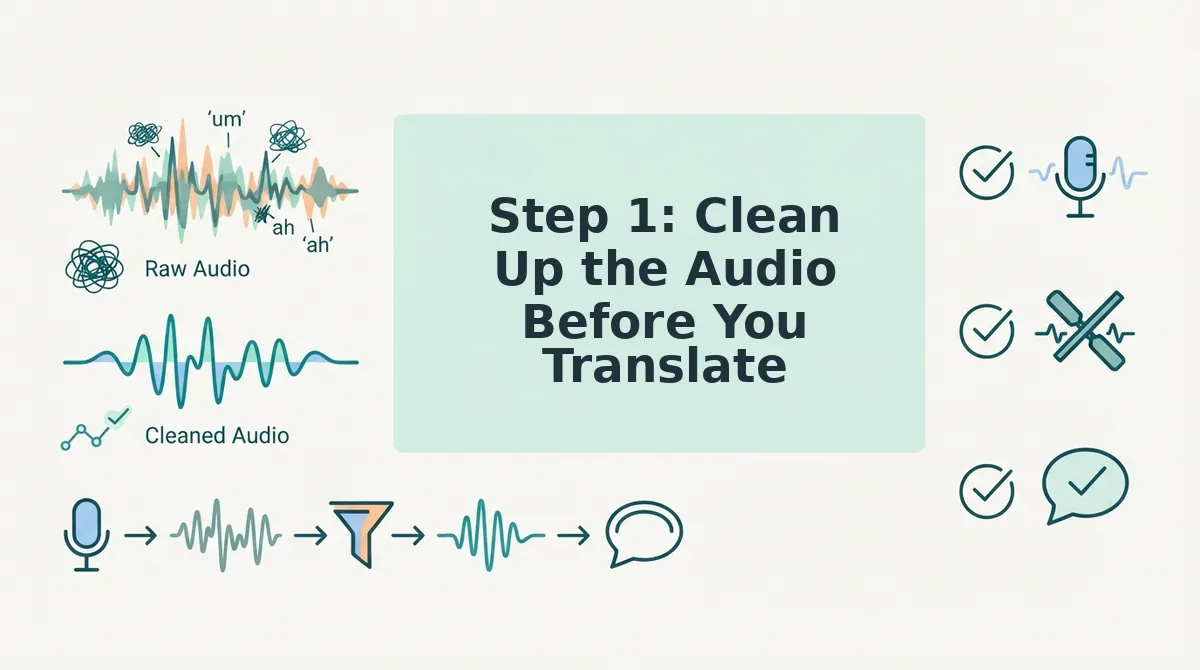
Step 1: Clean Up the Audio Before You Translate
Cleaning up your audio before translation is the overlooked step that determines whether your translated message lands clearly or confuses the listener. Filler words and broken grammar confuse translation engines, so removing them first produces measurably cleaner target-language output.
Prerequisites: A recorded voice message (or raw audio file) and a tool that can remove filler words from audio and fix grammar in voice message without altering your vocal tone.
- Upload your raw voice message. Open your audio cleanup tool and select the file or record directly. You should see the audio waveform appear on screen, typically within a few seconds for a 60-second clip.
- Run filler word detection. Click the "Remove Fillers" or equivalent control. The tool scans for ums, ahs, "like," "basically," and false starts. Expect this to take 10-30 seconds. You should see a list of detected fillers with timestamps.
- Review and confirm removals. Check the flagged words to make sure nothing meaningful was caught. Click "Apply" or "Confirm." The audio timeline should now show gaps where fillers were removed, seamlessly stitched together.
- Run grammar correction. Select the "Fix Grammar" option. The tool identifies broken sentence structures, repeated words, and incomplete thoughts, then repairs them while preserving your original voice, tone, and cadence. You should hear the corrected version play back in your own voice.
- Listen to the cleaned result. Play the full clip once. Success looks like a decisive, direct message with no verbal hesitations and no robotic artifacts, just you, clearer.
A founder records a 60-second voice note full of "ums" and false starts, translates it raw, and the client receives a confusing message. The fix is simple: clean first, translate second. VClar handles both cleanup and translation in one workflow, so you never send a messy message across a language barrier. Now that your audio is clean, it's time to translate the audio itself, not the transcript.
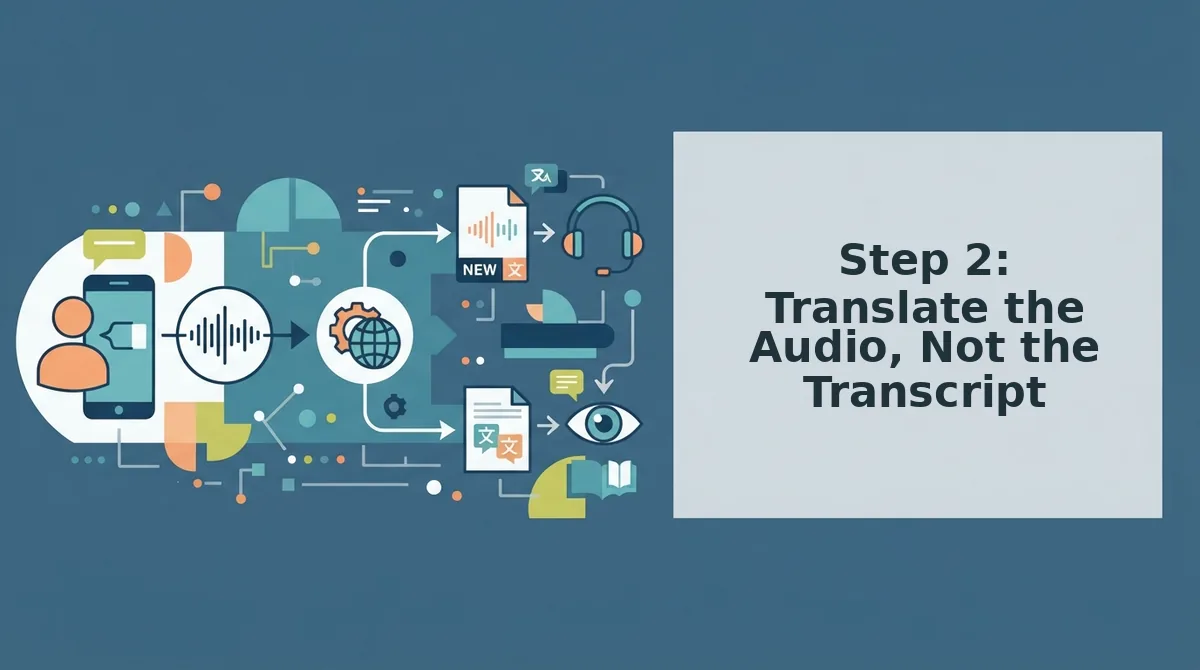
Step 2: Translate the Audio, Not the Transcript
Audio-native translation processes the spoken audio directly, preserving your voice, accent, and cadence. Transcript-first translation converts speech to text, translates the text, then generates a synthetic voice, which is why most translated voice messages sound robotic.
Before you start, you need a cleaned audio file (see Step 1) and a tool that supports audio-native translation, such as VClar's translate voice message workflow.
- Upload your cleaned audio file. Click the Upload button and select the file from your device. Wait for the processing indicator to finish, this typically takes under 30 seconds for a 60-second clip. You should see a waveform preview appear.
- Select your target language. Open the Language dropdown and choose the destination language. Do not enable any "text-to-speech" or "voice generation" option if one appears, that forces a transcript-first path and will strip your tone.
- Confirm the translation mode is set to audio-native. Look for a label such as "Preserve original voice" or "Audio translation." If the tool only offers "Translate transcript," the output will use a synthetic voice. You should see a confirmation that your vocal characteristics will be retained.
- Run the translation. Click Translate and wait for the progress bar to complete. A 60-second message typically processes in 20-40 seconds. You should see a green checkmark when the translated audio is ready.
- Play back the result. Listen for your own voice, accent, and pacing in the target language. If you hear a different voice entirely, the tool used transcript-first translation, switch tools or check the mode setting.
Audio-native translation keeps the speaker's vocal characteristics intact because the AI maps meaning directly across languages on the audio timeline. Transcript-first translation loses tone because it discards the original audio entirely and regenerates speech from text.
If your current tool only offers transcript-first translation, you are not stuck. VClar's workflow is built for audio-native output, so you can translate voice message files in one pass without re-recording or accepting a robotic voice.
Step 3: Verify the Tone in the Target Language
Verification is the step most translation workflows skip. After translation, listen actively for cadence, emphasis, accent, and personality, not just word accuracy.
Prerequisite: a translated audio file from Step 2 and a quiet listening environment. Budget 2-3 minutes per 60-second message.
- Play the translated audio at normal speed. Press Play and listen once without pausing. You should hear your own voice, not a synthetic substitute.
- Check cadence and pacing. Replay the clip and note whether your natural speaking rhythm survived. If the translation rushes or drags, the tool may have re-timed your speech, a sign of transcript-first processing.
- Check emphasis and emotional weight. Listen for stressed words and tonal shifts. You should hear the same emphasis patterns you used in the original, mapped onto the target language.
- Check accent and personality. Confirm that your accent and vocal quirks are still present. A natural accent increases perceived authenticity in cross-border communication, clients and partners trust a voice that sounds like a real person, not a voiceover bot.
- Spot-check one phrase against a back-translation. Pick a sentence, translate it back to your source language mentally or with a tool, and confirm the intent matches. You should find the meaning intact with your tone preserved.
If any check fails, return to Step 2 and confirm you used audio-native mode rather than transcript-first translation.
Frequently Asked Questions About Translating Voice Messages
These answers cover the most common questions from Reddit threads, YouTube comments, and search queries about voice message translation, including WhatsApp workflows and accent preservation.
Why does my translated voice message sound robotic?
Robotic output happens when a tool uses transcript-first translation: it converts your speech to text, translates the text, then generates a synthetic voice. Audio-native translation processes the spoken audio directly, preserving your voice, accent, and cadence. Switch to a tool that offers audio-native mode.
Can I translate a WhatsApp voice note without typing it out first?
Yes. Export the voice note from WhatsApp, upload the audio file to an audio-native translator, and select your target language. You do not need to transcribe or type anything. The tool translates the spoken audio directly and returns a translated voice message in your own voice.
Do I need to clean up my grammar before translating?
No, but it helps. Filler words, false starts, and grammatical slips can confuse translation engines and produce awkward output. Run the audio through a filler-word remover first, then translate the cleaned file. You will get a more accurate translation with fewer errors to fix afterward.
How do I keep my accent when translating for a client?
Use an audio-native translator that preserves vocal characteristics instead of generating a synthetic voice. Your accent is part of your authentic delivery, and a natural accent increases perceived trust in cross-border communication. For client-facing messages, consider voice notes for sales workflows that prioritize tone retention.
What is the difference between translating audio and translating a transcript?
Translating audio means the AI works directly on the sound file, keeping your voice, accent, and pacing intact. Translating a transcript means the AI converts speech to text, translates the text, then generates a new synthetic voice, which is why the result sounds robotic and loses your personality.
Your Tone Is the Message, Protect It in Every Language
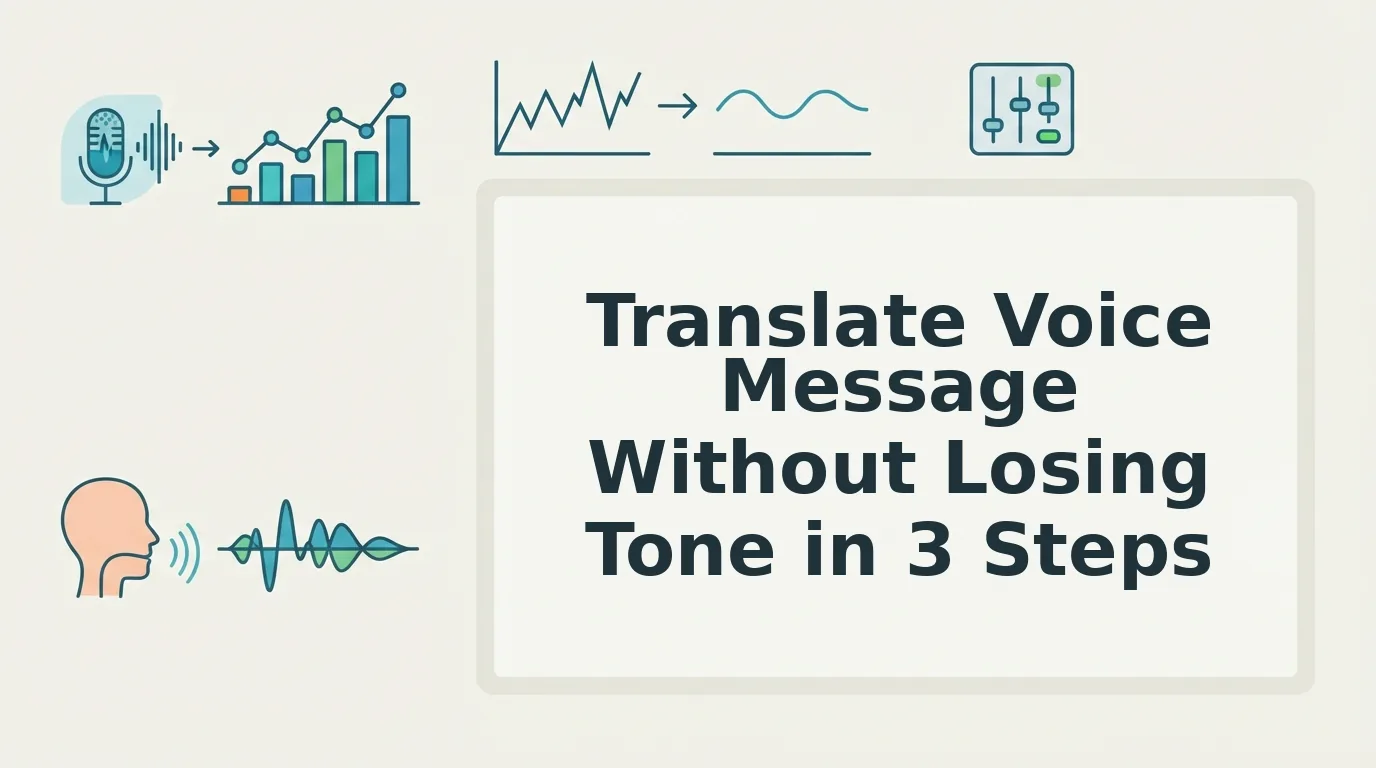
The next time you record a voice message for a client overseas, ask yourself: will my tone survive the translation? The three-step workflow, clean the audio, translate the audio directly, verify the tone in the target language, answers that question before you hit send.
Here is the synthesis that ties it together: translation quality is downstream of audio quality. A message full of fillers and false starts gives a translation engine nothing to anchor to. Clean audio preserves your cadence, your emphasis, your intent. The translation then carries those signals instead of flattening them.
Your next step is simple. Take the voice message you are about to record, run it through VClar, and hear the difference between a translated transcript and a translated voice.
You will get a message that sounds like you, decisive, natural, and clear, in whatever language your listener speaks. No re-recording loops. No robotic delivery. One take, one message, every market.
Tone is not lost in translation. It is lost in bad audio.