
You record a voice note that sounds warm, confident, and unmistakably you, then the translated version comes back flat, robotic, and stripped of every trace of your personality. That's the exact problem thousands of users describe in comment sections under translation tool reviews: "Why does my voice sound different after translation?"
You're right to be frustrated. Most tools explain what they do, but almost none explain why your tone vanishes in the process. This article closes that gap. By the end, you'll know exactly how to translate a voice note without losing tone, and you'll understand the one pipeline decision that determines whether your translated message sounds like you or like a machine reading a script.
Here's the roadmap: first, we'll diagnose why tone gets lost (the root cause is not what most people assume). Then, you'll learn a counterintuitive cleaning step that most guides skip entirely. Finally, we'll walk through choosing a translator that preserves your vocal identity rather than replacing it. Stick around for the diagnosis table in the next section, it reveals a distinction that changes how you approach every future voice translation.
Why Voice Notes Lose Their Tone in Translation
Tone loss in voice translation is the degradation of vocal timbre, cadence, emotional inflection, and accent that occurs when a translation pipeline replaces your original voice instead of preserving it. The root cause is almost always the pipeline architecture, not the translation quality itself.
Most voice translation tools use a three-stage text-to-speech (TTS) pipeline: they transcribe your speech to text, translate the text, then synthesize an entirely new voice to read the translated words aloud. That third stage is where your tone dies. A TTS engine doesn't modify your voice, it discards it and generates a new one from a generic voice model.
Think of it like photocopying a handwritten letter, then typing the text into a standard font. The words survive, but the handwriting, the slant, the pressure, the personality, is gone. A voice-preserving pipeline works differently: it keeps your original vocal timbre intact and applies translation at the linguistic level, so the output still sounds like you speaking a different language.
Here's the diagnosis table that maps what changed to why it changed, and how to fix it:
| What Changed | Why It Changed | How to Fix It |
|---|---|---|
| Pitch sounds higher or lower than your natural voice | TTS engine synthesized a new voice from a generic model | Switch to a voice-preserving translator that retains your original audio |
| Pace feels rushed or unnaturally slow | Compression or over-aggressive cleaning stripped natural pauses | Clean only fillers and false starts; keep expressive pauses intact |
| Accent disappears or shifts | TTS synthesis replaced your vocal characteristics with a standard accent | Choose a tool that preserves the original vocal track rather than re-synthesizing |
| Emotional inflection sounds flat | Over-aggressive filler removal deleted emphasis markers along with "um" and "ah" | Target fillers selectively; retain interjections that carry emotional weight |
One critical distinction competitors miss: accent and tone are not the same thing. Your accent is a pronunciation pattern tied to your linguistic background. Your tone is the broader vocal fingerprint, timbre, rhythm, emotional coloring. A tool can preserve your accent while still flattening your tone, or vice versa. You need a pipeline that protects both.
VClar addresses this by cleaning and translating the audio timeline directly, keeping your original vocal characteristics intact rather than routing through a TTS synthesis stage.
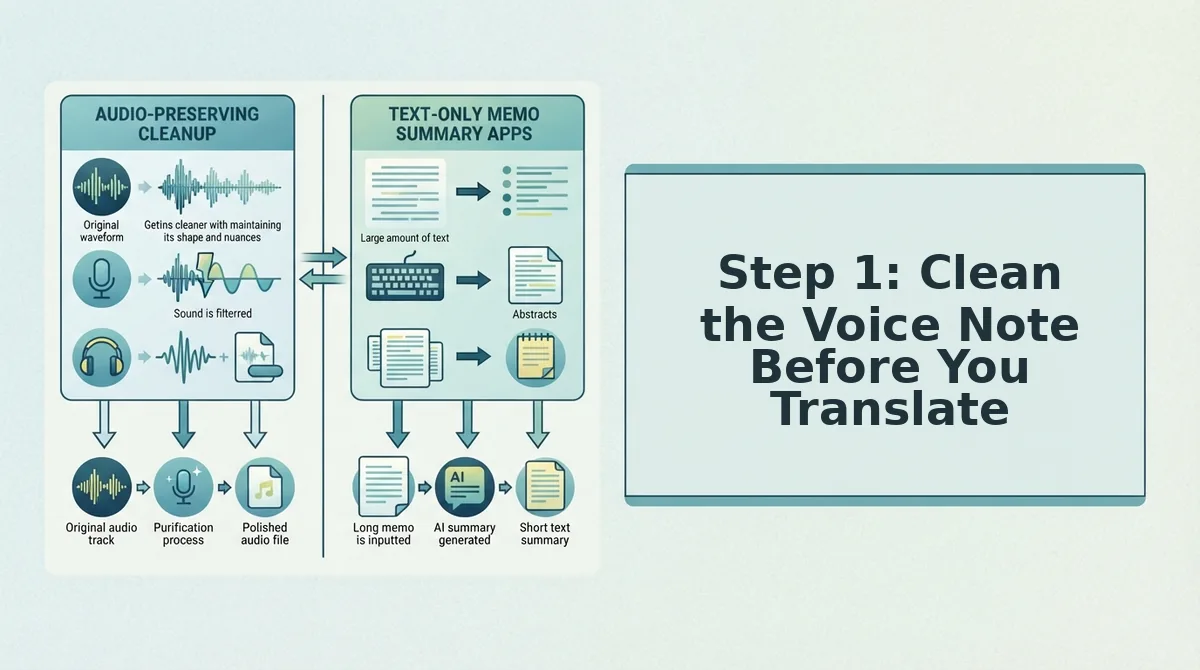
Step 1: Clean the Voice Note Before You Translate
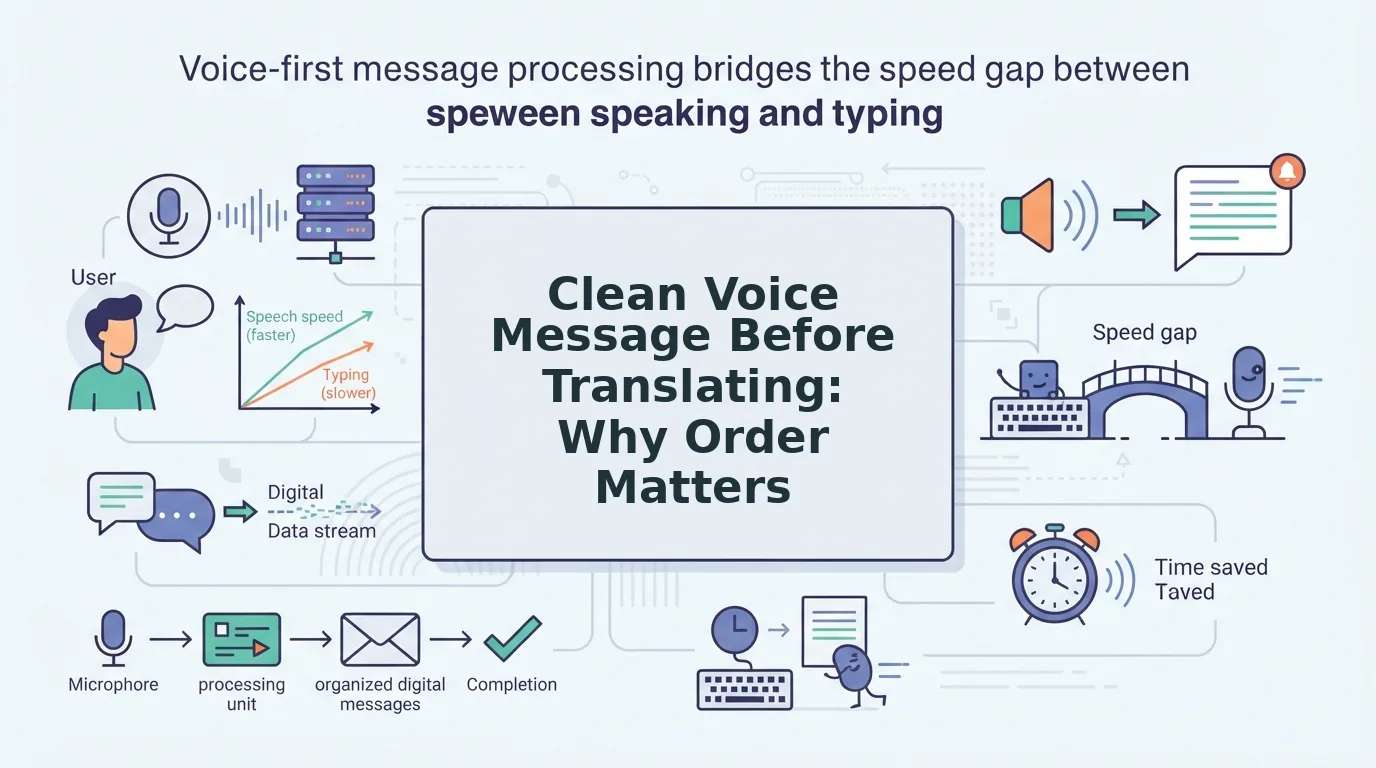
Clean first, translate second. Filler words and false starts confuse translation engines because they get treated as semantic content, "um" and "you know" get translated literally and amplified in the target language, producing awkward, unnatural output.
Prerequisites: Your raw voice note file (any common audio format works) and a cleaning tool that removes fillers without flattening your emotional delivery.
- Upload your raw voice note to a filler-word remover. VClar's filler words remover detects and removes "um," "ah," "like," "basically," and false starts from the audio timeline. You should see the cleaned timeline render in under a minute for a typical 2-3 minute note.
- Review the cleaned audio before translating. Play it back and confirm that natural pauses and expressive interjections (like a deliberate "well…" or an emphatic "right?") are still present. If the delivery sounds rushed, your cleaning was too aggressive, dial back the sensitivity.
- Fix any grammar issues that remain. Spoken grammar errors get amplified in translation, so run the cleaned note through a grammar fixer for voice messages before moving to translation. You should hear a version that sounds decisive but still authentically you.
- Export the cleaned file in your preferred format. This is the version you'll feed into the translator, not the raw original.
Pro tip: Target fillers and false starts only. Natural pauses, breaths, and expressive interjections carry emotional weight that translation engines can preserve, but only if you don't strip them out first.
With a clean, grammar-correct voice note in hand, you're ready for the next decision that determines whether your tone survives: choosing a translator that preserves your voice rather than replacing it.
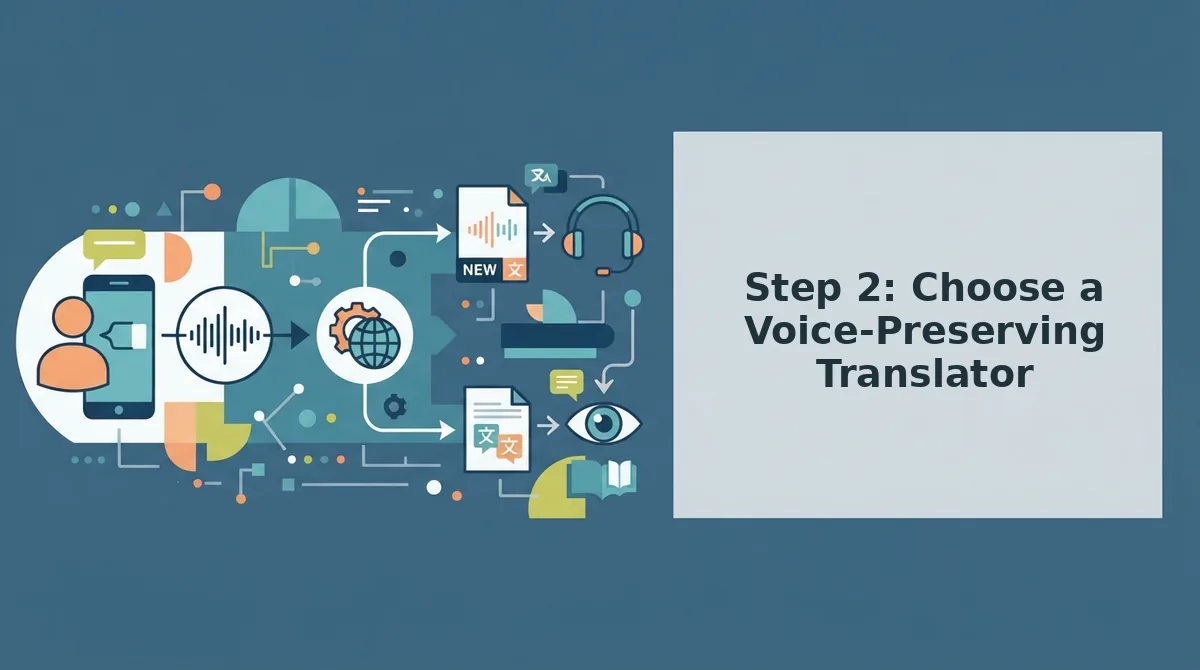
Step 2: Choose a Voice-Preserving Translator
Most "voice translation" tools are actually speech-to-text-to-speech pipelines that replace your voice with a synthesized one, a distinction you only discover after hearing the robotic result. The right tool depends on whether you need text output, audio with a new voice, or audio that still sounds like you.
Three Translation Approaches Compared
| Approach | What It Outputs | What Happens to Your Voice | Best For |
|---|---|---|---|
| Text-only translation | Translated transcript | Voice is discarded entirely | Readers who need a written record, not an audio message |
| TTS voice translation | Translated audio | Voice is replaced with a synthetic voice; accent and timbre are normalized | Users who prioritize speed and don't mind a generic voice |
| Voice-preserving translation | Translated audio + transcript | Original vocal timbre, accent, and cadence are retained | Founders, sales teams, and creators who need to sound like themselves in another language |
Voice-preserving translation keeps your vocal timbre and accent intact, while TTS translation normalizes both. That is the core difference between "translate voice note without losing tone" and generic voice translation, and it matters most when the recipient knows your voice.
If you need a voice note translator that preserves your voice, VClar translates across languages while keeping your authentic delivery. For text-only needs, standard transcription-plus-translation tools work fine. For quick internal notes where identity doesn't matter, TTS pipelines are acceptable.
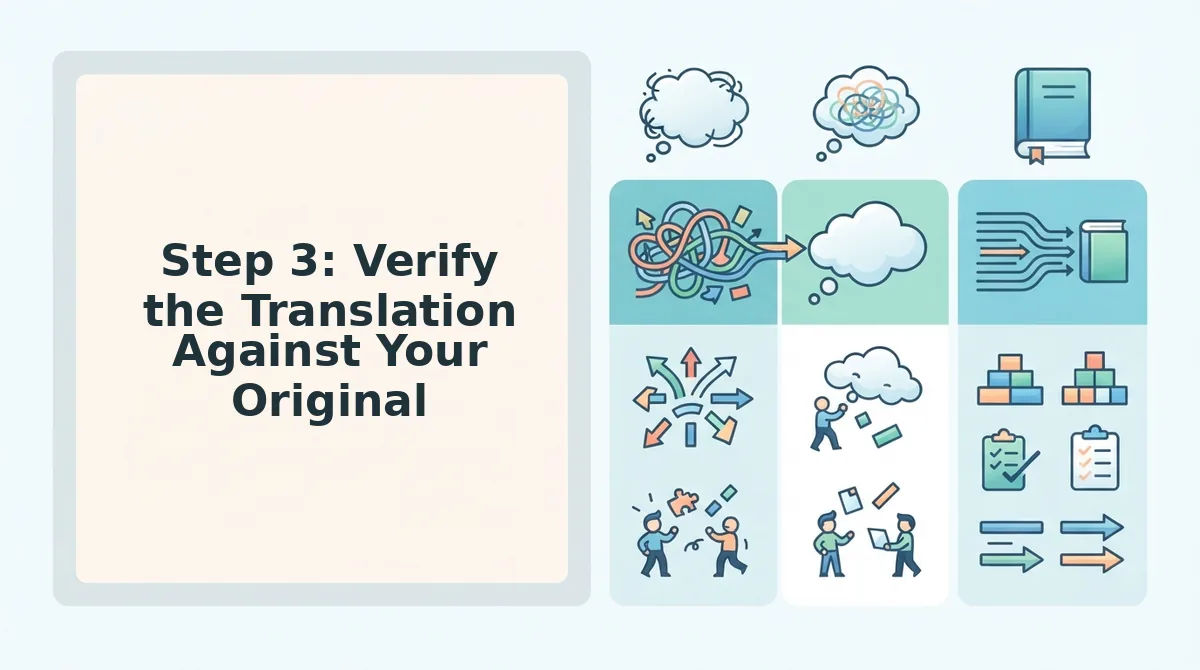
Step 3: Verify the Translation Against Your Original
Verification is a 3-point side-by-side listening protocol that catches tone loss before your message reaches the recipient. You'll need the original cleaned audio, the translated audio, and headphones.
- Listen to the original and translation back-to-back. Play 10 seconds of your cleaned original, then the same segment in translation. You should hear the same emotional energy, urgency stays urgent, warmth stays warm.
- Check that emotional inflection survived. Replay the translated audio and mark any sentence where your pitch variation flattened. If more than one sentence sounds monotone, re-clean less aggressively or switch to a voice-preserving tool.
- Confirm accent and pacing are intact. Compare your speaking rhythm in both versions. Your accent should be recognizable, not neutralized. If pacing feels rushed or robotic, the translation pipeline likely replaced your voice rather than preserving it.
Here's how this works in practice: a founder records a 60-second product update, cleans out the fillers, translates it to Spanish for a cross-border team, and runs this 3-point check before hitting send. If the Spanish version still sounds like them, same cadence, same emphasis, same accent, the message is ready. That workflow is exactly what voice notes for founders are built for: one take, verified once, sent with confidence.
FAQ: Translating Voice Notes Without Losing Tone
Can I keep my accent when translating a voice note?
Yes, but only with voice-preserving translation tools. Standard TTS pipelines replace your voice with a synthesized one and normalize the accent. Voice-preserving tools retain your vocal timbre, accent, and cadence while translating the words, so you still sound like yourself in another language.
Why does my voice sound robotic after translation?
The robotic sound comes from the TTS pipeline replacing your vocal timbre, not from translation accuracy. When a tool converts speech to text, translates it, then synthesizes new speech, your natural voice is discarded. Voice-preserving translation avoids this by working directly with your original audio.
Should I clean filler words before or after translating?
Clean before translating. Fillers like "um" and "basically" confuse translation engines, and errors compound when a messy transcript gets translated. Removing fillers first gives the translation engine clean input, which produces a more accurate result in the target language.
How do I know if a translation tool preserves my voice?
Check whether the tool outputs audio or just text, and whether it keeps your original voice or synthesizes a new one. Voice-preserving tools explicitly state they retain vocal timbre and accent. If a tool mentions TTS or speech synthesis, it will replace your voice.
The Order Matters More Than the Tool
Translation preserves tone only when the source audio is already clean. That's the insight hiding in plain sight: you don't need a better translator, you need a better input.
The clean to translate to verify sequence works because each step protects what the next one would otherwise destroy. Cleaning removes hesitations before they get translated into awkward phrasing. Translation preserves cadence because the audio is already decisive. Verification catches drift because you're comparing against a clean original, not a messy one.
So here's the test: take your next cross-border voice note and run it through the framework once. Clean first. Translate second. Verify third. The result you can expect is a message that sounds like you, just in another language.
If you want to collapse the first two steps into one pass, VClar cleans filler words and translates in a single workflow without replacing your vocal identity.
You don't lose your tone in translation. You lose it before translation starts.