
You record a 90-second voice message for a client in Tokyo, delete it, re-record it, delete it again, and finally settle for a version that still has three "ums" and a sentence that trails off. Now imagine sending that same message in Japanese without sounding like a robot reading a script. The real question isn't whether you can translate a voice message without losing your voice, it's why most tools force you to choose between accuracy and authenticity.
You're right to be frustrated. The re-record loop is real: raw voice memos carry verbal fillers, awkward pauses, and disjointed grammar that quietly undermine your authority. Startup founders sending investor updates and B2B sales reps following up with enterprise buyers know this pain better than anyone. A message that sounds hesitant in English sounds worse in translation.
Here's the promise: by the end of this article, you'll know exactly why text-first translation is the wrong default for high-stakes voice messages, and you'll have a two-step framework that preserves your tone, pacing, and vocal identity across languages. We'll cover what actually degrades when a voice is translated, then walk through a clean-first workflow you can apply today using a voice message translator built for this exact problem.
One finding may surprise you: the biggest threat to your voice isn't the translation engine, it's what happens before translation even starts.
Why Most Voice Translation Loses Your Voice
Voice translation is the process of converting spoken audio from one language into another while preserving the speaker's meaning, tone, and delivery. Most tools fail at the third part because they route your voice through text as an intermediary, stripping away everything that makes it sound human.
Think of a voice message like a handwritten letter. A text-first translation workflow is like typing the letter into a computer, running it through a translator, and printing the result in a generic font. The words may be correct, but the handwriting, the pressure, the slant, the personality, is gone. Your voice has the same problem: the words survive, but the delivery doesn't.
Four specific things degrade when a voice is translated through a text-first pipeline:
- Prosody, the rhythm, stress, and intonation of speech. Text has no prosody, so a text-first workflow flattens your delivery into monotone output.
- Pacing, the natural speed and pauses that signal confidence or emphasis. Text translation ignores timing entirely.
- Emotional tone, the warmth, urgency, or concern in your voice. A text transcript carries none of this, so the translated audio sounds neutral at best.
- Accent authenticity, the regional and personal qualities of how you speak. Synthetic voice output replaces your accent with a generic one, which is why users actively seek ways to change Google Translate's robotic voice output, as documented in Trevor Nace's widely viewed YouTube video on the topic.
The hidden cost is trust. When a founder sends an investor update in German that sounds like a text-to-speech demo, the investor hears a script, not a person. When a sales rep follows up with a buyer in French and the message arrives with flattened emotion, the relationship feels transactional. The translation didn't just change the language, it changed the speaker.
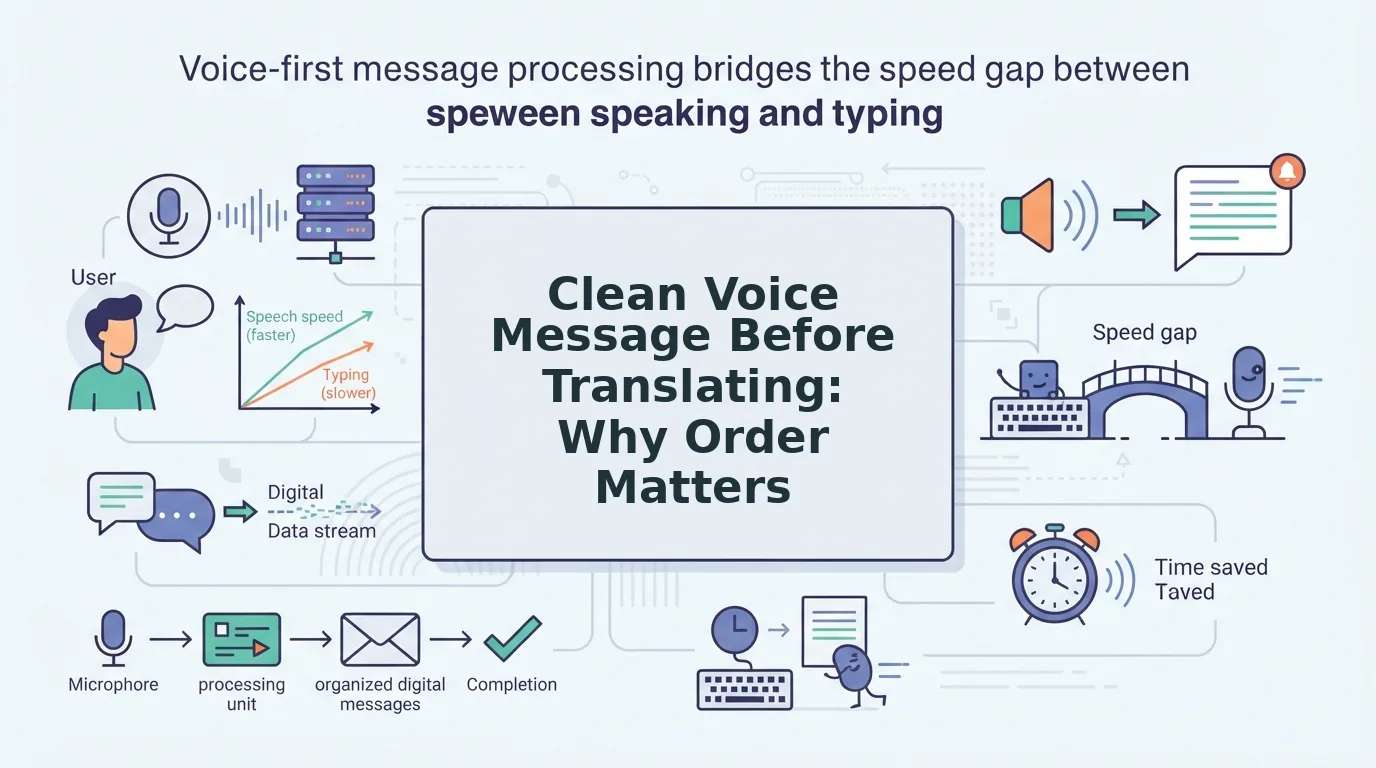
Here's the part most guides skip: the damage often starts before translation. If your source audio contains filler words, false starts, and background noise, those flaws get baked into the translation. A clean source is the prerequisite for an authentic result. That's why the first step in any voice translation workflow should be to remove filler words from audio before a single word gets translated.
In short: text-first translation preserves information but sacrifices identity. Audio-first translation, where the cleaned voice is translated directly, preserves both. The next section shows you exactly how to do that.
The Two-Step Process: Clean First, Then Translate
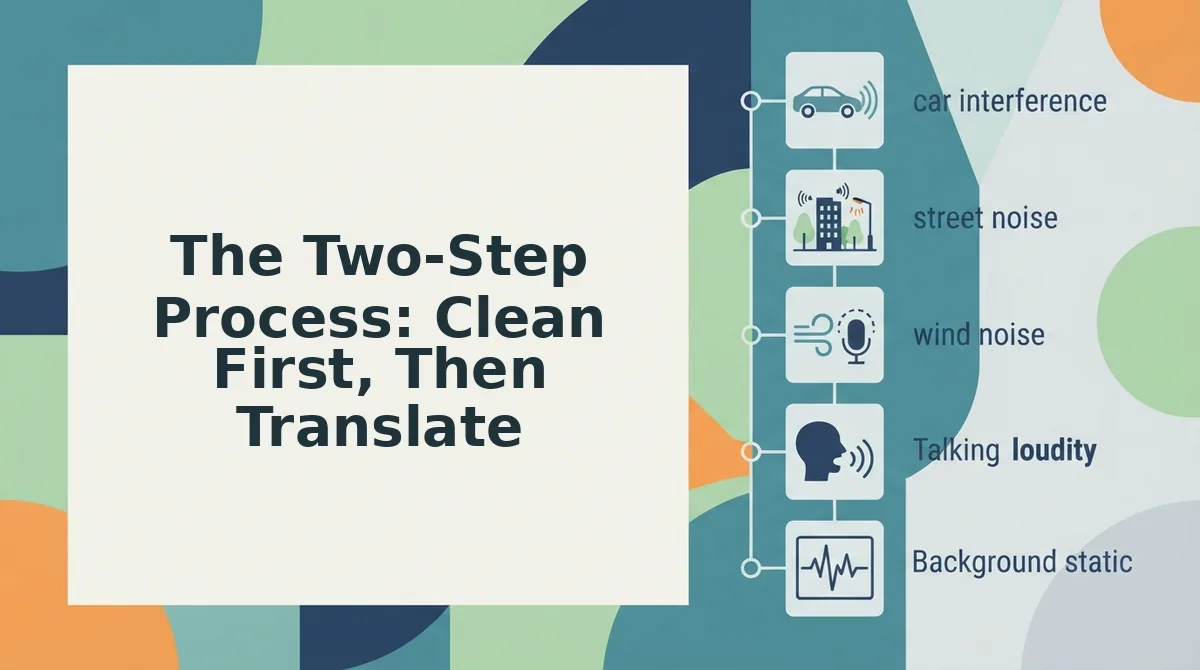
Translating a voice message without losing your voice requires a two-step sequence: first remove fillers, false starts, and background noise from the source audio, then translate the cleaned recording so your tone, pacing, and vocal identity survive the language change. Skipping step one bakes your verbal hesitations into every language you target.
You'll need a raw voice recording (from your phone's voice memo app, WhatsApp, or any audio file) and a voice translation tool that handles both cleaning and translation without converting your voice to synthetic text-to-speech.
Step 1: Clean the Source Voice Message
- Upload your raw recording. Open your voice translation tool and select the audio file from your device. Most tools accept common formats like M4A, MP3, and WAV. You should see a waveform appear on screen within a few seconds.
- Run filler word removal. Activate the cleaning feature that detects and removes verbal fillers, "um," "ah," "like," "basically," "you know", along with false starts and repeated phrases. The tool scans the audio timeline and removes these elements seamlessly, so the remaining speech sounds natural and uninterrupted.
- Apply noise reduction. Enable background noise suppression to strip out breath sounds, mouth clicks, and ambient distractions. You should hear a noticeably tighter, more decisive version of your original message when you play it back.
- Review the cleaned audio. Listen once to confirm your meaning is intact and your natural cadence is preserved. The goal is a message that sounds like you on your best day, not a different person.
Cleaning first matters because translation amplifies whatever it receives. A message with three "ums" and a false start becomes a translated message with three "ums" and a false start, except now the hesitation sounds even more jarring in a language where filler words differ. You can clean voice memos online in under a minute before moving to translation.
Step 2: Translate the Cleaned Audio
- Select your target language. Choose from the available language options. A robust tool supports up to 110 language directions, covering pairs like English to Japanese, Hindi to German, and French to Korean.
- Run the audio-first translation. Initiate the translation on the cleaned recording, not on a text transcript. The engine should translate the spoken content while preserving your prosody, pacing, and emotional tone. You should hear your voice speaking the target language with the same rhythm and emphasis as the original.
- Verify the output. Play back the translated message and check for three things: meaning is accurate, your vocal identity is recognizable, and the delivery sounds confident rather than robotic. If any of these fail, revisit step one, a cleaner source almost always fixes translation quality issues.
- Send or save the result. Export the translated audio or share it directly to your messaging app. The entire process, from upload to final translated message, typically takes under two minutes.
This clean-then-translate framework is the difference between sounding like yourself in another language and sounding like a machine reading a script. Next, we'll apply the same approach to the most common real-world scenario: translating a WhatsApp voice note without typing it out.
How to Translate a WhatsApp Voice Note Without Typing It Out
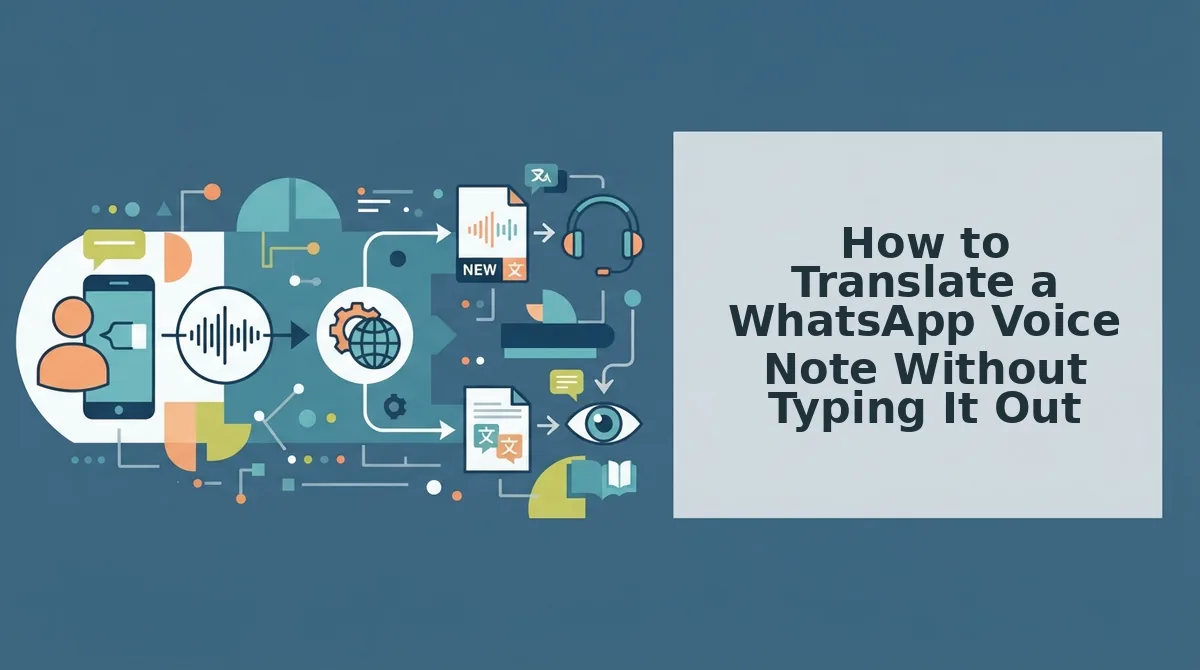
You can translate a WhatsApp voice note directly from audio to audio in under two minutes using VClar's voice-preserving workflow, no typing, no text transcription, and no synthetic voice replacement.
Prerequisites: A WhatsApp voice note saved to your phone, a VClar account, and a stable internet connection. The full workflow takes approximately 90 seconds per voice note.
- Open WhatsApp and save the voice note to your device. Long-press the voice message in your chat, tap the three-dot menu, and select Save to Downloads (Android) or Forward to Save to Files (iOS). You should see the audio file appear in your device's storage with a .opus or .m4a extension.
- Open VClar and click Upload Audio. Navigate to the VClar dashboard and select the Upload Audio button in the top-right corner. Choose the WhatsApp voice note file you just saved. A progress bar should appear, and the upload typically completes in 5-10 seconds.
- Click Clean Audio to remove fillers and noise. Once the file is uploaded, select the Clean Audio option. VClar will strip out ums, ahs, false starts, and background noise while keeping your original vocal tone intact. You should see a green checkmark next to Cleaned when the process finishes, usually within 15-20 seconds.
- Select your target language from the Translate To dropdown. Choose from the 11 supported languages, including Hindi, French, Japanese, German, and Portuguese, in the Translate To menu. Click Translate. The output preserves your pacing, accent, and emotional delivery while converting the spoken content to the target language. You should see a Translation Complete confirmation with a playable preview.
- Click Download and send the translated voice message in WhatsApp. Save the translated audio file to your device, then return to WhatsApp and attach it as a voice note in the same chat. The recipient hears your voice speaking their language, not a robotic text-to-speech output.
Top YouTube tutorials from TechUnow and Fix369 show a text-transcription workaround: they convert the voice note to text, run it through a text translator, then read the result aloud or paste it as a message. That workflow strips away your voice entirely. The direct audio-to-audio path, upload, clean, translate, send, keeps your delivery intact. If you need to translate WhatsApp voice notes to English, VClar handles the full pipeline without a single keystroke.
What Actually Changes When a Voice Is Translated (and How to Prevent It)
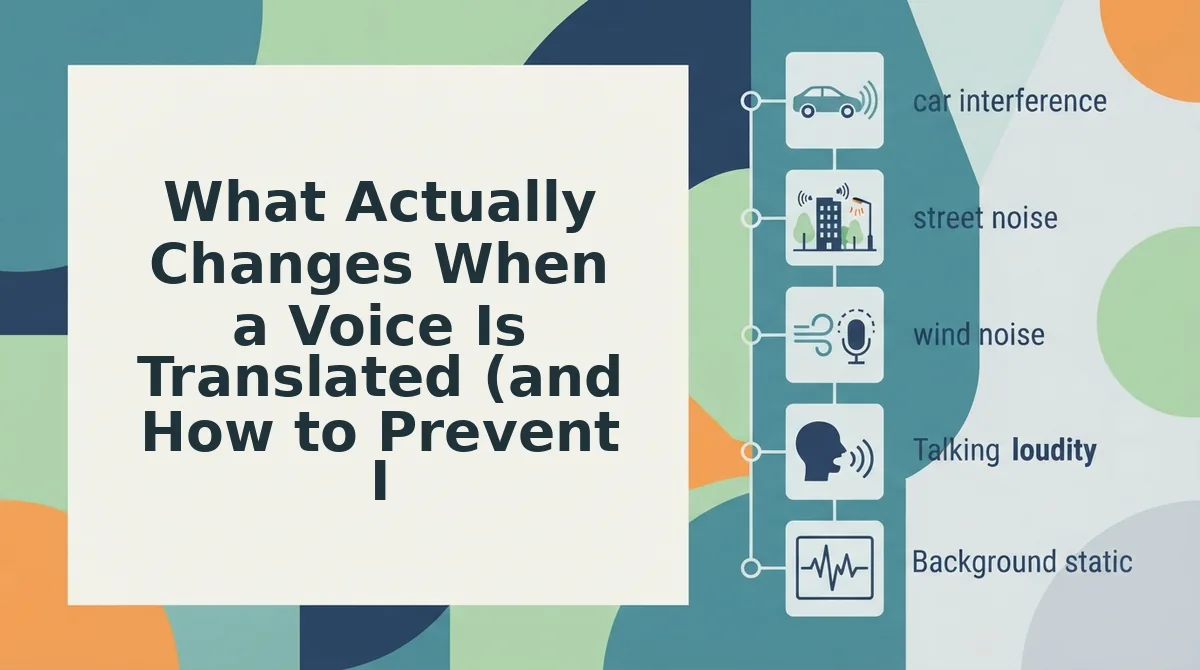
Voice degradation in translation is the progressive loss of your vocal identity, rhythm, pacing, emotion, and accent, that occurs when a translation system processes only the words and discards how you said them. Preventing it requires a workflow that treats audio as audio, not as text waiting to be re-spoken.
Think of your voice like a handwritten letter. A text-first translation system reads the letter, types it into a new font, and prints it out, the words survive, but the handwriting, the pressure of the pen, and the personality of the strokes are gone. A voice-preserving translator is more like a skilled forger who reproduces the letter in another language while keeping your exact handwriting style.
At the simplest level, translation changes word choice, that is unavoidable and expected. At an intermediate level, it changes sentence structure, which can shift where you naturally pause or emphasize. At the advanced level, it alters prosody, the rhythm and intonation patterns that make your speech recognizable as yours. Text-first systems flatten prosody because they discard the acoustic signal entirely.
Four specific degradation points occur in most translation pipelines:
| Degradation Point | What Happens | How to Prevent It |
|---|---|---|
| Prosody | Rhythm and intonation patterns get flattened when audio is converted to text, translated, then re-synthesized. | Use a translator that processes the audio waveform directly rather than routing through a text layer. |
| Pacing | Unnatural pauses or rushed delivery appear when synthetic voice output re-times your sentences. | Choose a tool that preserves your original timing markers and only adjusts for language-specific syntax. |
| Emotional tone | Warmth, urgency, and emphasis are lost when only words are translated, the system cannot hear your smile or your concern. | Work with a voice-preserving translator that retains amplitude and pitch variation from the source recording. |
| Accent authenticity | Non-native accents are replaced by generic text-to-speech (TTS) voices that sound like a default assistant. | Select a translator that keeps your original vocal characteristics instead of swapping in a synthetic voice model. |
A voice-preserving translator keeps your original vocal characteristics instead of swapping in a synthetic voice model. When you use a voice note translator that operates on the audio signal directly, your accent, cadence, and emotional delivery survive the language change. The result sounds like you speaking a language you may not know, not like a machine reading a script.
When Voice Preservation Matters (and When Text Is Fine)
Voice-preserving translation is the right default whenever the recipient needs to hear you, your confidence, your warmth, your urgency, not just your words. Text translation is acceptable only when the message is purely informational and your vocal presence adds nothing.
- Founder updates to investors and teams. Your tone signals conviction, calm, or urgency in ways text cannot. Use voice-preserving translation when sending voice notes for founders across language barriers, your delivery is part of the message.
- Sales follow-ups and client deliverables. Buyers read hesitation and confidence in your voice. When you send voice notes for sales to international prospects, a preserved voice builds trust that a translated text message cannot replicate.
- Apologies, negotiations, and emotionally charged messages. Tone carries more weight than words in high-stakes conversations. Voice-preserving translation keeps your sincerity intact when the stakes are personal or financial.
- Cross-border team announcements. Your team needs to hear leadership, not read a memo. Voice-preserving translation maintains authority and approachability across languages.
- Quick logistics and meeting notes. Text translation is fine here. "The meeting moved to 3 PM" carries no emotional payload, and speed matters more than vocal presence.
- Informal check-ins with colleagues. A quick "running late, see you in 10" works perfectly as translated text. Your voice adds nothing to the information being conveyed.
- Reference material and documentation. When the recipient will search, copy, or archive the content, text is the better format. Voice preservation is wasted on content meant to be read, not heard.
If the recipient needs to hear you, your conviction, your warmth, your urgency, use voice-preserving translation. If they only need the information, text is fine. The next section answers the most common questions about translating voice messages.
Frequently Asked Questions About Translating Voice Messages
Voice translation raises specific questions about voice preservation, platform limits, and language coverage. These answers address the most common concerns from Reddit threads, YouTube comments, and search queries.
How do I translate a voice message without losing my original voice?
Use a two-step process: clean the audio first to remove fillers, background noise, and grammar issues, then translate the cleaned speech while preserving your original tone, accent, and cadence. VClar performs both steps in one workflow, so the translated output still sounds like you speaking naturally in another language.
Can I translate a WhatsApp voice note directly?
WhatsApp has no built-in voice translation feature. You need to export or forward the voice note to a third-party tool that accepts audio input, processes the speech, and returns translated audio or text. VClar accepts uploaded voice notes and returns translated audio that retains the original speaker's vocal characteristics.
Why does Google Translate change my voice?
Google Translate converts speech to text, translates the text, then uses text-to-speech synthesis to generate audio. That final step replaces your voice with a synthetic voice, because the tool never processes your original vocal waveform. Voice-preserving translators instead manipulate the original audio signal directly.
Is there a voice translator that keeps your voice?
Yes. Voice-preserving translation tools work on the original audio waveform rather than converting to text and back to synthetic speech. VClar translates across 11 languages while maintaining the speaker's natural tone, accent, and rhythm, so the output sounds like the same person speaking a different language.
What languages can I translate a voice message into?
VClar supports translation across 11 languages: Hindi, English, French, Japanese, Korean, German, Russian, Portuguese, and three additional languages. See the full list of supported languages for current coverage and regional variants.
Why does my voice sound different after translation?
Translation tools that use text-to-speech synthesis replace your voice entirely with a synthetic one. Even tools that preserve audio can alter pitch or pacing if they stretch or compress the waveform to match translated sentence length. Choose a tool that prioritizes natural cadence preservation during the translation step.
Send Your Voice, Not Just Your Words
The clean-then-translate framework changes what voice translation can do. When you remove fillers, tighten grammar, and reduce noise before translating, you are not just converting words between languages, you are preserving the authority, warmth, and trust that only your actual voice carries.
That is the contrarian takeaway: voice preservation is not a cosmetic preference. In sales calls, investor updates, and cross-border negotiations, a translated message that still sounds like you maintains credibility that synthetic speech cannot replicate. The person on the other end hears your cadence, your emphasis, your intent, just in their language.
Start with one voice message. Record it the way you normally would, with all the hesitations and rough edges. Run it through VClar to clean and translate it in one pass. Listen to the output and compare it to a text-to-speech translation of the same message. The difference is immediate.
Your voice is the one asset no translation tool should replace. Send it intact.