
You record a voice note in Spanish, hit translate, and what comes back sounds like a budget GPS unit reading directions to a funeral. The words are technically correct, but the warmth, urgency, and personality that made the original message yours have been flattened into synthetic monotone. If you've ever cringed hearing your own translated voice, you're not alone, and the problem isn't you. It's the tool.
You're right to expect better. A translated voice note should still sound like you, same cadence, same accent, same emotional weight, just in another language. This guide will show you exactly why most translators produce that robotic sound and, more importantly, the seven concrete methods you can use today to translate voice notes without robotic voice output.
You'll learn the three technical culprits behind synthetic-sounding translations, a decision framework for choosing voice-preserving tools over text-to-speech clones, and step-by-step workflows that keep your natural delivery intact. Along the way, you'll discover why cleaning up your source audio, removing filler words and fixing grammar, matters just as much as the translation engine itself. One surprising finding: the most popular "voice translation" tutorials on YouTube skip audio preservation entirely, which is exactly where most people go wrong.
Tools like VClar are built specifically to translate spoken messages while preserving your authentic vocal identity, no robotic replacement, no synthetic clone.
Why Most Voice Translators Sound Robotic (And How to Fix It)
A robotic-sounding translation happens when a tool replaces your original voice with synthetic speech instead of preserving it. The fix is choosing a voice-preserving translator that keeps your waveform, prosody, and vocal timbre intact while swapping the language.
Think of your voice as a fingerprint pressed into wet clay. A good translator lifts the fingerprint, the ridges, depth, and pressure, and transfers it to a new surface. A bad translator traces the outline with a ruler and calls it identical. The shape is there, but every detail that made it yours is gone.
Three technical culprits create that robotic effect:
- TTS synthesis replaces your original waveform. Text-to-speech engines don't modify your audio, they discard it entirely and generate new sound from text. Your voice becomes a generic model's voice reading your words.
- Prosody flattening removes natural pitch and rhythm. Prosody is the musical quality of speech, the rises, falls, pauses, and emphasis that signal meaning and emotion. Synthetic engines often flatten these variations into a steady, mechanical cadence.
- Formant loss strips vocal timbre and accent identity. Formants are the resonant frequencies that make your voice sound like you, not just your pitch, but the unique acoustic fingerprint of your vocal tract. When formants are lost, your accent, warmth, and vocal character disappear with them.
A voice-preserving translator, by contrast, keeps your original audio as the foundation. It removes filler words, corrects spoken grammar, and translates the transcript, then re-syncs the translated words with your original vocal delivery. The result is your voice speaking another language, not a robot reading a script.
Here's where most people get misled: a popular TechUnow video with over 135,000 views demonstrates WhatsApp voice translation using text-only output. The audio is never preserved, viewers see translated text and assume voice translation works the same way. The Whisper Memos approach similarly conflates transcription with voice preservation. Transcribing speech into text and translating that text is not the same as translating the voice. If your tool only outputs text, it hasn't translated your voice at all.
The decision framework is simple: ask whether the tool preserves your original waveform or generates new audio from scratch. If it's the latter, you're getting a voice clone, and a poor one at that. Voice preservation keeps your delivery; voice cloning replaces it.
7 Methods to Translate Voice Notes Without Losing Your Natural Voice
You can translate voice notes while keeping your natural delivery by combining voice-preserving translation tools with clean source audio and targeted verification. The seven methods below range from quick wins to full workflow overhauls, each with a clear tradeoff.
Prerequisites: A voice note recording (or raw audio file), a translation tool that preserves original audio, and 10-15 minutes for testing.
- Use a voice-preserving translator, not a TTS tool. Open your translation tool and check whether it modifies your original audio or generates new speech from text. Select a tool that keeps your waveform intact, like VClar, which translates speech while preserving your authentic tone, cadence, and accent. Expected outcome: translated audio that still sounds like you, not a synthetic voice.
- Clean source audio before translating. Upload your raw voice note and run it through a cleaner that removes verbal hesitations, ums, ahs, "like," "basically," and false starts. You can remove filler words from audio in under a minute. Then fix grammar in voice messages so the translated transcript reads cleanly. Expected outcome: a tighter source recording that translates more accurately and sounds more decisive.
- Translate the transcript, then re-sync with original audio. Instead of translating audio directly through a TTS engine, translate the cleaned transcript first. Then re-sync the translated words with your original vocal delivery. This keeps your prosody, the natural pitch and rhythm of your speech, intact across languages. Expected outcome: natural pacing with accurate translation.
- Use side-by-side comparison to verify natural delivery. Play the original and translated audio back to back. Listen for three things: pitch variation, pause placement, and emotional emphasis. If the translated version sounds flat, your tool is flattening prosody. Switch to a voice-preserving option. Expected outcome: you can hear the difference immediately and catch robotic output before sending.
- Preserve prosody by avoiding over-editing. When cleaning your source audio, remove fillers and false starts, but don't strip every pause or re-record in a monotone. Natural speech has rhythm. Over-editing your original recording before translation can make even a good translator sound stiff. Expected outcome: translated audio that retains your natural speaking rhythm.
- Choose language pairs with native speaker models. Some translation engines handle certain language pairs better than others. Select a tool that uses native speaker models for your target language, this affects word choice, sentence structure, and natural phrasing. Expected outcome: translations that sound like a native speaker, not a literal word-for-word conversion.
- Test with a 10-second sample before committing. Record a short clip, about 10 seconds, and run it through your full workflow: clean, translate, re-sync, compare. If the output sounds natural, proceed with the full message. If not, adjust your tool or settings before investing time in a longer recording. Expected outcome: you catch robotic output early and avoid redoing work.
Once you've locked in a workflow that preserves your voice, the next step is applying it to the platform where most voice notes actually live, starting with WhatsApp.
How to Translate WhatsApp Voice Notes Without Sounding Robotic
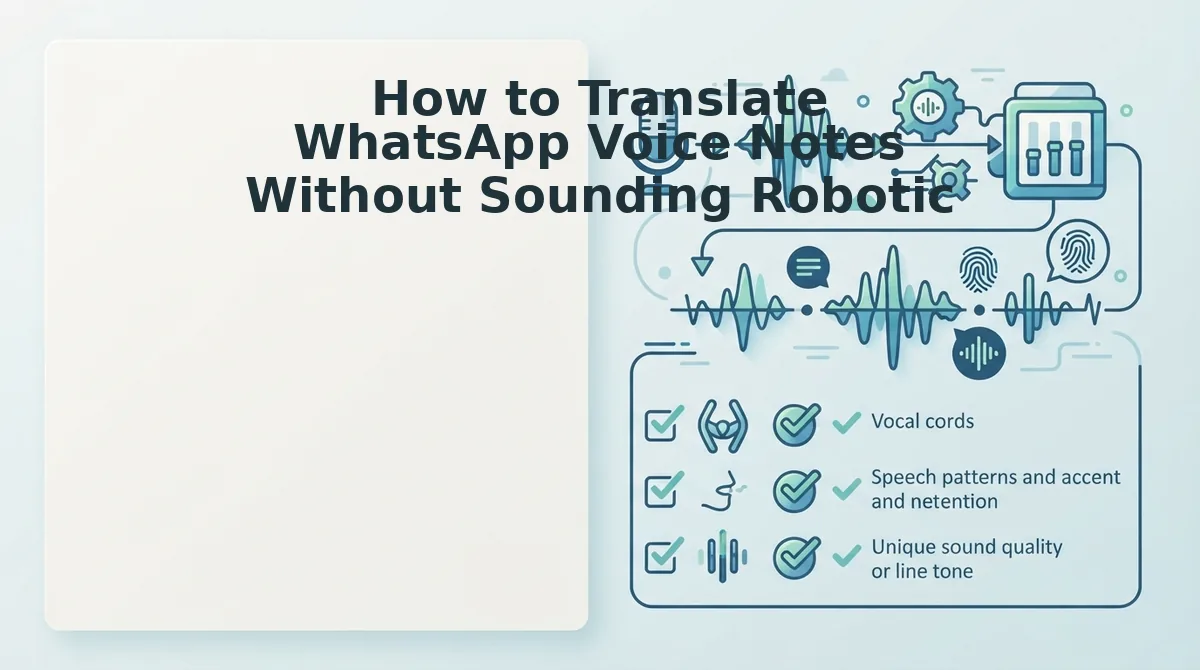
To translate a WhatsApp voice note without robotic output, you need a tool that preserves your original vocal characteristics while converting the language, not a text-only translator. The TechUnow video demonstrates text-only translation, which strips away all audio identity. Here is the audio-preserving workflow instead.
Prerequisites: A WhatsApp voice note saved to your phone, a translate voice message tool with voice preservation, and 5-10 minutes.
- Export the voice note from WhatsApp. Open the chat, tap and hold the voice note, then select Forward to Share to Save to Files (iOS) or Save to device (Android). You should see the audio file appear in your file manager as an .opus or .m4a file.
- Upload the audio to a voice-preserving translator. Open your chosen tool and click Upload Audio. Select the exported file. Wait for the processing indicator to complete, you should see a confirmation that the audio was accepted.
- Select the target language and enable voice preservation. Choose the output language from the language dropdown, then toggle on Preserve Original Voice or the equivalent setting. This step is what prevents the flat, synthetic output you get from text-only tools.
- Run the translation and review the preview. Click Translate. Play the preview to confirm your tone, cadence, and accent remain intact. You should hear your own voice speaking the target language, not a generic TTS voice.
- Download and re-import the translated audio. Click Download to save the file, then return to WhatsApp and send it as a new voice note. The recipient hears a natural-sounding message in their language.
Voice Note Translation: What to Look for in a Tool
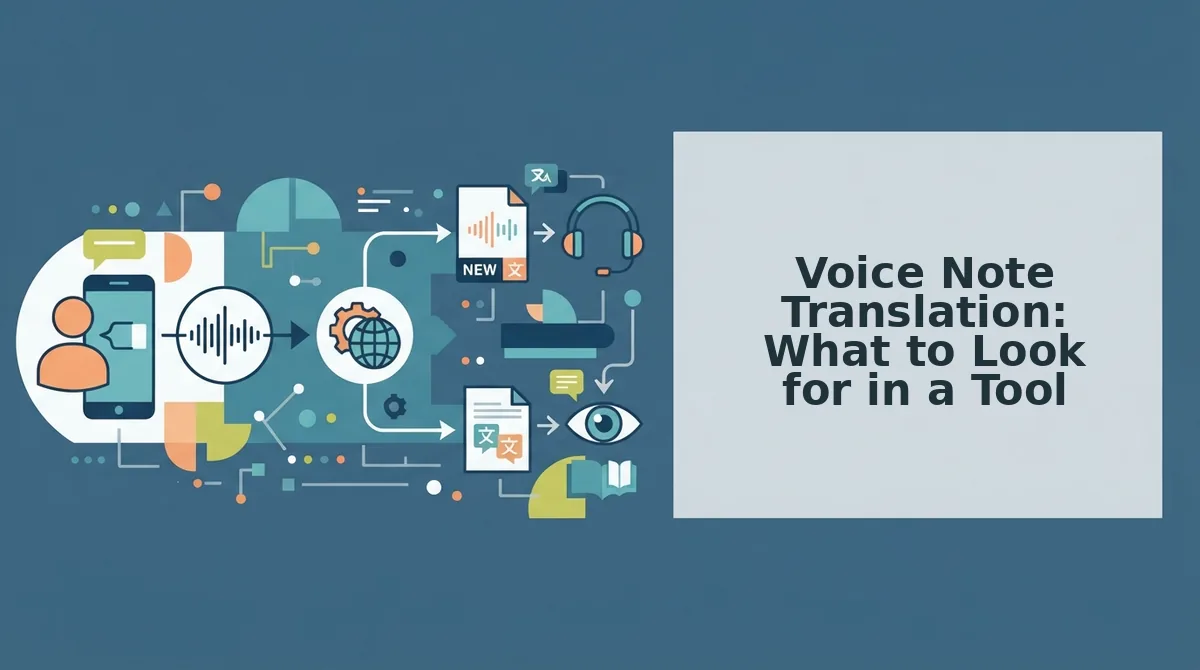
Most voice note translators fall into two categories: text-only converters that output written translations, and audio-preserving tools that deliver a spoken result in your own voice. The right choice depends on whether your recipient needs to read or hear the message.
| Tool Type | Output | Voice Preservation | Grammar & Filler Correction | Best For |
|---|---|---|---|---|
| Text-only translators (e.g., built-in chat translation) | Written text | None, audio is discarded | No | Quick reference when the recipient only needs to read the content |
| Transcription + TTS tools | Synthetic audio | No, uses a generic TTS voice | Sometimes | Accessibility use cases where voice identity doesn't matter |
| Voice-preserving translators (e.g., VClar) | Natural audio in your own voice | Yes, retains tone, cadence, and accent | Yes, removes fillers and fixes grammar inline | Founders, sales teams, and cross-border operators who need to sound like themselves in any language |
Competitors like Descript offer strong transcription and editing workflows, and for podcast or video editing, that is a legitimate strength. However, Descript's translation output is text- or TTS-based rather than voice-preserving audio. If your priority is sending a spoken message that still sounds like you, evaluate tools on three criteria most comparison pages omit: audio output versus text-only, whether voice preservation technology is built in, and whether grammar and filler correction happen automatically. For a deeper breakdown, see the VClar vs Descript comparison.
If you send voice notes daily and need recipients to hear a polished, natural-sounding translation without re-recording, choose a tool that corrects fillers and grammar while preserving your vocal identity, then run every outgoing message through that single workflow.
Frequently Asked Questions About Translating Voice Notes Naturally
Can I translate a voice note and keep my own voice?
Yes. Voice-preserving translation tools analyze your speech patterns, tone, and cadence, then generate the translated audio using those characteristics rather than a generic text-to-speech voice. The result sounds like you speaking the target language, not a synthetic clone.
What's the difference between voice translation and voice cloning?
Voice translation converts the language of your existing audio while preserving your vocal characteristics for that specific message. Voice cloning creates a reusable digital replica of your voice that can generate new speech from any text. Translation is message-specific; cloning is a persistent voice model.
Why does my translated voice sound robotic?
Robotic output happens when a tool discards your original audio and runs the translated text through a generic text-to-speech engine. These TTS voices lack natural prosody, emotional inflection, and your personal cadence. Tools that preserve the original audio's vocal characteristics avoid this flat, mechanical sound.
Is there a free voice note translator that doesn't sound robotic?
Free tools typically offer text-only translation or basic TTS output, both of which sound robotic or eliminate audio entirely. Voice-preserving translation requires more processing and is generally a paid feature. Trial versions may let you test the voice-preservation quality before committing.
How do I translate WhatsApp voice notes to English?
Export the voice note from WhatsApp to your device, upload it to a voice-preserving translator, select English as the target language, and enable voice preservation. Download the translated audio and send it back through WhatsApp. The recipient hears your voice speaking English naturally.
Ready to put these steps into action? Continue to the final section to translate voice notes without robotic voice sound today.
Translate Voice Notes Without Robotic Voice Sound Today
You don't need to choose between translation accuracy and a voice that sounds like you. The tools that preserve your natural cadence while cleaning up grammar and fillers are already here, and they're the same ones that handle cross-language delivery without flattening your tone into synthetic monotony.
Here's the payoff from everything covered: robotic voice output isn't a translation problem. It's a voice-preservation problem. Fix that, and the rest follows.
Two concrete next steps:
- Try VClar's voice-preserving translation on your next voice note. Record once, let it remove fillers and correct grammar, then deliver the translated version in your own vocal identity, no re-recording loop, no text-to-speech clone.
- Read the VClar vs Descript comparison to see how voice-preserving translation stacks up against a tool built primarily for editing, not natural-sounding multilingual delivery.
Every voice note you send is a small act of trust. The best translation tools honor that trust by keeping your voice intact, just clearer, cleaner, and understood in more languages.