
You hit record, speak for ninety seconds, and then play it back, only to hear three "ums," a false start, a garbled sentence, and the sound of your car's turn signal. Now you're staring at the delete button, dreading another take. A checklist for cleaning voice notes on phone devices is the fastest way out of that loop.
You're right to be frustrated: re-recording kills spontaneity and burns time you don't have. Most tutorials tell you to trim the edges or just record again. This guide gives you a sequenced 5-step cleanup workflow instead, one that preserves your original delivery while removing everything that makes you sound unprepared.
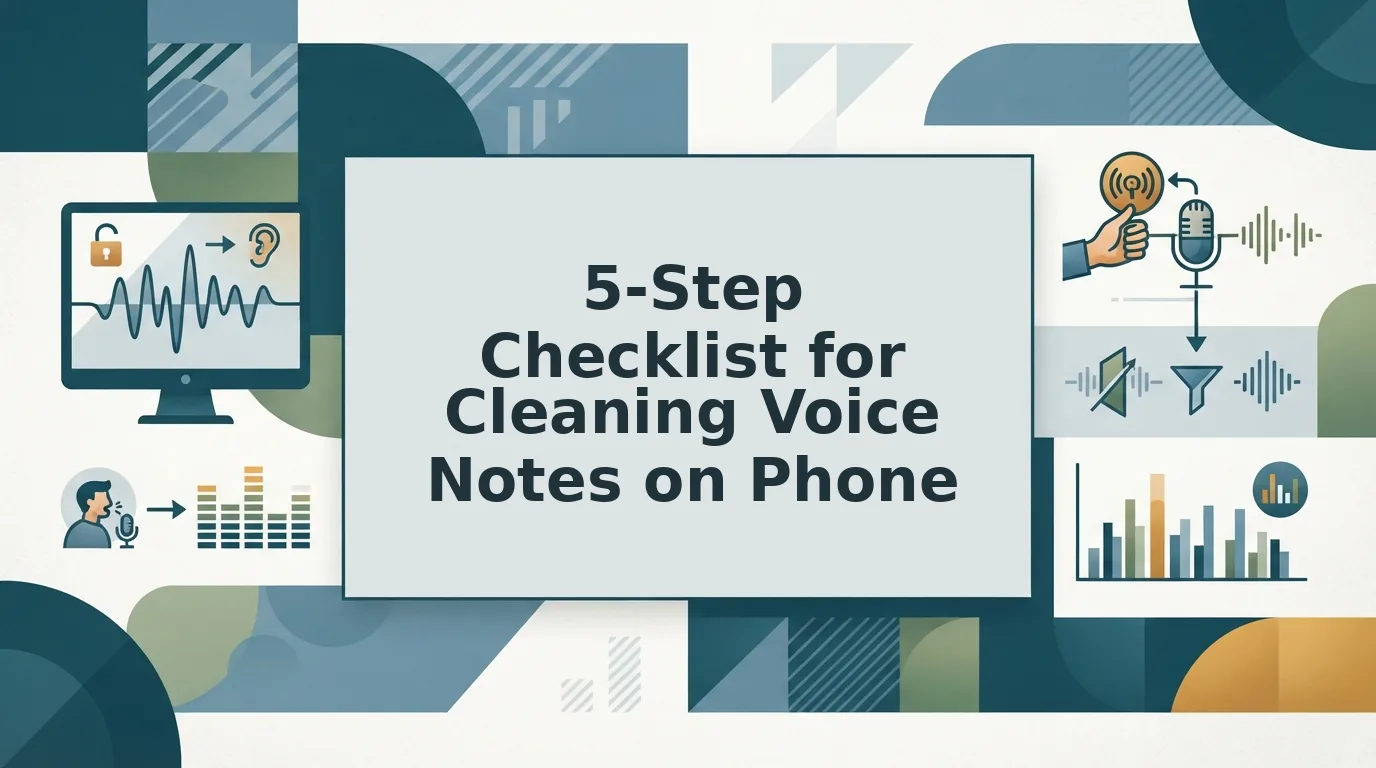
Here's the roadmap: trim dead air, strip filler words, fix spoken grammar, reduce background noise, and run a final polish pass. One step in particular gets skipped by nearly every competitor tutorial, and it's the one that makes the biggest difference in how authoritative you sound.
Step 1, Trim Dead Air and False Starts
Trimming dead air and false starts is the foundation step because it reveals the actual content you need to clean. Dead air is any silence longer than a natural pause, and a false start is when you begin a sentence, stop, and restart. Removing both first makes every later cleanup step faster and more accurate.
Trimming is the most-searched voice memo task, with tutorial videos on the topic pulling in over 61,000 views. People don't want to re-record a 90-second note just to fix a 4-second stumble at the start.
What you need before starting: your phone with the voice memo already recorded, and about 2-3 minutes per note.
Trim on iPhone (Voice Memos app)
- Open the Voice Memos app and tap the recording you want to clean.
- Tap the waveform icon (three horizontal lines) to expand the audio timeline.
- Tap the crop icon in the top-right corner.
- Drag the yellow handles on either end inward to cut silence or a false start. The highlighted area between handles is what gets kept.
- Tap Trim, then confirm with Trim Original or Save as New Recording. You should see the shortened duration immediately.
Trim on Android
Android trimming varies by device. Most phones include a basic editor in the default Recorder or Voice Recorder app, but the exact control names differ between Samsung, Pixel, and other manufacturers.
- Open your default voice recorder app and select the recording.
- Look for an Edit, Trim, or scissors icon. On Samsung, it's under the three-dot menu. On Pixel, tap the recording and look for a trim option below the waveform.
- Drag the start and end markers to remove dead air or a false start.
- Tap Save or Done. If your phone only offers "Save as copy," use that to preserve the original.
Pro tip: If you can't find a trim tool on your Android device, record in a third-party app like Google Recorder (Pixel only) or install a dedicated audio editor. Manual trimming on a small screen is tedious, and it only fixes silence, not the filler words hiding inside the parts you keep.
Once the dead air is gone, you'll hear exactly what needs fixing next: the ums, ahs, and "you knows" scattered through the actual speech. If manual trimming already feels slow, the faster path is to remove filler words from audio automatically instead of hunting for them by hand.
Step 2, Remove Filler Words Without Re-Recording
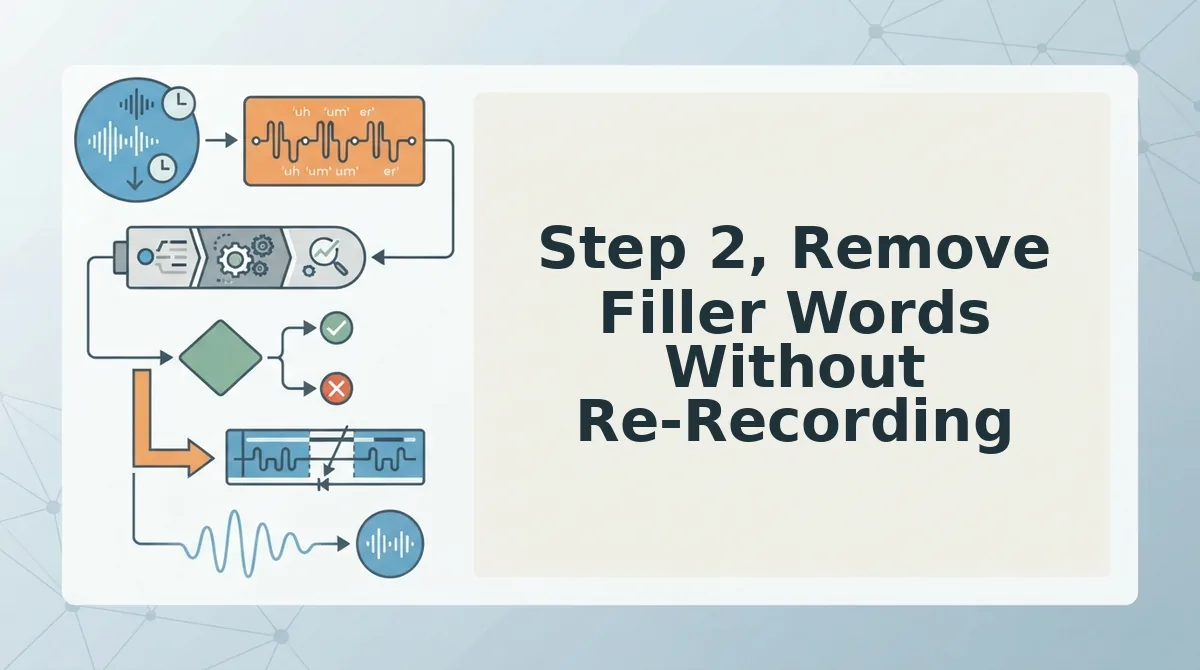
You can remove filler words from a voice note without re-recording by running the audio through VClar's filler word remover, which detects and deletes ums, ahs, "like," "basically," and "you know" while keeping your natural delivery intact.
Most people assume cleaning a voice note means recording it again. That's the slow path. Filler words cluster at the start of sentences and after pauses, exactly where your brain is still loading the next thought. You don't need to fix your speaking. You need to fix the audio.
What you need before starting: a voice note saved on your phone, the VClar app or web upload open, and about 30 seconds.
- Upload your voice note. Open VClar and tap the upload button, then select the audio file from your phone's voice memo app. The file loads in under 10 seconds for most messages.
- Run filler word detection. Tap Clean Audio. VClar scans the timeline and flags every um, ah, "like," "basically," "you know," and repeated false start. You should see highlighted markers on the waveform where each filler sits.
- Review the flagged fillers. Scroll through the list. Each detection shows the word and its timestamp. If you want to keep one, say, a deliberate "like" for emphasis, tap it to unflag it.
- Apply removal. Tap Remove Fillers. VClar deletes the flagged segments and reseals the audio timeline so your pacing stays natural. You should hear the same voice, same tone, no gaps.
- Export the cleaned note. Tap Save or Share to send the polished audio or its transcript wherever you need it.
Pro tip: If a filler sits mid-sentence and removal leaves a tiny timing hiccup, run the file through once more. The second pass tightens any residual spacing without touching your cadence.
Once the fillers are gone, the next problem surfaces: grammar that sounded fine out loud but reads wrong in text.
Step 3, Fix Spoken Grammar Without Losing Your Voice
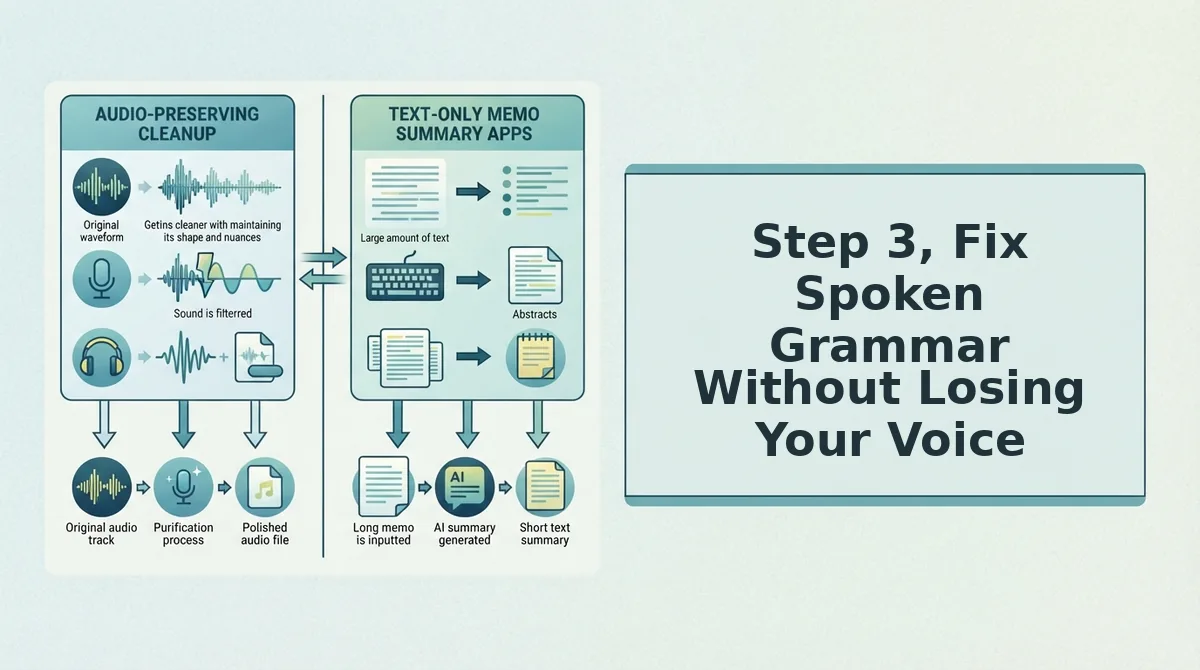
Spoken grammar correction is the process of restructuring unpolished, conversational sentences into grammatically sound ones while preserving the speaker's original vocal timbre, cadence, and intent. Think of it like a photo editor that removes red-eye and adjusts lighting, the person in the picture is still unmistakably you, just sharper.
Start simple: fix subject-verb mismatches and dropped words. A founder recording from a car might say, "So basically we, um, we shipped the feature and like, the response was, you know, pretty good I think." The corrected version reads, "We shipped the feature, and the response was strong." Same voice, same energy, no hedging.
At the intermediate level, tackle run-on sentences and tense shifts. Break one breathless clause into two clean ones without flattening your natural rhythm. Advanced correction handles idiomatic phrasing and cross-language grammar transfer, when a non-native speaker structures a sentence in their first language's word order, the tool reorders it to sound native in the target language.
The tension is real: over-correction can make you sound scripted. The goal is to fix grammar in voice message audio without replacing your delivery. Your pauses, emphasis, and accent stay intact, only the rough edges get sanded down.
Step 4, Clean Background Noise on Mobile
Background noise is the single biggest reason voice notes sound unprofessional, and native phone tools can only fix part of it. You'll need your phone's built-in recording app and, for tougher noise, a dedicated cleaner like VClar.
- Open Voice Memos (iPhone) or your default recorder, then tap the Enhance Recording option. On iPhone, select the recording, tap the waveform icon, then tap the magic wand. You should hear a noticeable reduction in room echo and low-level hiss within seconds.
- Record 2-3 seconds of "room tone" before speaking. Capture the ambient sound of your space first, this gives any noise-reduction tool a baseline to subtract from. You should see a flat, low waveform during those seconds.
- Move closer to your mouth and angle the mic away from noise sources. Hold the phone 6-8 inches from your face and point the bottom mic toward you, not toward the window or AC vent. You should hear your voice get fuller while the background recedes.
- Upload the file to a dedicated cleaner for what native tools can't fix. iPhone Voice Memos enhancement handles echo and mild hiss, but it cannot remove traffic, HVAC hum, or keyboard clicks. Run the audio through VClar to strip those persistent sounds without affecting your vocal tone.
Step 5. Export, Transcribe, or Translate
Most people stop at listening to the cleaned voice note, but the real value comes from what you do with it next. Here are the three export paths, ordered by how much leverage they give you.
- Export the cleaned audio as a shareable file. Send the polished voice note directly to a client, teammate, or investor. A clean 40-second message replaces a 15-minute meeting and lands with more authority than a wall of text.
- Transcribe the audio into text. Turn the voice note into meeting notes, a Slack update, or a follow-up email. Text is searchable, quotable, and skimmable, your spoken thoughts become reusable documentation.
- Translate the message into another language. Use a voice message translator to send the same note to a partner or customer who speaks a different language. This is the step almost nobody covers, yet it's the fastest way to close cross-border communication gaps.
VClar handles Steps 2 through 5 in one pass: it cleans the audio, polishes the grammar, and produces a ready-to-send transcript. If you need to translate voice message content, the same workflow applies, one upload, one output, no re-recording. Now let's answer the questions people ask most about cleaning voice notes.
FAQ
Cleaning a voice note means trimming dead air, removing filler words, fixing spoken grammar, reducing background noise, then exporting or translating the result. VClar handles all five steps in one browser-based pass, typically under 60 seconds.
What is a good checklist for cleaning voice notes on my phone?
Follow this order: trim silence and false starts, remove filler words, fix spoken grammar, clean background noise, then export or translate. This sequence preserves your natural delivery while making the message sound decisive and professional.
Can I remove filler words from a voice memo without re-recording?
Yes. VClar detects and removes ums, ahs, "like," "basically," and repeated false starts directly from the audio timeline. The edits are seamless, so your voice message sounds decisive without requiring another take.
How do I clean background noise from a voice memo on iPhone?
Upload the memo to a browser-based cleaner like VClar rather than relying on built-in Voice Memos tools. VClar strips acoustic distractions such as traffic, keyboard clatter, and room echo while keeping your voice, tone, and cadence intact.
What's the fastest way to clean a voice note?
Use an AI voice message cleaner that handles trimming, filler removal, grammar correction, and noise reduction in a single pass. Manual editing in audio software takes minutes per clip; VClar completes all five steps in under 60 seconds.
Can I clean a voice note in another language?
Yes. VClar translates voice notes across languages while preserving the speaker's authentic voice, tone, and cadence. You can clean and translate a message in one workflow, which is useful for cross-border teams and client communication.
Your Voice, One Take, Done
The five-step order matters: trim first, remove fillers second, fix grammar third, clean noise fourth, then export or translate. Skipping ahead to noise reduction before trimming wastes effort, because dead air and false starts change how every subsequent edit lands.
VClar compresses the entire checklist into a single browser-based pass. Upload a rough voice note and get back a clean, authoritative message in under 60 seconds, no re-recording, no timeline scrubbing, no synthetic voice replacement.
Start with the step that annoys you most: remove filler words from audio or fix grammar in voice message. Your next voice note can be your final take.