
You hit record, speak for ninety seconds, and hit stop. Then you play it back, and hear three false starts, two "you knows," a tangent about lunch, and a sentence that circles back on itself before landing nowhere. Voice memos are the fastest way to capture a thought, yet most professionals treat them as disposable because the raw audio sounds nothing like a finished message.
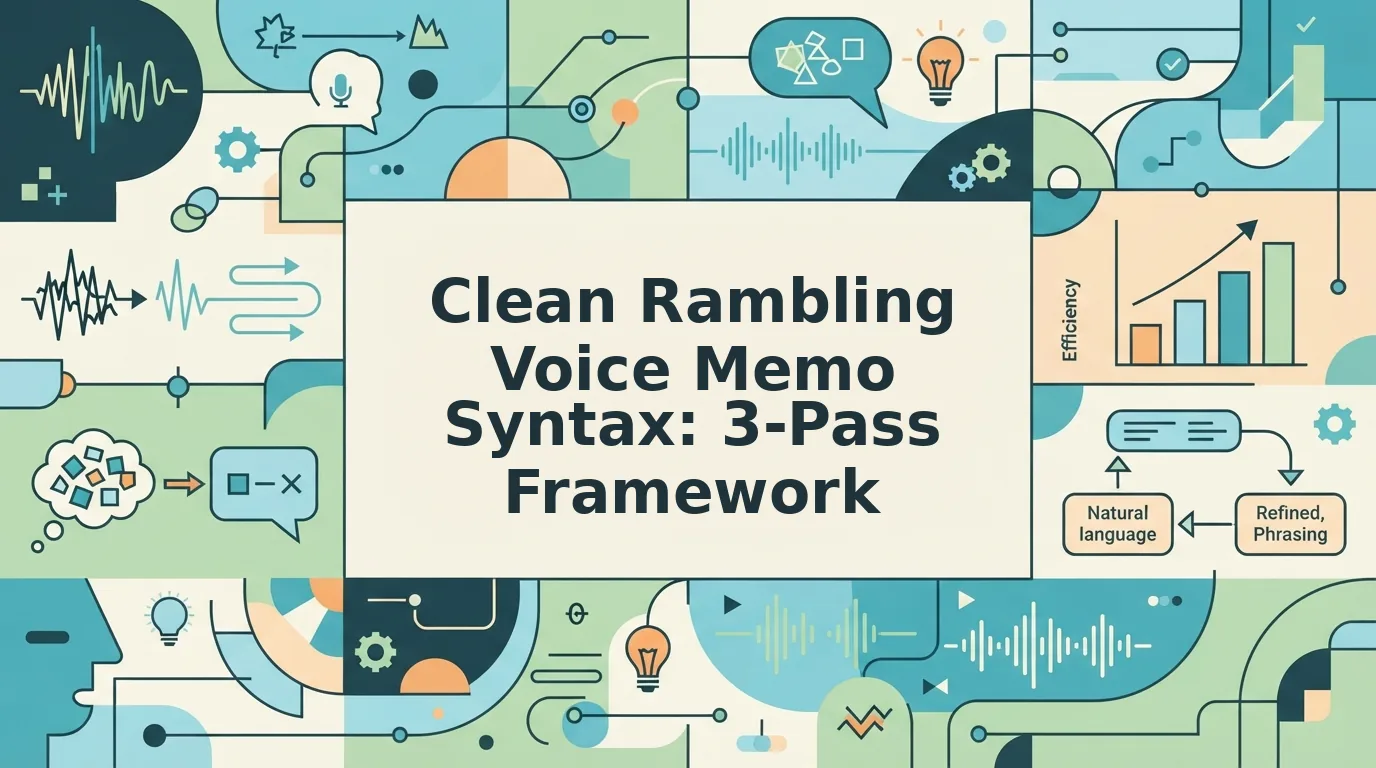
You're not wrong to feel that way. Rambling is the default state of spoken thought, not a personal failure. But here's the promise: you can clean rambling voice memo syntax in one pass without re-recording, without scripting, and without losing your natural delivery. This guide walks you through a three-pass cleanup workflow, removing fillers and false starts, repairing sentence fragments and circular phrasing, then polishing tone for team-ready audio. One surprising finding ahead: slowing down to speak "more clearly" actually makes rambling worse, and the fix is counterintuitive. VClar's filler word remover handles the mechanical cleanup so you can focus on the message itself.
Why Voice Memos Ramble (and Why Re-Recording Fails)
Rambling syntax is the gap between how you think and how you speak when no one is listening. You can remove it systematically, but first you need to see it as a distinct problem from transcription errors or poor audio quality.
Rambling syntax is the pattern of filler words, abandoned sentence starts, and circular phrasing that appears when someone speaks without a pre-planned structure. It is not a transcription problem, the words are captured accurately, but a speech-production problem that makes the message harder to follow.
Think of a voice memo like a first draft written in wet cement. Every hesitation, restart, and tangent leaves a permanent mark. Re-recording is like pouring fresh cement over the old slab: you might smooth the surface, but you're still working with the same unplanned pour. The real fix is editing the existing material, not starting over.
Re-recording fails for three practical reasons. First, the second take rarely captures the same energy or phrasing as the first, you trade authenticity for polish. Second, re-recording doubles or triples your time investment for a message that should take one take. Third, the pressure to "get it right this time" often produces more fillers, not fewer, because you're now thinking about speaking instead of thinking about the message.
To diagnose what you're dealing with, compare your memo against this table:
| Rambling Speech | Conversational Speech |
|---|---|
| "I was thinking that maybe we could possibly consider…" | "I recommend we…" |
| "So, um, basically what I wanted to, like, say was…" | "My point is…" |
| "We should probably, you know, circle back on the, uh, the thing we discussed…" | "Let's revisit the pricing discussion." |
The difference comes down to three syntax problems. Filler words, "um," "ah," "like," "basically," "you know", pad the timeline without adding meaning. Sentence fragments, abandoned starts like "What I meant was, if we could just…", leave the listener waiting for a subject or verb that never arrives. Circular phrasing, restating the same idea three ways before committing to one, buries the actual point under verbal scaffolding.
Each problem has a targeted fix. You can remove filler words from audio with automated detection that strips hesitations while preserving your natural cadence. Fragments and circular phrasing require a second pass, which the next sections cover step by step.
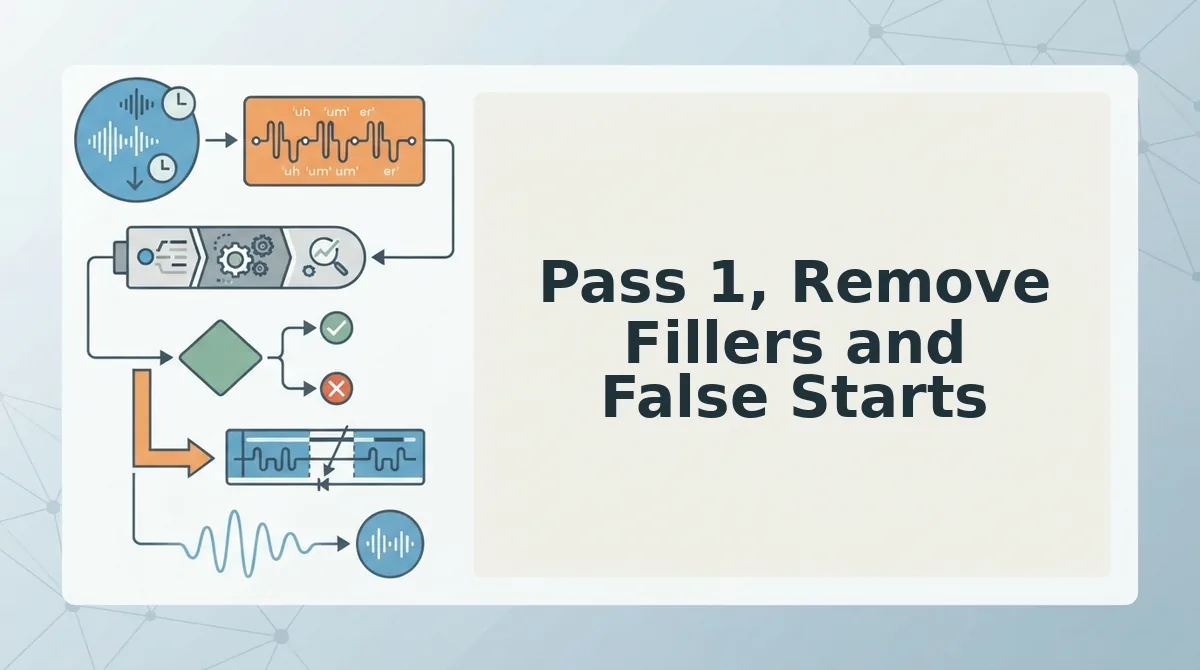
Pass 1, Remove Fillers and False Starts
Start with the mechanical cleanup: strip out verbal hesitations and abandoned sentence starts.
Prerequisites: Your raw voice memo file (any format), plus a filler word remover that preserves your original voice rather than resynthesizing it.
- Upload your raw memo. Open your filler word remover and drag in the audio file. Wait for the analysis to complete, you should see a waveform with detected fillers highlighted along the timeline.
- Review the detected filler list. The tool flags three categories: verbal hesitations ("um," "ah," "er"), repeated false starts ("I think. I think we should…"), and hedging phrases ("basically," "kind of," "sort of," "you know"). Confirm the removals match what you actually said.
- Apply the cleanup. Click the remove or clean button. The tool stitches the audio timeline seamlessly, so the gaps where fillers sat disappear without audible jumps. Play back the result, your sentences should now flow from start to finish without padding.
- Spot-check the transitions. Listen to the first three seconds after each removal point. You should hear natural speech rhythm, not clipped words or unnatural pauses. If a transition sounds abrupt, undo that single removal and leave the filler in place.
What to remove vs. what to keep: Remove "um," "ah," "like" (as filler), "basically," "you know," and repeated word starts. Keep "actually" and "honestly" when they carry emphasis, they signal conviction, not hesitation.
Pro tip: Record at normal speed. Slowing down to speak clearly actually increases fillers because you're thinking about speaking instead of the message. Your natural pace produces fewer hesitations, and the cleanup pass handles whatever slips through.
Once fillers are gone, the remaining syntax problems become visible: fragments and circular phrasing. That's the next pass.
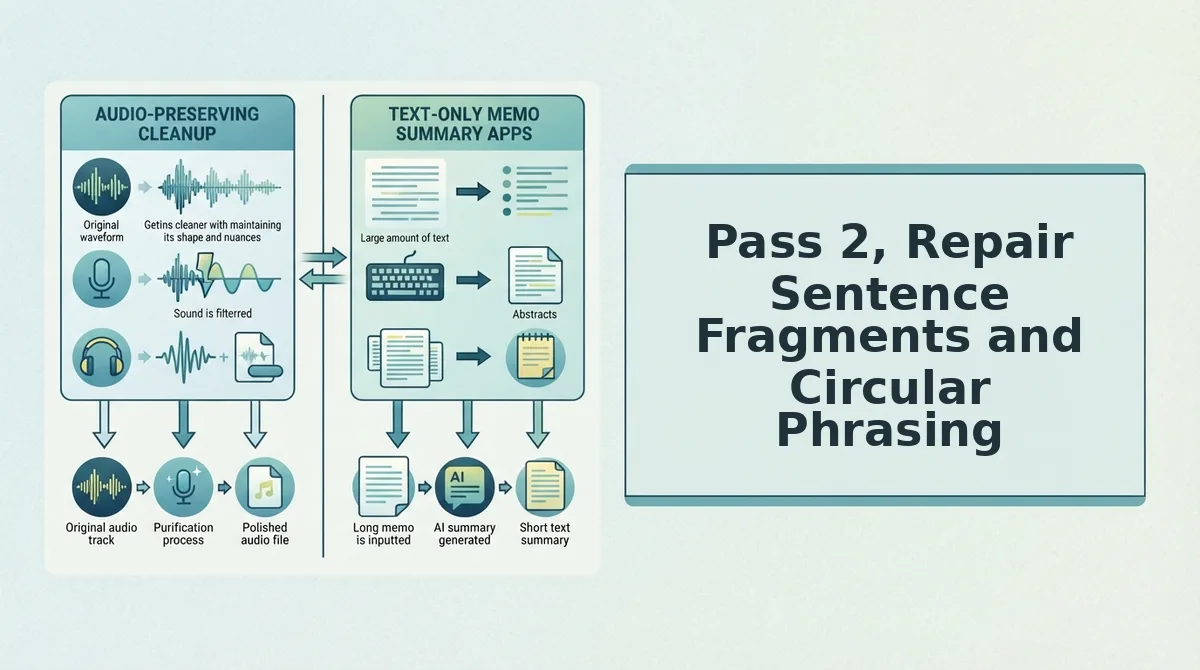
Pass 2, Repair Sentence Fragments and Circular Phrasing
Pass 2 fixes the syntax problems that survive filler removal: abandoned clauses, subject-verb mismatches, and trailing modifiers that make voice memos sound scattered. You'll need the cleaned audio from Pass 1 and a transcript view of your message.
- Open the transcript view of your Pass 1 audio. Click the Transcript tab next to your cleaned recording. You should see the full text of your message with fillers already removed.
- Scan for abandoned clauses. Look for sentences that start with "So if we just..." or "What I was thinking was..." and never complete the thought. Select each fragment and click Repair Syntax. VClar merges the fragment with the nearest complete sentence or deletes it if no logical connection exists. You should see the fragment highlighted in yellow before repair and disappear after.
- Check subject-verb mismatches. Read the transcript aloud silently. Flag any sentence where the subject and verb don't agree, for example, "The shipment numbers was delayed" instead of "were delayed." Click Fix Grammar on the toolbar. The corrected sentence appears in green. This takes about 20 seconds per memo.
- Identify circular phrasing. Search for repeated explanations of the same point, such as "The shipment is late, meaning it hasn't arrived yet, so we're still waiting." Select the redundant clause and click Remove. The timeline tightens automatically, and your audio duration drops in real time.
- Listen to the repaired audio once. Click Play Preview to confirm the edits sound natural. You should hear a continuous, decisive message with no awkward jumps or clipped words.
Here's what fragment repair looks like in practice. Raw memo: "So the shipment from Shenzhen, which was supposed to arrive Tuesday, but then the port had delays, and basically we're looking at Friday now, which means the client demo, we need to move it." After Pass 2: "The Shenzhen shipment is delayed until Friday due to port congestion. We need to move the client demo."
One founder recorded a 90-second update about a delayed shipment. The raw memo contained 14 fillers, 3 sentence fragments, and one circular explanation of the delay. After Pass 1 and Pass 2, the message ran 45 seconds, direct, complete, and professional. If you want to fix grammar in voice message recordings without re-recording, this is the pass that does the heavy lifting.
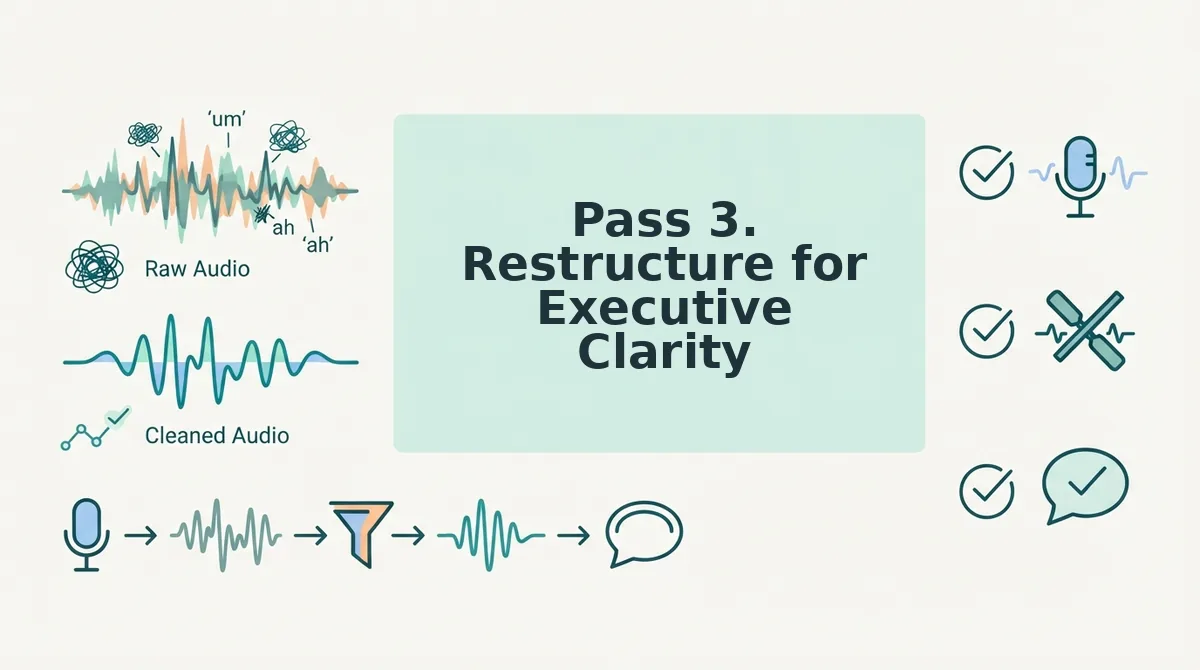
Pass 3. Restructure for Executive Clarity
Pass 3 reorganizes your now-clean syntax so the most important information lands first. You'll need the Pass 2 audio, the transcript view open, and about 30 seconds of attention.
- Open the Structure panel. Click Structure in the right sidebar of the transcript view. You should see your message broken into numbered segments.
- Drag the ask to the top. Find the sentence that contains your request, decision needed, or key update. Drag that segment to position one. The Lead-with-the-Ask principle says the first sentence should state exactly what you need from the listener, not background, not context, not apology. You should see the reordered transcript update instantly.
- Trim to the 45 - 90 second window. Check the duration counter under the audio player. If your message runs under 45 seconds, you likely cut too much context. If it runs over 90 seconds, click Auto-Trim to flag low-information sentences for removal. The sweet spot keeps enough context for the listener to act without losing attention.
- Click Apply Structure. This locks the new order and regenerates the audio timeline. You should see a confirmation banner: "Structure applied, audio reordered."
The Lead-with-the-Ask Structure works because executives and team leads scan voice messages the same way they scan email: first sentence decides whether they keep listening. The 45 - 90 second rule holds because shorter messages lack the context needed for a decision, while longer ones trigger the listener to skip ahead or stop entirely. This synthesis applies directly to voice notes for founders who need to move teams without repeating themselves.
The One-Take Workflow: From Rambling to Ready in Under 3 Minutes
The three-pass framework turns a rough voice memo into a professional message in under three minutes. Here is the complete workflow, ordered by impact.
- Record the raw memo (0:00 - 0:45). Speak naturally without editing yourself. The goal is one take, hesitations, fillers, and fragments are expected and will be cleaned later.
- Run Pass 1: remove fillers and false starts (0:45 - 1:30). Upload the audio to VClar voice message cleaner and let the engine strip ums, ahs, and repeated starts. Your timeline tightens immediately.
- Run Pass 2: repair fragments and circular phrasing (1:30 - 2:15). Open the transcript, fix abandoned clauses and subject-verb mismatches, and delete redundant explanations. Your message reads as complete sentences.
- Run Pass 3: restructure for executive clarity (2:15 - 2:45). Drag the ask to the top, trim to the 45 - 90 second window, and apply the new structure. Your message now leads with the decision needed.
- Send the cleaned message (2:45 - 3:00). Export the polished audio or transcript and deliver it. No re-recording, no second take.
How do you clean rambling voice memo syntax for professional teams? Use a 3-pass framework: remove fillers and false starts, repair sentence fragments and circular phrasing, then restructure to lead with the ask. This process replaces the manual Dan Brown Solutions workflow, where team members re-record the same memo three or four times to get it right, with a single take and three quick cleanup passes. The result is a message that sounds like you, only clearer.
Stop re-recording. Start cleaning.
Stop Re-Recording. Start Cleaning.
The three-pass framework works because it separates what you say from how you sound, and fixes both without forcing another take. Pass one clears the noise. Pass two repairs the syntax. Pass three sharpens the structure. Together, they turn a rambling memo into a message your team actually acts on.
But here's the shift that matters: you don't need to master all three passes manually. VClar handles filler removal, grammar repair, and restructuring in one pass, while keeping your voice, cadence, and intent intact.
- Record once, the way you naturally speak.
- Run the memo through VClar's cleaner.
- Send a message that sounds like you, minus the rambling.
Every re-record costs you momentum. Every cleaned memo earns you credibility. The teams that communicate clearly in one take don't just save time, they set the standard for how decisions get made.
Your voice is the asset. The rambling is just noise, and noise is removable.