
You just spent 30 seconds recording a voice note. Then you listened back, heard the "um," the traffic noise, the sentence that trailed off, and hit delete. Ten minutes later, you're still re-recording. If that loop sounds familiar, you're not alone: founders and sales reps burn hours every week trying to clean up voice note before sending it, only to settle for "good enough."
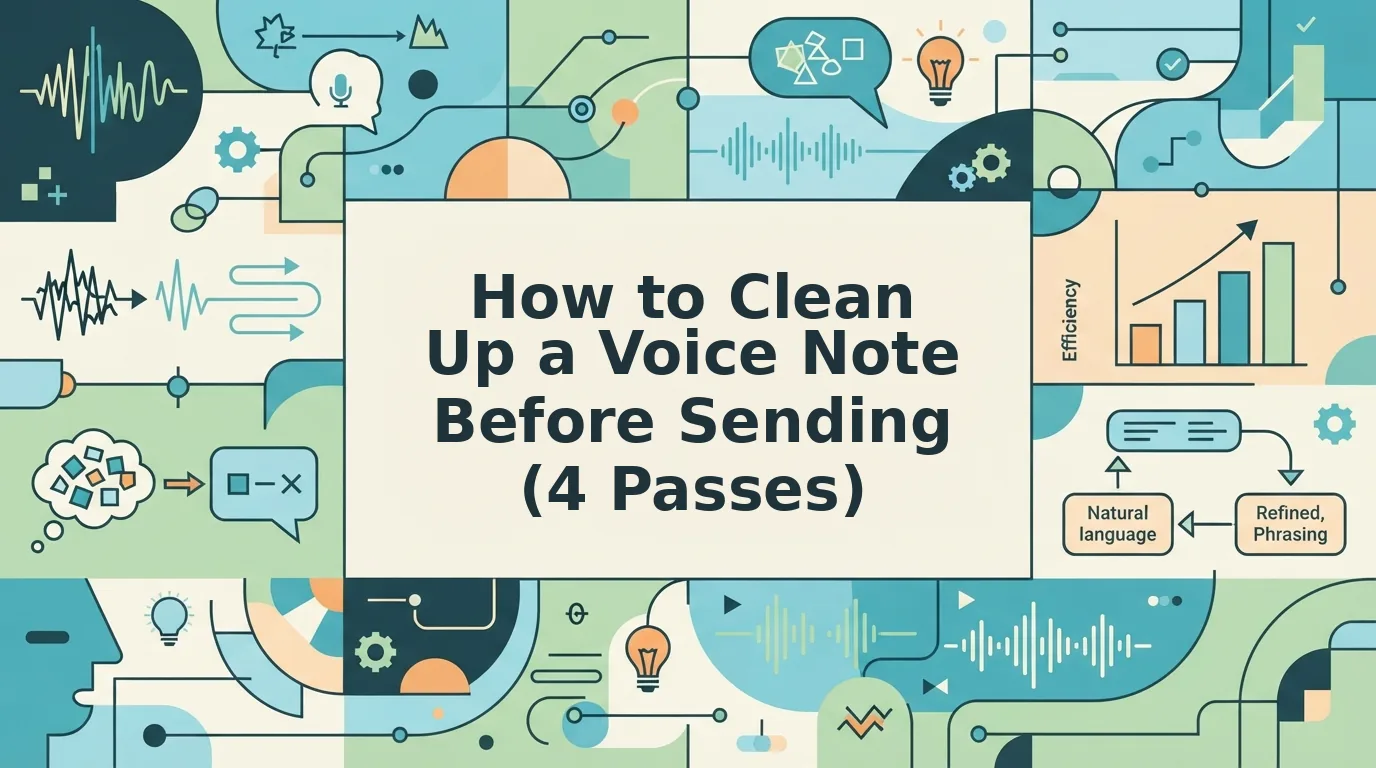
Agree: the problem isn't your speaking ability, it's that raw audio captures everything, including the parts you never meant to send. Promise: in this guide, you'll learn a 4-pass framework that strips noise, removes fillers, fixes grammar, and translates your message, all without re-recording. Preview: we'll start with background noise, move through filler words and grammar, then finish with translation. And here's the surprising part: most tools only handle one of these passes. VClar handles all four in a single workflow.
Why Most Voice Notes Sound Unprofessional (And It's Not Your Fault)
A voice note is a raw, unedited audio capture of spontaneous speech, and spontaneous speech is messy by design. When you talk, your brain is drafting in real time, which means fillers, false starts, and trailing sentences are the default, not the exception.
Think of it like a first draft of an email: no one sends a first draft without a quick read-through. But voice notes skip the editing step entirely. What listeners actually notice falls into three buckets: fillers ("um," "like," "you know"), background noise (traffic, keyboard clacks, HVAC hum), and sentence fragments that never quite land. Your speaking ability rarely registers, the audio environment and unedited speech patterns do.
The hidden cost is steeper than embarrassment. Every re-recording loop eats time, erodes confidence, and delays the message your team or client is waiting on. A 30-second note can easily become a 10-minute production. The fix isn't becoming a polished public speaker, it's applying a repeatable cleanup workflow before you hit send.
Pass 1: Strip the Background Noise
Background noise removal is the process of isolating your voice from ambient sound so the listener hears only what you intended to say. Start with the recording environment, then apply audio cleanup.
Before you record, check three quick manual fixes. First, choose a room with soft surfaces, carpets, curtains, or furniture absorb echo that hard walls bounce back. Second, keep the mic 6-12 inches from your mouth; closer than that adds bass boom, farther picks up room rumble.
Noise types you'll encounter fall into four categories: room rumble (low-frequency HVAC or refrigerator hum), traffic (intermittent, broadband), keyboard clacks (sharp transients), and HVAC hum (constant tonal noise). A clean recording isn't silence, it's room tone: the natural, low-level ambience of your space. Removing everything creates an unnatural "void" that listeners find jarring.
- Record in a quiet space. Close the door, mute notifications, and pause any fans or AC units. You should hear only your voice and a faint room tone.
- Upload your audio to VClar. Open the VClar dashboard, click Upload Audio, and select your voice note file. The platform accepts common formats like MP3, M4A, and WAV.
- Run the noise reduction pass. Select Clean Audio from the processing menu. VClar detects and removes room rumble, traffic, keyboard clacks, and HVAC hum while preserving your natural room tone.
- Verify the result. Play back the processed clip. You should hear your voice clearly with no distracting background sounds, but the audio shouldn't feel "dead" or artificially silent.
Once the background is clean, the next problem becomes obvious: the verbal fillers that survived the recording. That's where Pass 2 comes in.
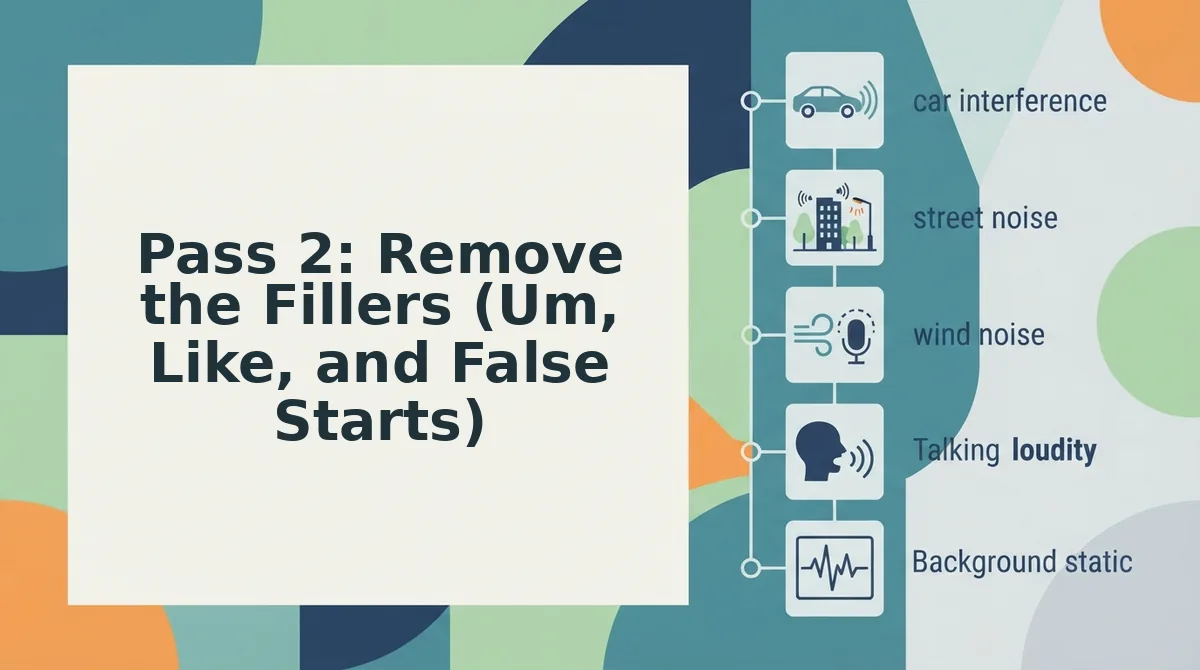
Pass 2: Remove the Fillers (Um, Like, and False Starts)
Filler removal is the highest-impact cleanup step: stripping "um," "like," "you know," and false starts from a voice note makes you sound decisive without changing what you actually said. You need either a voice-native cleanup tool like VClar's filler word remover or a manual waveform editor such as Audacity or Descript.
Fillers creep into spontaneous speech because your brain uses them as placeholders while it assembles the next thought. That's normal, but in a recorded message, they read as hesitation. Here's the step-by-step cleanup:
- Upload your raw voice note to your cleanup tool. Drag the audio file into the upload panel or click Choose File. You should see the waveform appear within a few seconds.
- Run automatic filler detection if your tool offers it. Click Detect Fillers or Clean Audio. The tool highlights every "um," "ah," "like," and false start in the timeline, typically under 10 seconds for a 60-second note.
- Review each flagged filler before deleting. Click each highlighted segment to hear it in context. Confirm it's a true filler, not a meaningful word like "like" used as a verb.
- Remove the fillers by clicking Delete or Remove Selected. The tool splices the audio seamlessly so the surrounding words flow together without audible gaps.
- Listen to the full cleaned note once from start to finish. You should hear the same voice, same cadence, zero hesitations, and the message should run noticeably shorter.
Before: "So, um, I was thinking, like, basically, we should, you know, move the launch to, uh, next Tuesday."
After: "I was thinking we should move the launch to next Tuesday."
Voice-native cleanup preserves your natural cadence because it removes only the filler audio, not the pauses that give your speech rhythm. Text-based transcription tools can't do this, they strip fillers from the transcript but leave them in the audio.
Pass 3: Fix the Grammar Without Losing Your Voice
Fixing grammar in a voice note is not the same as fixing grammar in an email. A text-based grammar checker will happily rewrite your sentence fragments into textbook prose, and in doing so, it flattens your cadence, strips your emphasis, and replaces your spoken rhythm with something that reads like a corporate memo. The goal is not to sound like a grammar textbook. The goal is to sound like you, minus the mistakes.
Spoken grammar errors are structural, not just typographical. You don't type run-on sentences the way you speak them. You don't type circular phrasing like "what I mean is, the thing about it is, basically what I'm trying to say is…", but your mouth produces it constantly. A text checker sees that and wants to rebuild the sentence from scratch. A voice-native correction engine sees it and removes the loop while keeping the delivery intact.
Text checkers fix words. Voice-native correction fixes delivery. That's the distinction that matters when you're sending a voice note to a client, an investor, or a team member who will hear your tone as part of the message.
Text Grammar Checker vs. Voice-Native Correction
| Criteria | Text-Based Grammar Checker | Voice-Native Correction (VClar) |
|---|---|---|
| Preserves cadence | No, rewrites for written syntax | Yes, cleans errors while keeping your pacing |
| Preserves tone and emphasis | No, flattens spoken inflection into neutral prose | Yes, retains your vocal emphasis and intent |
| Handles spoken fragments | Poor, flags them as errors to "fix" | Strong, recognizes fragments as natural speech patterns |
| Removes circular phrasing | Limited, may condense but loses your voice | Yes, trims loops without rewriting your message |
| Best for | Writers polishing essays, emails, or blog posts | Founders, sales teams, and creators sending voice messages |
To be fair, text-based grammar checkers are excellent at what they do. If you're writing a proposal, a report, or a long-form article, they catch subject-verb disagreements, misplaced modifiers, and punctuation issues faster than any human editor. They deserve their place in your workflow, just not in your voice note workflow.
Here's the pattern interrupt: What if the tool that makes your voice note "correct" is also the tool that makes it sound like someone else? That's the risk you run when you paste a transcript into a text checker and then re-record from the "fixed" script. You've traded authenticity for correctness, and your listener can tell.
What We'd Choose
Our recommendation: use a voice-native correction tool like VClar to fix grammar in voice message audio directly. It removes the spoken errors, the fragments, the run-ons, the circular phrasing, without flattening your delivery. You record once, you clean once, you send.
Choose a text checker if you're producing written content and need formal grammatical precision. Choose voice-native correction if you're sending a voice note and need to sound like yourself, just sharper.
One more habit worth building: keep a side-by-side view of your raw transcript and the cleaned version. Reading both together shows you which spoken patterns you repeat most, and that awareness alone improves your speaking over time, before you even hit record.
Once the grammar is clean and your voice is intact, there's one more pass most people skip entirely, and it's the one that matters most when your listener speaks a different language.
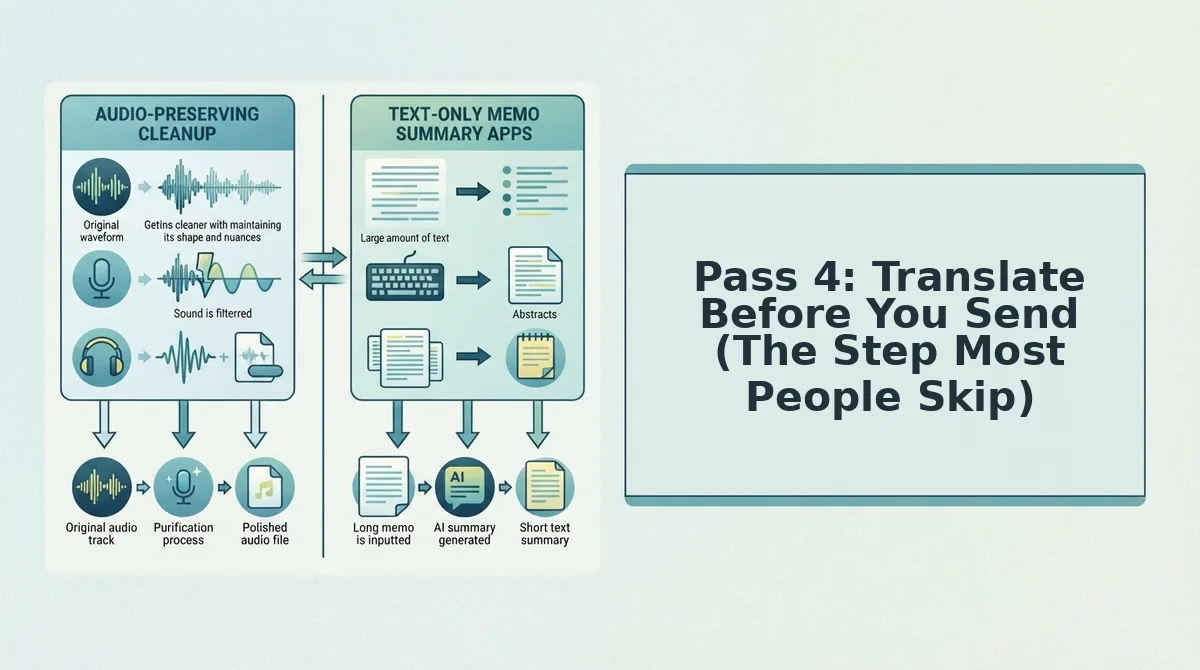
Pass 4: Translate Before You Send (The Step Most People Skip)
If your voice note crosses a language barrier, run it through a voice note translator before hitting send, this is the step most people skip, and it's the one that costs deals, delays async team updates, and confuses international clients.
Translation is not just about swapping words. You need to preserve tone, cadence, and speaker identity, the qualities that make your message sound like you, not a robotic transcript.
Before you start
- You need the cleaned audio from Passes 1-3: background noise removed, fillers stripped, grammar fixed.
- You need to know the recipient's language and the context, client call, async team update, or international sales follow-up.
Steps
- Open your cleaned voice note in your translation tool. Upload the audio file or record directly. You should see the waveform load without errors.
- Select the target language from the language picker. Choose the recipient's actual language, not a regional guess. The interface should show the selected language next to the file name.
- Run the translation and listen to the output. Confirm the translated audio still carries your natural cadence and vocal identity. If it sounds flat or synthetic, re-run the pass.
- Review the transcript alongside the audio. Check that names, numbers, and product terms survived translation intact. Fix any term that got mangled.
- Send the translated version, not the original. You should feel confident the recipient hears a clear, decisive message in their language, in your voice.
Pro tip: Translation is where tone gets lost fastest. If the output sounds like a different person, your tool is replacing your voice instead of translating it. Switch tools before you send.
Worked example
A founder records a 90-second voice note for a supplier in Mexico. The raw audio has background noise, three "ums," and a grammar slip. After Passes 1-3, the note is clean. She runs it through the voice note translator, selects Spanish, and listens back. The cadence is hers. The tone is direct. She sends it. The supplier replies within the hour, no clarification questions, no "can you repeat that?"
That's the four-pass workflow in action. Next, the checklist that keeps all four passes from slipping.
The 4-Pass Cleanup Checklist
Here is the full cleanup sequence in one scannable list, ordered by impact. Each pass builds on the previous one, so run them in order for the cleanest result.
- Pass 1: Strip background noise. Remove traffic hum, keyboard clatter, and room echo before anything else because noise masks clarity and makes every other fix harder to hear. Use a noise-reduction tool or record in a quiet space, then check the waveform for dead-air spikes you can trim.
- Pass 2: Remove filler words. Cut ums, ahs, likes, and false starts because they dilute authority and make you sound unsure even when the content is strong. Run an automated filler remover like VClar, or manually splice the audio timeline at each hesitation point.
- Pass 3: Fix grammar without flattening tone. Correct subject-verb slips, run-ons, and awkward phrasing while preserving your cadence, accent, and intent. Use a speech-aware grammar tool rather than a text-only checker, which can strip personality from spoken delivery.
- Pass 4: Translate before sending. If the recipient speaks another language, translate the cleaned audio rather than the raw recording so errors don't compound across languages. Send both the translated audio and a transcript so the recipient can confirm nuance.
Manual vs. AI Decision Matrix
| Task | Manual Effort | AI Effort | Time Saved |
|---|---|---|---|
| Noise removal | 10-15 min per clip in an editor | Under 30 seconds, automatic | ~95% |
| Filler removal | 5-10 min of precise splicing | Under 30 seconds, automatic | ~90% |
| Grammar fix | Re-record or hand-edit transcript | One pass, speech-aware correction | ~80% |
| Translation | Manual translation + re-record | One pass, voice-preserving output | ~85% |
FAQ: Cleaning Up Voice Notes Before Sending
How do I clean up a voice note before sending it?
Run a four-pass cleanup: strip background noise, remove filler words, fix grammar while preserving your tone, then translate if needed. Each pass takes under a minute with a tool like VClar, and the result is a decisive, professional voice note without re-recording.
Can I remove filler words from a voice recording without re-recording?
Yes. Automated filler removal detects and deletes ums, ahs, likes, and false starts directly from the audio timeline, so the message sounds seamless and you never need a second take. Manual splicing works too but takes significantly longer.
How do I fix grammar in a voice message without sounding robotic?
Use a speech-aware grammar tool that corrects spoken grammar while preserving your cadence, accent, and vocal identity. Text-only grammar checkers strip natural delivery; speech-aware engines fix errors without flattening how you actually sound.
How do I translate a voice note before sending it to an international client?
Clean the audio first, then translate the polished recording so errors don't compound across languages. Send both the translated audio and a transcript so the recipient can verify nuance and respond accurately.
What's the fastest way to clean a voice memo on my phone?
Upload the memo to a voice cleanup tool that handles noise, fillers, grammar, and translation in one pass. VClar processes all four fixes in under a minute, eliminating the need to export, edit, and re-import across multiple apps.
One Take Is Enough When Cleanup Is Built In
The goal was never to become a professional audio editor. The goal is to record once, speak naturally, and know the message lands clean. The four-pass framework turns cleanup from damage control into an enabler: you stop rehearsing, stop re-recording, and start trusting your first take.
That shift is the real payoff. When you know fillers, noise, grammar slips, and language gaps are handled in one pass, you speak with more confidence on the recording itself, which makes the raw audio better before cleanup even starts.
Next step: run your next voice note through VClar's clean voice memo tool. One pass, four fixes, your voice intact.