
You record a 60-second voice update, stall into an "um" while searching your memory for a metric, freeze in dead air, and tap delete to re-record for the fourth time. Speakers lose over 15 minutes per day in repetitive re-record loops for asynchronous audio notes and voice updates. Learning how to cut awkward pauses between filler words in audio ensures you do not need another retake to sound decisive.
Adopting an ai voice message translator and speech enhancement workflow allows you to strip out hesitation clusters without redoing the work. You will learn how to isolate dead air boundaries, excise speech fillers cleanly, and preserve your natural vocal cadence. Later, you will discover why the common practice of snapping waveforms to complete silence actually sabotages audio authenticity.
Consider this standard cleanup sequence:
- Situation: A spontaneous 45-second voice note contains a two-second pause flanking a drawn-out filler word.
- Action: Isolate the full hesitation envelope, the pre-filler silence, the spoken syllable, and the trailing silence, rather than slicing only the word itself.
- Outcome: Cutting only the spoken syllable without the surrounding gap causes acoustic discontinuity, whereas clearing the entire cluster joins neighboring clauses naturally.
This approach applies directly to standalone voice memos and brief conversational recordings. Instead of manually slicing audio timelines, you can rely on VClar to automatically remove filler words, bridge unnatural silences, and preserve your original tone in one take. To fix these rhythm breaks effectively, you first need to understand the acoustic anatomy behind speech stumbles.
Why Filler Words Create Awkward Pauses in Audio
Filler words create awkward pauses in audio because verbal hesitations never occur in isolation; they exist inside a three-stage hesitation pocket that breaks natural speech rhythm. The hesitation pocket is a three-phase acoustic disruption where a speaker pauses before, during, and after uttering an involuntary vocal filler, consisting of an initial 200-400ms anticipatory pause, a 300-600ms vocalized filler, and a 400-800ms post-filler cognitive recovery gap. Slicing out only the audible syllable like "um" leaves flanking empty voids that sound unnatural, meaning editors must eliminate both the vocalization and surrounding dead air to restore authentic pacing.
Deleting the word "um" often makes audio sound worse, not better. Snipping the vocalization without closing the surrounding void creates an acoustic vacuum gap that startles the listener. Human hearing expects continuous ambient atmosphere, not abrupt drop-offs.
Think of speech cadence like a moving train track. Removing a filler word without leveling the underlying room tone or applying micro-crossfades breaks the continuity, producing an audible "jolt" that flags the edit instantly.
Every recording environment contains an ambient floor. HVAC hum, subtle room reflections, and microphone preamp self-noise, averaging between -50 dBFS and -65 dBFS in treated studio spaces. When an editor cuts a vocal filler and leaves a hard cut, this background layer vanishes for a split second, causing an unsettling psychoacoustic effect known as room tone dropout. The human brain perceives this sudden drop to digital black (-infinity dBFS) as a glitch rather than a natural pause. Preventing this sudden drop requires a disciplined approach to timeline cuts and transition boundaries.
How to Edit Out Filler Words Without Creating Unnatural Speech Gaps
To remove filler words naturally, audio editors must excise the vocalization alongside flanking silence, align the splice point at zero crossings, and bridge the resulting cut with a 5ms to 10ms equal-power crossfade over a continuous room tone bed.
Executing an undetectable vocal edit requires a precise four-step micro-editing workflow:
- Identify the Zero-Crossing Point: Split the waveform where the audio signal intersects the zero-amplitude line (0 dB) at the onset and tail of the edit. Slicing at non-zero peaks causes transient pops and clicks due to instantaneous voltage changes.
- Preserve Natural Intonation Drift: Analyze the pitch trajectory preceding the filler. If the speaker's vocal pitch rises before the "um," cutting straight to the next word makes the transition sound like an aggressive splice. If the pitch stays unresolved, leave 150ms to 250ms of clean ambient silence to simulate a natural contemplative pause.
- Deploy an Underlying Tone Track: Duplicate 3 to 5 seconds of unvoiced room tone from the recording session onto a secondary audio track. Loop this track beneath your dialogue track to prevent ambient dips whenever sections of dead air or breath are excised.
- Apply Short Asymmetrical Crossfades: Avoid standard symmetric crossfades across speech boundaries. Apply a steep 3ms to 5ms fade-out at the tail of the preceding word and a gentle 7ms to 10ms logarithmic fade-in at the start of the following word to mimic the natural attack of human vocal cords.
While standard timeline crossfading works for standalone gaps, complex overlapping speech calls for a more surgical visual editing method.
Spectral Repair vs. Razor Blade Slicing
Spectral editing removes filler words more cleanly than traditional razor cuts because it allows editors to erase frequency-specific vocal resonances between 80 Hz and 1.2 kHz without truncating the continuous background noise floor.
When speakers utter words like "so" or "like" while breathing inward or speaking over another sound, standard time-domain cuts destroy the surrounding audio. Using a spectral spectrogram, you can target the distinct harmonic formant bands of the vowel sound and attenuate them by 18 dB to 24 dB using spectral repair algorithms (such as iZotope RX Spectral Repair or Adobe Audition's Spot Healing Brush).
By shifting from blunt timeline deletions to spectral attenuation and crossfaded timing adjustments, speech preserves its physiological cadence, retaining professional authority without sounding mechanically reconstructed. Beyond cleaning individual sound frequencies, mastering the exact duration of the remaining gap is essential to maintaining authentic delivery.
The 300ms Cadence Rule for Natural Speech Pacing
The 300ms cadence rule establishes that natural speech pacing requires leaving between 300 and 400 milliseconds of clean silence when cutting filler words from audio. Trimming silence below this benchmark makes the speaker sound hurried and synthetic, while leaving wider pauses creates awkward dead air that breaks listener engagement.
A cadence threshold is the precise duration of silence between vocal utterances required to maintain intelligible, authentic conversational rhythm. When cleaning voice recordings, editors often make the mistake of slicing out every millisecond of dead space between stumbling words. Human cognition expects rhythmic pauses to process complex concepts. Setting pause durations systematically removes hesitation without destroying personal vocal identity.
How do audio engineers separate natural pauses from awkward hesitation?
- Anchor phrase gaps at the 300ms to 400ms conversational baseline: This timing matches the physiological boundary of human inhalation between complete grammatical statements. A 300ms to 400ms duration preserves human cadence and authentic conversational flow without stalling the message. Configure timeline grid snapping or automated cut envelopes to standard 350ms gaps whenever removing verbal fillers.
- Truncate dead air exceeding 600 milliseconds immediately: Extended acoustic silence represents the point where listener processing gives way to perceived stalling or technical failure. Greater than 600ms dead air triggers cognitive drop-off and listener impatience, making the speaker seem unprepared. Deploy a silence-stripping plugin configured with a 600ms ceiling gate to automatically flag and compress lingering pauses.
- Avoid ultra-short gaps under 250 milliseconds to prevent synthetic rush: Splicing words together with no transitional space eliminates room acoustics and phoneme decay tails. An under 250ms pause duration registers as breathless, rushed, or synthetically cut, which creates an unsettling, robotic impression. Enforce a minimum safety margin in your timeline software to prevent crossfades from dropping below 260ms during ripple edits.
- Preserve natural room tone breaths before conceptual transitions: Organic inhalations provide human texture and signal that an important conceptual shift is about to occur. Completely eliminating these low-amplitude breath sounds creates an uncanny, sterilized delivery that isolates the listener. Isolate pre-sentence waveforms manually and preserve a clean 300ms room-tone pad beneath essential conversational breaths.
- Calibrate post-edit pause lengths against individual delivery tempo: Speech rhythm depends on individual cadence, meaning rapid speakers require shorter pauses than contemplative speakers. Matching edit boundaries to your genuine tempo prevents unnatural cadence shifts across cleaned voice memos. First measure your speaking rate to establish your natural baseline, then adjust your cut tolerances to match your personal cadence.
Once you have calibrated your timing parameters, you can apply them systematically across your audio timeline.
How to Cut Awkward Pauses Between Filler Words in Audio Step by Step
Cutting awkward pauses between filler words in audio requires slicing the audio waveform at zero-crossing points, extracting the verbal hesitation, and joining the adjacent phrases with micro-crossfades. This workflow eliminates dead air without creating jarring acoustic dropouts or digital clicks.
A zero-crossing point is the exact position in an audio signal where the waveform amplitude measures zero volts, intersecting the center baseline. Aligning edits to this baseline ensures silent transitions.
Before editing, load your raw recording into any digital audio workstation (DAW) or waveform editor and ensure you have isolated a short sample of ambient room tone from the same recording session. Expect this process to take roughly two to four minutes per minute of recorded speech.
- Locate the verbal stumble on the timeline. Zoom into the audio waveform until individual syllables and baseline silence are clearly distinct. You should see the target filler word framed by low-amplitude pauses on either side.
- Snap cut markers to zero-crossing points. Enable zero-crossing snapping in your editor, then place razor cuts immediately before the filler word and directly after the trailing pause. Zero-crossing point alignment prevents waveform DC offset clicks that occur when cutting across active voltage peaks.
- Delete the selected region and evaluate spacing. Press delete to remove the filler word and its attached pause, then slide the trailing audio clip toward the preceding phrase until roughly 300 milliseconds of spacing remains. You should hear the natural cadence return without a drawn-out silence.
- Bridge the gap with looped room tone. Paste a clean snippet of recorded background noise into the empty space between the clips. Room tone looping buffers gaps where total silence would sound unnatural to the listener's ear.
- Apply 5ms to 10ms equal-power crossfades. Highlight the splice points at both clip boundaries and render micro-fades across the seams. Using 5ms to 10ms equal-power crossfades bridges disparate background noise floors seamlessly and prevents abrupt volume jumps.
Consider how this works in practice during a real recording clean-up:
A raw voice memo contains a rambling sentence: "We should, basically... launch the update tomorrow." The editor zooms in, locates "basically" flanked by a 700-millisecond hesitation, and places slice points at baseline zero-crossings. After deleting the hesitation, the editor inserts 250 milliseconds of ambient room tone and applies an 8-millisecond crossfade across both edges. The finished sentence plays as a clean, continuous statement: "We should launch the update tomorrow," with zero audible pops or clipped consonants.
If you record spontaneous voice memos and need to communicate clearly in one take, manual waveform trimming quickly becomes a bottleneck. VClar automatically detects verbal fillers, eliminates awkward pauses, and cleans the timeline instantly, delivering polished, decisive audio while strictly preserving your authentic vocal identity. Understanding how automated systems compare to traditional desktop workflows clarifies when to automate and when to edit by hand.
Manual DAW Editing vs Automated Speech Enhancers for Trimming Pauses
Manual editing in a digital audio workstation (DAW) delivers precision waveform control at the cost of significant time, whereas automated speech enhancers instantly trim pauses and hesitations while preserving natural vocal cadence. A digital audio workstation is an electronic software suite engineered for recording, editing, and mastering multitrack audio.
For daily communication, manual timeline scrubbing creates an unsustainable bottleneck. DAW manual slicing takes 4 to 6 minutes of editing per minute of recorded audio. Applying simple threshold filters is equally flawed, as naive noise gates truncate natural consonant decay tails like 't', 's', and 'k'. In contrast, automated speech enhancement handles cadence and fillers simultaneously without timeline micro-management, letting professionals transform rough thoughts into clear voice notes in a single take.
Why spend twenty minutes cutting silence in Audacity for a two-minute status update?
| Approach | Time Investment | Acoustic Quality | Best For |
|---|---|---|---|
| Manual DAW Editing | 4 - 6 minutes per minute of speech | Full control; requires manual micro-fades | Best for studio podcasters and sound designers |
| Naive Noise Gates | Real-time automatic cutoff | Harsh; truncates speech tails and soft plosives | Best for live streamers managing background hum |
| Automated Speech Enhancers | Instant processing | Natural pacing; protects authentic vocal timbre | Best for founders, consultants, and async teams |
Choose manual DAW editing if you produce serialized audiobooks or studio podcasts that require granular, multi-stem balance. Choose a hardware noise gate if you run live streams and need automated room suppression in real time.
Our recommendation: For daily voice memos and client updates, choose automated speech enhancement. You can seamlessly remove filler words from audio without spending half your afternoon slicing waveforms. If you are weighing heavyweight creative suites against agile message tools, review our VClar vs Descript comparison to determine the right workflow for your communication needs. Regardless of whether you trim tracks by hand or use an automated tool, verifying your final output ensures no jarring cuts slip past.
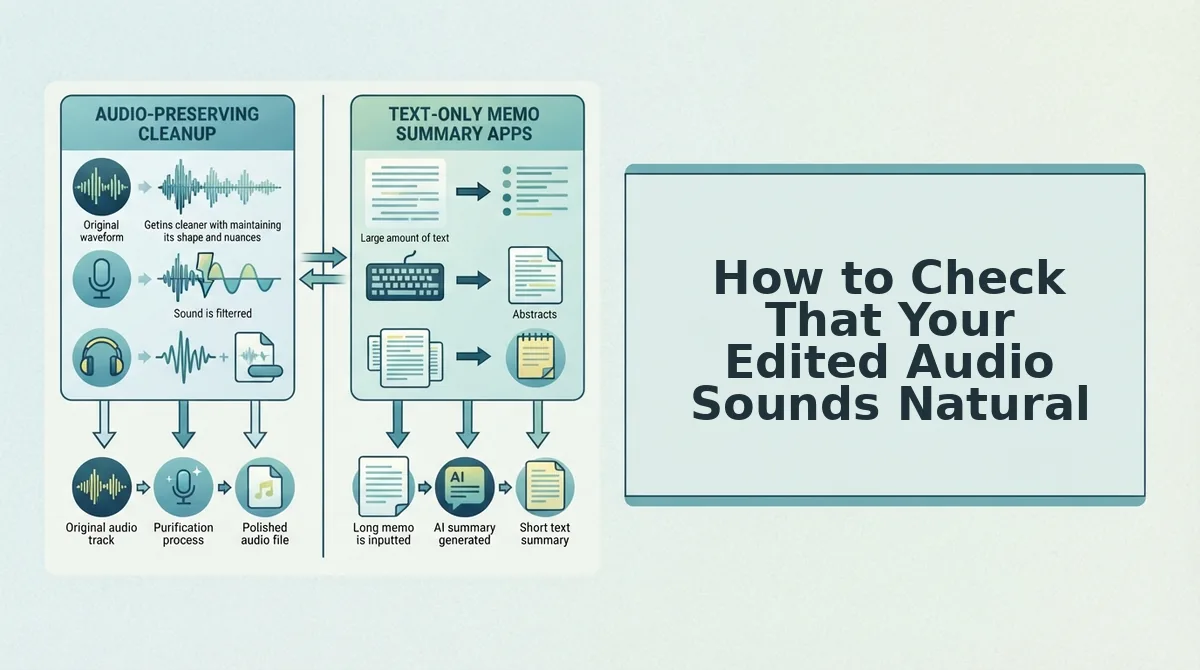
How to Check That Your Edited Audio Sounds Natural
To check that your edited audio sounds natural after cutting awkward pauses, run an acoustic quality audit that inspects room tone continuity, breath preservation, and conversational rhythm. Natural speech requires organic transitions, so evaluating background ambience and vocal cadence prevents voice notes from sounding artificially clipped or robotic.
An acoustic quality audit is a structured verification workflow used to evaluate edited spoken voice tracks for seamless transitions, consistent acoustic backgrounds, and preserved vocal identity. When removing pauses and filler words, over-trimming can produce sudden digital dropouts or unnatural pacing that betrays an aggressive edit. By checking room tone across transition points, retaining pre-clause breaths, and testing speech under accelerated playback, you ensure the final voice memo retains its authentic vocal delivery while sounding concise and authoritative.
Could an over-edited sentence sound more distracting than the original verbal stumble? In async voice messaging, harsh cuts always pull the listener out of the message.
- The Room Tone Continuity Test: This step evaluates background noise consistency across cut points by reviewing the recording through headphones at elevated gain. Removing pauses often creates total digital silence, which produces jarring dropouts whenever an ambient noise floor abruptly cuts in and out. Listen to your transition boundaries at high volume to ensure ambient room sound remains unbroken between spoken phrases.
- The Inhalation Audit: This check verifies that natural physiological breath sounds remain intact directly before long or complex spoken clauses. Stripping every breath flattens delivery and makes conversational thoughts sound unnatural and robotic. Review every transition preceding a major phrase to confirm that a soft, proportional breath sound remains in place rather than being sliced away.
- The 1.25x Speed Playback Test: This diagnostic exposes awkward rhythmic stutters and jarring cadence shifts by accelerating playback beyond normal conversational tempo. While human ears frequently adjust to minor timing issues at standard speed, faster playback immediately exaggerates uneven gaps and unnatural cut points. Run your audio through a 1.25x speed playback test to catch any lingering pacing hesitations before finalizing the file.
- The Consonant Articulation Scan: This audit checks for clipped word endings and synthetic tonal artifacts created when speech cuts occur too close to spoken transients. Trimming pauses too tight against plosives or sibilant consonants cuts off natural acoustic decay and impairs overall message clarity. Scrub through the tail ends of edited words to confirm that final consonants retain their full, natural acoustic envelope.
For quick solutions to specific technical challenges when editing dialogue, review these common questions and practical adjustments below.
Frequently Asked Questions About Cutting Audio Pauses and Fillers
Cutting awkward pauses between filler words requires trimming dead air to a natural 300ms to 400ms conversational cadence while preserving ambient room tone.
What is the ideal pause duration between spoken words?
The ideal pause duration between spoken words is 300ms to 400ms for natural conversational cadence. Anything shorter than 200ms sounds rushed or robotic, while pauses exceeding 600ms introduce awkward dead air. Trimming pauses to this specific pocket preserves human pacing without making the speaker sound hesitant or unnatural.
Why does deleting audio pauses completely sound unnatural?
Deleting audio pauses down to complete digital silence (0dB) sounds unnatural because human ears expect background room tone between -45dB and -60dB. Absolute zero-decibel drops create a jarring sensation of dead air. Leaving a bed of ambient room tone maintains acoustic continuity so cuts remain undetectable to listeners.
How do automated tools remove filler pauses without clipping speech?
Automated AI speech enhancers analyze conversational acoustic boundaries to remove verbal fillers without clipping delicate consonant tails. Algorithms differentiate between true speech decays, plosive releases, and accidental dead space:
- Detects vowel decay thresholds
- Preserves natural pre-speech breath intake
- Crossfades room tone across cuts
How do I cut the silence before a filler word?
You should cut both the filler sound and the preceding hesitation in one contiguous slice. Isolating and deleting just the filler sound leaves an unnatural, lingering pause. Instead, locate the zero-crossing point right before the hesitation begins and trim cleanly into the next word's attack transient.
Why do words sound clipped after removing filler pauses?
Words sound clipped when an edit point cuts through the decaying consonant tail of the preceding word. Soft consonants like s, t, or th trail off gradually into silence. Cutting too tightly severs those acoustic releases, creating artificial, sharp audio artifacts that require micro-crossfades to smooth out.
With these technical editing fundamentals in place, you can finally reclaim your recording workflow and communicate with total clarity.
Master One-Take Spoken Clarity Without Endless Editing
Cutting awkward pauses around filler words restores natural conversational momentum without requiring manual timeline surgery. The tension between tedious waveform slicing and embarrassing verbal stumbles dissolves once hesitation cleanup is handled systematically. Natural speech delivery outperforms scripted rigidity when dead air is cleanly managed, preserving authentic conviction while stripping away conversational drag.
Eliminating the re-record cycle saves busy professionals over 2 hours weekly in spoken communication.
What changes when you stop restarting every voice note after a stumble?
- Speak spontaneously at your normal cadence without self-censoring mid-thought.
- Apply automated pacing correction to eliminate filler clusters and dead space seamlessly.
- Deliver decisive, polished voice messages on the first take.
You can clean voice memos online directly with VClar to eliminate hesitations and syntax breaks while preserving your natural tone and accent.
True vocal authority does not require rigid scripting; it emerges when you strip away the dead air separating your ideas from your audience.