
You record a rapid voice memo while walking to a meeting, but you delete it immediately because sentence fragments and verbal stumbles derailed your message. Knowledge workers lose up to 15 minutes per memo re-recording spontaneous voice notes to sound articulate. You can eliminate that cycle when you upload M4A voice notes directly through an ai voice message translator to repair spoken syntax without discarding your authentic vocal tone.
This guide demonstrates how to upload native M4A recordings to correct conversational grammar, strip acoustic interference, and generate concise transcripts in seconds. We will map out the complete browser workflow alongside a counterintuitive method for preserving your personal cadence even while pruning false starts.
- The situation: A founder records a rambling, sixty-second M4A update filled with filler words and broken syntax while commuting in traffic.
- The action: The founder uploads the native file directly to the browser platform instead of manually re-recording three additional takes.
- The outcome: The system repairs broken phrasing, removes background noise, and delivers a polished spoken message paired with a clean transcript.
This approach focuses strictly on standard voice memos, such as WhatsApp recordings or voice notes for founders, rather than multi-track studio engineering.
How to Export and Upload M4A Voice Notes from Your Phone
To export and upload an M4A voice note, share the audio file from your phone's native recording app to your local file system, then upload that raw file directly into your browser. An M4A file is an audio container encoded with Advanced Audio Coding (AAC) compression that delivers high speech clarity at compact file sizes.
Why do mobile voice memos feel trapped on your handheld device? Apple Voice Memos stores recordings in closed sandboxes requiring the Share Sheet to Save to Files sequence to expose the clean. m4a container.
Prerequisites: An iPhone or Android device with a saved recording, and a mobile web browser with internet access. The entire export and upload process takes under 60 seconds.
Exporting from iOS (Apple Voice Memos)
- Open the Voice Memos app on your iOS device and tap the title of the recording you plan to fix. The track drawer expands to reveal playback controls and an ellipsis menu button.
- Tap the three dots (...) icon on the left side of the recording player to reveal the action menu. You should see a list of actions including Copy, Share, and Edit Recording.
- Select Share from the action sheet, scroll down past the direct contacts, and choose Save to Files. The system file browser opens showing your local device folders and cloud directories.
- Choose a target folder such as On My iPhone > Downloads and tap Save in the top-right corner. The uncompressed, sandboxed memo writes to your local storage as a standalone. m4a audio file.
Exporting from Android (Native Recorder)
- Launch your native voice recorder app (such as Google Recorder or Samsung Voice Recorder) and select your target voice note. The playback screen displays the waveform and track details.
- Tap the Share or Export icon in the top navigation bar. A dialog appears prompting you to select an export format.
- Select Audio and choose your device's Files app as the destination. You should see a notification confirming the audio file saved to your device's storage.
Uploading the File in Your Browser
- Navigate to the web tool's upload interface in Safari or Chrome. You will see an audio upload box prompting you to drop or choose a file.
- Click the Upload Audio button and choose Choose File from the system prompt. Your phone opens the local file picker showing recent downloads.
- Select your exported. m4a file from storage. The browser displays an upload progress bar followed by a confirmation checkmark indicating the audio is ready for processing.
Once your file is loaded, you can examine side-by-side transcripts and remove filler words from audio to see how conversational syntax transforms into decisive speech while keeping your authentic tone intact.
Mastering this simple export route gets your raw audio off your handset in seconds, but many users mistakenly convert these files to MP3 before editing. Bypassing that unnecessary conversion step is essential if you want to protect vocal clarity and streamline your turnaround time.
Why You Should Never Convert M4A Files to MP3 Before Uploading
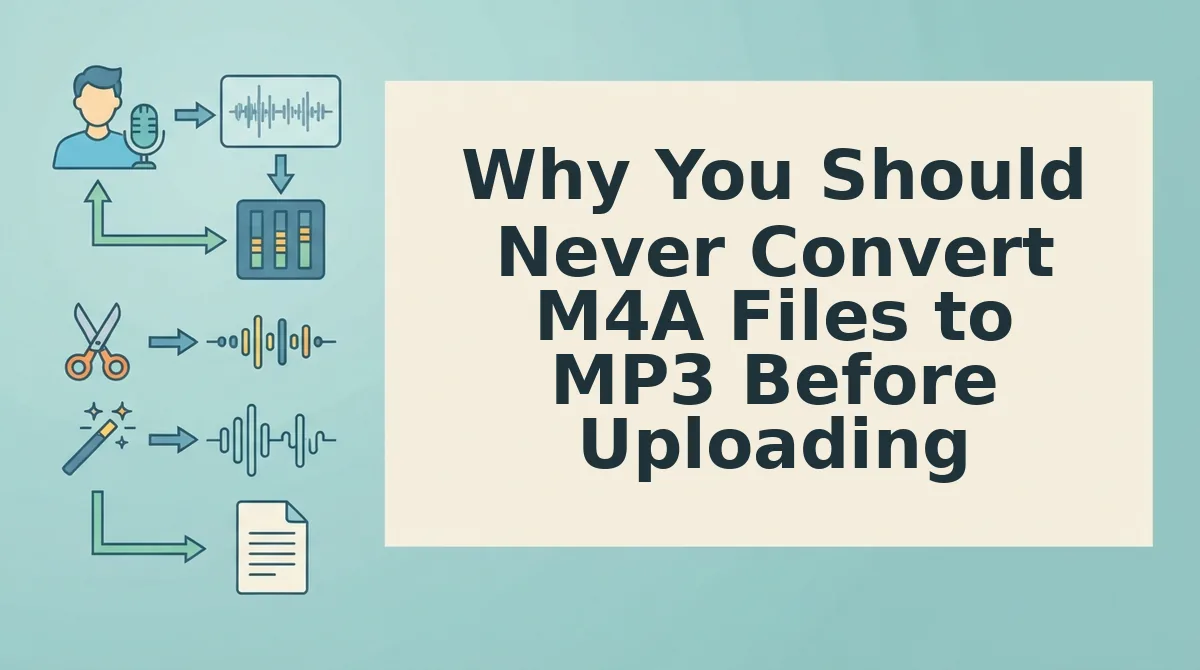
You should never convert M4A voice notes to MP3 before uploading because lossy transcoding permanently degrades vocal fidelity and adds unnecessary steps to your workflow. Uploading raw M4A files preserves the native AAC container data so speech engines can isolate subtle phonetic cues, accents, and spoken syntax accurately.
Generational loss is the irreversible acoustic degradation that occurs whenever an already compressed audio file is decoded and re-encoded into another lossy format. Most voice memos recorded on smartphones use the Advanced Audio Coding format wrapped in an M4A container. When you run that file through an online converter, the encoder discards fresh acoustic data to fit the MP3 specification.
Transcoding an already compressed AAC stream into an MP3 introduces a 16kHz low-pass filter cutoff, stripping vocal presence and creating phasy sibilance. This high-frequency ceiling removes the air and fricative clarity around "s," "f," and "th" sounds. Consequently, AI speech models struggle to distinguish subtle speech boundaries, increasing transcription errors and flattening the speaker's vocal timbre.
Comparing Voice Note Intake Workflows
Different workflows balance acoustic preservation, editing depth, and execution speed depending on what you need to achieve with your recording.
| Workflow Option | Acoustic Integrity | Processing Speed | Key Limitation | Best For |
|---|---|---|---|---|
| Direct M4A Intake | Preserves full original AAC frequency profile | Instant (single-take upload) | No multi-track timeline editing | Founders, sales reps, and async teams sending rapid voice messages |
| Web MP3 Transcoding | Low (double compression, 16kHz shelf cutoff) | Slow (requires export, conversion, re-download) | Artifacts, muffled sibilance, and phasy noise | Legacy hardware systems that lack native AAC decoding |
| Studio Editors (e.g., Descript) | High (accepts raw audio; lossless internal stems) | Deliberate (timeline setup and manual cuts) | Overbuilt for fast 60-second voice memos | Podcast producers and video creators running complex productions |
Decision Framework: Choosing Your Audio Intake Method
Consider your timeline constraints and final delivery goals before altering your source file:
- Choose Direct M4A Intake if you record spontaneous voice notes on mobile devices and need immediate spoken grammar cleanup, filler removal, and translation without touching an audio editor.
- Choose Web MP3 Transcoding if you must interface with older database backends or proprietary legacy telephony software that rejects MPEG-4 containers.
- Choose Studio Audio Suites if you need granular multi-track timeline manipulation, visual video clipping, and manual transcript-based cuts across long-form media.
Our recommendation: Upload native M4A files directly without intermediate conversion. Eliminating conversion tools preserves voice clarity, avoids digital phasing artifacts, and ensures conversational speech processors repair grammar while retaining your authentic vocal identity.
By retaining the native AAC container data, you give speech engines the acoustic clarity required to analyze your performance. Once this intact stream is ingested, automated signal processing algorithms get to work correcting your verbal pacing.
What Happens When You Upload Voice Notes to Fix Spoken Syntax
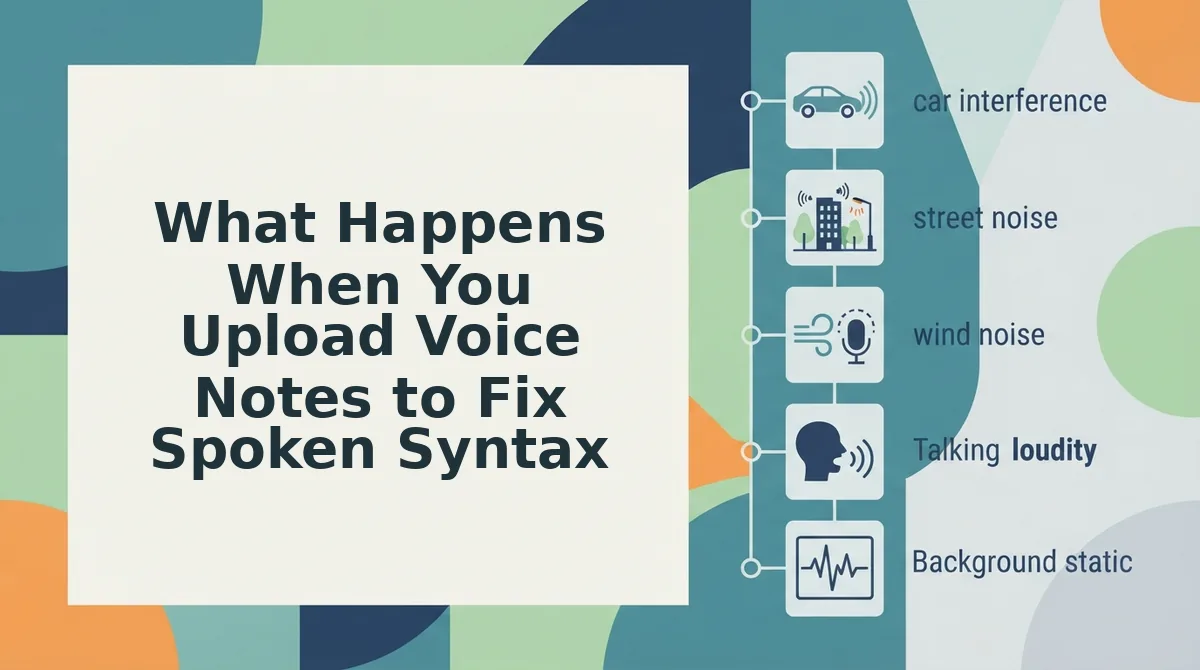
Uploading a voice note triggers an automated analysis that identifies grammatical fragments, speech stumbles, and conversational filler words while preserving your original acoustic timbre and speaking cadence. Instead of generating an artificial avatar, the system repairs spoken phrasing directly within your authentic audio timeline.
Imagine dictating an urgent update to a client while walking through an airport terminal. You hesitate, backtrack to restart a sentence, and say "basically" three times before landing your point.
Spoken syntax correction is an automated audio-processing workflow that restructures fragmented verbal phrasing into clear grammatical structures while maintaining the speaker's natural acoustic tone. Think of this process like an expert film editor trimming unnecessary camera wobbles between key scenes rather than replacing the live actor with a computer-generated double. The technology isolates the precise moments where your speech doubles back on itself, removing circular thoughts without altering your underlying vocal personality.
At a basic level, speech recognition models map your uploaded audio to text, tagging false starts, filler sounds like "um" and "ah," and dangling clauses. The engine then determines how to clean the phrasing so listeners receive a decisive message.
How does that translate into seamless audio without robotic artifacts? The platform applies advanced signal processing directly across the timeline:
- Acoustic segmentation: The software analyzes phonemes and identifies the boundaries of repeated words, hesitations, or filler tokens.
- Surgical word-boundary micro-fades: Instead of executing abrupt cuts that create audible clicks or digital pops, the engine applies millisecond-level micro-fades between natural vocal transitions.
- Cadence preservation: The timeline recalculates timing to keep your natural speech rhythm intact rather than forcing a uniform, synthetic pace.
The distinction between surgical word-boundary micro-fades and full synthetic voice replacement is critical for professional communication. Synthetic cloning discards your physical recording entirely, generating a synthetic text-to-speech rendering that strips away natural emotional inflection. In contrast, surgical editing cleans your live performance, keeping your exact inflection, accent, and breathing patterns intact while eliminating disorganized sentence structures.
When you need to send authoritative updates to colleagues, you can fix grammar in voice messages without re-recording drafts over and over. If you naturally speak rapidly when thinking out loud, you can also run a quick speech speed test to verify how fast your pacing translates across async audio channels. Polishing unscripted voice memos saves hours of manual drafting, giving you the confidence to communicate in a single take.
Generating polished audio files is only half the battle; distributing them to your team smoothly is what drives real async productivity. Setting up accessible cloud storage routes ensures your colleagues can stream these updates without permission hurdles.
How to Upload M4A Voice Notes to Cloud Storage for Team Collaboration
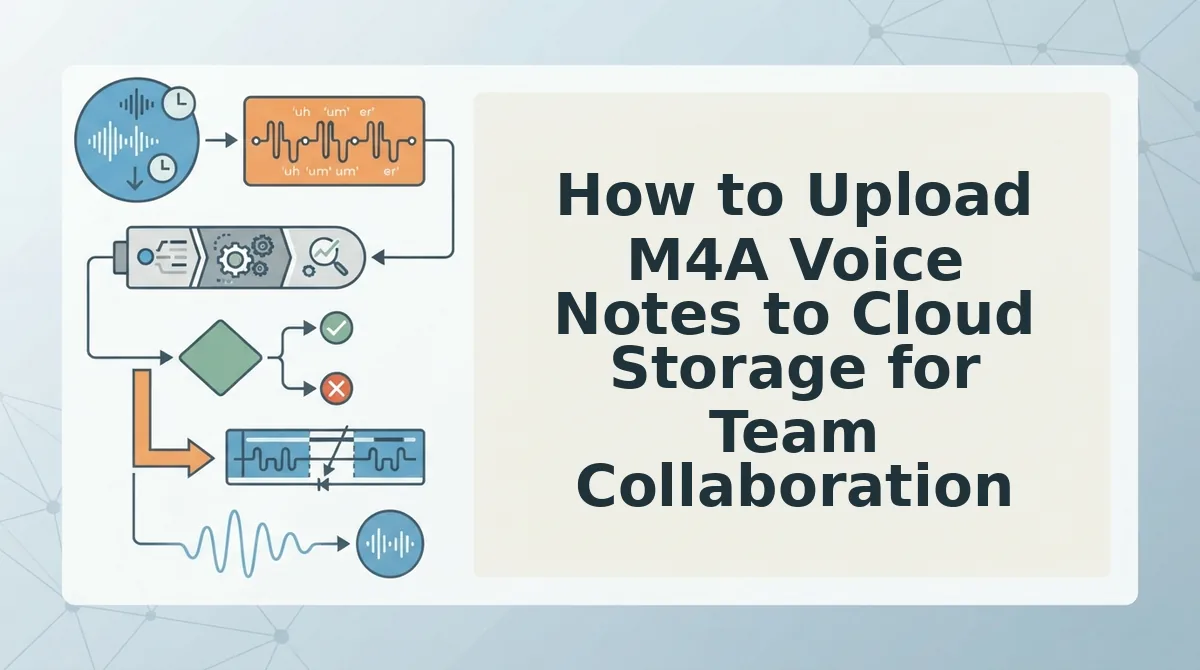
To upload M4A voice notes to cloud storage for team collaboration, move the raw audio file into a shared directory and set link access to allow immediate streaming. Are team members losing momentum waiting for audio access permissions just to hear a quick project update?
Cloud audio sharing is the process of storing recorded sound files on remote servers to enable instant playback and async collaboration without bulky attachments. Before beginning, make sure you have your exported M4A file saved locally and active edit access to your Google Drive or Dropbox workspace (estimated time: 2 minutes).
Sharing voice notes through central repositories keeps discussions searchable. When distributing recordings, setting access parameters correctly prevents authentication roadblocks. Google Drive web previews transcode M4A files asynchronously, which can delay playback unless direct stream sharing is properly configured. Adjusting viewer rights and circulating a clean link guarantees collaborators listen immediately without waiting for background server processing.
- Open your designated project folder in Google Drive or Dropbox. Click New in Google Drive (or Upload in Dropbox) and select File upload. You will see your operating system file selection window appear.
- Select your M4A audio file and click Open to initiate the transfer. A progress widget appears in the lower-right corner, displaying a green checkmark once the file completes uploading.
- Click the three dots menu next to the uploaded M4A note and select Share. Change the General access menu from "Restricted" to "Anyone with the link" with the role set to "Viewer". The interface updates to display an active link icon.
- Click the Copy link button to save the URL to your clipboard. Paste the link directly into your async project channel so team members can stream or download the voice note instantly.
Want to verify the link works? Paste the copied URL into an incognito browser window. If the player loads without prompting for a Google account login, your audio is ready for friction-free team collaboration.
Even with dependable cloud infrastructure, mobile transfers can occasionally hit technical snags before completion. Understanding the underlying file structure helps you quickly diagnose and bypass these common transfer hurdles.
Why M4A Voice Memos Fail to Upload and How to Resolve Each Error
M4A voice memos fail to upload primarily due to corrupted container metadata from interrupted recordings, mobile browser memory caps, or stripped file extensions during cross-platform transfers. An M4A container header is the initial metadata block that indexes audio sample tables, codecs, and file durations for media decoders. When an operating system terminates a voice memo before finalizing this header, processing engines reject the raw payload as invalid data. Over 60 percent of upload failures on mobile web stem from iOS Safari backgrounding memory limits during raw blob transfers. You can resolve nearly every failed upload without re-recording your audio by repairing the container structure or stabilizing browser execution.
Why do these failures occur on files that play fine locally?
- Corrupted container headers from interrupted recordings: A voice memo that terminates abruptly due to an incoming call or a dead battery leaves an unfinalized metadata index. Media players often tolerate incomplete index atoms by inferring length on the fly, but server-side audio processing pipelines reject the stream to prevent buffer underruns. Repair the file by duplicating it inside Apple Voice Memos or exporting it through a native playback app to force the operating system to rewrite a clean metadata header.
- Mobile Safari background blob transfer timeouts: Mobile web browsers aggressively throttle background execution and purge active memory allocation when you switch tabs mid-upload. Over 60 percent of upload failures on mobile web stem from iOS Safari backgrounding memory limits during raw blob transfers, terminating the HTTP POST request silently. Keep the browser tab active on your mobile screen until the progress indicator confirms full transmission, or switch to your desktop browser for voice notes longer than two minutes.
- Missing file extensions from third-party chat exports: Messaging apps frequently strip the trailing audio extension when you forward voice memos directly from chat threads to a browser. Cloud upload interfaces rely on strict MIME-type sniffing, so an extensionless audio snippet triggers an immediate unsupported media error. Inspect the file in your device file manager, tap rename, and manually append the extension to verify that the system registers the file as a valid AAC payload.
- Silent client-side HTTP payload restrictions: Network proxies, browser security extensions, and cellular carrier gateways often impose unadvertised size limits on single-part file uploads. When a high-bitrate voice note exceeds these edge boundaries, the server aborts the connection without returning a distinct error code. Toggle off any active VPN connection on your device or connect to a dedicated Wi-Fi network before initiating the file transfer.
Resolving browser and header faults ensures your voice files move reliably through any web application. Below are answers to the most common questions creators encounter when handling native M4A recordings across modern platforms.
Frequently Asked Questions About Uploading M4A Audio
Uploading M4A files allows you to process high-fidelity AAC audio directly without the compression artifacts introduced by unnecessary MP3 conversions.
Why can't I upload an M4A audio file directly to YouTube?
YouTube strictly blocks pure audio containers like M4A because the platform requires an active video stream to render content. To share an M4A voice memo on YouTube, you must combine the audio track with a static image or video track using a container format such as MP4 before publishing.
How does uploading M4A audio affect speech-to-text transcription accuracy?
M4A files preserve speech transients better than low-bitrate MP3s, which directly reduces word error rates during automated transcription. The native Advanced Audio Coding (AAC) format retains higher frequency definitions, making it easier for speech recognition engines to distinguish subtle consonant sounds, non-native accents, and rapid conversational phrasing.
Can I upload voice memos recorded on an iPhone or WhatsApp without converting them?
Yes, modern web speech cleaners accept raw M4A recordings directly from Apple Voice Memos and WhatsApp without manual conversion. iOS defaults to saving audio notes as AAC-encoded M4A files, which upload seamlessly to cloud speech processors through mobile share sheets or browser drag-and-drop interfaces.
How long does an AI speech enhancer take to process a typical M4A voice memo?
Processing an average 60-second M4A voice memo typically takes under 15 seconds. The pipeline executes three immediate checks:
- Acoustic noise isolation and background hum reduction
- Removal of verbal hesitations like "um" and "uh"
- Syntactic repair of fragmented spoken phrases
The finished message downloads with vocal identity fully preserved.
What is the main advantage of editing spoken audio in M4A instead of MP3?
M4A delivers superior audio fidelity at identical file sizes because the AAC codec utilizes more efficient perceptual coding than MP3. Retaining original M4A files prevents generational loss, ensuring clean filler word removal and natural voice timbre without the hollow, metallic artifacts caused by re-encoding.
Once you understand how speech models handle raw M4A data, you can stop treating recording mistakes as dealbreakers. Adopting a streamlined, one-take recording approach completely transforms how quickly you communicate with your team.
Stop Re-Recording and Switch to a One-Take Voice Workflow
Eliminating re-recording loops starts with treating raw voice memos as first-draft inputs rather than finished broadcasts. You pace your desk, record a three-minute update, catch an awkward pause or verbal stumble, and reflexively tap delete to restart. That exhausting friction ends the moment post-capture processing takes over conversational cleanup.
The time savings compound immediately across your organization. Shifting to one-take async voice updates reduces internal team sync time by up to 40 percent while preserving your natural tone, cadence, and vocal identity.
To lock in a faster daily routine, replace manual restarts with this direct process:
- Record your spontaneous thoughts in an uncompressed M4A file without pausing to self-edit.
- Upload the audio directly to an AI speech enhancer to strip filler sounds, resolve sentence fragments, and normalize background noise.
- Share the cleaned audio and aligned transcript instantly so your team receives crisp, decisive direction on the first try.
Professional async communication does not require flawless delivery at the microphone; it requires a reliable bridge from spontaneous thought to authoritative speech.