
You record a two-minute project update, stumble on a four-second hesitation at 1:45, delete the memo, and waste fifteen minutes chasing an unattainable flawless take. Thinking at 150 words per minute frequently outpaces vocal delivery, subjecting busy operators to a documented 12-minute re-recording tax for simple 60-second updates. You lose valuable momentum trying to perform rather than simply communicating.
Learning how to cut verbal hesitations from audio does not require manual timeline surgery or synthetic voice avatars. By applying an ai voice message translator, you can preserve conversational authenticity while systematically eliminating dead air, false starts, and rambling sentence fragments. Later in this guide, you will discover why traditional silence trimming often destroys natural pacing and alienates listeners.
Traditional audio correction methods present distinct trade-offs:
- Manual timeline micro-slicing creates jarring, robotic cadence shifts.
- Text-to-speech replacement erases your natural human accent and credibility.
- Targeted speech filtering purges hesitations while keeping natural timbre intact.
A pragmatic workflow eliminates production drag: record a spontaneous voice memo immediately following a strategic discussion, run the unedited recording through an automated pipeline to remove filler words from audio, and export the cleaned note. The engine cleans trailing pauses and repetitive stumbles instantly, delivering a concise, professional message in one take. Before optimizing your toolset, however, it helps to understand why your brain introduces these vocal stalls in the first place.
Why Do Spoken Updates Accumulate Hesitations and Awkward Pauses?
Spoken updates accumulate hesitations because spontaneous speech production experiences cognitive processing lag when translating complex thoughts into verbal syntax in real time. Eliminating every pause does not make you sound authoritative; it makes you sound panicked and hyper-synthetic.
A verbal hesitation is an involuntary acoustic disruption that occurs when vocal tract motor planning lags behind active conceptual thought. Think of natural speech like traffic flow on a city boulevard: deliberate stopping zones keep movement orderly, but stalled vehicles create sheer gridlock. During off-the-cuff voice messaging, the brain inserts acoustic drag while searching for the next phrase.
Acoustic speech analysis divides these moments into three distinct gap types:
- Micro-stops: Sub-second articulatory silences essential for releasing plosive consonants like p, t, and k.
- Thinking gaps: Deliberate silence intervals that give listeners time to absorb critical context and signal narrative confidence.
- Filler holds: Nasalized vocalizations such as "um" and "uh" that unspool continuously while the speaker attempts to retain conversational control.
At an advanced engineering level, simply slicing these pauses out of a raw recording often degrades the audio. Making blunt waveform cuts triggers zero-crossing phase alignment failure, introducing unnatural acoustic clicks and jarring phase shifts where the audio wave cycles fail to meet cleanly at zero amplitude.
VClar solves this friction by analyzing speech cadence to distinguish purposeful silence from dead acoustic drag. The engine purges disruptive filler holds and repeated false starts while preserving your natural pitch and conversational tempo. If you want to benchmark how hesitation density affects your delivery rhythm, check your baseline pacing with a speech speed test before recording your next team memo. Once you identify the recurring pauses cluttering your recordings, you can turn to established desktop audio editors to systematically contract that dead air.
How to Remove Ums and Ahs in Audacity Using Truncate Silence
You can remove prolonged verbal hesitations in Audacity by using the Truncate Silence effect to compress silent pauses and dead air down to a natural conversational cadence. This batch process condenses unpolished audio updates across an entire track in under two minutes without requiring manual slice-by-slice waveform editing.
Audacity Truncate Silence is an automated dynamic editing tool that scans an audio track for signal levels below a specific volume threshold and contracts those intervals to a predetermined duration. When you manually slice an audio waveform to excise hesitations, cuts often sound like someone abruptly pulled a patch cable out of your microphone. Applying automated gap reduction eliminates dragged-out pauses while keeping your ambient background noise consistent.
Before beginning, launch Audacity and import your unedited voice update (WAV or MP3 format). The entire process takes approximately three minutes.
- Select your target voice track. Click inside the track control panel on the left or press Ctrl + A (or Cmd + A on macOS) to highlight the audio. The full waveform turns light blue to confirm your selection.
- Open the Truncate Silence processor. Click Effect in the top menu bar, navigate to Special, and choose Truncate Silence. The parameter configuration window will open.
- Configure the gap reduction settings. Set the Threshold between -30 dB and -36 dB (start at -32 dB for typical room tone), set the Duration to 0.4 seconds, and set Truncate to 0.25 seconds. These boundaries detect hesitation gaps without truncating soft consonant endings, collapsing awkward silences down to a clean quarter-second breath.
- Execute the truncation pass. Click Apply to process the timeline. The audio waveform will instantly compress horizontally, eliminating dead intervals throughout the project.
- Smooth residual filler cuts at zero crossings. For vocalized "ums" that register above the silence threshold, highlight the filler manually, press the Z key to snap the selection edges to zero-crossing points, and delete the section. Apply a 10-30ms equal-power crossfade over the split to mask background room tone drops. You should hear an uninterrupted transition with zero acoustic clicking.
Following this Master Editor gap reduction workflow strips dead air systematically while preserving human delivery. If an ambient room sound is unusually loud, the threshold may fail to trigger on quiet "ahs," requiring you to raise the threshold closer to -30 dB for reliable detection. While desktop waveform editing offers surgical precision, configuring thresholds and manual zero-crossing cuts for every routine update quickly consumes valuable working hours.
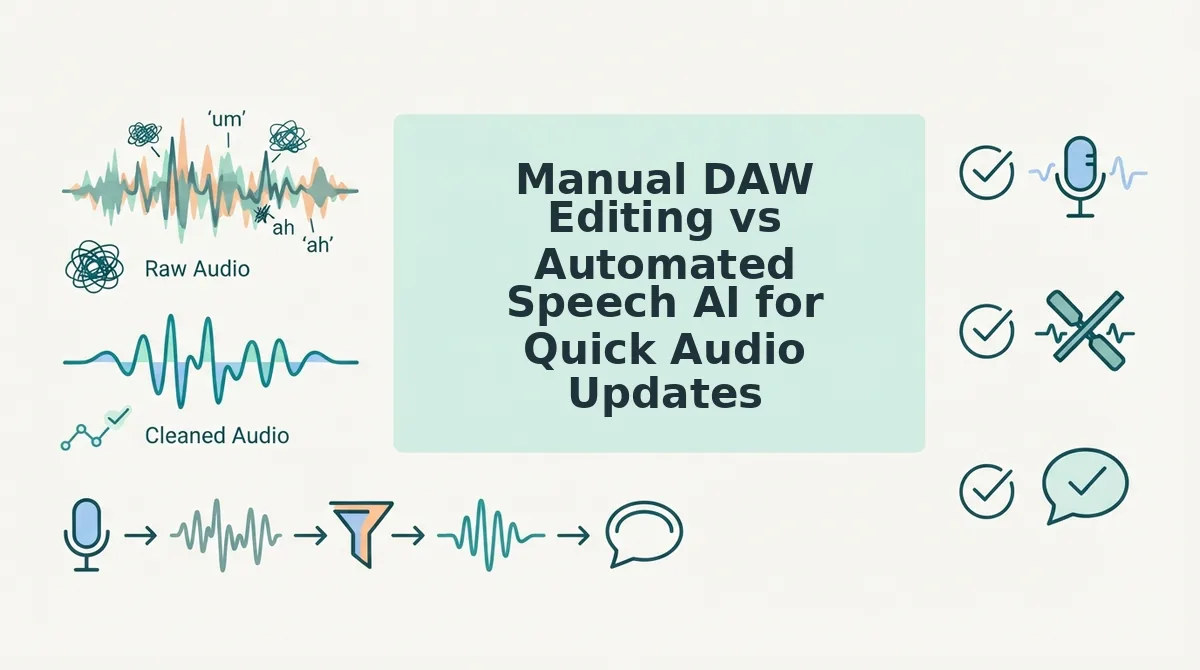
Manual DAW Editing vs Automated Speech AI for Quick Audio Updates
Manual digital audio workstation (DAW) editing gives creators granular control over every decibel, but automated speech AI cleans verbal hesitations in seconds without manual timeline splicing. For brief team messages and status notes, AI speech enhancement removes the overhead of manual track slicing while repairing conversational flow.
A digital audio workstation is a multi-track software application used for recording, editing, and producing audio files. Heavy-duty editors like Audacity or Descript excel when producing polished podcasts, mastering multi-mic panel discussions, or managing complex narrative post-production where an engineer must audit every single splice point. However, when examining timeline-based editors vs instant speech enhancement, loading a heavy desktop timeline for a 60-second voice memo introduces unnecessary friction.
Does editing a 90-second async memo justify opening a multi-gigabyte timeline editor? For most professionals, the turnaround gap makes traditional audio software impractical. A manual DAW workflow averages 15 minutes to scrub waveforms, slice filler words, crossfade cuts, and patch background gaps. In contrast, browser-based AI speech processing completes full hesitation cleanup in under 30 seconds.
| Workflow Metric | Manual DAW Software | Automated Speech AI |
|---|---|---|
| Turnaround Speed | 15-minute average manual turnaround per audio clip. | Under 30-second AI speech enhancement. |
| Room Tone Handling | Destructive manual silence truncation often leaves jarring room-tone drops. | Room-tone smoothing algorithms preserve natural ambient background. |
| Language and Syntax | Audio-only waveform cutting cannot resolve broken sentence structure. | Syntax restructuring repairs sentence fragments and circular phrasing. |
| Best Suited For | Podcast producers and studio sound engineers. | Founders, sales reps, and distributed teams. |
Destructive silence truncation in traditional software cuts decibel levels abruptly, often creating distracting acoustic drops between spoken syllables. Dedicated speech AI uses room-tone smoothing algorithms to keep background ambience consistent while removing hesitations, repeated false starts, and trailing filler sounds.
Decision Framework:
- Choose a traditional DAW if you are mastering a multi-speaker podcast, adjusting dynamic EQ curves, or need exact, millisecond-level authority over sound design.
- Choose automated speech AI if you need to turn spontaneous spoken notes into decisive, grammatically sound audio updates without opening an editor.
Our recommendation: For daily communication, choose automated speech processing. It delivers clean audio immediately, preserving your authentic vocal identity and cadence without wasting hours on manual edits.
If you rely on quick audio to brief your team, record your thoughts naturally and let VClar handle the rest. Try VClar to send decisive, polished voice updates for founders in a single take. Regardless of whether you choose desktop software or automated speech models, your editing parameters must respect the acoustic line between natural breathing and dead weight.
The 350-Millisecond Rule for Preserving Natural Conversational Cadence
The 350-millisecond rule is an acoustic cadence standard that separates functional conversational breathing pauses from redundant verbal hesitations in recorded speech. While pauses under 200 milliseconds protect natural consonant release decay and gaps between 200 and 350 milliseconds retain vital phrasing breaths, pauses exceeding 350 milliseconds mark the holding zone where vocal stalls accumulate. Trimming silence exclusively beyond this 350-millisecond boundary eliminates conversational friction without stripping away the natural cadence and breathing rhythms that human ears require for comfortable listening.
When you delete pauses under 250 milliseconds, the human brain registers the audio as unnatural, anxious, and lacking breath. Think of conversational audio like driving on an open highway, where eliminating prolonged gridlock keeps traffic flowing smoothly, but erasing the safety cushion between cars causes an instant pileup. Removing every quiet pocket strips out natural inhalation, forcing adjacent sentences to collide awkwardly.
Acoustic cadence relies on three distinct timing thresholds:
- Under 200 milliseconds: Consonant release decay and plosive transitions necessary to distinguish separate words.
- 200 to 350 milliseconds: Rhythmic phrasing breaths that signal clause boundaries and give listeners space to process complex concepts.
- 350 to 1,200 milliseconds and beyond: The filler holding zone where vocalized ums, repeated false starts, and hesitation silence accumulate.
Understanding these acoustic thresholds prevents the unintended damage caused by indiscriminate silence truncation. Cutting every audio pause flattens expressive rhythm and transforms spontaneous voice memos into abrasive walls of sound. Cadence-preserving workflows protect micro-pauses while isolating and pruning only the extended stalls that compromise clarity.
In a technical audit of a 45-second founder voice memo, the speaker recorded a spontaneous product update filled with uneven pacing and sentence fragments. Applying aggressive truncation stripped every silence down to 80 milliseconds, which compressed the track to 28 seconds but left the founder sounding frantic and breathless. Applying cadence-preserving processing targeted only pauses inside the 350-to-1,200-millisecond filler zone, leaving a 33-second recording that kept natural vocal timbre and breathing while allowing the founder to fix spoken grammar in voice messages in one clean take. Putting these timing rules into practice requires an execution framework that cleans messy phrases without manual micro-splicing.
How to Cut Verbal Hesitations from Audio and False Starts Step by Step
To cut verbal hesitations from audio and false starts, you must isolate broken sentence fragments, strip non-fluent filler utterances, and blend cut boundaries using acoustic smoothing rather than simple silence truncation. Basic noise gates and pause trimmers miss circular phrasing where a speaker re-articulates an idea multiple times. By applying a structured three-step workflow, speech boundary capture, filler and false-start isolation, and acoustic profile smoothing, you transform rambling voice recordings into clean, direct syntax without altering natural vocal timbre.
A false start is an abandoned conversational phrase where a speaker stops mid-sentence and resets their delivery using different words.
You start a sentence three different times before finding the right word, leaving a jagged voice recording full of dead ends. Here is how to fix it.
Prerequisites: A raw voice memo or live microphone input, and an automated speech processing tool supporting spoken syntax correction. Estimated time: Under two minutes.
- Upload your audio file or record directly into the browser tool (10 seconds). The processor executes speech boundary capture, analyzing speech cadences and separating speech formants from static ambient room tone. You should see a processed timeline displaying mapped phrase segments instead of a solid, undifferentiated audio block.
- Select automated syntax cleanup to isolate verbal fillers and circular fragments (15 seconds). The engine targets conversational stumbling blocks, identifying verbal hesitations such as "ums," "ahs," and half-spoken phrases that trail off. You should see redundant false starts flagged for immediate removal without stripping intentional expressive pauses.
- Process and export the final track with acoustic profile smoothing (10 seconds). The engine splices the audio boundaries, cross-fading room tone to prevent clipped words or mechanical gaps. You should hear a fluent, professional voice message that flows logically while retaining your original voice, tone, and pacing. Even with streamlined editing protocols, questions frequently arise regarding how to maintain authentic vocal texture across various recording environments.
Frequently Asked Questions About Cutting Hesitations from Audio
Cutting verbal hesitations sharpens async voice updates without stripping authenticity, provided you protect conversational pacing and room tone.
Does cutting verbal hesitations make speech sound choppy or unnatural?
Over-editing hesitations creates a choppy, rushed delivery only when editors strip necessary breathing room alongside vocal fillers. Retaining a conversational baseline gap of roughly 350 milliseconds between distinct thoughts preserves natural rhythm. Preserving ambient room tone across spliced edits prevents jarring acoustic dropouts, keeping delivery authentic and easy to follow.
Can automated software remove stutters and repeated syllables?
Modern speech-enhancement algorithms detect and eliminate repeated syllables, accidental stutters, and false starts automatically. Rather than merely muting low-volume sections, specialized speech tools identify linguistic phonemes to excise broken phrases while preserving intended words. This produces a concise, continuous voice note in your authentic tone without tedious timeline trimming.
What is the difference between silence removal and hesitation cleanup?
Silence removal shortens unvoiced gaps, whereas hesitation cleanup extracts vocalized filler sounds and syntax stumbles. Their core functional differences include:
- Silence removal: Clamps quiet pauses based strictly on volume thresholds.
- Hesitation cleanup: Targets spoken filler words like “ um” and repairs sentence fragments without flattening natural cadence.
How do you fix room tone dropouts when cutting pauses in audio recordings?
You fix room tone dropouts by crossfading splice boundaries and filling cuts with a continuous layer of ambient background tone. Hard cuts plunge background noise into unnatural dead silence, jarring the listener. Applying a 5-millisecond crossfade between cuts or looping subtle room noise maintains a steady, seamless acoustic presence throughout. Armed with the right technical rules and automated workflows, you can permanently replace recording anxiety with a reliable, repeatable publishing routine.
Deliver Confident One-Take Audio Updates Without Wasting Time
Eliminating verbal hesitations from async audio updates comes down to separating spontaneous thought generation from timeline polishing so you never have to restart a message.
Most professionals think at 150 words per minute, yet live self-censorship routinely drags async communication to a crawl. When you stop treating everyday voice memos like high-stakes studio broadcasts, you eliminate the friction of perfectionism.
Adopt a one-take async protocol by restructuring how you capture spoken updates:
- Record without self-editing: Speak your thoughts at full conversational speed without pausing to second-guess minor stumbles.
- Automate timeline pruning: Let targeted processing strip ums, ahs, and dead air instead of spending twenty minutes manually slicing waveforms in a complex DAW.
- Protect natural cadence: Maintain your personal timbre, conversational rhythm, and intent without turning to synthetic voice clones.
To end the cycle of repeated takes and share crisp messages immediately, clean your voice memos with VClar directly from your browser.
True communication authority does not require flawless live delivery; it requires preserving your authentic voice while removing the friction of the re-recording loop.