
You record a 60-second voice note, cringe at the vocal hesitations, delete it, and repeat the cycle three times. A simple async update quickly turns into an exhausting fifteen-minute re-recording loop.
Knowledge workers think at 150 words per minute but average 4 to 6 subconscious filler sounds per minute during spontaneous voice messages. Learning how to remove um and ah sounds from voice notes solves this friction by clearing out spoken hesitations without sacrificing your natural cadence.
Rambling voice memos feel unprofessional, but manually cutting waveforms in heavy editing software wastes valuable hours. In this guide, you will learn how to remove filler words from audio automatically, clean fragmented phrasing, and send confident updates on the first take. We will also reveal why completely silencing every breath can actually undermine your credibility, and how to preserve your natural speaking rhythm.
This approach focuses specifically on rapid voice notes and mobile memos; it does not cover multi-track audio engineering for studio podcasts.
Consider this standard cleanup workflow:
- Situation: A founder speaks off-the-cuff for 90 seconds, scattering verbal hesitations, repeated false starts, and "um" sounds throughout the message.
- Action: The user uploads the raw recording to detect verbal fillers and remove acoustic distractions across the audio timeline.
- Outcome: The engine cleans the recording into a concise voice note that gets straight to the point while strictly preserving the speaker's authentic vocal timbre and intent.
Before jumping into cleanup workflows, it helps to understand why your brain inserts these verbal delays in the first place, and why crude cutting methods often backfire.
Why We Say Um and Ah and Why Manual Silence Cutting Fails
Spontaneous speech relies on fillers like "um" and "ah" to manage cognitive speech latency, but manually slicing them out of an audio file ruins the natural rhythm and syntax of the recording. Cognitive speech latency is the brief neurological delay between formulating a concept and retrieving the vocabulary required to vocalize it.
When you speak faster than your brain organizes grammar, verbal fillers act as acoustic place-holders that signal to listeners you intend to finish your thought. Conventional audio tools treat these vocalized hesitations as isolated acoustic anomalies. They try to resolve the issue using noise gates or manual timeline splicing.
Think of manual waveform cutting like editing video by slicing out individual physical film frames with scissors. If you remove two seconds of pause without matching the surrounding scene, the speaker appears to unnaturally teleport across the room.
Why does manual silence cutting fail on voice memos? Traditional audio editing relies on volume thresholds or timeline slicing to cut hesitations. However, speech does not exist in isolation from room acoustics or grammatical structure. Deleting an 'um' from a waveform shifts adjacent syllables abruptly, causing an unmasked micro-dropout in ambient room tone that human ears perceive as a glitch. Furthermore, simple deletion exposes the filler plus fragment dilemma: speakers often restart sentences midway through a hesitation. Removing the sound leaves behind half-formed thoughts, missing subjects, and abrupt cadence shifts that make the recording sound robotic.
When you inspect the resulting waveform after manually cutting out hesitations, three distinct flaws emerge:
- Acoustic room-tone snapping: Ambient background sound instantly drops to zero, creating an audible pop.
- Cadence disruption: Syllable spacing collapses, stripping the speaker of their natural breathing patterns.
- Broken sentence syntax: Abandoned phrasing remains uncorrected, leaving confusing conversational stumbles.
Effective voice enhancement requires understanding spoken context rather than merely deleting decibels. To preserve your authentic speaking cadence and eliminate stuttered phrasing in a single take, learn how to fix sentence fragments in voice memos without rerecording.
Instead of wrestling with destructive timeline cuts, modern browser-based audio engines now handle contextual cleanup automatically. Here is how to polish your spoken messages in just a few clicks.
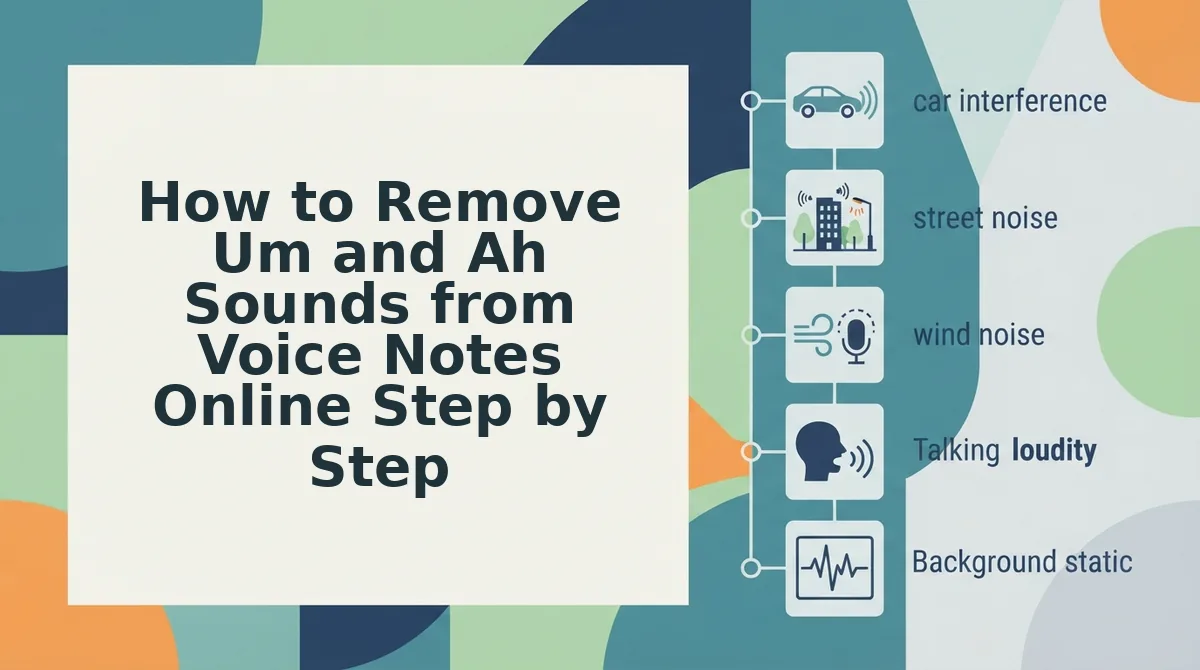
How to Remove Um and Ah Sounds from Voice Notes Online Step by Step
To remove um and ah sounds from voice notes online, upload your raw audio file directly to a browser-based speech enhancer like VClar to automatically cut filler words and repair sentence fragments without re-recording or synthesizing your voice. This automated workflow cleans spontaneous recordings into professional messages in under two minutes.
You need a web browser and an exported voice note in M4A, MP3, WAV, or OGG format from WhatsApp, Apple Voice Memos, or Slack before beginning.
Imagine you just stepped out of a noisy client briefing and recorded a quick update while walking to your car. Your recording has five trailing "ums," an awkward pause, and a false start, but you do not have time to sit down with a desktop audio timeline editor.
VClar is an AI voice message translator and speech enhancer that turns rough spoken audio into polished, grammatically sound speech without replacing your authentic vocal identity. Follow these four steps to clean your audio immediately.
- Export your voice note from your messaging app by tapping Share, then selecting Save to Files. This generates your raw audio file (typically M4A or MP3) on your mobile device or desktop within five seconds.
- Upload your saved audio file into VClar by clicking Upload Audio or dragging your file onto the browser dashboard. The platform displays an active upload bar, followed by a status indicator showing your audio is ready for processing.
- Select the filler word and grammar cleanup settings in the processing panel, then click Enhance Speech. Within 30 to 60 seconds, the engine detects and excises verbal hesitations like "um," "ah," "basically," and "you know," while mending broken syntax across the timeline. You will see a side-by-side acoustic transcription comparison showing your raw input alongside the polished output:
- Raw Input: "Um, so basically we need to, ah, review the Q3 timeline because, like, the client shifted scope."
- Polished Output: "We need to review the Q3 timeline because the client shifted scope."
- Review and download your enhanced audio message by clicking Play to verify your natural cadence, then clicking Download Audio to save the final file. You now have an authoritative, one-take audio file that preserves your vocal timbre without any robotic voice synthesis.
Automated speech enhancement cuts verbal fillers while keeping natural vocal timbre completely intact. This browser-first workflow is particularly valuable when producing concise voice notes for founders who must communicate clearly with distributed teams without getting trapped in repetitive re-recording loops.
While automated browser tools deliver the fastest turnaround, some specialized audio projects require full offline control over every individual frequency. For those scenarios, desktop audio editing suites provide manual surgical precision.
Manual Audio Editing Methods in Audacity and Creative Cloud
You can remove um and ah sounds from voice notes manually by slicing the filler frequencies from the waveform and bridging the gaps with ambient room tone. Have you ever wondered why basic cut-and-delete edits leave your voice notes sounding disjointed? Desktop applications provide granular timeline tools that let you extract hesitations cleanly without clipping natural speech cadence or creating sudden background dropouts.
- Text-based transcript deletion in Adobe Premiere Pro: This automated workflow generates an interactive transcript of your voice track so you can delete fillers as easily as editing a text document. It saves substantial editing time because it automatically locates hesitation pauses and phonemes across the sequence. Open the Text panel in your Creative Cloud workspace, search for filler words, and perform a ripple delete to tighten the dialogue.
- Spectral editing in Audacity: Spectral editing is the process of isolating audio frequencies on a visual spectrogram rather than cutting a raw amplitude waveform. This precision matters because blunt cuts often sever natural vocal decays or ambient resonance, producing an audible pop. Switch your Audacity track display to Spectrogram view, draw a selection box around the fundamental frequency of the filler sound, and apply a spectral notch filter.
- Zero-crossing ripple cuts in Audacity: This timeline slicing technique aligns edit points precisely where the audio waveform crosses the baseline of zero electrical energy. It prevents harsh transient clicks because cutting outside of zero-amplitude points creates immediate acoustic distortion. Highlight the unwanted hesitation in Audacity, press the shortcut to snap the selection boundaries to zero crossings, and ripple delete the selection.
- Room tone patching over excised gaps: This restorative editing method fills the spaces left by removed hesitations with captured ambient background noise rather than pure digital silence. It prevents unnatural acoustic dead zones because human ears immediately detect abrupt dropouts in environmental room sound. Copy a short segment of empty background noise from your recording and paste it beneath the spliced seam to maintain a consistent sound floor.
- Micro-crossfade smoothing across spliced edges: This blending technique applies an ultra-short transition of several milliseconds between the abutting edges of severed audio clips. It conceals abrupt phase shifts and ambient noise jumps that occur when pulling two separate spoken phrases together. Apply an equal-power crossfade across every splice seam in your timeline to ensure the edit remains imperceptible to listeners.
Executing these manual crossfades and zero-crossing edits requires significant patience and technical skill. Comparing desktop workstations against modern browser enhancers helps clarify which method fits your everyday communication demands.
Browser AI Speech Polish vs Manual Waveform DAW Editing
Automated browser speech tools eliminate verbal hesitations in seconds, whereas manual digital audio workstation (DAW) editing requires frame-by-frame waveform scrubbing to achieve clean speech. While desktop DAWs offer granular timeline control, browser speech polishers automatically remove filler words while preserving room tone and conversational cadence.
A digital audio workstation is specialized software designed for multi-track audio recording, timeline editing, and acoustic signal processing. Professional sound engineers rely on DAWs to manually isolate frequencies, splice out unwanted noise, and crossfade background ambiance.
Are manual cuts truly worth the effort for everyday voice notes? A 60-second voice note editing in Audacity averages 7 minutes versus under 20 seconds in dedicated browser speech polishers. Spending seven minutes slicing waveforms to deliver a one-minute asynchronous update destroys productivity and creates unnecessary communication friction.
| Feature | Manual DAW (e.g., Audacity) | Studio Editor (e.g., Descript) | Browser AI Polish (VClar) |
|---|---|---|---|
| Turnaround Time | 5 to 10 minutes per minute of audio | 1 to 3 minutes per minute of audio | Under 20 seconds total |
| Room Tone Consistency | Requires manual room tone patching | Automated gap filling | Seamless automated acoustic blending |
| Mobile & Browser Workflow | Desktop only, heavy installation | Desktop-first production suite | Instant browser-first processing |
| Learning Curve | High (requires audio engineering skill) | Moderate (timeline editing interface) | Zero (record or drop audio directly) |
Decision Framework: Choosing the Right Audio Workflow
Match your tool to the demands of your specific use case:
- Choose a manual DAW if: You are mastering high-end podcast tracks or studio voiceovers that require surgical spectral repair and multi-track mixing. Best for professional audio engineers.
- Choose a studio timeline editor if: You are producing long-form narrative video content paired with video timelines. Best for video producers and media teams.
- Choose browser speech polish if: You send quick voice updates, client follow-ups, or cross-border memos and need immediate clarity without manual editing. Best for founders, sales reps, and consultants.
Our Recommendation
For daily spoken communication, manual timeline slicing is an unnecessary bottleneck. We recommend automated browser enhancement because it eliminates hesitations and awkward pauses while strictly maintaining your natural cadence and authentic vocal timbre.
You do not need to lose hours re-recording rough drafts or managing desktop software. Use VClar to clean voice memos online, cut verbal friction, and deliver authoritative voice messages in a single take.
After generating a cleaned file, running a brief quality check ensures your message sounds completely natural. Developing this verification habit will also help you train smoother vocal habits over time.
How to Check Your Cleaned Audio and Prevent Future Hesitations
To verify cleaned audio and prevent future hesitations, perform an earphone acoustic check for cut transitions, review the cleaned transcript against your original spoken intent, and calibrate your speaking tempo between 130 and 160 words per minute. This validation workflow ensures zero robotic artifacts remain while training your delivery to eliminate disfluencies at the source.
Before starting, plug in wired or wireless headphones and keep your generated audio player open alongside the side-by-side text view.
- Listen to the entire exported audio track at 1.0x playback speed using headphones (Time estimate: 45 to 90 seconds). Focus specifically on the micro-gaps where verbal stumbles like um and ah once sat. You should hear seamless vocal cadence, natural room ambience, and intact word endings without abrupt clipping or robotic dropouts.
- Inspect the side-by-side text comparison panel to confirm your core message remains accurate (Time estimate: 30 seconds). Scan the highlighted corrections to see where the engine pruned conversational filler words and repaired broken sentence fragments. You should see a streamlined written memo that matches your spoken intent without altered vocabulary or synthetic phrasing.
- Calibrate your baseline delivery pace before recording your next voice memo by completing a quick speech speed test (Time estimate: 60 seconds). Speak a two-sentence update into your microphone at an intentional, unhurried pace. You should target a measured rhythm rather than rushing to fill dead air.
Why does pacing matter so much?
When speakers accelerate beyond their cognitive processing speed, the brain inserts audible hesitations as vocal placeholders while assembling the next clause. Grounding your baseline tempo preserves your natural vocal identity and cuts re-recording loops entirely.
Understanding delivery mechanics goes a long way, but common technical questions often arise when working with mobile audio formats. Here are direct answers to the most frequent cleanup concerns.
Frequently Asked Questions About Removing Voice Memo Fillers
You can remove verbal fillers from voice notes using automated browser enhancers or manual waveform editors. The following answers address common questions regarding audio cleanup, acoustic quality, and voice preservation.
How do I remove um and ah sounds on mobile?
You can clean voice notes on mobile by uploading the audio to an online speech enhancer in your mobile browser. The engine detects hesitations like "um" and "ah," trims dead air, and exports a polished note without requiring timeline editing apps or re-recording loops.
Will removing filler words make my voice sound synthetic?
No, speech enhancers retain your authentic vocal identity by cutting hesitations rather than synthesizing artificial speech. Two distinct methods exist:
- Acoustic filtering: Trims verbal pauses while keeping your natural tone and accent intact.
- Generative cloning: Replaces spoken words with robotic text-to-speech avatars.
Can I fix spoken sentence fragments while removing fillers?
Yes, spoken grammar cleaners repair conversational fragments and circular phrasing alongside verbal fillers. The engine restructures broken phrasing into clear syntax while preserving your natural speaking cadence, providing a concise audio memo and an accurate transcript for your listeners.
Why does manual pause cutting cause clicks in voice notes?
Manual pause cutting creates audible clicks when audio clips are split away from zero-crossing points, producing abrupt electrical jumps. Unless you manually apply micro-crossfades to every splice, pops occur. Automated filler removers eliminate this friction by smoothing waveform transitions between words automatically.
Equipped with the right tools and pacing strategies, you can stop dreading voice messages and communicate with effortless confidence on every channel.
Deliver Authoritative Audio Notes in a Single Take
Delivering authoritative audio notes in a single take requires decoupling spontaneous spoken thinking from manual timeline editing by letting automated speech processing strip verbal hesitation directly from the recording.
Picture recording a complex sixty-second client update from your car, speaking freely through natural pauses, and sending it immediately without dreading accidental filler sounds. You no longer need to spend twenty minutes re-recording discarded drafts or manually slicing out every conversational stumble to sound composed.
Transforming spontaneous speech into clear communication comes down to three practical steps:
- Record raw thoughts in one continuous take without stopping or restarting when an hesitation happens.
- Process the audio note to remove verbal fillers, repair syntax fragments, and isolate ambient noise.
- Review the side-by-side audio and transcript comparison to study your natural cadence and refine speech patterns over time.
You can test this workflow immediately with a two-minute browser processing allocation without credit card requirements. Upload an unpolished recording to hear your authentic voice note stripped of verbal clutter.
True vocal authority does not require speaking like a script, but ensuring your genuine intent reaches the listener without conversational friction.