
You are forty-five seconds into a sixty-second voice note, you stumble on a phrase, and you instinctively hit delete. Scrapping the same recording three times in a row destroys your async communication momentum. Spontaneous speech runs at 150 words per minute compared to 40 words per minute typing, naturally triggering cognitive syntax collisions.
Learning how to remove false starts from voice memos cleanly restores one-take confidence without requiring synthetic voice clones. Whether you rely on targeted manual cutting or an automated AI voice message translator, you can eliminate circular phrasing and keep your authentic vocal identity intact.
This guide covers waveform trimming rules and instant speech-enhancement methods for rapid team messaging. You will also discover the subtle acoustic reason why slicing out a verbal stumble directly on the waveform often makes audio sound unnatural instead of seamless.
Here is an effective speech-cleanup workflow:
- Situation: You record a project memo while walking between meetings, stumbling midway through an explanation with a broken sentence fragment.
- Action: You process the audio through an automated speech enhancer to detect repeated false starts, mend fractured syntax, and eliminate background noise.
- Outcome: The engine cleans the timeline without manual cutting, delivering an authoritative, concise voice message that preserves your original cadence.
Understanding why these verbal restarts happen in the first place is the first step toward breaking the cycle. Before diving into trimming tools, it helps to examine what triggers this conversational reflex.
What Is an Audio False Start and Why It Triggers the Re-Record Loop
An audio false start is an abandoned spoken clause where a speaker abruptly breaks sentence flow to reformulate the thought before completing the initial statement. It triggers repetitive re-recording loops because speakers mistake normal conversational drafting for poor communication.
Unlike deliberate pauses that give listeners time to absorb context, false starts fracture syntax and dilute message authority. They occur naturally when your brain drafts concepts faster than vocal articulators can produce syllables. Scrapping an entire voice note to fix a minor stumble creates friction, trapping busy professionals in multi-take cycles. Rather than signaling incompetence, these restarts are simply real-time cognitive edits spoken out loud.
Think of a false start like striking the backspace key while drafting an email; the error is brief, but raw audio records every keystroke.
When you hit stop to re-record after a stumble, you work against your own neurology. Hitting record again actually increases your stumble rate on subsequent takes due to cognitive fatigue and heightened self-monitoring. Each abandoned take compounds vocal frustration, turning a simple 60-second status update into an exhausting multi-take ordeal.
How can you tell a genuine false start apart from an organic conversational pause?
- Acoustic pitch drops: Vocal inflection falls sharply as the brain abandons the incomplete clause.
- Mid-word glottal stops: The vocal cords snap shut mid-phoneme to cut off the incorrect word.
- Lexical restarts within 400 milliseconds: The revised thought launches almost instantaneously, leaving fragmented audio artifacts behind.
This rapid cadence frequently hits founders and operators who think faster than they type. If you tend to rush your delivery, you can calculate speech pace in WPM to see if conversational velocity is driving your mid-sentence resets.
Instead of restarting your recording every time your phrasing trips, maintain momentum and speak through the hesitation. VClar isolates repeated false starts and verbal fillers directly from raw audio, removing the broken phrasing cleanly so your voice memo sounds decisive on the very first take.
If you are working with an existing recording that you need to fix immediately on your phone, you do not necessarily have to abandon native tools. Here is how to handle that edit directly within iOS before exploring automated alternatives.
How to Remove False Starts from Voice Memos in Apple Voice Memos Step by Step
To remove a false start in Apple Voice Memos, open the recording's edit menu, position the playhead immediately after the stumble, and use the Trim tool to delete the leading audio segment. Cutting an initial hesitation takes under 60 seconds on any iPhone running iOS.
Why does tapping Replace delete your best sentences instead of splicing the mistake? The red Replace button acts as a destructive overwrite head, recording new microphone input directly over existing audio rather than cutting out flawed speech. To safely discard an awkward opening without erasing the rest of your note, you must isolate the mistake using the secondary trimming workspace.
Prerequisites: An iPhone or iPad running native Voice Memos with an existing audio recording that contains an unwanted false start at the beginning.
- Open the Voice Memos app and tap the recording you need to edit. The playback card expands to show the blue waveform and primary playback controls. Time estimate: 5 seconds.
- Tap the More Actions icon (represented by three horizontal dots …) on the left side of the track, then select Edit Recording. The interface switches to the dark editing console showing the full audio timeline and a red Replace button at the bottom. Time estimate: 5 seconds.
- Tap the Trim icon (a blue box with cropping handles) in the top-right corner of the screen. Two yellow boundary handles will frame your waveform, and the lower controls will change from Replace to Trim and Delete. Time estimate: 5 seconds.
- Pinch to zoom into the waveform until the time ruler expands. Pinch-to-zoom waveform resolution on iOS reveals micro-syllable boundaries at 0.1-second increments for yellow handle placement. Time estimate: 10 seconds.
- Drag the left yellow handle to the right, stopping precisely at the breath or transient mark where your clean delivery begins. Tap the mini Play button between the yellow handles to audition the isolated segment and confirm no intended words are cut off. Time estimate: 15 seconds.
- Select the Trim button at the bottom of the screen. The highlighted section inside the yellow boundary is preserved, while the initial false start to the left is instantly purged from the track. You should see the discarded segment vanish from the timeline overview. Time estimate: 5 seconds.
- Tap Save in the upper right corner, then tap Done to commit your changes. The main library updates immediately with your revised, clean audio runtime. Time estimate: 5 seconds.
Manual waveform editing is an extraction process: you select what you want to keep, rather than highlighting what you want to erase. When dealing with complex mid-sentence hesitations, dragging mobile touchpoints across multiple sentences becomes imprecise, making dedicated speech cleanup engines a safer choice for long-form thoughts.
While manual cutting works for basic top-and-tail edits, performing surgery on mid-sentence stumbles introduces an entirely different set of acoustic headaches. Mobile touchscreens and basic audio tools bring hidden compromises that can undermine your professional polish.
The Hidden Downsides of Manual Waveform Editing on Mobile
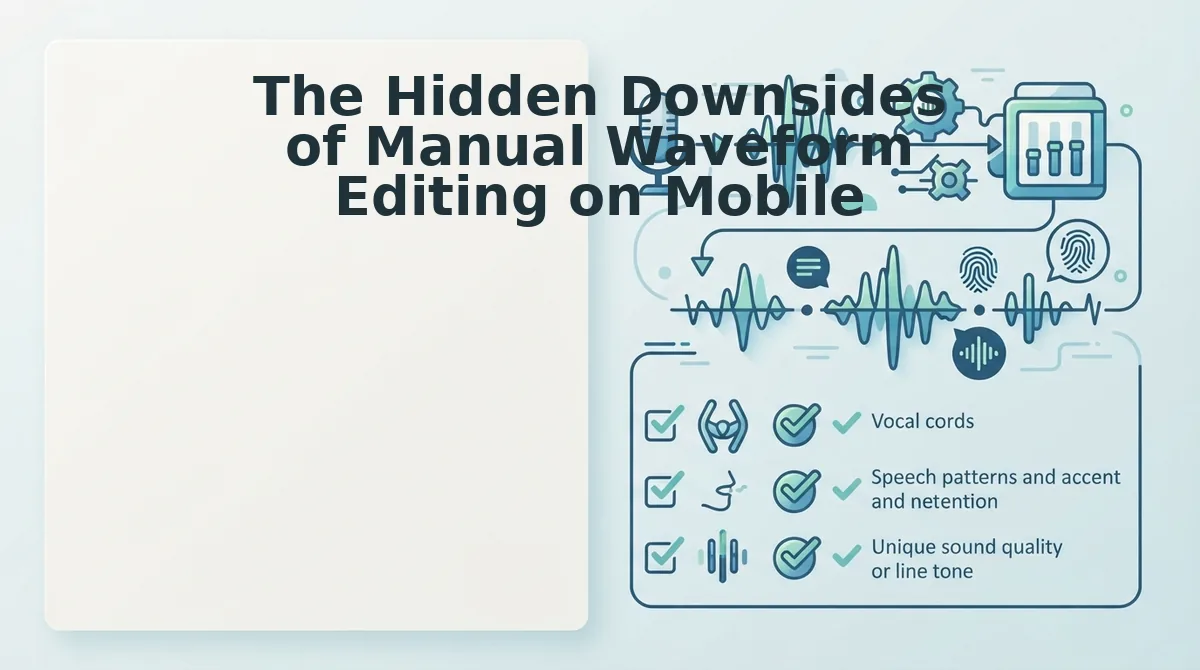
Manual waveform editing on mobile damages vocal authenticity because touchscreens lack sample-level trimming precision and automated crossfading. Splicing out stumbles on a glass display strips ambient sound and clips micro-breaths, leaving voice messages sounding robotic, disjointed, and unnatural.
Consider the experience of listening to a voice note where the background hum abruptly vanishes mid-sentence. Native trimming drops ambient room tone to absolute digital zero (-inf dBFS), creating jarring psychoacoustic clicks that disrupt listener comprehension. Room tone dropout is the sudden loss of ambient acoustic continuity caused by hard digital cuts. Without seamless smoothing, manual splices sound like transmission glitches rather than confident speech.
- Ambient room tone dropouts: Cutting audio on a standard mobile timeline shears continuous environmental noise down to total silence. This violent contrast between background atmosphere and absolute digital zero startles the human auditory system with noticeable pops. Protect atmospheric continuity by relying on specialized processing to remove filler words from audio without stripping out your natural environment.
- Truncated pre-speech breath intakes: Authentic human phonation naturally includes subtle inhalations that precede newly formed thoughts. Trimming false starts manually often severs these micro-breaths mid-gasp, causing the following phrase to jump in with an unnatural, synthetic snap. Maintain vocal realism by zooming in to ensure at least 50 milliseconds of intake air remains intact before the intended phrase begins.
- Conversational cadence destruction: Spoken communication relies heavily on deliberate temporal spacing to convey confidence, nuance, and executive authority. Trimming audio waveforms on a compact phone screen distorts natural pause lengths, making speech sound either unnervingly rushed or awkwardly disjointed. Evaluate the pacing of every cut by listening with closed eyes rather than relying on visual sound waves.
- Capacitive touchscreen editing fatigue: Dragging miniature trim handles across mobile glass lacks microscopic accuracy, transforming a quick two-second correction into an exhausting chore. Speakers routinely overshoot edit markers, shaving off essential opening consonants and triggering frustrating re-record loops. Eliminate manual splicing friction by replacing tactile timeline scrubbing with intelligent speech enhancement designed for one-take recording.
Fortunately, eliminating awkward verbal restarts no longer requires manual timeline surgery on a glass screen. Modern acoustic processing can now mend broken phrasing automatically while preserving the natural rhythm of your voice.
How to Clean Spoken Restarts Automatically Without Choppy Cuts
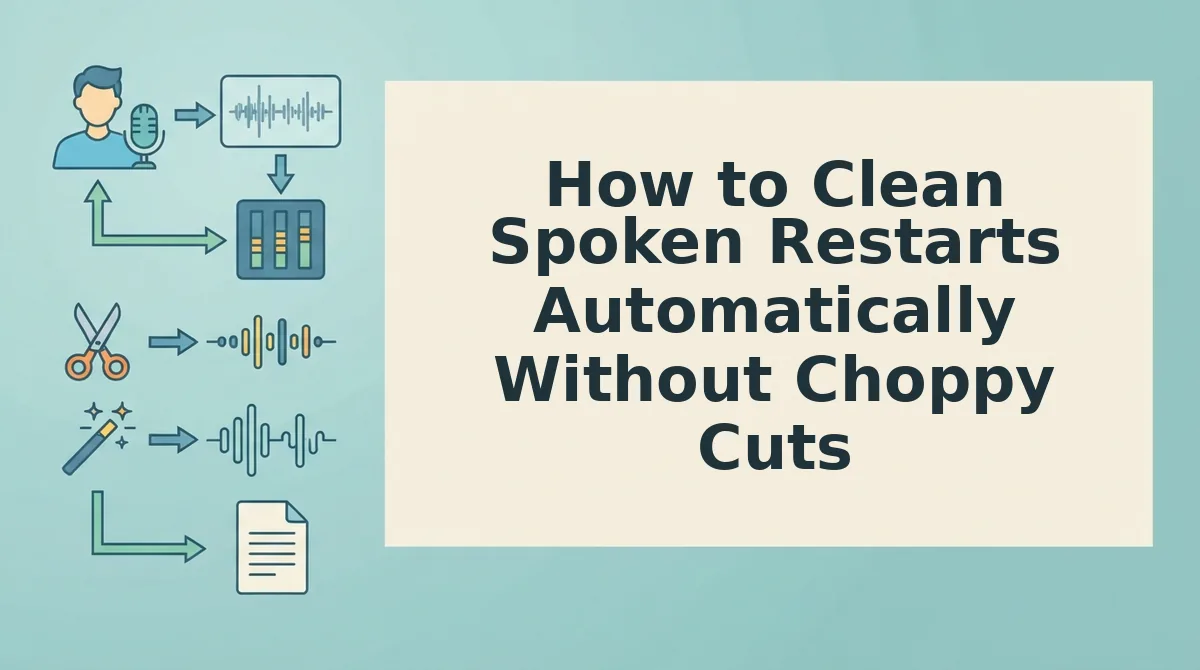
You can remove false starts automatically by running your audio through an AI speech enhancer that repairs conversational syntax and splices acoustic room tone rather than manually slicing waveforms. This automated workflow eliminates repetitive stumbles while keeping your natural vocal identity intact.
VClar is an AI voice message translator and speech enhancer designed to turn unpolished voice memos into clear, authoritative audio and transcripts without altering natural timbre, pitch, or cadence. Automated timeline smoothing ensures that when an abandoned phrase is removed, the surrounding ambient noise blends seamlessly without digital silence gaps or robotic clipping.
Before you begin, make sure you have an internet connection and your unedited audio file (such as an M4A, MP3, or WAV voice note) or access to your device microphone for live recording.
- Upload your voice memo file by dragging it directly into the web interface or tapping the microphone button to speak in real time. Within three seconds, you should see a confirmed waveform visualizer showing your complete raw track.
- Select spoken grammar correction and filler word removal controls to identify repeated words, broken sentence fragments, and acoustic stumbles. The system analyzes conversational phrasing and removes conversational restarts without synthetic voice cloning.
- Review the side-by-side linguistic comparison to inspect your repaired phrasing against the original draft before exporting. You should hear continuous, natural pacing across the edit points alongside an updated, professional transcript.
Can a single take truly sound rehearsed without hours of editing?
Imagine recording a spontaneous update where you say: "We need to, actually let's pivot the, we need to prioritize the client onboarding flow first." Instead of deleting the recording or zooming into a mobile editing timeline, you upload the raw M4A note. The engine detects the circular phrasing, drops the verbal restarts, and outputs: "We need to prioritize the client onboarding flow first." The vocal delivery remains entirely your own, free from synthetic artifacts or choppy audio drops.
Streamlining communication with dedicated voice notes for founders ends the cycle of frustrating re-takes, turning quick thoughts into decisive, ready-to-share updates in a single pass.
To decide which workflow fits your daily routine, it helps to contrast tactile waveform editing against algorithmic speech cleaning across real-world messaging benchmarks.
Manual Audio Trimming vs Automated Speech Cleaners
Manual audio trimming gives creators sample-level control over waveforms, whereas automated speech cleaners eliminate false starts instantly by evaluating linguistic intent and vocal continuity. Slicing audio waveforms manually for eight minutes just to salvage a 45-second voice note defeats the entire speed advantage of talking over typing.
While manual clipping requires zooming into touchscreens or scrubbing through multitrack desktop timelines, automated acoustic processors isolate where a sentence stalled, cut the repeated words, and preserve the natural cadence without leaving audible silence gaps.
| Tool Category | Editing Workflow | Turnaround Time | Acoustic Smoothing | Best For |
|---|---|---|---|---|
| Native Mobile Apps (e.g., Apple Voice Memos) | Manual playhead dragging and pinch-to-zoom trimming | Slow (approx. 7 minutes) | None; abrupt cutoffs | Personal voice archives needing simple start/end crops |
| Desktop Production DAWs (e.g., Descript) | Text-based transcript slicing and timeline editing | Moderate; requires file import and project setup | Room tone patching available | Studio podcasters and long-form multimedia creators |
| Automated Speech Cleaners | One-click acoustic hesitation and false start removal | Fast (approx. 12 seconds) | Seamless room tone and cadence blending | Founders, sales reps, and async teams sharing quick updates |
Choose native mobile trimming if your audio only has dead air at the beginning or end that you can slice away in one swipe.
Choose desktop editors like Descript if you are producing an hour-long interview or studio podcast where manual transcription reviews and video synchronization justify a full desktop setup.
Choose an automated speech cleaner if you speak spontaneously to clients and team members, think at 150 words per minute, and need clean conversational clarity without opening an editing suite.
Our Recommendation
Our recommendation comes down to communicative velocity. A measured turnaround benchmark shows 7 minutes for manual pinch-zoom edits on a single note versus 12 seconds for automated acoustic processing. Spending ten times the length of an audio message just to edit out stumbles is unsustainable for daily work. For standard async voice notes, letting automated processors remove false starts preserves your authentic vocal timbre while keeping your communication moving fast.
Navigating audio editing quirks often raises practical technical questions about mobile workflows and audio fidelity. Here are direct answers to the most common challenges users face when cleaning up voice notes.
Frequently Asked Questions About Voice Memo Editing
You can remove false starts and spoken restarts from voice memos by deleting unwanted waveform segments manually or using automated speech enhancers that remove broken syntax without damaging vocal cadence.
Can you cut out the middle of an iPhone voice memo without downloading third-party software?
Yes, you can remove middle audio in Apple Voice Memos using the built-in Trim tool. Drag the yellow selection handles around the false start, then tap Delete rather than Trim. Apple Voice Memos lacks a native ripple-delete timeline, so utilizing the Delete selection button is required to splice the remaining outer clips together.
Why do edited voice memos have noticeable clicks or pops between cuts?
Audio clicks occur when you splice a recording at a non-zero amplitude point. Cutting mid-wave creates an abrupt electrical jump that plays as an audible pop. To prevent clicks in manual mobile editors, apply a 5-millisecond crossfade across the edit point or cut directly on the zero-crossing line where sound waves hit complete silence.
How do you fix a false start without re-recording the entire message?
You fix a false start by isolating the abandoned sentence and splicing the audio immediately before the restart. Automated speech cleaners streamline this by detecting repeated syllables and syntactic fragments, removing the stumble while bridging room tone. This lets speakers keep their authentic cadence and send clean messages in a single take.
What causes false starts in spontaneous spoken audio?
False starts happen when conversational speech planning outpaces vocal delivery. When the brain re-evaluates word choice mid-phrase, articulation halts and resets. Most conversational restarts stem from three predictable triggers:
- Shifting grammatical syntax mid-sentence
- Speaking before fully formulating the core conclusion
- Hesitating on specialized vocabulary or names
Once you understand how editing tools resolve these stumbles, the ultimate goal is developing recording habits that make cleanup effortless. By shifting how you react to verbal slips in real time, you can master one-take recording for good.
Master One-Take Voice Memos with the Roll-Through Protocol
Mastering one-take voice memos requires adopting the roll-through protocol: pause for 1.5 seconds immediately after a verbal stumble, restate your sentence clearly, and keep recording without tapping cancel.
Imagine sending a polished two-minute project brief to your team on the first recording attempt every single morning. The 1.5-second reset pause creates an unmistakable acoustic boundary that simplifies automated false-start removal, permanently closing the frustrating re-record loop that stalls asynchronous communication.
Adopt these concrete habits on your next memo:
- Breathe instead of restarting: When conversational syntax breaks down, hold silent for two beats before restating the phrase with natural inflection.
- Rely on intelligent trimming: Allow speech processing software to isolate the clean boundary, drop the dead take, and preserve your vocal cadence.
To upgrade your daily audio updates without scrubbing timeline editors on your phone, explore VClar starter tier options designed for spontaneous async workflows.
Mastering spoken clarity is never about performing flawlessly under pressure; it is about creating clean acoustic boundaries so technology can effortlessly protect your authentic voice.