
You've recorded the same voice message four times from your car, and every take still sounds like you're inside a wind tunnel. That re-record loop is costing you minutes per message, and it's entirely avoidable once you understand what you're actually fighting.
You're right to be frustrated. Car noise isn't one problem; it's at least four distinct acoustic problems layered on top of each other, and each one needs a different fix. By the end of this guide, you'll know exactly how to remove car noise from a voice message, whether you've already recorded it or you're about to hit record, and which method takes under a minute with zero editing skills.
Here's the roadmap: first, we'll break car noise into its four acoustic types so you can identify what you're hearing. Then we'll walk through an AI-powered one-click cleaning workflow, a manual editing method for free tools, and prevention tactics for future recordings. One surprising finding: the most annoying noise in your recording is often the easiest to remove, while the quietest one is nearly impossible. VClar's noise-reduction engine handles all four types automatically, but knowing the difference changes how you record forever.
Why Car Noise Ruins Voice Messages (And What You Can Actually Fix)
Car noise in a voice message is any unwanted acoustic signal from the vehicle environment that competes with your voice for the listener's attention. Not all of it is fixable, but most of it is, once you know which type you're dealing with.
Think of car noise like a stack of four radio stations playing at once. Your voice is the station you want. Some of the others broadcast constantly at predictable frequencies, which makes them easy to filter out. Others flicker in and out unpredictably, which makes them much harder to isolate.
Here is the four-type taxonomy that no competitor breaks down:
- Engine rumble (20-200 Hz): Constant, low-frequency hum from the motor and exhaust. Highly removable because it sits far below the human voice range and never changes pitch.
- Road and tire hiss (2-8 kHz): Constant, high-frequency white noise from tires on pavement. Removable with spectral subtraction, though it overlaps with consonant sounds like "s" and "f," so aggressive removal can dull speech clarity.
- Wind buffeting (100-500 Hz): Intermittent, low-mid frequency thumping caused by open windows or air pressure changes. Partially removable, steady wind is filterable, but sudden gusts create unpredictable amplitude swings.
- Cabin rattles (1-4 kHz): Intermittent clicks, squeaks, and vibrations from loose trim, phone mounts, or objects in cup holders. Hard to remove because they occupy the same frequency range as human speech and appear randomly.
Here's the counterintuitive part: the loudest noise in your recording, engine rumble, is the easiest to eliminate, because it's constant and spectrally distant from your voice. The quietest noise, a faint dashboard rattle, is the hardest, because it hides inside your speech frequencies and only appears for milliseconds at a time. This is why generic "noise reduction" sliders often fail: they treat all four types as one problem. AI-powered cleaners like VClar detect each noise profile separately and subtract only what doesn't belong, preserving your voice's natural tone, accent, and cadence in the process.
Method 1: AI-Powered Voice Message Cleaners (Fastest, No Editing Skills)
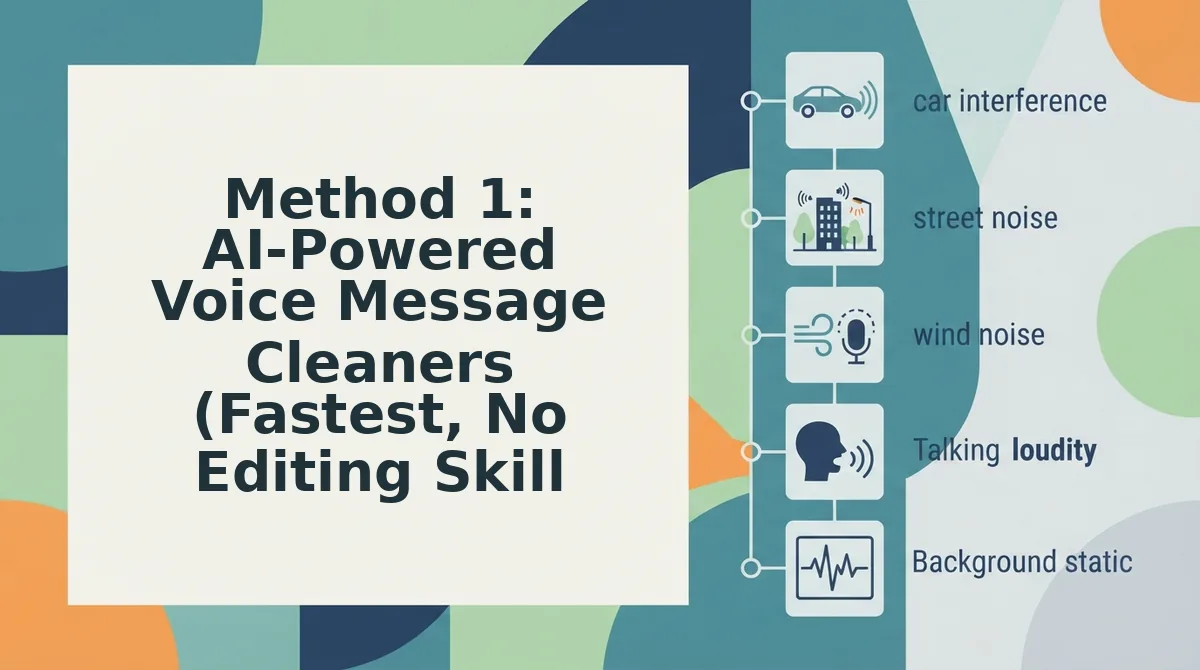
AI voice cleaners remove car noise by detecting a noise profile, a spectral fingerprint of the unwanted sound, and subtracting it from the audio while preserving voice frequencies. This is the one-click method for already-recorded messages, and it takes under a minute.
You'll need: a recorded voice message file (MP3, M4A, WAV, or OGG) and an AI cleaning tool such as VClar. No audio editing experience required.
- Upload your voice message. Open your AI cleaner and drag your recorded file into the upload area, or tap the upload button and select it from your phone. You should see a waveform appear within a few seconds.
- Run the noise reduction pass. Click the Clean Audio or Enhance button. The tool analyzes the first few seconds of audio to build a noise profile, then applies spectral subtraction across the entire clip. Expect this to take 10-30 seconds depending on file length.
- Preview the cleaned result. Play back the processed audio. Engine rumble and road hiss should be gone or dramatically reduced, while your voice remains clear and natural. If wind buffeting or rattles remain, run a second pass, most tools improve with each iteration.
- Export and send. Click Download or Export to save the cleaned file. You should see a confirmation message with the new file size. Send it as you normally would.
AI cleaning works because it separates the audio into frequency bands and identifies which bands contain only noise. Engine rumble lives at 20-200 Hz, far below the human voice range of roughly 85-255 Hz for adult males and 165-255 Hz for adult females. The algorithm can remove those low bands entirely without touching your speech. Road hiss at 2-8 kHz requires more surgical subtraction, since it overlaps with consonant sounds, which is why preserving voice clarity during noise removal is the core technical challenge. VClar's engine handles this by modeling your voice's spectral envelope and protecting it during subtraction, so the result sounds like you, not a processed robot.
The demand for one-click noise removal is real: VEED Studio's AI clean audio tutorial has accumulated 513K views, proving that creators and professionals want this workflow without learning audio engineering. While you're cleaning, you can also remove filler words from audio in the same pass. VClar strips ums, ahs, and false starts alongside the car noise, so your message sounds decisive in one take.
If you'd rather stay in full manual control, the next method covers free audio editors, but expect a steeper learning curve.
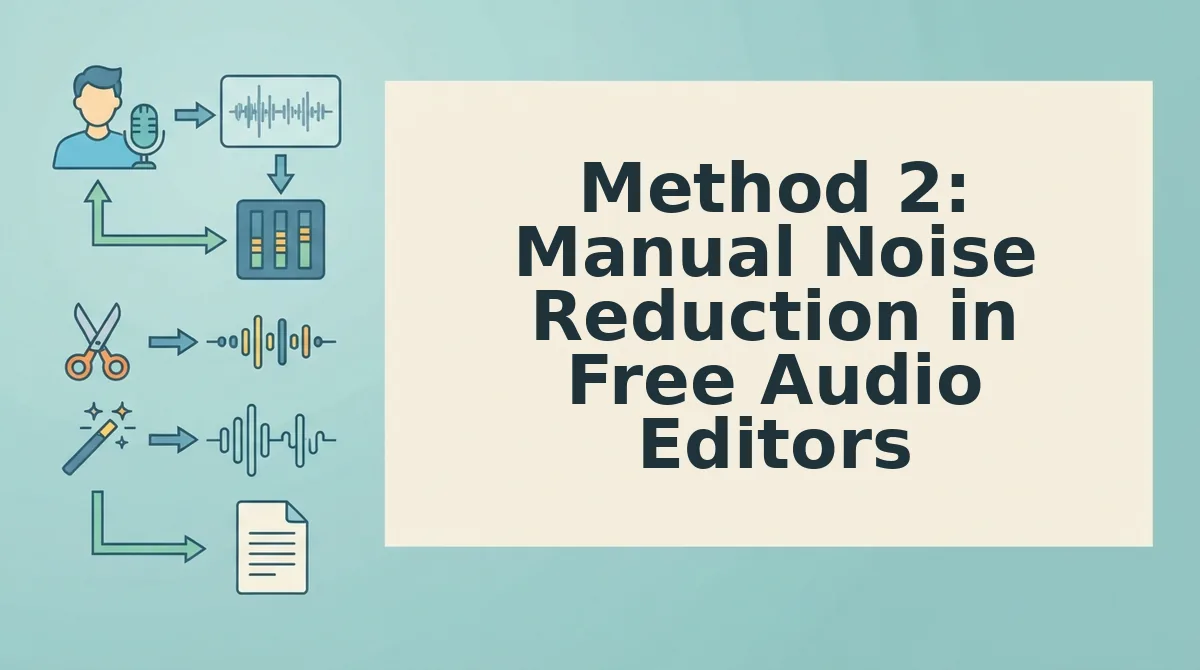
Method 2: Manual Noise Reduction in Free Audio Editors
Free desktop and mobile editors can remove car noise from voice messages, but they require more steps than AI cleaners and risk degrading vocal quality if you push the settings too far.
Audacity, DaVinci Resolve, and CapCut each handle noise differently. Audacity gives you the most control but demands a multi-step workflow. DaVinci Resolve 19's free version offers one-click voice isolation. CapCut puts noise removal directly on your phone. None of them were built specifically for voice messages, so expect to export, rename, and re-import files between apps.
| Tool | Platform | Noise Removal Method | Learning Curve | Best For |
|---|---|---|---|---|
| Audacity | Windows, macOS, Linux | Capture noise profile, then apply reduction | Moderate, 4+ steps | DIY users who want fine control over every parameter |
| DaVinci Resolve 19 | Windows, macOS, Linux | One-click voice isolation in free version | Low for this feature, but the interface is video-first | Creators already editing video who need a quick audio fix |
| CapCut | Android, iOS, desktop | Built-in noise removal toggle | Low, tap and apply | Mobile-first users who record and clean on the same phone |
Audacity's workflow is the most involved. You first select a silent section of the recording that contains only car noise, capture it as a noise profile, then apply noise reduction to the full clip. If the car noise changes, say, you accelerate or open a window, the profile no longer matches and the result sounds patchy.
DaVinci Resolve 19's free version includes a voice isolation feature that separates speech from background noise with a single click. It works well on constant hums like engine drone, but aggressive settings can make voices sound thin or metallic. CapCut's built-in noise removal is the most accessible option for Android and iOS users, though it offers less control over how much reduction is applied.
The honest tradeoff: manual tools are free, but they add minutes to every message and can leave artifacts if you over-process. If you send voice messages daily, the time cost compounds quickly.
Method 3: Prevention, Record Cleaner Voice Messages in the Car
The cheapest way to remove car noise from a voice message is to never let it into the recording in the first place. These five habits reduce engine hum, wind buffeting, and road rumble at the source.
- Hold the phone closer to your mouth and away from the window. Distance from your mouth is the single biggest factor in how much background noise a phone mic picks up. Holding the phone 10-15 cm from your face and keeping it on the cabin side, not the window side, cuts wind noise dramatically before any software touches the file.
- Close the windows and turn off the fan before recording. Wind buffeting and AC vents create broadband noise that is harder to remove than a steady engine hum. Thirty seconds of closed windows and a tapped-off fan gives you a dramatically cleaner baseline.
- Reduce speed or pull over for important messages. Road noise scales with speed. If the message matters, a pitch, a client update, or a voice note for founders, dropping from highway speed to a stop takes 60 seconds and eliminates most of the problem.
- Position the phone's mic toward your mouth, not the dashboard. Most phones use a bottom or front-facing mic. Angling the mic element toward your face and away from the engine bay improves the signal-to-noise ratio without any editing.
- Record in shorter takes. Long recordings accumulate more moments where noise spikes, a passing truck, a gear shift, a honk. Breaking a message into two or three shorter takes makes it easier to re-record only the noisy segment instead of the whole thing.
Prevention pairs well with a one-take workflow: record clean at the source, then run the file through VClar to remove any remaining fillers and tighten phrasing before sending.
Clean vs. Re-Record: A Simple Decision Matrix (FAQ)
If the car noise is constant, clean it. If the noise is intermittent or your voice is unclear, re-record. Use this matrix to decide in under ten seconds.
How do I remove car noise from a voice message I already sent?
You cannot edit a voice message after it has been sent on WhatsApp, iMessage, or Telegram. Your only options are to re-record the message with less background noise or send a follow-up message clarifying the key point. Prevention and pre-send cleaning are the only reliable fixes.
Can I clean a voice message on my phone?
Yes. CapCut's mobile app includes a built-in noise removal toggle for Android and iOS. VClar also cleans voice messages directly from your phone by removing filler words, fixing grammar, and reducing background noise while preserving your natural voice.
Does noise removal affect voice quality?
Yes, aggressive noise reduction can make voices sound thin, metallic, or slightly robotic. The safest approach is to remove only constant low-frequency noise like engine hum and leave the vocal frequencies untouched. AI-based cleaners typically preserve more vocal character than manual parametric reduction.
Why does my voice message sound muffled in the car?
Muffled audio usually comes from the phone being too far from your mouth, a case covering the mic, or the phone resting in a cup holder where sound bounces off plastic. Hold the phone closer to your face and keep the mic unobstructed.
Should I clean the noise or just re-record the message?
Clean it if the car noise is constant, engine hum, road drone, or fan noise, and your voice is clear. Re-record if the noise is intermittent, like passing trucks or honks, or if your words are hard to understand. You can also run the re-recorded take through VClar to fix grammar in the voice message before sending.
One Take Is Enough
Car noise doesn't have to end your recording. The fastest path from a noisy voice memo to a clean, sendable message is AI cleaning, not re-recording, not learning audio engineering, and not pulling over to find silence.
VClar's acoustic distraction cleanup filters ambient interference from cars, streets, and homes while preserving your natural tone, accent, and cadence. The same pass removes filler words and fixes spoken grammar, so you get a polished message without losing your voice.
Here's the workflow that actually sticks:
- Record once, even with road noise in the background.
- Run it through an AI voice message translator that cleans noise, fillers, and grammar in one pass.
- Send the result, no second take required.
Manual editors can work in a pinch, but they demand time and patience that most voice messages don't justify. Prevention helps, but it can't fix traffic, wind, or a passenger who suddenly has a question.
The real shift isn't finding silence. It's trusting a tool that separates your voice from everything around it, and lets you keep moving.