
You sit down to record a quick voice memo, hit record, and start talking, only to hear every keystroke from your keyboard punching through the audio like a snare drum. If you've ever tried to remove keyboard typing noise from a voice memo after the fact, you already know it's not as simple as dragging a "noise removal" slider. Here's the frustrating part: keyboard clicks occupy the 2-6 kHz frequency band, the exact same band where consonant sounds like "s," "t," and "k" live. Cut the clicks and you often cut the clarity too.
You're right to be annoyed. Most voice memos are recorded on phones, yet most advice jumps straight to desktop tools like Audacity and assumes you have a studio setup. This guide takes a different path. You'll learn a 10-second prevention trick that stops most keyboard noise before it ever reaches your mic, then a practical workflow for cleaning up recordings you've already made, including how VClar's AI voice message enhancer handles the frequency problem automatically without muffling your consonants. One surprising finding ahead: the angle of your phone matters more than the distance.
Why Keyboard Clicks Are So Hard to Remove (The Frequency Problem)
Keyboard clicks are transient, broadband noise bursts that overlap with the frequency range of human consonant sounds, making them acoustically entangled with speech clarity. In plain terms: the sharp "click" of a mechanical or membrane key doesn't sit in a separate frequency lane from your voice, it collides with the very sounds that make words intelligible.
Think of it like trying to remove red paint from a pink wall. The red (keyboard clicks) and the white (your voice) are mixed into the same color. If you strip out all the red, you also strip the pink and end up with a dull, lifeless wall. That's exactly what happens when aggressive noise reduction targets the 2-6 kHz band: the clicks disappear, but so do the consonant sounds like "s," "t," "k," and "f." The result is a voice that sounds muffled, distant, or underwater.
Most basic noise-reduction tools work by identifying a "noise profile" and subtracting it from the entire recording. This works well for steady, predictable sounds like fan hum or air conditioning. But keyboard clicks are transient, short, sudden, and irregular. A steady-state noise profile can't isolate them cleanly. When the tool tries, it either leaves clicks behind or overcorrects and damages the speech signal in the same frequency range. This is why manual editing often requires cutting out each click individually, a tedious process that can take longer than re-recording the memo itself.
Understanding this frequency overlap changes how you approach the problem. Instead of fighting the clicks after recording, you prevent them from entering the signal in the first place, or use a tool that separates transient noise from speech without flattening the entire 2-6 kHz band.
Step 1: Prevent Keyboard Noise Before You Hit Record
The fastest way to remove keyboard typing noise from a voice memo is to stop it from being recorded in the first place. Three pre-recording adjustments take under 30 seconds total and eliminate most keyboard pickup before you ever need to edit.
Prerequisites: Your phone or microphone, a flat surface, and awareness of where your keyboard sits relative to the mic.
- Position the mic at least 12 inches from the keyboard. Place your phone or external mic closer to your mouth than to the keyboard. The inverse square law works in your favor: doubling the distance from a sound source cuts its volume by roughly 75%. At 12 inches or more, keyboard clicks drop dramatically in the recording while your voice, closer to the mic, stays strong.
- Tilt the phone or mic at a 45-degree angle toward your mouth. Most phone microphones are directional enough that a 45-degree tilt away from the desk surface can cut keyboard pickup by half. Point the mic's pickup pattern at your face, not at the desk where the keyboard sits. You should notice an immediate drop in click volume when you test-record a few seconds.
- Move the keyboard behind or to the side of the mic's pickup pattern. If the keyboard sits directly in front of the mic, every keystroke fires straight into the capsule. Shift the keyboard to the side or behind the mic's line of sight. Even a 90-degree repositioning places the clicks in the mic's least sensitive zone, reducing their presence without changing how you type.
These three adjustments resolve the open loop from the introduction: the angle of your phone matters more than raw distance alone. If you've already recorded a memo full of clicks, don't re-record yet, VClar's AI voice message enhancer removes transient keyboard noise while preserving the consonants that keep your voice clear. Next, here's how to clean up a voice memo you've already recorded.
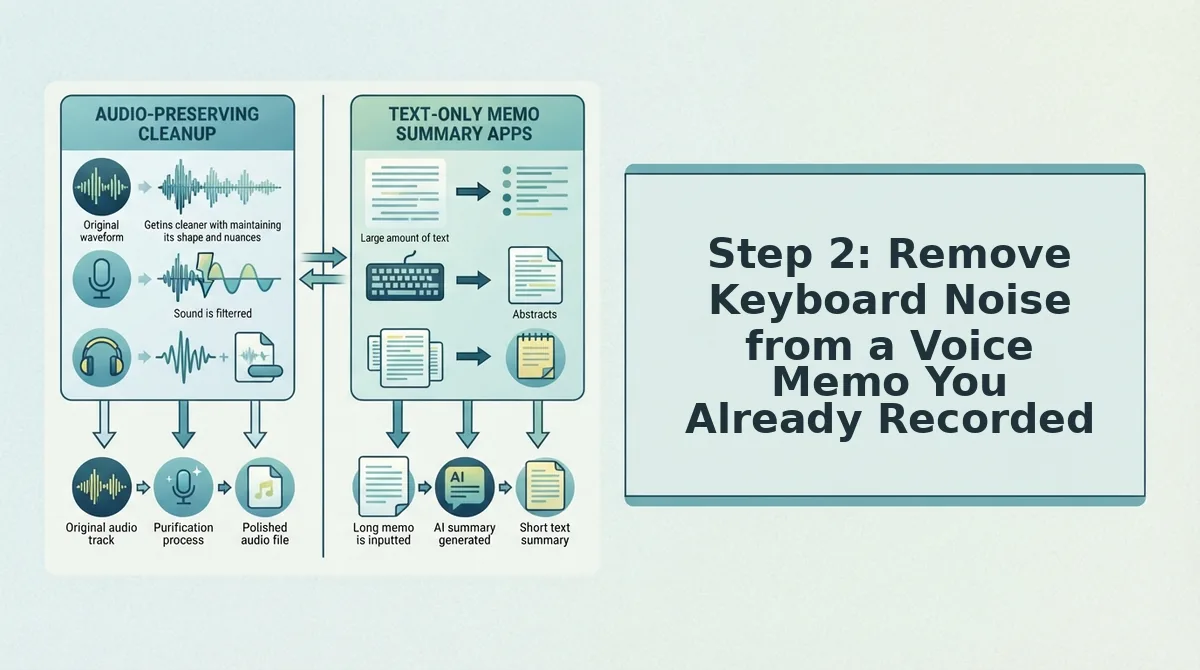
Step 2: Remove Keyboard Noise from a Voice Memo You Already Recorded
You can remove keyboard typing noise from an existing voice memo using your phone's built-in enhancement tools or free desktop software like Audacity, with most fixes taking under 5 minutes.
Prerequisites: The original voice memo file, a phone or computer with audio editing access, and headphones to monitor changes accurately.
- Open your iPhone Voice Memos app and tap the recording. Tap the waveform icon (three horizontal lines) to open the editing view, then tap the magic wand icon in the top-left corner. Select Enhance Recording from the menu. You should hear a noticeable reduction in background noise, including keyboard clicks, within about 10 seconds of processing.
- On Android, open your voice recorder app and look for a noise reduction toggle. Many Samsung, Google Pixel, and Xiaomi recorder apps include a Noise reduction or Background noise filter option in the recording's edit menu. Enable it and replay the memo. You should hear keyboard clicks drop in volume while your voice remains clear.
- If phone tools aren't enough, download Audacity (free) and import the file. Open Audacity, click File, then Import, then Audio, and select your memo. Locate a 1-2 second section of the waveform that contains only keyboard noise and no speech. Click and drag to highlight that section. You should see the highlighted region turn lighter than the rest of the waveform.
- Click Effect, then Noise Reduction, then Get Noise Profile. This samples the keyboard noise so Audacity knows what to remove. The dialog box will close automatically, confirming the profile was captured. You should see no visible change yet, that happens in the next step.
- Select the entire track (Ctrl+A or Cmd+A), then reopen Effect > Noise Reduction. Set Noise Reduction (dB) to 12, Sensitivity to 6, and Frequency smoothing to 3. Click Preview to hear a 5-second sample. You should hear keyboard clicks fade while your voice stays intelligible. Click OK to apply the effect to the whole recording.
- Export the cleaned file. Click File, then Export, then Export as MP3 or WAV. Name the file and choose a destination. You should see an export progress bar, and the finished file should play back with noticeably reduced typing noise.
Audacity's Noise Reduction effect works by sampling a section of pure keyboard noise and subtracting that frequency pattern from the entire recording. This is the most precise free method for removing typing sounds from a voice memo you already recorded, because it targets only the noise signature you captured rather than applying a blanket filter.
Step 3: Use EQ to Target Keyboard Clicks Without Touching Your Voice
A narrow EQ cut centered around 3-5 kHz by 3-6 dB can reduce keyboard clicks without muffling speech, because clicks peak in that range while consonants need energy across a wider band.
Prerequisites: Audacity or any DAW with a parametric EQ, plus your voice memo file loaded and ready to edit. Total time: about 3 minutes.
- Select the entire track in Audacity. Click anywhere on the waveform, then press Ctrl+A (Windows) or Cmd+A (Mac). You should see the entire track highlighted in a lighter shade.
- Click Effect, then Graphic EQ or Filter Curve EQ. For Graphic EQ, locate the sliders labeled 3.15 kHz, 4 kHz, and 5 kHz. For Filter Curve EQ, click the curve line at the 4 kHz point to create a control node. You should see a new draggable point appear on the curve.
- Lower the 3-5 kHz range by 3-6 dB. Drag the 4 kHz slider down to about -5 dB, and set adjacent 3.15 kHz and 5 kHz sliders to -3 dB each. In Filter Curve EQ, drag the node downward to -5 dB and widen the curve slightly. You should see a narrow V-shaped dip in the EQ curve centered on 4 kHz.
- Click Preview and listen for keyboard clicks. Play a 5-second section where typing noise is most audible. You should hear clicks soften while s, sh, and ch sounds in your speech remain crisp. If your voice sounds dull, reduce the cut to -3 dB and preview again.
- Click OK to apply the EQ. The waveform may change slightly in appearance. You should hear a cleaner memo where keyboard clicks are subdued but your voice retains its natural brightness and consonants.
This works because keyboard clicks are broadband transients that peak in the 3-5 kHz range, while human consonants like sibilants spread energy across a wider frequency band. A narrow cut removes the click's sharpest energy without starving your voice of the frequencies it needs to stay intelligible.
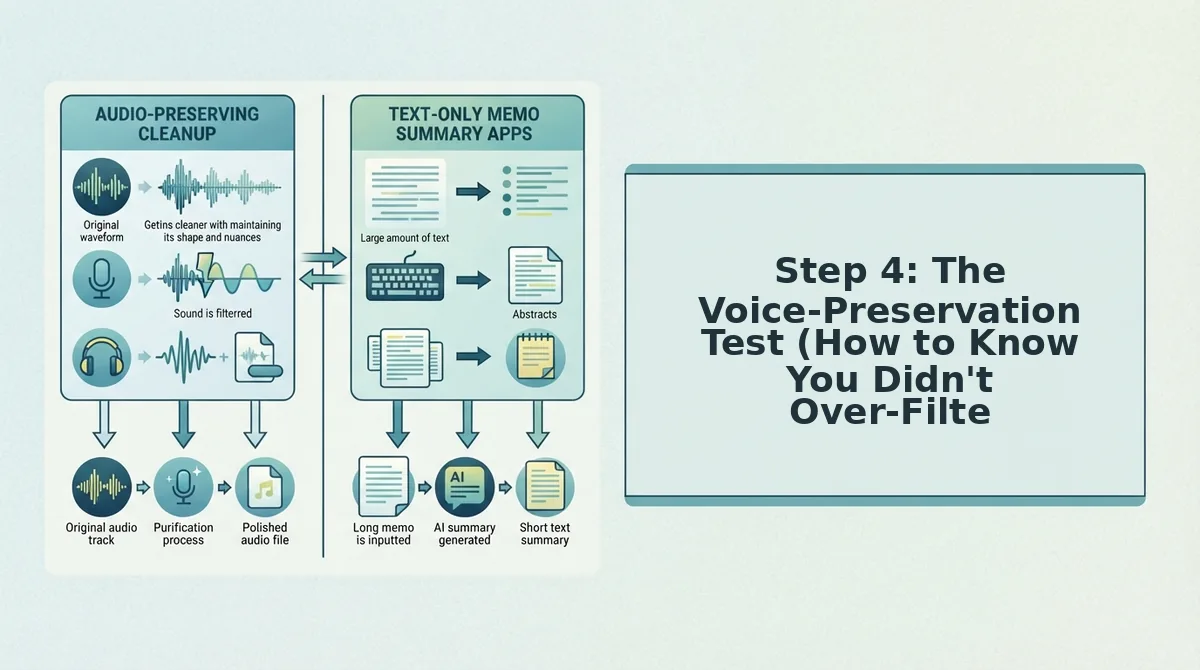
Step 4: The Voice-Preservation Test (How to Know You Didn't Over-Filter)
After any noise reduction or EQ pass, run this three-question self-check to confirm your voice still sounds natural and you haven't traded keyboard clicks for muffled audio.
- Can you still hear sibilants (s, sh, ch) clearly? Sibilants live in the 4-8 kHz range, the same zone where keyboard clicks peak. If your s sounds have turned soft or disappeared, you've cut too aggressively. Back off the EQ cut by 2-3 dB or reduce the Noise Reduction setting by 3-4 dB, then re-export and listen again.
- Does your voice sound like you, or like you're underwater? Over-filtering removes the high-frequency harmonics that give your voice its individual character and accent. If you sound distant, muffled, or like a different person, undo the last effect (Ctrl+Z or Cmd+Z) and reapply with gentler settings, this is the single most common over-processing mistake.
- Are natural pauses intact or clipped? Aggressive noise reduction can truncate the brief silences between words, making your speech sound rushed and robotic. Listen for the natural rhythm of your sentences. If pauses feel shortened or words bleed together, lower the Noise Reduction sensitivity setting and re-run the effect.
If you're cleaning voice memos regularly for client updates or team messages, VClar's filler word remover and speech enhancement handle this entire workflow automatically, removing keyboard noise, verbal hesitations, and background distractions while preserving your natural tone and cadence in one pass.
If your memo fails any of these three checks after two rounds of fixes, it's time to consider the next section.
When to Just Re-Record (The 30% Rule)
Think of it like repainting a wall. A few scuffs you can touch up in minutes.
Here's the practical test: play your memo and count the seconds where typing sounds sit directly on top of your voice. If that overlap exceeds roughly one-third of the recording, stop editing. Move your microphone farther from the keyboard, angle it toward your mouth and away from your hands, and record again.
Prevention is cheaper than repair. A 10-second mic adjustment before recording saves minutes of editing after. For recordings where clicks are isolated between phrases, targeted removal still works. But when keystrokes weave through your sentences, the cleanest result comes from a fresh take, not a filter.
FAQ: Keyboard Noise in Voice Memos
Keyboard noise in voice memos comes from mechanical keystrokes picked up by a microphone positioned too close to the keyboard or angled toward it. The fix depends on whether you are recording live or cleaning an existing file.
Why does my voice memo pick up keyboard typing but not my voice clearly?
Keyboard clicks are sharp, high-frequency transients that cut through background noise more easily than the lower-frequency energy of human speech. If your mic sits closer to the keyboard than your mouth, or points toward your hands, the clicks dominate the recording.
Is iPhone's Speak While Typing feature related to keyboard noise in voice memos?
No. iPhone's Speak While Typing is a text-to-speech accessibility feature that reads aloud what you type. It has nothing to do with mechanical keyboard sounds being captured in voice memo recordings.
Can I remove keyboard noise from a voice memo on my phone without desktop software?
Yes. You can reduce keyboard noise on mobile using built-in voice memo enhancement tools or third-party apps like Dolby On or Lexis Audio Editor. These apps offer noise reduction and EQ controls that target high-frequency clicks without requiring a computer.
How do I stop keyboard clicks from appearing in my recordings in the first place?
Prevention is the most reliable way to stop keyboard clicks in audio recordings. Position the microphone closer to your mouth than the keyboard, angle it away from your hands, use a quieter keyboard or a desk mat, and pause typing during key phrases.
Can I remove keyboard noise and filler words from the same voice memo?
Yes. You can remove filler words from audio and clean keyboard clicks in one pass using an AI voice enhancer that targets both verbal hesitations and acoustic distractions while preserving your natural voice.
The Prevention-First Sequence That Ends the Re-Record Loop
Every fix in this guide points to the same conclusion: the voice-preservation test matters more than any single filter. If your cleaned memo still sounds like you, you succeeded. If it sounds hollow or robotic, you over-filtered.
The prevention-first sequence is simple: adjust mic placement, angle, and keyboard position before recording. For recordings that already exist, targeted EQ and spectral editing handle isolated clicks. For everything else, re-record.
If you want clean, professional voice memos without the re-record loop, VClar AI voice message enhancer removes keyboard clicks, filler words, and background noise while preserving your natural voice. Record once, send with confidence.