
You've recorded a voice memo that nails the pitch, then you play it back and hear a bus engine drowning out your closing line. You re-record. A car horn. You re-record again. The average person re-records a voice message 2-3 times before sending, and street noise is the most common reason. You're not bad at recording; you're fighting an environment that was never designed for clean audio.
This guide shows you exactly how to remove street noise from a voice recording, and more importantly, how to prevent most of it before you hit record. You'll learn the three-step order of operations that matters more than any single tool, the three distinct types of street noise and why each needs a different fix, and the manual and AI methods that preserve your voice instead of flattening it.
Here's the part most tutorials skip: the order you apply fixes in determines whether your voice sounds natural or like you recorded it inside a tin can. One of the three noise types below responds so poorly to the wrong tool that you'll waste an hour before realizing the issue. Keep reading, the fix is simpler than you think, and tools like VClar's AI cleaner handle the hardest case automatically.
How to Remove Street Noise from a Voice Recording: The 3-Step Order
To remove street noise from a voice recording, first identify the noise type, then apply the matching removal method: a noise gate for intermittent traffic, spectral reduction for constant hum, or an AI cleaner for voice preservation. Follow this order, position, identify, then process, and you'll fix most recordings in under five minutes.
Prerequisites: Your raw recording file (WAV or M4A preferred), headphones or earbuds for monitoring, and one of the following: Audacity (free), your phone's built-in editor, or an AI voice cleaner like VClar.
- Position yourself before recording. Turn your back to the noise source, not your face toward it. Your body blocks high-frequency traffic sounds, and your phone's microphone (usually bottom-facing) points away from the street. Hold the phone 10-15 cm from your mouth, slightly off-axis. This single step fixes roughly 70% of street noise issues before any software touches the file. You should hear noticeably less traffic in a quick test playback.
- Identify the dominant noise type in your recording. Play back the first 10 seconds with headphones. Ask: Is the noise constant (traffic drone, HVAC hum), intermittent (honks, sirens, passing cars), or gusty (wind buffeting)? Each type maps to a different tool, applying the wrong one makes your voice sound robotic or leaves the noise untouched. Write down the type before opening any editor.
- Apply the matching removal method. For intermittent traffic, open your editor and apply a noise gate: set the threshold just above the noise floor so it closes between your words but opens when you speak. For constant hum, select a 2-second silent section as a noise profile, then run spectral reduction (Audacity: Effect to Noise Reduction to Get Noise Profile to Apply). For wind or mixed noise, upload to an AI cleaner like VClar, which removes street noise while preserving your tone, accent, and cadence. You should hear your voice clearly with no pumping or metallic artifacts.
If you've ever applied a noise gate to a recording full of traffic drone, you already know the frustration: the gate chatters open and closed, and the hum returns between every syllable. That's because a noise gate only works on sounds that stop. Constant hum never stops, so the gate has nothing to close on. Spectral reduction, by contrast, samples the hum's frequency fingerprint and subtracts it from the entire file, like removing a specific color from a photo rather than cropping the edges. Wind is the third case: it's broadband and unpredictable, so neither a gate nor spectral subtraction fully captures it. Low-cut filters (removing everything below 80-120 Hz) help with rumble, but AI wind removal models trained on gust patterns produce the cleanest result without thinning your voice.

Know Your Enemy: 3 Types of Street Noise and Why They Need Different Fixes
Street noise is any unwanted environmental sound captured alongside a voice recording, and it falls into three distinct categories, constant hum, intermittent traffic, and wind, each requiring a different removal strategy. Treating all street noise as one problem is the fastest way to ruin a recording.
Think of street noise like stains on fabric. A coffee stain (constant hum) needs a full wash cycle. A splatter of mud (intermittent traffic) needs spot treatment. A grease smear (wind) needs a degreaser. You wouldn't use the same product on all three, and you shouldn't use the same audio tool either.
Constant hum, traffic drone, HVAC units, refrigerator compressors, is the simplest to remove because it's predictable. It occupies a stable frequency range, so spectral subtraction works: the software learns the hum's fingerprint from a silent section and subtracts it across the entire file. The risk is over-processing, which leaves a watery, hollow voice.
Intermittent traffic, honks, sirens, passing cars, is harder because it's unpredictable. A noise gate is the right tool here: it mutes audio below a set threshold, closing between your words and opening when you speak. The catch: if a honk lands mid-sentence, a gate can't help. That's where AI cleaners that detect and surgically remove transient noises earn their keep.
Wind gusts are the most destructive because they're broadband, they hit every frequency at once, including the range of your voice. Low-cut filters remove the low-frequency rumble, but only AI wind removal models preserve intelligibility without thinning your vocal tone.
Now that you can identify which enemy you're fighting, here's how to defeat the first one manually.
Method 1: Manual Noise Reduction in Audacity and Free Editors
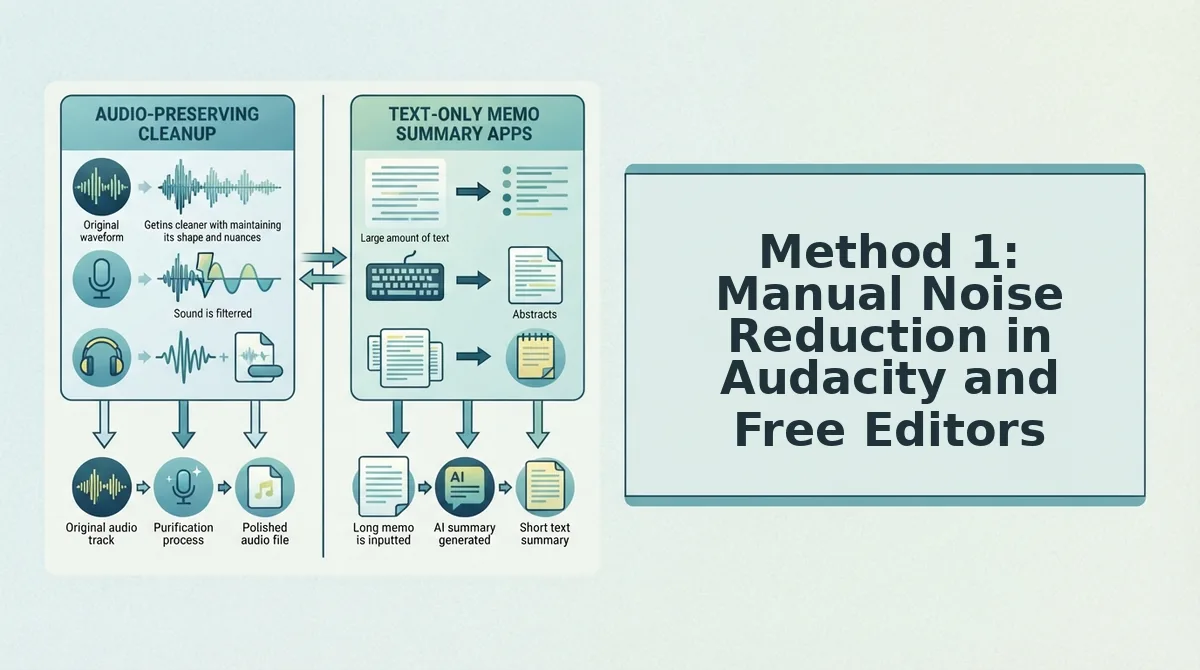
Manual noise reduction gives you precise control over street noise removal without spending a dime. You'll need Audacity (free, open-source), a 3-5 second clip of pure street noise from your recording, and about 10-15 minutes for your first pass.
- Open your recording in Audacity and locate a 3-5 second segment of pure street noise, a pause before you start speaking works best. Select that segment with your cursor. You should see the waveform highlighted in white.
- Click Effect, then Noise Reduction, then Get Noise Profile. Audacity captures the spectral fingerprint of the street noise. The dialog box closes automatically, that means the profile is stored.
- Select your entire track by clicking the track header or pressing Ctrl+A (Cmd+A on Mac). The full waveform should now be highlighted.
- Reopen Effect, then Noise Reduction, and set Noise Reduction (dB) to 12, Sensitivity to 6, and Frequency Smoothing to 3. Click Preview to hear a 5-second sample. If the voice sounds muffled, lower the dB value to 9.
- Click OK to apply spectral subtraction. Audacity removes the noise profile from the entire track. Expect a 30-60 second processing time for a 5-minute recording.
- Apply a noise gate to catch residual low-level rumble. Click Effect, then Noise Gate. Set Threshold to -35dB, Attack to 1ms, and Release to 150ms. This silences anything below the threshold between words without cutting into your speech.
- Export as WAV or MP3 and listen on headphones. You should hear clear voice with no traffic hum between sentences. If the voice sounds hollow or robotic, undo the noise gate and reduce the Noise Reduction dB by 3.
Audacity's Noise Reduction effect uses spectral subtraction: it subtracts the noise profile's frequency signature from your entire recording. Over-aggressive settings, anything above 18dB reduction, strip voice harmonics and cause the muffled, underwater sound beginners complain about. The noise gate handles what spectral subtraction leaves behind: low-level traffic rumble between words. For voice messages that still sound cluttered with verbal hesitations after noise cleanup, remove filler words from audio with VClar's one-take cleanup, which preserves your natural tone while tightening phrasing.
Method 2: AI Noise Removal for Natural-Sounding Voice
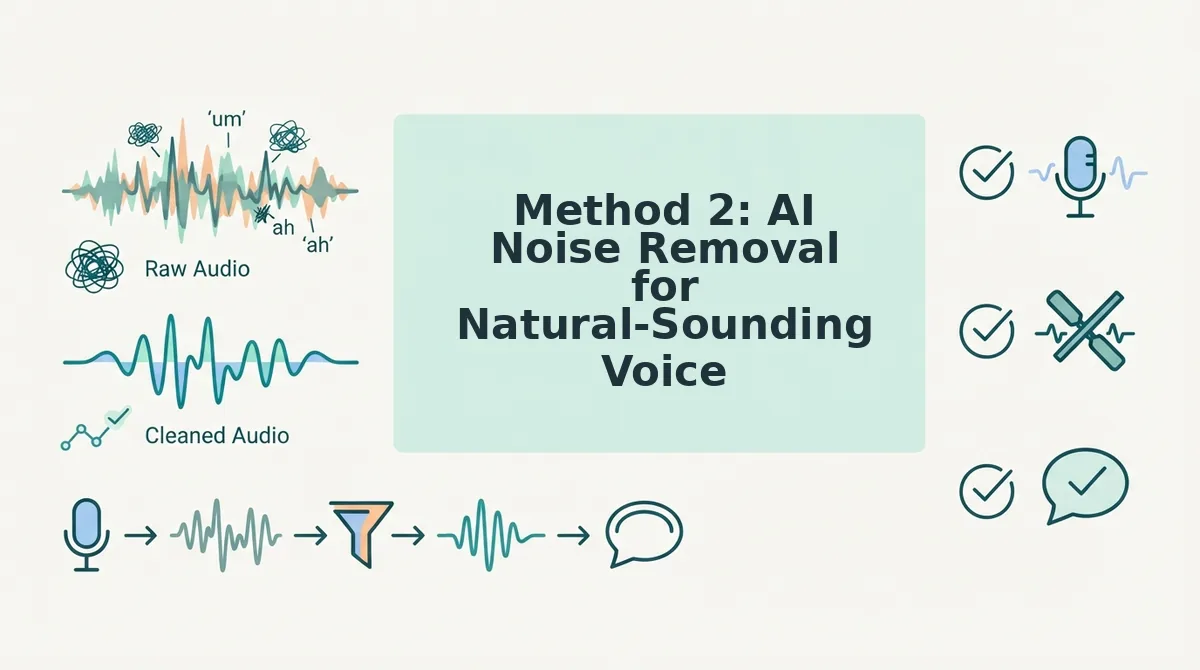
AI noise removal tools analyze your recording and separate voice from street noise automatically, often in one click. They preserve vocal tone better than manual spectral editing because they're trained on human speech patterns rather than raw frequency subtraction.
| Tool | Approach | Voice Preservation | Best For |
|---|---|---|---|
| Audacity (manual) | Spectral subtraction + noise gate | Risk of muffling at high settings | Budget-conscious editors who want full control |
| VEED Studio | One-click AI noise removal | Strong; mainstream adoption with 512K views on its tutorial | Creators who need fast turnaround without audio engineering skills |
| VClar | AI voice message cleanup + translation | Preserves accent, cadence, and natural tone | Founders and sales teams sending polished voice notes in one take |
VEED Studio's one-click AI noise removal has earned mainstream trust, its tutorial alone has 512K views, and it handles traffic hum, wind, and distant sirens without requiring you to capture a noise profile. The tradeoff is control: you can't fine-tune threshold or attack settings the way you can in Audacity. Manual spectral editing gives you surgical precision but demands time and risks the robotic voice complaint that plagues YouTube comment sections when users over-process. AI cleaners sidestep that by modeling what human speech should sound like, not just what noise should be removed. For founders who record voice notes for founders between meetings, VClar combines noise cleanup with filler word removal and grammar fixes, so a rough sidewalk recording becomes a decisive, send-ready message without re-recording.
Method 3: Prevention, Record Smarter, Not Harder
Prevention beats post-processing every time. These recording habits eliminate most street noise before it ever reaches your microphone, saving you cleanup time later.
- Turn your back to the noise source. Your body is a surprisingly effective acoustic barrier, it blocks more sound than most people realize. Recording with your back to traffic prevents roughly 70% of street noise issues before they start, because your torso absorbs and deflects sound waves that would otherwise hit the mic directly.
- Hold the mic 2-4 inches from your mouth at a 45-degree angle. Closer mic placement increases the signal-to-noise ratio, meaning your voice registers far louder than background traffic. The 45-degree angle prevents plosives (hard "p" and "b" sounds) from distorting while keeping street noise proportionally quieter.
- Use a foam windscreen or dead cat cover. Wind hitting a bare microphone creates low-frequency rumble that's nearly impossible to remove cleanly in post. A $5 foam cover diffuses wind before it reaches the capsule, saving you from the most stubborn type of street noise.
- Record in a doorway or alcove when possible. Physical structures block direct sound paths from traffic. Even stepping two feet into a building entrance or behind a parked car reduces ambient noise by creating a partial acoustic shadow.
- Pause before speaking and let 2 seconds of ambient noise roll. This gives you a clean noise profile to work with later in Audacity or any AI cleaner. It also gives your voice a clean attack, making the first word crisp instead of buried under a passing truck.
If prevention still leaves you with a cluttered take, the answers below cover the most common street noise removal questions.
FAQ: Street Noise Removal Questions
Direct answers to the street-noise questions people actually ask on Reddit, YouTube, and search.
Why does my voice sound muffled after noise removal?
Over-aggressive spectral subtraction removes voice harmonics along with the noise. When a denoiser cuts too deep into the frequency bands where your voice and street noise overlap, typically 200 Hz to 2 kHz, it strips the overtones that give speech its clarity and presence. Reduce the reduction strength or switch to an AI cleaner that preserves vocal formants.
What is the best free way to clean a voice memo recorded outside?
Use Audacity's Noise Gate for intermittent traffic and a light Noise Reduction pass for constant hum. For one-click results, free browser-based AI tools like Adobe Podcast Enhance or VClar's voice message cleaner remove street noise while preserving natural tone. Record with your phone's back mic facing away from the street for the cleanest source.
How do I remove traffic noise from a voice recording without making it sound robotic?
Apply a noise gate first to cut gaps between words, then use gentle spectral subtraction at 6-9 dB rather than 12-20 dB. AI denoisers trained on speech preserve vocal harmonics better than manual spectral editing, so your voice keeps its natural cadence instead of flattening into a synthetic tone.
Can I remove sirens and honking from an audio recording?
Yes, but only partially. Sirens sweep across frequencies, so a static noise profile cannot fully remove them. Use a spectral editor to manually attenuate the siren's frequency band, or run the audio through an AI cleaner that separates transient events from speech. Best results come from re-recording with a directional mic.
Why does street noise sound worse on phone recordings than on a dedicated mic?
Phone mics use omnidirectional pickup patterns and automatic gain control, which amplifies quiet background noise to match speech levels. A dedicated directional or lavalier mic rejects off-axis sound and records a stronger signal-to-noise ratio, reducing the need for aggressive post-processing that damages voice quality.
Match the Method to the Noise, Then Move On
The 3-step order works because it respects how street noise actually behaves: identify the noise type first, apply the least destructive fix second, and only reach for heavy spectral editing when the source recording demands it. Traffic hum, wind rumble, and transient sirens each need a different tool, and using the wrong one is why so many cleaned recordings end up sounding hollow or robotic.
For voice messages and short spoken notes, AI cleaners preserve voice quality better than manual spectral editing, because they separate speech from noise without cutting into the harmonics that make you sound like you. If you are already cleaning audio, take the extra step to fix grammar in voice messages so the polished audio matches polished wording.
Next step: run your noisiest voice memo through VClar's cleaner and compare it against your manual Audacity pass. The difference in vocal presence will tell you which method earns a permanent slot in your workflow.