

A customer writes to you in a language you do not speak, and the sale may be gone by morning. That is the quiet pressure freelancers face when a client voice note lands in their inbox at 9 p.m., and the re-record loop begins. You translate the message, record your reply, stumble over a phrase, delete it, and start again. Hours disappear, and the final take still sounds unpolished.
You are not alone. Freelancers across platforms lose billable time to voice-note translation that should take minutes, not an evening. This guide shows you how to translate client voice note as a freelancer without sacrificing speed, tone, or professionalism.
You will learn a three-step workflow: assess the audio, clean the source, then translate and deliver. Along the way, one counterintuitive finding may change how you handle every voice note from now on, most freelancers skip a step that takes 90 seconds and prevents half of all translation errors. Tools like VClar can remove filler words and background noise before translation, so your reply sounds as decisive as your written work.
Why Freelancers Need a Voice Note Translation Workflow
A voice note translation workflow is a repeatable sequence for receiving, cleaning, translating, and returning spoken client messages without losing meaning or tone. Freelancers who treat each voice note as a one-off task burn time and deliver inconsistent results.
Think of a voice note workflow like a kitchen prep station. A chef does not chop vegetables, wash dishes, and plate food in random order, each task has a fixed place, so the meal comes together fast. The same applies to client audio. Without a workflow, you are re-listening to the same 40-second clip five times, guessing at unclear words, and re-recording replies that still contain "um" and "basically."
The stakes are concrete. A client who sends a voice note expects a voice note back, text-only replies feel like a downgrade. And urgency compounds the problem: a customer writes to you in a language you do not speak, and the sale may be gone by morning. Freelancers who respond with clean, translated audio within the hour win repeat work. Those who send a wall of text or a hesitant recording lose the thread.
Pro tip: if a client sends a voice note, they expect a voice note back. Text-only replies feel like a downgrade. A tool like VClar can remove filler words and background noise from your reply before you send it, so your spoken answer matches the polish of your written proposals.
Step 1: Receive and Assess the Voice Note
Before translating anything, spend 60 to 90 seconds evaluating the audio quality and content structure. This assessment prevents downstream errors that force you to redo the entire translation.
Prerequisites: the voice note file (any common format), a quiet listening environment, and a note-taking app or scratchpad.
- Download and save the file locally. Open the voice note in your messaging app, download it to your device, and rename it with the client name and date. You should see the file in your downloads folder with a clear, searchable filename.
- Listen once without taking notes. Play the full message at normal speed. Your goal is to understand the overall request, not to translate yet. You should be able to state the client's main ask in one sentence.
- Listen again and run the assessment checklist. Note three things: filler words (um, ah, like, basically), background noise (traffic, keyboard clicks, room echo), and sentence fragments or false starts. Write down timestamps for each problem area. You should have a short list of specific audio issues and where they occur.
- Confirm the source and target languages. Identify the language the client used and the language they expect in return. If the client wrote in Hindi but sent a voice note in English, clarify before translating. You should have a confirmed language pair written down.
- Decide whether the audio needs cleaning before translation. If your checklist found more than two filler words or noticeable background noise, plan to clean the source audio first. You should have a clear yes-or-no decision recorded.
This preparation step mirrors the workflow discipline Adrian Probst of Freelanceverse emphasizes: assess before you act, so the translation itself becomes mechanical. Next, clean the source audio before translating a single word.
Step 2: Clean the Source Audio First
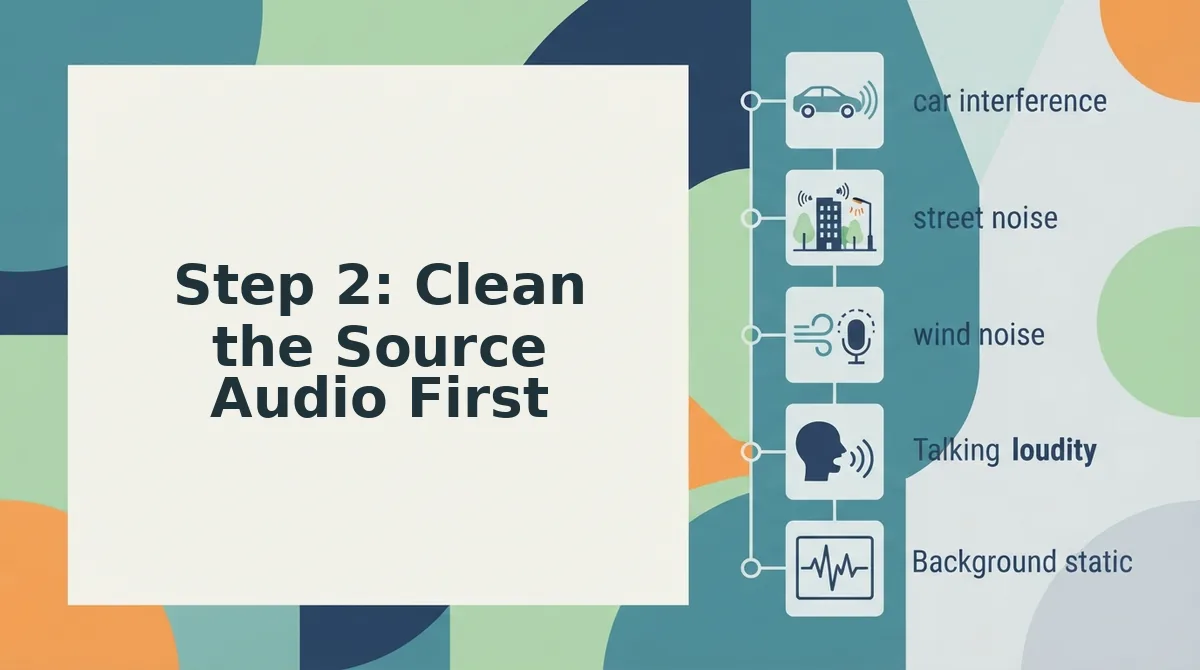
Cleaning the source audio before translation removes verbal fillers, fixes grammar, and tightens phrasing so the translated output is accurate on the first pass. A clean source means fewer mistranslations and less rework.
Prerequisites: The raw voice note file (MP3, M4A, or WAV), a VClar account, and 2-3 minutes of processing time per minute of audio.
Here's the step most freelancers skip: cleaning before translating. Translating a raw, filler-heavy voice note produces a translated transcript full of "um," "like," and false starts in the target language. Clean first, then translate.
- Upload the raw client voice note to VClar by dragging the file into the upload panel or clicking Upload Audio. You should see a progress bar and a confirmation message when the file is ready.
- Open the Clean Audio tab and toggle on Filler Word Removal. VClar detects and removes ums, ahs, "like," "basically," and repeated false starts. Expect this to take about 30 seconds per minute of audio. You should see a cleaned waveform preview with gaps where fillers were removed.
- Click Fix Grammar to correct spoken grammar errors and tighten phrasing. This step takes under 10 seconds and produces a revised transcript alongside the cleaned audio. You should see a green checkmark next to Grammar Fixed.
- Play back the cleaned audio to confirm the speaker's tone, accent, and cadence remain intact. If anything sounds off, click Undo Last Edit to revert. You should hear the same voice, minus the hesitations.
Use the remove filler words from audio tool first, then run the fix grammar in voice message pass. This two-step clean-first workflow reduces translation errors by eliminating ambiguous or incomplete phrases before they reach the translation engine.
If you skip cleaning, you will spend twice as long editing the translated output. Clean the source once, and the translation step becomes a single pass instead of a back-and-forth correction loop.
Step 3: Translate with Voice Preservation
Voice-preserving translation converts the cleaned message into the target language while keeping the speaker's original tone, accent, and cadence. This matters more than word-for-word accuracy because clients trust a message that still sounds like them.
Prerequisites: A cleaned voice note from Step 2, the target language selected from VClar's 11 supported languages, and about 1 minute of processing time per minute of audio.
- Open the Translate tab in VClar and select the target language from the Language dropdown. You should see all 11 supported languages listed, including Hindi, English, French, Japanese, Korean, German, Russian, and Portuguese.
- Toggle on Preserve Voice in the translation settings panel. This keeps the speaker's natural tone, accent, and rhythm instead of applying a synthetic text-to-speech voice. You should see a confirmation badge that says Voice Preservation Active.
- Click Translate Now and wait for the processing indicator to complete. Expect roughly 1 minute per minute of source audio. You should see a translated audio file and a side-by-side transcript in both languages.
- Listen to the translated output and compare it against the original cleaned audio. You should hear the same speaker's voice delivering the message in the target language, with natural pacing and no robotic artifacts.
The one-take translation concept applies here: you do not need three takes to sound professional in a second language. VClar's voice note translator handles the linguistic heavy lifting while your client's authentic delivery carries the message.
When a translation sounds robotic, clients hesitate to send it. When it sounds like them speaking another language, they send it without a second thought. Voice preservation is the difference between a translation that gets delivered and one that gets re-recorded.
Step 4: Verify the Translation
Verification catches errors that automated translation misses. Run this three-point checklist on every translated voice note before delivery.
- Intent drift. Compare the translated transcript against the original cleaned transcript sentence by sentence. Intent drift happens when a phrase translates literally but loses the speaker's actual meaning. If a sentence reads differently in tone or purpose, re-run that segment through the grammar fix pass or adjust the source phrasing and translate again.
- Cultural nuance. Check idioms, humor, and references for target-language appropriateness. A phrase that works in English may confuse or offend a client in Japanese or German. If a culturally specific phrase survives translation, replace it with a neutral equivalent in the source audio and re-translate.
- Name pronunciation. Listen for client names, brand names, and place names in the translated audio. Automated systems sometimes mispronounce proper nouns. If a name sounds wrong, edit the source transcript to include a phonetic spelling and re-run the translation for that segment.
Once all three checks pass, the translation is ready for delivery formatting.
Step 5: Deliver in the Right Format
The delivery format you choose changes how the client receives, stores, and acts on the translated message. Audio preserves tone and urgency; text is searchable and skimmable. Neither is universally better, the right choice depends on who the client is and what the message needs to accomplish.
Use the Delivery Format Decision Matrix below to choose in under 30 seconds. Map the client relationship (new vs. established) against the message purpose (update vs. pitch).
| Delivery Format | Best For | Trade-off |
|---|---|---|
| Audio + text transcript | New client + pitch or proposal | Audio builds rapport and shows tone; transcript gives them a reference to quote or forward |
| Text only | Established client + status update | Fastest to consume; no need to re-listen to routine progress notes |
| Audio only | Established client + sensitive or emotional message | Preserves nuance and intent where written words risk sounding flat |
| Bilingual side-by-side text | New client + update where they may need to verify accuracy | Builds trust through transparency but takes longer to produce |
If you already send voice notes for client updates, the matrix formalizes what you likely do by instinct. New client plus pitch means the stakes are highest: send both audio and text so they hear your delivery and have a written record. Established client plus routine update means text only, they want the information, not a performance.
For freelancers juggling multiple clients across time zones, the matrix removes decision fatigue. You stop second-guessing whether a client prefers audio or text and start matching format to function. Run every translated voice note through VClar first so whichever format you choose, the underlying message is clean, grammatical, and free of filler.
FAQ: Translating Client Voice Notes
How do I translate a WhatsApp voice note to English?
Export the voice note from WhatsApp, upload it to a voice note translator that preserves the original speaker's voice, and select English as the target language. VClar cleans the audio first, removing fillers and background noise, then translates while keeping the client's tone and cadence intact.
Can AI translate voice notes without making them sound robotic?
Yes, if the tool preserves the original vocal characteristics instead of generating synthetic text-to-speech output. VClar translates the cleaned speech while retaining the speaker's natural tone, accent, and rhythm, so the result sounds like the same person speaking a different language.
What's the fastest way to clean a client's rambling voice note?
Run it through an AI speech enhancer that removes filler words, false starts, and mouth clicks in one pass. VClar detects and strips ums, ahs, "like," and repeated phrases automatically, tightening the timeline so the message sounds decisive without manual audio editing.
Should I send translated voice notes as audio or text?
Send both. Audio preserves tone and builds rapport, while a text transcript gives the client a searchable reference and a quick way to confirm accuracy. VClar outputs cleaned audio and a matching transcript, so you can deliver both formats from a single upload.
Why does my translated voice note sound different from the original?
Most translation tools replace the speaker's voice with a synthetic clone, which strips away natural cadence and emotional nuance. A voice-preserving translator like VClar keeps the original vocal signature intact, so only the language changes, not the person speaking.
Make One Client Voice Note Your Proof Point
You don't need to overhaul your entire freelance workflow overnight. Pick one client voice note this week, run it through the clean-first sequence, and compare the reply speed against your previous manual process. The difference shows up in minutes saved and fewer clarification loops.
The delivery matrix from earlier matters more than the translation itself. A client who receives a clean transcript plus a voice-preserved audio file in their preferred format stops asking "what did you mean here?" and starts answering the actual question.
Here's the pattern interrupt: freelancers who translate voice notes without cleaning first spend roughly twice as long on follow-up messages. The ones who clean first close the loop in a single reply.
Try VClar on one client voice note this week and measure the reply speed difference yourself.
"Clean the source, preserve the voice, deliver in their format, that's the entire freelance voice note translation advantage in one sentence."