

You've just recorded a 90-second voice note for a client, and by the time you hit send, you've re-recorded it four times because you kept losing your train of thought. That re-record loop isn't a personal failure, it's a structural problem with how spoken language works. Here's the good news: you can translate rambling voice note clearly without ever re-recording, and the method is simpler than you think.
You're right that rambling voice notes are normal. Founders, sales reps, and freelancers all think faster than they speak, and that gap creates fillers, false starts, and tangled phrasing. What you'll learn here is a two-step workflow that produces clean, translated audio in one take, no manual transcription, no editing timeline, no starting over.
We'll cover why rambling voice notes translate poorly, how to clean the audio before translating, and how to translate the cleaned result. Along the way, you'll see why the order of these steps matters more than most people realize, and one surprising reason your current translation tool is making things worse. If you're a startup founder sending investor updates, this workflow will save you hours every week.
Why Rambling Voice Notes Translate Poorly
A rambling voice note is an unedited spoken message containing fillers, false starts, and incomplete sentences that machine translation engines struggle to parse. The problem isn't your accent or your ideas, it's that translation engines need clean sentence boundaries, and spontaneous speech rarely provides them.
Think of a translation engine like a postal sorting machine. It expects each envelope to have a complete address and a clear destination. When you speak with fillers like "um," "you know," and "basically," you're handing the machine envelopes with smudged addresses and half-written zip codes. The machine doesn't know where one sentence ends and the next begins, so it guesses, and the guesses compound.
Here's the causal chain most people miss. When you say "I think we should, um, basically pivot to the, you know, the enterprise tier," the translation engine sees "I think we should" as one fragment, "um" as an unknown token, and "basically pivot to the" as another fragment. Each fragment gets translated independently, producing output that reads like a broken telegram rather than a coherent message.
Fillers like "um" and "you know" are preserved by translation engines and amplify ambiguity. In English, "you know" is a discourse marker that signals hesitation. In languages like Japanese or German, a literal translation of "you know" can read as an actual question, "do you possess this knowledge?", which changes the meaning entirely. False starts create the same problem: "We should, no wait, we could maybe try the new pricing" becomes three competing sentence candidates, and the engine picks the wrong one.
Machine translation engines rely on complete sentence boundaries, which rambling speech lacks. When boundaries are missing, the engine falls back to statistical guessing based on word frequency, not speaker intent. The result is fragmented output that requires manual cleanup, which defeats the purpose of translating in the first place.
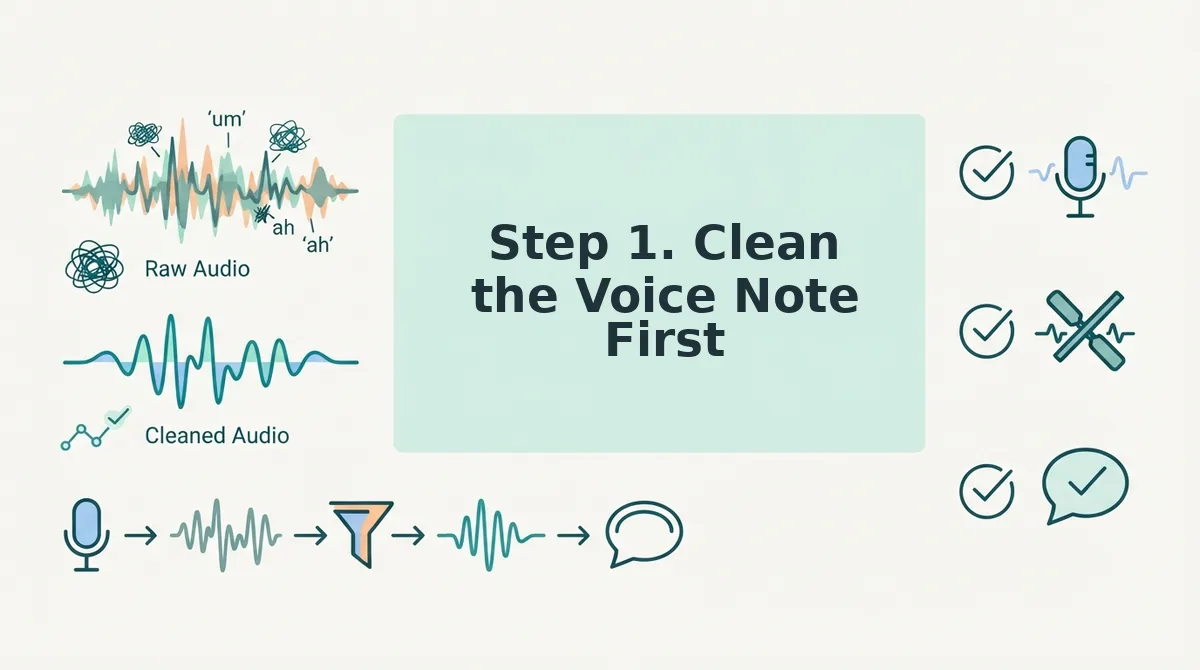
Step 1. Clean the Voice Note First
Cleaning the voice note before translating is the single highest-leverage step you can take. VClar removes filler words and fixes grammar in the audio itself, so the translation engine receives clean, complete sentences instead of fragmented speech.
Prerequisites: A recorded voice note or raw audio file, and a VClar account. No manual transcription or audio editing experience required.
- Upload your voice note. Open VClar and drag your audio file into the upload area, or record directly in the browser. You should see a waveform appear within a few seconds, confirming the audio loaded correctly.
- Run filler word removal. Click the Clean Audio button. VClar detects and removes fillers including "um," "ah," "like," "basically," "you know," and repeated false starts. The audio timeline is stitched seamlessly, so the message sounds decisive and direct, not edited. This step typically takes under 30 seconds for a 90-second note. You can also use the dedicated filler word remover for batch processing.
- Fix broken syntax. Select Fix Grammar from the toolbar. VClar corrects spoken grammar errors, subject-verb mismatches, incomplete clauses, and tangled phrasing, while preserving your tone, accent, and cadence. You should hear the same voice, just with sentences that actually finish. For deeper cleanup, the grammar fixer for voice messages handles complex cases like run-on sentences and mixed tenses.
- Review the cleaned audio. Play back the result. You should hear a tighter version of your original message with no fillers, no false starts, and no awkward pauses. If anything sounds off, re-run the cleaning step, it's non-destructive and takes seconds.
Cleaning first prevents translation engines from preserving errors. When you feed a translation engine a voice note that still contains "um" and "you know," the engine treats those fillers as meaningful content and translates them literally. In languages like Korean or French, a literal translation of "basically" can read as condescending or confusing. By removing fillers and fixing grammar in the audio before translation, you give the engine complete, well-formed sentences, which is exactly what it's designed to handle.
Once your voice note is clean, you're ready to translate it without the fragmentation and ambiguity that plague raw speech.
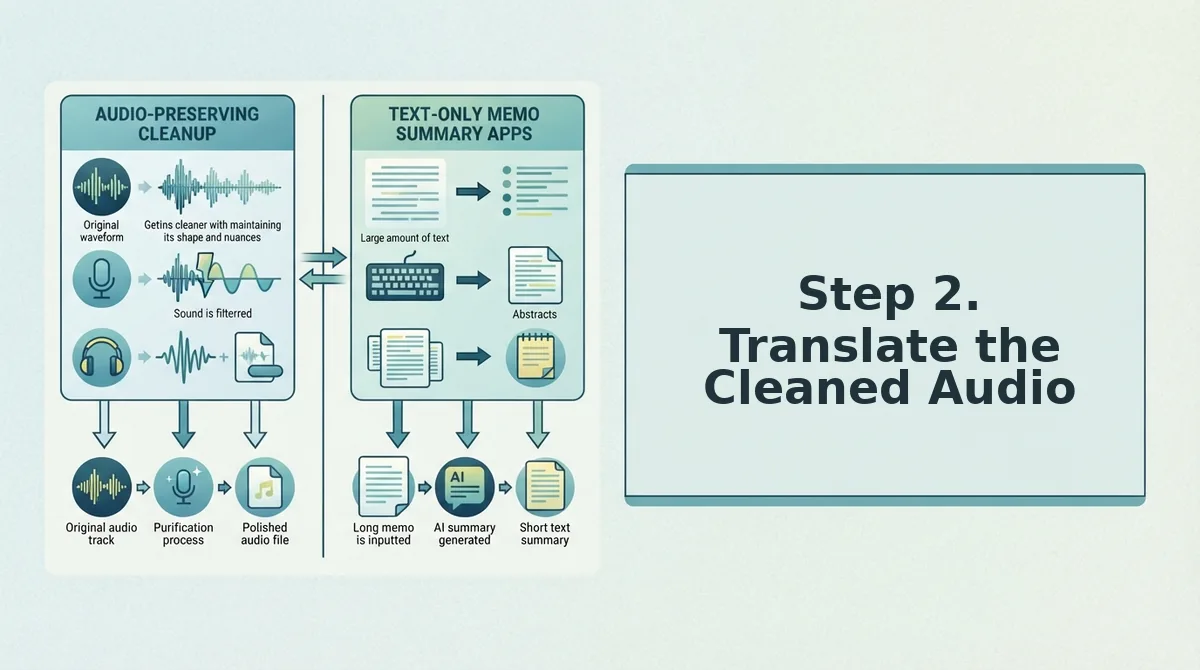
Step 2. Translate the Cleaned Audio
Translation works best when the source audio is already clean. Once fillers, false starts, and background noise are removed, the translation engine has a clear signal to work with and preserves your tone and accent instead of flattening them.
Prerequisites: A cleaned voice note from Step 1, a VClar account, and the language pair you need. VClar supports 11 languages and 110 translation directions.
- Open the VClar dashboard and click Upload Audio. Select the cleaned voice note file from your device. You should see a progress bar and a green checkmark when the upload completes.
- Select the target language from the Translate To dropdown. Choose from Hindi, English, French, Japanese, Korean, German, Russian, Portuguese, and the remaining supported languages. The interface updates instantly to show the selected pair.
- Click Translate and wait 10-30 seconds. VClar processes the cleaned audio through its translation engine. You should see a preview player appear with the translated audio ready to play.
- Play the translated audio and verify the tone. Listen for your natural cadence and accent. VClar enhances your original voice rather than generating a synthetic clone, so the output should sound like you speaking the target language.
- Download the translated audio or copy the transcript. Use the Download button for the audio file or the Copy Transcript button for text. Both outputs are ready to send immediately.
The key difference from text-only translators: your vocal identity survives the process. Competitors output flat text and lose the speaker's delivery. VClar keeps the voice intact across all 110 translation directions.
If your workflow involves daily cross-border voice messages, cleaning first and translating second removes the re-record loop entirely, one take, one clean pass, one translation.
Step 3, Send With Confidence
A translated voice note is only as good as the message behind it. Before you hit send, run through this 5-point translation readiness checklist: no fillers, complete sentences, clear intent, correct grammar, and natural tone. No competitor offers a pre-translation checklist, so this workflow is unique to VClar.
- Verify the 5-point readiness checklist. Confirm the cleaned audio has no fillers, complete sentences, clear intent, correct grammar, and natural tone. Each point removes a potential misunderstanding before the message reaches the recipient.
- Listen to the translated audio once end-to-end. Play the full message and check that the pacing feels natural and the accent is yours. One-take recording eliminates the re-record loop, so this single listen is your final quality gate.
- Check the transcript for accuracy. Read the translated text alongside the audio. If any phrase sounds off, re-run the translation on that segment rather than re-recording the whole message.
- Send the audio and transcript together. Attach both formats so the recipient can listen or read depending on their context. This dual delivery reduces back-and-forth clarification requests.
- Save the cleaned source file. Keep the original cleaned audio in your VClar library. Future translations to other languages can reuse the same source without repeating the cleaning step.
FAQ
Can VClar translate WhatsApp voice notes directly?
Yes. VClar can translate WhatsApp voice notes without retyping them. Export the voice note from WhatsApp, upload it to VClar, and the platform cleans and translates the audio while preserving your original voice and tone.
Should I clean the voice note before or after translating it?
Clean before translating. Translation engines preserve errors, so fillers, false starts, and mumbled phrases get translated literally into awkward target-language output. Cleaning first gives the translation engine a clear signal and produces natural results.
How do I translate a voice note without losing my accent?
Use a voice-preserving translator like VClar that enhances the original recording rather than generating synthetic speech. The platform removes fillers and noise while keeping your cadence, accent, and vocal identity intact across all 11 supported languages.
How long does it take to translate a voice note?
Translation typically takes 10-30 seconds after upload, depending on audio length. The full workflow, cleaning, translating, and reviewing, takes under two minutes for most voice notes.
What languages does VClar support for voice translation?
VClar supports 11 languages: Hindi, English, French, Japanese, Korean, German, Russian, Portuguese, and three additional languages. That creates 110 translation directions for cross-border voice communication.
Clean First, Then Translate: The Pipeline That Actually Works
Translation quality is only as good as the input. A rambling voice note with fillers, false starts, and background noise forces any translator to guess at intent. Clean the audio first, and the translation engine works with clear, decisive speech instead of verbal debris.
The clean-first pipeline isn't just about accuracy. It preserves what matters most: your authentic voice. When VClar removes hesitations and tightens phrasing before translation, the output keeps your tone, cadence, and accent intact across all 11 supported languages. You don't get a sterile, robotic translation. You get you, speaking clearly in another language.
Here's the payoff the intro teased: you don't need to re-record anything. One take, cleaned and translated, is enough.
Your Next Step
Start with the strongest move: run your next rambling voice note through VClar's cleaning engine before translating. The result is a message that sounds deliberate in any language.
Want to understand the mechanics first? Read the filler-word removal guide to see exactly how the cleaning step transforms your audio.
Clean speech is translatable speech. Everything else is just noise with subtitles.