

You record a voice memo, play it back, and hear three "ums," two false starts, and a sentence that trails off into nowhere. Now you need that same memo in another language, and the thought of re-recording it five times to sound professional makes you want to abandon the whole thing. You're not alone: most people re-record voice memos 3-5 times before sending them, and translation adds a second failure point if the source audio is messy.
Here's the good news: you don't need to be a polished speaker to translate a voice memo from your phone. You need a workflow that cleans the rough edges first, then translates what's left. This guide walks you through exactly that, a 3-step process that works in any mobile browser, on iPhone or Android, without downloading an app.
You'll learn how to record or upload your memo, clean out fillers and grammar issues automatically, and get translated audio plus a transcript in your target language. Along the way, you'll see why most tutorials skip the step that actually determines whether your translation sounds coherent or broken.
How to Translate a Voice Memo from Your Phone in 3 Steps
You can translate a voice memo from your phone in under two minutes by uploading your recording to VClar in any mobile browser, letting it clean fillers and grammar, then selecting your target language for translated audio and a transcript. No app download is required on iPhone or Android.
Before you start, make sure you have your voice memo saved on your phone, either as a recent recording in your voice memo app or as an audio file in your gallery or Files app. You'll also need a stable internet connection and a browser like Safari, Chrome, or Firefox.
- Record or upload your memo. Open your browser and go to vclar.com. Tap the upload button and select your voice memo from your phone's audio files, or record a new memo directly in the browser if you haven't made one yet. You should see your audio file appear with a playback preview so you can confirm it's the right recording. This takes about 10 seconds.
- Let VClar clean fillers and grammar. Tap the clean or enhance button. VClar detects and removes verbal fillers, "um," "ah," "like," "basically," "you know", and corrects spoken grammar and false starts while preserving your natural tone, accent, and cadence. You should see a cleaned audio timeline appear, and when you play it back, the message sounds decisive and direct without sounding like someone else. This step typically takes 15-30 seconds depending on the length of your memo.
- Pick your target language and get translated audio plus transcript. Select your target language from the language menu. VClar translates across 11 languages, including Hindi, English, French, Japanese, Korean, German, Russian, and Portuguese, covering 110 translation directions. You should see a translated transcript appear on screen, and you can play the translated audio immediately. Download both files or share them directly from the browser. This final step takes under a minute.
If you need to translate a voice memo from your phone without installing an app, this browser-based workflow is the fastest path. The entire process, upload, clean, translate, works on any smartphone with a mobile browser, which means you don't need separate tools for iPhone and Android, and you don't need to transfer files to a computer first.
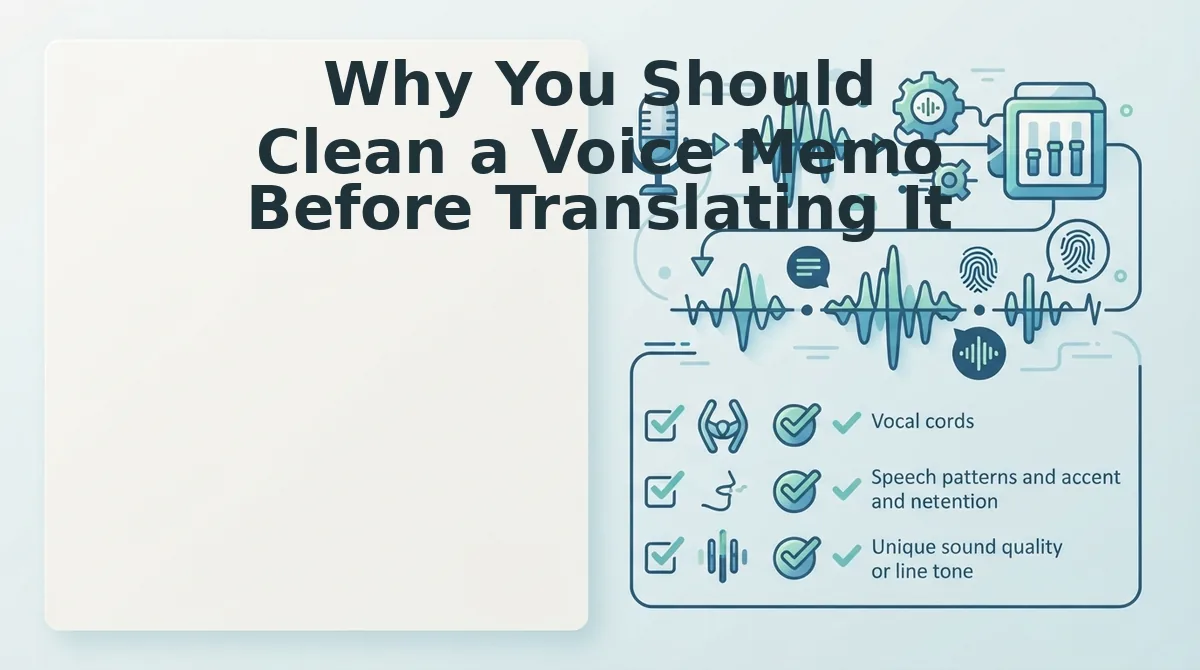
Why You Should Clean a Voice Memo Before Translating It
Cleaning a voice memo means removing verbal fillers, false starts, and broken syntax from the audio before it enters a translation engine. Translation systems process what they hear, including the "ums," the repeated words, and the sentences that restart halfway through, and carry those flaws into the target language.
Think of it like photocopying a wrinkled document. If the original page is creased and smudged, every copy you make reproduces those defects, sometimes worse. Translation works the same way: a messy source produces a messy output, no matter how good the translation engine is. When you clean first, the translator receives a clear, grammatically coherent sentence and can render it accurately in French, Japanese, or any of the 11 languages VClar supports.
Here's what most tutorials skip: fillers and broken grammar don't just sound unpolished, they actively corrupt translation. A sentence like "So, um, I think we should, like, basically move the deadline to Friday" contains three fillers and a false start. A translation engine may render "basically" literally, misinterpret the hesitation as a pause in meaning, or split the sentence into fragments that don't connect in the target language. The result is a translation that sounds confused, even if the original intent was simple.
This is the "Clean First, Translate Second" framework. Before you translate, run your audio through a tool that can remove filler words from your audio and fix grammar in your voice message. VClar does both in one pass, preserving your authentic voice, accent, and cadence while tightening the message into something a translator can handle cleanly.
Once your memo is clean, the translation step becomes straightforward, but the exact workflow differs depending on whether you're on an iPhone or an Android device.
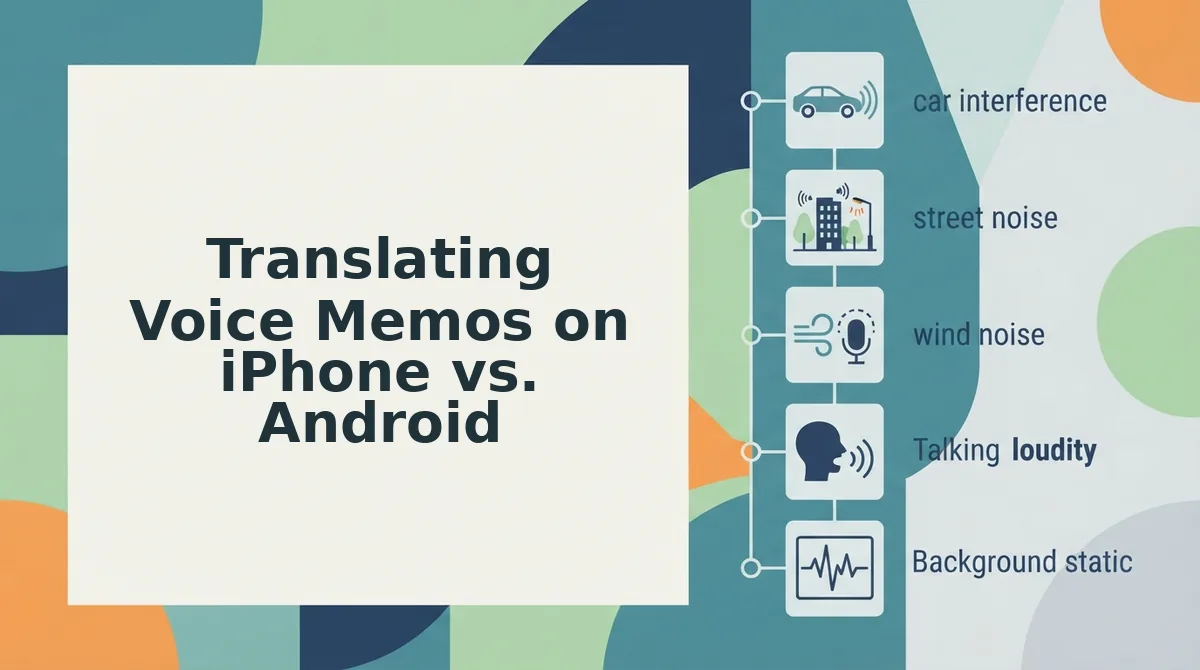
Translating Voice Memos on iPhone vs. Android
iPhone and Android both let you record voice memos natively, but neither built-in app translates audio into another language. You need a third-party tool like VClar to turn a recorded memo into translated audio and text.
Apple's Voice Memos app transcribes your recording into text, but it does not translate that text into another language. Apple Notes also has a hidden voice recorder, yet it offers the same limitation: transcription without translation. Android's default recorder varies by manufacturer, but most versions only capture audio with no built-in translation layer.
VClar works through any mobile browser, so the workflow is identical on both platforms: record or upload your memo, clean it, then translate across 11 languages while keeping your original voice.
| Feature | iPhone Voice Memos | Android Recorder | VClar (Browser) |
|---|---|---|---|
| Records voice memos | Yes | Yes | Yes (upload or record) |
| Transcribes to text | Yes | Varies by device | Yes |
| Translates to other languages | No | No | Yes, 11 languages |
| Removes filler words | No | No | Yes |
| Preserves your voice in translation | N/A | N/A | Yes, keeps tone, accent, cadence |
| Works cross-platform | No (Apple only) | No (Android only) | Yes, any browser |
Best for iPhone users who only need text: Apple Voice Memos. It transcribes reliably and syncs across Apple devices, but you will need a separate tool for translation.
Best for Android users who want quick capture: Your phone's built-in recorder. It is fast and free, but it stops at recording, no cleanup, no translation.
Best for anyone who needs translated audio that still sounds like them: VClar's voice note translator. It handles cleanup and translation in one pass, so you do not juggle three apps to send a clear message to a client in Tokyo or a supplier in Berlin.
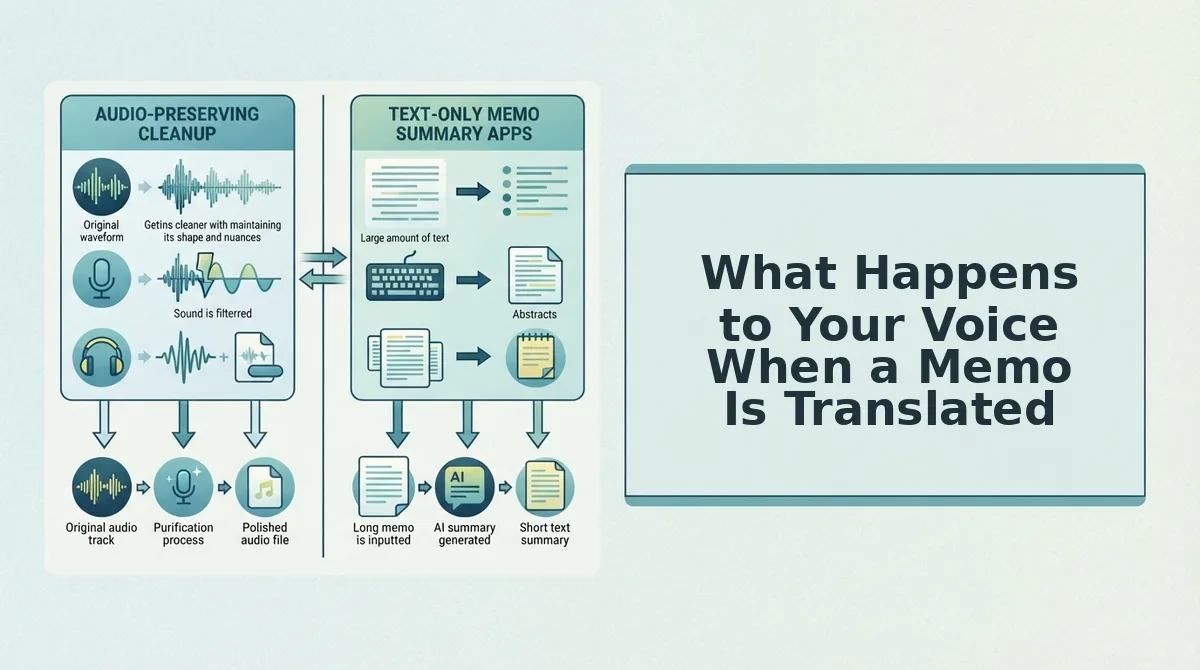
What Happens to Your Voice When a Memo Is Translated
Voice-preserving translation is the process of converting a spoken memo into another language while keeping the speaker's original tone, accent, and rhythm intact. Instead of generating a synthetic voice, the system cleans and re-renders your actual speech.
Think of it like a sound engineer remastering a live recording: the performance stays yours, but the hiss, stumbles, and awkward pauses get stripped out before the track is re-released in a new language.
Most AI workflows stop at text. ChatGPT voice memo workflows, for example, produce a written transcript you can paste into a translator, but you never get translated audio back. VClar takes the extra step: it removes filler words, fixes grammar, and translates the cleaned audio across 11 languages while preserving your natural voice, accent, and cadence.
That distinction matters when the message is for a client, investor, or colleague who needs to hear confidence in your delivery, not read a flat, machine-generated paragraph.
Frequently Asked Questions About Translating Voice Memos
Can I translate a voice memo on Android?
Yes, but not with the built-in recorder. Android's default voice recorder captures audio only. You need a browser-based tool like VClar to upload the memo, clean it, and translate it into any of 11 supported languages.
Does translating a voice memo change my voice?
With VClar, no. The platform preserves your natural tone, accent, and cadence during translation. It removes filler words and background noise, but the voice you hear in the translated memo is still recognizably yours, not a synthetic text-to-speech clone.
What languages can I translate a voice memo to?
VClar translates voice memos across 11 languages: Hindi, English, French, Japanese, Korean, German, Russian, Portuguese, and three additional supported languages. You can translate from any supported language into any other.
Do I need to type out the memo first?
No. VClar accepts raw audio uploads or direct recordings. The platform transcribes, cleans, and translates the audio automatically, so you never need to type a single word of the original memo.
Clean First, Translate Second, Keep Your Voice
Translation quality depends on what you feed it. A memo full of ums, false starts, and background noise produces a translated message that carries every hesitation into the target language. Cleaning before translating removes that problem at the source.
Here is the sequence that actually works:
- Record once. Stop re-recording. Spontaneous speech is fine.
- Clean the audio. Remove fillers, tighten phrasing, reduce noise.
- Translate the cleaned memo. The output arrives sharper in every language.
Open VClar's AI voice message translator in your mobile browser, record or upload your memo, and get a cleaned, translated version in one take. No app download, no re-recording loop.
You do not need a perfect first take. You need a tool that makes your first take sound intentional. Your voice carries the meaning; translation just changes the language it travels in.