

You record a voice note from your car window down, hit send, and the recipient replies with a screenshot of a translation that reads like alphabet soup. That is the reality of trying to translate a voice note with background noise, traffic hum, café chatter, and room echo all bleed into the audio, and the translation engine chokes on every syllable it cannot isolate.
You are not imagining it. Noisy voice notes are the single most common reason spoken messages turn into garbled text, and most people assume the only fix is to find a quiet room and re-record. That assumption is wrong.
In this guide, you will learn why translation engines fail on noisy audio, how to clean a voice note without re-recording, and how to translate the cleaned file into any of 11 languages. You will also see a noise-type triage method that most translation guides never mention, one that changes which cleanup step you take first.
VClar removes car noise, street noise, and room echo before translation, so the engine hears your words instead of your environment.
Why Translation Engines Fail on Noisy Voice Notes
Automatic speech recognition (ASR) is the technology that converts spoken audio into text before a translation engine processes it. ASR models are trained overwhelmingly on clean, studio-quality speech, which means they mishear words whenever background noise overlaps the speaker's voice.
Think of an ASR engine like a person trying to transcribe a conversation from across a busy restaurant. They catch fragments, a vowel here, a consonant there, and their brain fills in the gaps with guesses. Translation engines do the same thing, except their guesses are statistical, not contextual, and the result is often a sentence that is grammatically plausible but factually wrong.
Background noise falls into three broad categories, and each one damages translation accuracy differently:
- Constant hum, engine noise, air conditioning, highway drone. This type of noise sits at a steady frequency and masks the quieter parts of speech, especially word endings.
- Intermittent street noise, honking, sirens, passing trucks. These bursts overlap specific syllables, causing the ASR to drop or replace entire words.
- Room echo, hard surfaces bouncing sound back into the microphone. Echo smears each phoneme, making words sound longer and blurrier than they are.
The failure mechanism most guides skip is this: translation engines do not just struggle with noise, they mishear words and then translate the misheard version, compounding the error. A voice note that says "ship the order Tuesday" recorded next to a honking bus might be transcribed as "shift the border Tuesday," and the translation then carries that mistake into another language.
This is why the Clean-First, Translate-Second framework matters. Cleaning the audio before translation is the highest-leverage step you can take, because every error you remove at the source prevents a cascade of errors downstream. A voice note that is cleaned of noise, filler words, and false starts translates with dramatically higher accuracy than the same note translated raw.
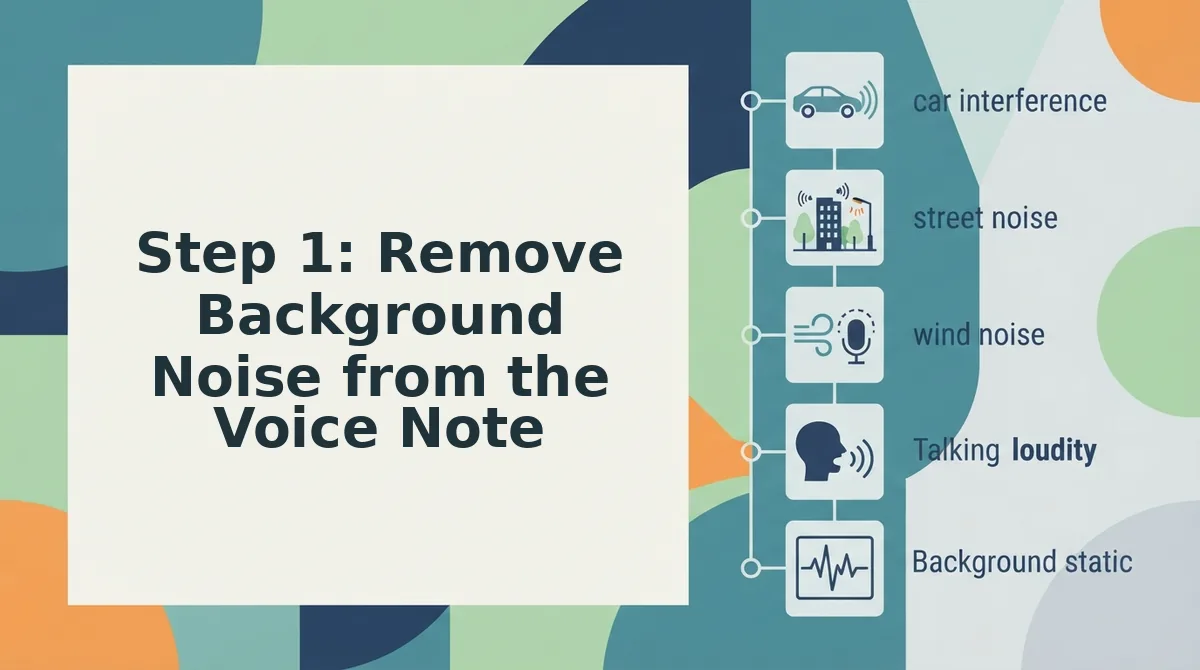
Step 1: Remove Background Noise from the Voice Note
You do not need to re-record the voice note. Upload the existing file to a voice-cleaning tool like VClar, which removes background noise, filler words, and mouth clicks before translation. The entire cleanup takes under a minute.
Before you start, identify the dominant noise type in your recording. Use this triage table to match the cleanup method to the noise:
| Noise Type | What It Sounds Like | Cleanup Method |
|---|---|---|
| Constant hum | Steady engine drone, AC rumble, fan noise | Spectral noise reduction, removes the frequency band of the hum without touching speech |
| Intermittent street noise | Honking, sirens, passing vehicles, door slams | Targeted removal, detects and excises short noise bursts while preserving surrounding words |
| Room echo | Hollow, reverberant quality; words trail off | Dereverberation, tightens the audio so each word sounds crisp and close-mic'd |
Follow these steps to clean the voice note:
- Open the VClar app or web dashboard and locate the upload button on the main screen. You should see a prompt to select or drag an audio file.
- Upload the voice note from your phone, computer, or a linked messaging app. Supported formats include common voice memo files like M4A, MP3, and WAV. You should see a progress bar while the file uploads.
- Wait for the automatic noise detection to finish. VClar analyzes the audio and identifies constant hum, intermittent street noise, and room echo. You should see a summary of detected noise types on screen.
- Confirm the cleanup. Click the clean or enhance button to apply spectral noise reduction, targeted removal, and dereverberation. You should see a before-and-after waveform where the noisy sections are visibly quieter.
- Play back the cleaned audio. Listen for the absence of background noise and for clear, intelligible speech. If any noise remains, run the cleanup once more, a second pass typically resolves residual artifacts.
As a bonus, VClar also lets you remove filler words from audio in the same pass, so the cleaned voice note sounds decisive and direct, not just quieter.
With the noise removed and the speech clean, you are ready to translate the voice note.
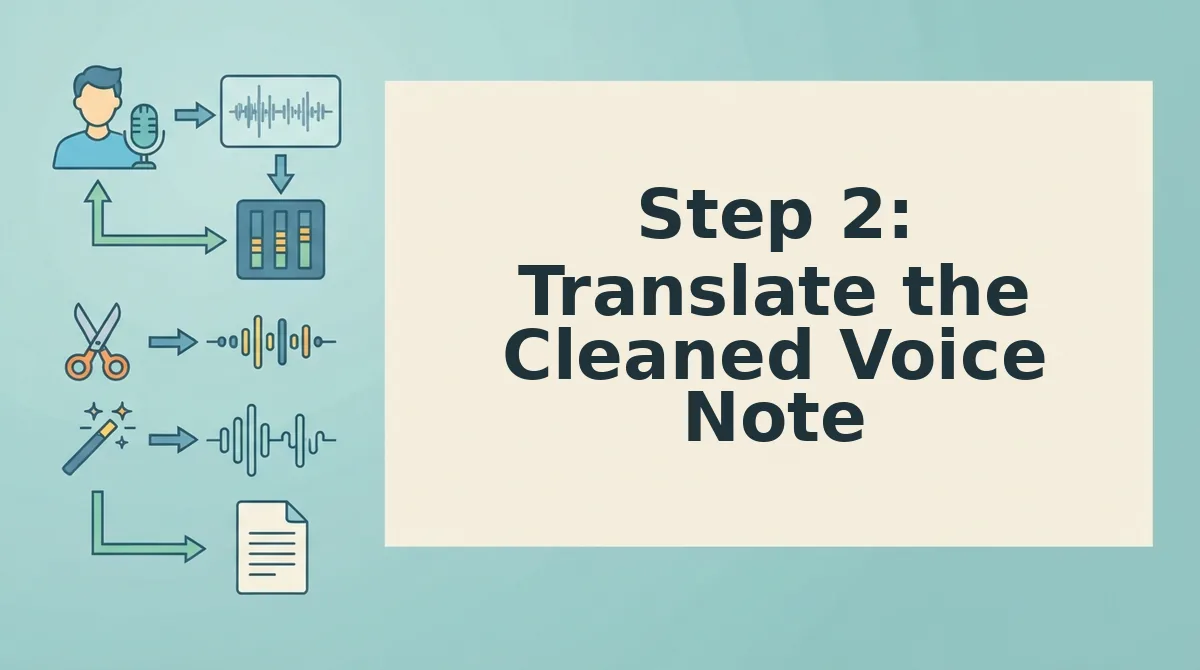
Step 2: Translate the Cleaned Voice Note
Once background noise is removed, translation accuracy jumps because the engine hears only your voice, not the room. Clean audio lets the translator preserve natural phrasing and tone across 110 language directions spanning 11 languages.
Prerequisites: a cleaned voice note from Step 1, a VClar account, and your target language selected.
- Open the VClar dashboard and click Upload Audio. Select the cleaned voice note file from your device. You should see a progress bar complete in under 10 seconds for a 60-second clip.
- Click the Language dropdown and select your target language. Choose from Hindi, English, French, Japanese, Korean, German, Russian, Portuguese, and three more. The interface confirms your selection with a checkmark next to the language name.
- Click Translate. VClar processes the cleaned audio in 15-30 seconds depending on clip length. You should see a green checkmark and a preview player appear when translation finishes.
- Review the translated transcript and audio side by side. Compare the original cleaned voice note against the translated output. Natural phrasing and your original cadence should carry through without robotic flattening.
- Click Export to download the translated audio or transcript. Choose MP3, WAV, or TXT. The file saves to your device with the target language code in the filename.
Clean audio changes three things: translation accuracy improves because the model hears every syllable, phrasing stays natural instead of literal, and your tone survives the language switch. If you skipped Step 1, expect dropped words and awkward phrasing in the output.
Troubleshooting: When Translation Still Comes Out Wrong
Even after cleanup, a few edge cases can degrade translation quality. Here are the most common failure points and specific fixes for each.
- Heavy accent plus residual noise. Strong accents combined with leftover background hum confuse translation models because both variables compete for the engine's attention. Clean the noise first, then run translation with accent-preserving mode enabled so the model locks onto your speech patterns instead of the room.
- Multiple speakers in one clip. When two or more voices overlap, the translator cannot assign words to the right speaker, producing garbled output. Separate speakers into individual clips before translation, or use speaker detection to split the timeline, then translate each segment independently.
- Very short clips under three seconds. Ultra-brief voice notes lack enough phonetic context for accurate translation, especially with slang or names. Add a sentence of context before the key phrase, or re-record only if cleaning fails to improve output.
- Grammar errors in the source language. If the original voice note contains broken grammar, the translation inherits those mistakes. Run the cleaned audio through grammar correction for voice messages before translating to fix sentence structure in the source language first.
- Idioms and culturally specific phrases. Direct translation of idioms produces literal nonsense in the target language. Rephrase the idiom in plain source language before translating, or accept the literal output and manually adjust the transcript.
- Low-quality original recording. If the source file is heavily compressed or recorded at a distance, cleanup can only recover so much. Re-record closer to the microphone when possible, then repeat the cleanup and translation workflow.
FAQ: Translating Voice Notes with Background Noise
Yes, you can translate a noisy voice note if you clean the audio first. Removing background noise, breath sounds, and mouth clicks before translation lets the engine hear only your voice, which directly improves accuracy and natural phrasing in the target language.
Can I translate a voice note that has background noise?
Yes, but only if you clean the audio first. Translation engines struggle to separate speech from noise, so running a noisy clip through cleanup before translation restores accuracy. Skipping this step typically produces dropped words and awkward phrasing in the output.
Do I need a quiet room to record a voice note for translation?
No, you do not need a quiet room if you clean the existing recording. VClar removes background noise, breath sounds, and mouth clicks after recording, so you can capture voice notes in cafes, cars, or open offices and still get accurate translations.
What is the best free method to translate a noisy voice note?
Free translation tools exist but often skip the cleaning step, which reduces accuracy on noisy audio. The most reliable free approach is to clean the voice note first using any available noise removal tool, then run the cleaned file through a translator that preserves tone and cadence.
Why does my translated voice note sound robotic?
Robotic output usually means the translation engine flattened your natural cadence or the source audio was too noisy for clean processing. Cleaning the voice note first and using a translator that preserves speaker tone prevents the synthetic, monotone result.
How many languages can I translate a cleaned voice note into?
VClar supports translation across 11 languages, covering 110 language directions. After cleaning, you can translate between Hindi, English, French, Japanese, Korean, German, Russian, Portuguese, and three additional languages while keeping your original voice intact.
Clean First, Then Translate: The Workflow That Actually Works
Background noise is not a translation problem. It is a preprocessing problem. Once you accept that distinction, the fix becomes obvious: remove the noise before the translation engine ever hears the audio.
This two-step method works for any voice note, not just WhatsApp. Recordings from Slack, Telegram, iMessage, or a raw memo app all respond to the same sequence: clean the audio, then translate the result. The tool does not matter. The order does.
Here is the payoff the intro promised: you do not need a quieter room, a better microphone, or a second take. You need a workflow that separates acoustic cleanup from linguistic translation. VClar combines noise removal and translation in a single workflow, so the cleaned audio never leaves the pipeline before it is converted into your target language.
Your next step is concrete:
- Take the next voice note you were about to re-record because of background noise.
- Run it through VClar to strip the noise and translate in one pass.
- Send the result without a second thought.
If you send voice notes to investors, clients, or a distributed team, the same workflow applies. See how voice notes for founders turn noisy one-take recordings into clear, translated communication.
The expected outcome is simple: a translated message that sounds like you, minus the coffee shop. No re-recording loop. No apologetic "sorry about the background noise" preamble.
"Translation quality starts before the translator touches the audio, clean the signal, and the message takes care of itself."