

You've recorded the same 90-second update three times. The first take had too many "ums." The second drifted into a tangent. The third was clear, but your teammate in São Paulo still needs it in Portuguese, and the transcript reads like a ransom note. Now you're staring at the record button again, wondering if typing would've been faster.
It wouldn't have been. Async voice messages are consistently faster than typing, but raw voice memos translate poorly because fillers and fragmented sentences force translation engines to guess at your intent. When you need to translate voice message for async team updates, the problem isn't your speaking, it's that you're sending unpolished source audio through a translation pipeline that amplifies every verbal stumble.
Here's what you'll learn: a clean-then-translate framework that removes filler words, fixes grammar, and reduces background noise before translation, so your message arrives in 11 languages with your tone, accent, and cadence intact. You'll see the exact workflow, understand why raw audio translates poorly, and discover why cleaning source audio beats switching translation engines. One capability worth noting early: VClar handles the cleaning and translation in a single pass, so you record once and send everywhere.
How Do I Translate a Voice Message for an Async Team Update? The Clean-Then-Translate Framework
To translate a voice message for an async team update, record your message once, run it through a cleaning pass that removes fillers and fixes grammar, then translate the cleaned audio and deliver both the translated audio and transcript to your team. This clean-then-translate sequence prevents translation errors from compounding on top of verbal disfluencies.
Prerequisites: A voice recording app (your phone's built-in recorder works), a VClar account, and your target language selected. The full workflow takes under three minutes for a two-minute message.
- Record your update in one take. Open your voice recorder and speak naturally, don't stop to self-correct. VClar removes filler words and false starts after the fact, so a rough first take is fine. Expected outcome: a raw audio file, typically 30 seconds to 3 minutes.
- Upload the audio to VClar. Click Upload and select your file. The engine automatically detects and removes fillers like "um," "ah," "like," and "you know," then tightens phrasing and reduces background noise, breath sounds, and mouth clicks. You should see a cleaned audio preview with a timestamped transcript within about 30 seconds. This step matters because removing filler words from audio before translation prevents the translation engine from guessing around verbal noise.
- Run the grammar pass. Select Fix Grammar to correct spoken grammar errors and fragmented sentences in the transcript and audio timeline. VClar's grammar fix for voice messages works on the cleaned audio, so the output reads as coherent, decisive speech. You should see a side-by-side comparison of the original and corrected transcript.
- Choose your target language and translate. Click Translate and select from the 11 supported languages. Hindi, English, French, Japanese, Korean, German, Russian, Portuguese, and more, covering 110 translation directions. VClar translates the cleaned audio while preserving your tone, accent, and cadence, so the translated voice message still sounds like you. You should see a translated audio file and transcript for each selected language.
- Deliver both audio and transcript to your team. Download the translated files and post them to your async channel. Slack, Loom, Notion, or email. Include the transcript alongside the audio so teammates can listen or read in their own time. Expected outcome: every team member receives the update in their preferred language and format, with zero re-recording on your end.
Here's how this plays out in practice. A founder preparing a weekly investor update for a distributed team with stakeholders in Berlin, Tokyo, and Mumbai records a two-minute voice note covering runway, hiring, and a product delay. The raw take has 14 fillers and two false starts. Running it through VClar removes the fillers, fixes three grammar breaks, and reduces background café noise. The founder then translates the cleaned message into German, Japanese, and Hindi, all in one pass. Each stakeholder receives an audio message that sounds like the founder's own voice, plus a clean transcript they can skim. For founders who rely on voice notes for founder updates, this workflow eliminates the re-record loop entirely.
Passage: Why does cleaning before translation matter? Machine translation engines process audio by first converting speech to text, then translating that text. When the source audio contains filler words, false starts, and fragmented sentences, the speech-to-text step produces ambiguous or incorrect text. The translation engine then has to guess at the intended meaning, and those guesses compound, a single misheard word can shift the meaning of an entire sentence. Cleaning the source audio first removes the ambiguity, so the translation engine works with clear, grammatical input and produces accurate output in every target language.
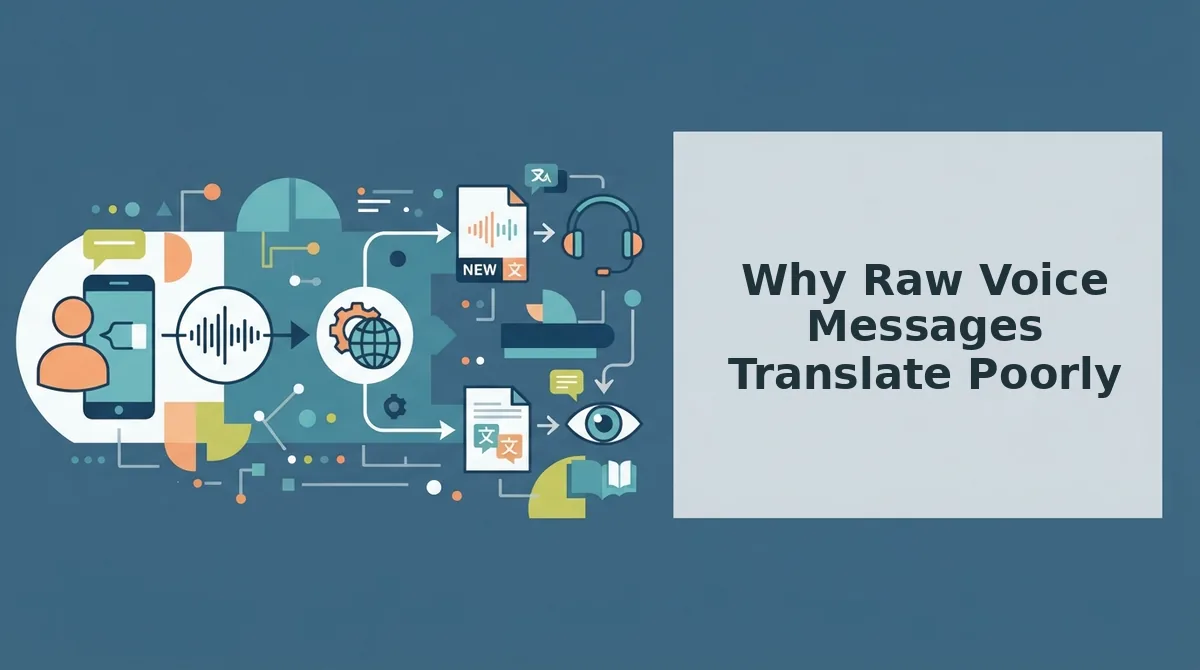
Why Raw Voice Messages Translate Poorly
Error amplification is the process by which small defects in source audio, filler words, false starts, fragmented sentences, background noise, get magnified at each stage of a translation pipeline, producing output that is significantly worse than the original. The fix is not a better translation engine; it's cleaner source audio.
Think of it like photocopying a wrinkled document. Each copy adds a little more distortion, and by the third generation, the text is unreadable. Translation works the same way: your raw voice message goes through speech-to-text, then machine translation, then text-to-speech in the target language. Every "um," every abandoned sentence fragment, every mouth click is a wrinkle that the speech-to-text engine must interpret. When it guesses wrong, the translation engine inherits that error and builds on it.
Here's the progression. At the simplest level, filler words create noise that speech-to-text engines must filter out, and they don't always filter correctly. A sentence like "I think we should, um, basically delay the launch" can be transcribed as "I think we should basically delay the launch" or "I think we should delay the launch", two different meanings. At the intermediate level, fragmented sentences force the translation engine to stitch together incomplete thoughts, which works poorly across languages with different word orders. At the advanced level, background noise and breath sounds degrade the audio signal itself, causing transcription errors that cascade through the entire pipeline.
Passage: Does cleaning source audio before translation actually improve output quality? Yes, and it matters more than choosing a premium translation engine. Machine translation quality is bounded by the quality of the input text. When source audio contains fillers, false starts, and grammatical breaks, the speech-to-text step produces ambiguous or incorrect text, and the translation engine must guess at intent. Those guesses compound across languages. Cleaning the audio first, removing fillers, fixing grammar, reducing noise, gives the translation engine unambiguous input, which produces measurably better output in every target language. This is why VClar performs cleaning and translation in a single pass rather than translating raw audio directly.
Next, we'll compare live meeting translation with async voice translation to help you decide which approach fits your team's workflow.
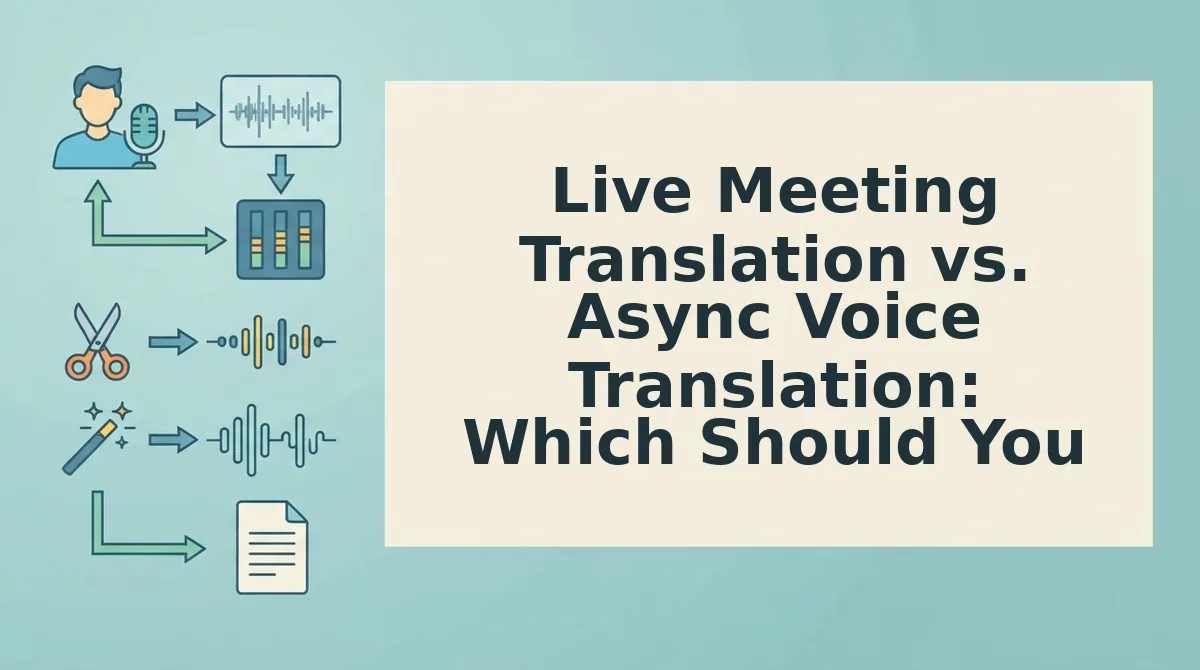
Live Meeting Translation vs. Async Voice Translation: Which Should You Use?
Live translation tools like Microsoft Teams Interpreter and Zoom Voice Translator convert speech in real time during calls, while async voice translation lets you clean, review, and refine a voice message before anyone hears it. Both solve real problems, but they serve fundamentally different workflows.
Live tools excel at synchronous conversations. Teams Interpreter supports real-time speech-to-speech interpretation in up to 31 languages during scheduled meetings, and Zoom's voice translation handles live captioning and translated audio for active calls. These tools are built for the moment, you speak, and translation happens immediately. The tradeoff is that raw speech goes through untouched: fillers, false starts, and background noise all get translated along with your words. Tone and cadence are also at the mercy of the live pipeline, which prioritizes speed over polish.
Async voice translation inverts the workflow. You record a message, clean it, removing fillers, fixing grammar, reducing noise, then translate and review before sending. This matters when your team spans time zones and nobody is on the same call. It also creates a durable artifact: the translated audio and transcript become documentation, not a fleeting moment in a meeting that nobody recorded.
| Factor | Live Meeting Translation | Async Voice Translation |
|---|---|---|
| Primary use case | Scheduled calls, real-time discussion | Voice updates, announcements, documentation |
| Audio cleaning | None, raw speech translated as-is | Fillers, grammar, and noise removed before translation |
| Tone control | Limited, speed prioritized over delivery | Full, speaker reviews and refines before sending |
| Time zone fit | Requires overlapping availability | Works across any time zone, no sync needed |
| Output artifact | Transient, exists only during the call | Persistent, audio + transcript for later reference |
| Language coverage | Teams: 31 languages; Zoom: varies by plan | VClar: 11 languages, including Hindi, Japanese, and Korean |
Best for distributed team leads and async-first managers: async voice translation. You get tone control, a review step, and a shareable artifact your team can consume on their own schedule.
Best for real-time negotiators and live support agents: live meeting translation. When the conversation is happening now and both parties are present, nothing beats in-the-moment interpretation.
The honest take: neither replaces the other. If your team runs on async updates, voice notes in Slack, WhatsApp, or project tools, live meeting translation doesn't help you. That's where a clean-then-translate workflow earns its place.
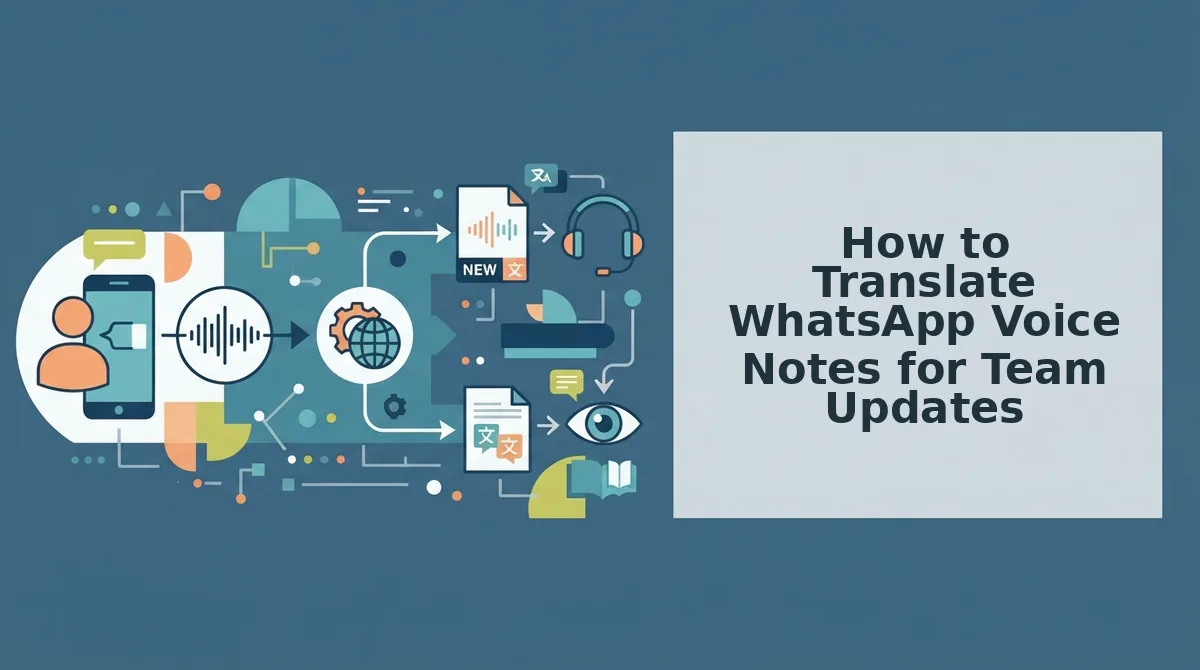
How to Translate WhatsApp Voice Notes for Team Updates
WhatsApp has no built-in voice-to-voice translation, so you must export the voice note, clean and translate it with a voice note translator, then send the result back as audio plus text. Here's the exact workflow.
- Open the voice note in WhatsApp and export it. On Android, long-press the voice note and tap the share icon, then choose "Save to Files." On iPhone, long-press, tap "Forward," then save to the Files app. You should see the audio file saved as an .opus or .m4a file.
- Upload the audio file to VClar. Go to vclar.com and drag the saved voice note into the upload area or click to browse your files. You should see a progress bar and a confirmation when the upload completes, typically under 10 seconds for a 60-second note.
- Run the cleaning pass. Click "Clean" and let VClar remove fillers, false starts, and background noise. You should hear a noticeably tighter version of your original message, with your voice, accent, and cadence intact.
- Select your target language. Choose from the 11 supported languages. Hindi, English, French, Japanese, Korean, German, Russian, Portuguese, and others. Click "Translate." You should see a translated transcript appear alongside the cleaned audio.
- Review the result before sending. Play back the translated audio and read the transcript. If anything sounds off, re-record the original note and repeat steps 2-4. This review step is what separates async translation from live tools that push raw output.
- Send the translated audio and transcript back to your team. Share the audio file in WhatsApp and paste the transcript below it. Your teammates get both the spoken update and a searchable text version, no live call required.
This workflow takes about 2-3 minutes per voice note and works entirely on your schedule, which is why it fits async teams better than any real-time alternative.
Keep Your Tone Natural Across Languages
The biggest fear with any voice translation is sounding robotic, losing the warmth, hesitation, or emphasis that makes a message feel human. VClar sidesteps this entirely by refusing to use synthetic voice cloning. Instead of generating a new voice, it enhances the original recording: removing fillers, tightening grammar, and reducing noise while preserving your actual tone, accent, and cadence. The translated result still sounds like you, just clearer.
This is the core difference from live translation tools, which push raw speech through a pipeline optimized for speed. Async translation gives you the review step that protects your delivery, you hear the result before your team does. That control is what makes voice updates viable for cross-border teams in the first place.
If you're ready to stop re-recording voice notes and start sending polished, translated updates in one take, upload your next voice message to VClar and run it through the clean-then-translate workflow. For a deeper look at how cleaning improves spoken grammar before translation, read our guide on the spoken English grammar cleaner. Your voice carries the message, translation just makes sure everyone hears it clearly.