

You record a 90-second voice note to a client, hit send, and then read the auto-transcript: "um so basically like what I wanted to say is you know the timeline we discussed..." The words are all there, but the message sounds nothing like the confident professional who spoke them. Raw voice memos are littered with verbal fillers, awkward pauses, and disjointed grammar that undermine authority and clarity, and the fix usually means re-recording the same message three times or manually editing a transcript word by word.
That re-record loop is the real problem. You don't need a better microphone or more takes; you need a workflow that lets you translate a voice note and get a clean transcript in one pass. This guide walks through exactly that: transcribing the audio, cleaning the spoken grammar, and translating it when needed, without losing your natural tone, accent, or cadence.
Here's the roadmap: first, we'll define what a clean transcript actually means (it's not what most transcription tools give you). Then we'll cover the transcription step, the cleaning step, and the translation step. Along the way, you'll see why the most popular free methods still leave you doing manual edits, and what changes when an AI voice message translator handles the cleanup for you.
What Does a Clean Transcript Actually Mean?
A clean transcript is a written record of spoken audio that has been both accurately transcribed and grammatically repaired, fillers removed, false starts deleted, and phrasing tightened, so it reads as clearly as it sounded in the speaker's head. Most transcription tools only deliver the first half.
Think of raw transcription like a photograph taken in bad lighting: every detail is captured, including the clutter you never wanted. A clean transcript is the same photo after editing, same subject, same voice, but the distracting elements are gone.
Spoken grammar is not written grammar. When people talk, they use fillers ("um," "like," "you know"), restart sentences mid-thought, and loop back to repeat points in slightly different words. A raw transcript preserves all of that, which is why it often reads like word salad even when the speaker was perfectly coherent. Code-switching between languages adds another layer of mess that raw transcription tools can't untangle.
Here's the difference in practice:
| Raw Transcript | Clean Transcript |
|---|---|
| "So um basically what I'm trying to say is, you know, the deadline we talked about, the one for Friday, um, that's not going to work for us." | "The Friday deadline we discussed won't work for us." |
| "Like I was thinking that maybe we could, uh, sort of extend the timeline by a few days, if that's something you'd be open to, basically." | "Could we extend the timeline by a few days?" |
A clean transcript removes fillers, fixes spoken grammar, and tightens phrasing while preserving the speaker's meaning and intent. The goal is not to rewrite what you said, it's to make what you said readable without changing what you meant. Tools that remove filler words from audio handle the first part; full cleanup requires grammar repair on top of that.
Step 1: Transcribe the Voice Note
Transcription is the foundation, you need accurate text before you can clean or translate it. You have three practical options, each with trade-offs.
- Use your phone's built-in transcription. Open your voice memo app, select the recording, and tap the transcript icon (iOS) or use Live Transcribe (Android). You'll get a rough text version in seconds, but expect fillers, false starts, and no grammar cleanup.
- Use Google Docs voice typing. Open a Google Doc, click Tools, then Voice typing, and play the voice note aloud near your microphone. This method is popular in tutorials like Howfinity's, but it requires manual editing afterward, every "um" and restart lands in the text.
- Use an AI transcription tool. Upload the audio file to a transcription service. You'll get faster, more accurate text, but most AI tools, including Gemini-based workflows covered by AI Mastery, transcribe without cleaning spoken grammar. The output still needs manual polishing.
Whichever method you choose, the raw transcript is only step one. The next step is where the real work happens: translating the voice note if needed and cleaning the text so it reads as clearly as you intended.
Step 2: Translate the Voice Note If Needed
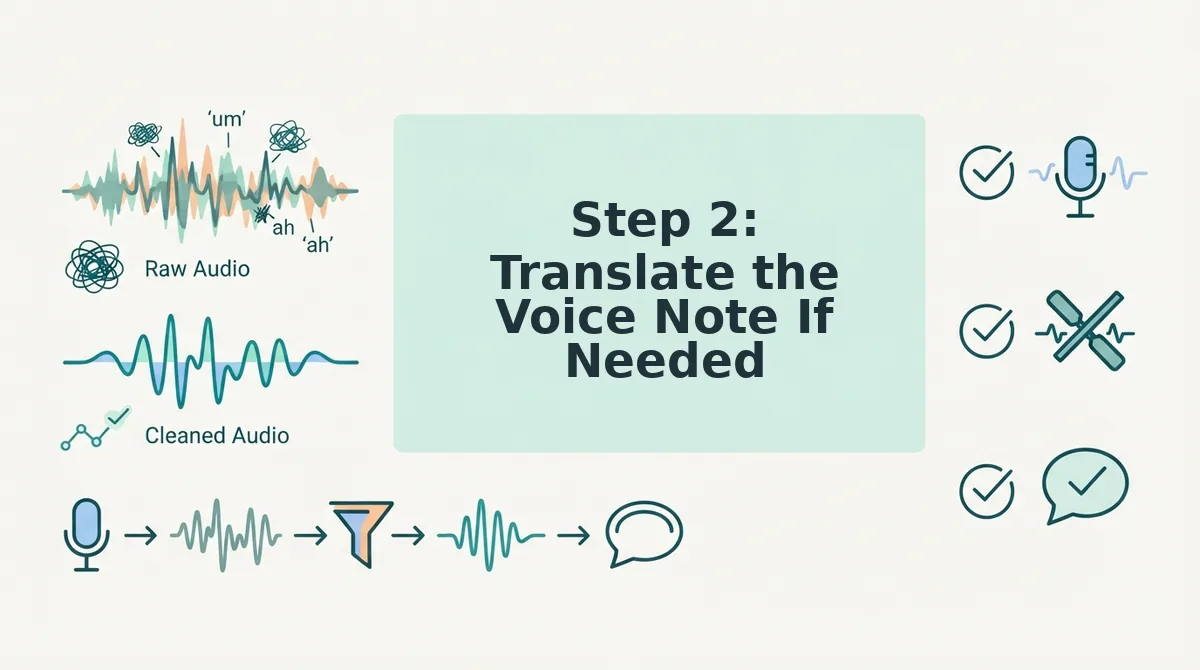
If your voice note is in a language your recipient doesn't speak, translate it before cleaning, translation happens on the audio itself, not just the text. VClar supports 11 languages: Hindi, English, French, Japanese, Korean, German, Russian, Portuguese, Spanish, Italian, and Chinese.
Prerequisites: A recorded or uploaded voice note, plus a voice note translator that preserves your vocal delivery. Budget 1-2 minutes for this step.
- Upload your voice note to the translator's audio input field. You should see a waveform preview appear within seconds.
- Select the source language from the language dropdown, for example, Hindi if the note mixes Hindi and English. The tool auto-detects when you're unsure.
- Choose the target language your recipient speaks. VClar translates the cleaned audio while preserving your natural tone, accent, and cadence, unlike text-only translation, which strips vocal identity and sounds robotic.
- Click Translate and wait for the processing indicator to finish. You should see a green checkmark and a playable translated audio file, not just a text block.
- Play back the result to confirm the message still sounds like you. If the tone feels off, re-run the translation with a different source-language setting.
This matters most for WhatsApp voice notes sent across borders, where recipients expect to hear your voice, not a synthetic readout.
Step 3: Clean the Transcript, the Step Everyone Skips
Cleaning means removing filler words, false starts, and spoken grammar errors from the transcript, and ideally from the audio itself, before you send anything. Skipping this step leaves you with word salad that undercuts your authority.
Prerequisites: A raw transcript from Step 1, plus a tool that can fix grammar in voice message audio, not just text. Budget 2-3 minutes.
- Open the raw transcript and read it aloud once. Mark every "um," "like," "basically," repeated word, and sentence that trails off. You should have a visibly messy draft.
- Paste the transcript into a cleaning tool that removes fillers and repairs grammar automatically. VClar does this on the audio timeline, so the spoken message tightens without re-recording.
- Compare the cleaned version side-by-side with the raw. You should see shorter sentences, no false starts, and intact meaning.
- Listen to the cleaned audio if your tool supports it. The voice should sound decisive, with your accent and rhythm unchanged.
Worked example: A founder leaves a client update that starts, "So, um, basically we shipped the, the dashboard update, and, you know, kal tak the API docs will be live." The raw transcript captures every stumble. A translated transcript renders the Hindi phrase as "by tomorrow" but keeps the fillers. The cleaned transcript reads: "We shipped the dashboard update, and the API docs will be live by tomorrow." That's the difference between sounding scattered and sounding in control.
Dan Brown Solutions demonstrated this exact workflow in a video where users combine voice memos with ChatGPT to clean transcripts, proof that people already patch together tools for a step that should be built in. VClar does the cleaning on the audio itself, so you skip the copy-paste loop entirely.
Free Tools vs. AI Voice Translators: Which Should You Use?
Free tools handle short, low-stakes, single-language notes; AI voice translators earn their place when the message is long, cross-language, or going to a client. The decision comes down to message length, audience, language pair, and stakes.
| Option | What It Does | What It Doesn't Do | Best For |
|---|---|---|---|
| Google Docs voice typing | Live-transcribes speech to text for free | No filler removal, no grammar repair, no translation, no audio output | Personal notes and rough drafts where you'll edit manually |
| Built-in phone transcription | Transcribes voice memos on-device | No cross-language translation, no spoken-grammar cleaning | Quick reminders to yourself in one language |
| AI voice translator like VClar's voice message translator app | Transcribes, translates across 11 languages, removes fillers, and repairs spoken grammar in one pass, while preserving your voice | Not free; requires upload or recording through the app | Founders, sales teams, and freelancers sending client-facing voice notes across languages |
Free tools force you to manually edit every stumble and can't translate spoken audio. An AI voice translator does both in one pass, which matters when a garbled message costs you a deal. If your note is under 30 seconds, internal, and single-language, free is fine. If it's client-facing or cross-border, use a dedicated tool. Here's what people ask most about translating voice notes.
Frequently Asked Questions About Translating Voice Notes
Voice note translation raises the same questions across Reddit, YouTube comments, and search queries. Here are the answers people actually look for, with the direct response first so you can grab what you need and move on.
How do I translate a voice note without manually editing the text?
Use an AI voice message translator that transcribes, translates, and cleans the audio in one pass. VClar removes filler words, fixes spoken grammar, and translates across 11 languages without requiring you to copy-paste text between separate tools or hand-edit a raw transcript.
Why does my voice note transcript look like word salad?
Because speech-to-text engines transcribe every utterance literally, including false starts, repeated words, and filler sounds like "um" and "you know." A raw transcript preserves spoken disfluencies that your brain filters out when listening. Cleaning removes those artifacts so the text reads like intentional writing.
Can I translate a voice note without losing my tone or accent?
Yes, if the tool preserves your original vocal characteristics. Voice-preserving translation keeps your tone, cadence, and accent intact while converting the language. Text-only translation strips all vocal identity and returns flat, synthetic-sounding output that no longer sounds like you.
Is there a free way to translate and clean a voice note?
Free tools exist but split the job across multiple steps. You can transcribe with a free speech-to-text app, paste the text into a free translator, then manually delete fillers and fix grammar yourself. The tradeoff is time: free workflows require manual editing and do not clean spoken grammar automatically.
What is the difference between a transcript and a clean transcript?
A transcript is a literal word-for-word record of everything spoken, including hesitations and errors. A clean transcript removes fillers, corrects grammar, tightens phrasing, and reads like a polished message. The difference is the gap between a rough draft and something you can actually send.
How do I translate a voice note from Hindi to English?
Upload or record the Hindi voice note into a translator that supports both languages, then let the tool transcribe, clean, and translate in sequence. VClar handles Hindi-to-English and nine other language pairs while preserving your original voice, so the English output still sounds like you speaking.
Stop Editing Word Salad, Start Sending Clean Transcripts
The difference between a transcript and a clean transcript is the difference between a draft and a message you can send. You have now seen the full pipeline: transcribe, translate, clean. Skipping the third step is why most voice-note workflows still feel broken.
Voice-preserving translation closes the loop that text-only tools leave open. You keep your tone, accent, and cadence while the AI handles filler removal, grammar repair, and language conversion in one pass. No copy-paste chains, no manual editing sessions, no re-recording to sound more polished.
Next step: run your next voice note through the AI voice message translator at VClar and send the cleaned result without touching a keyboard. One take, one clean message, zero word salad.