
You can record a voice message in 15 seconds, but the moment your recipient speaks another language, that speed advantage evaporates. You either type out a translation, paste it into a chat app, and lose every trace of your tone, or you send the raw audio and hope for the best. Neither option sounds like you.
If you've ever hesitated to send a voice note because the other person wouldn't understand it, you already know the frustration. The good news: you can translate a voice message to another language without sacrificing your delivery, your accent, or the urgency that made you record it in the first place.
This guide walks you through the exact workflow, from cleaning up your source audio to producing a translated message that still carries your voice. You'll learn why translating voice is fundamentally different from translating text, how to prepare your recording so the output doesn't sound like a robot, and the step-by-step process for getting a polished result in one take.
Along the way, you'll discover why most voice message translator tools fail at the one thing that matters most: keeping you in the message. One surprising step in the workflow makes the difference between a translation that sounds like a memo and one that sounds like you actually said it.
Why Translating Voice Is Different from Translating Text
Voice translation is the process of converting spoken audio from one language into another while preserving the speaker's vocal delivery, not just the words. Text translation gives you a transcript; voice translation gives you a message that still sounds like a person said it.
Think of text translation like reading sheet music. You get the notes, but not the performance. Voice translation is closer to hearing the same song played by the original musician in a different key, the phrasing, pauses, and emotional weight stay intact.
The gap between these two approaches shows up in three layers:
Simple layer, text translation. You run a transcript through a translation engine and get back a block of text. The words are accurate, but the delivery is gone. Tone, emphasis, hesitation, warmth, all flattened into characters on a screen. If you send this to a client or colleague, you sound like a memo, not a person.
Intermediate layer, voice cloning. Some tools take the translated text and generate synthetic speech that mimics your voice. The result can be convincing, but it is a copy. Your authentic delivery, the way you speed up when excited or pause before making a point, is replaced by a model's interpretation of how you might sound. For a deeper look at this tradeoff, see the voice cloning comparison.
Advanced layer, voice-preserving translation. This approach keeps your original recording as the foundation. The system removes verbal noise, corrects grammar, and translates the spoken content into the target language, all while retaining your natural voice, accent, and cadence. You are not getting a synthetic copy or a text transcript. You are getting your message, in another language, still delivered by you.
Here is the core distinction in one paragraph: Text translation outputs a transcript and loses tone, cadence, and intent. Voice cloning creates a synthetic copy that may sound like you but is not your authentic delivery. Voice-preserving translation keeps your natural voice, accent, and cadence while changing the language. If your goal is to communicate across a language barrier without becoming a different speaker, only the third approach delivers that.
The Clean-First Method: Fix the Source Before You Translate
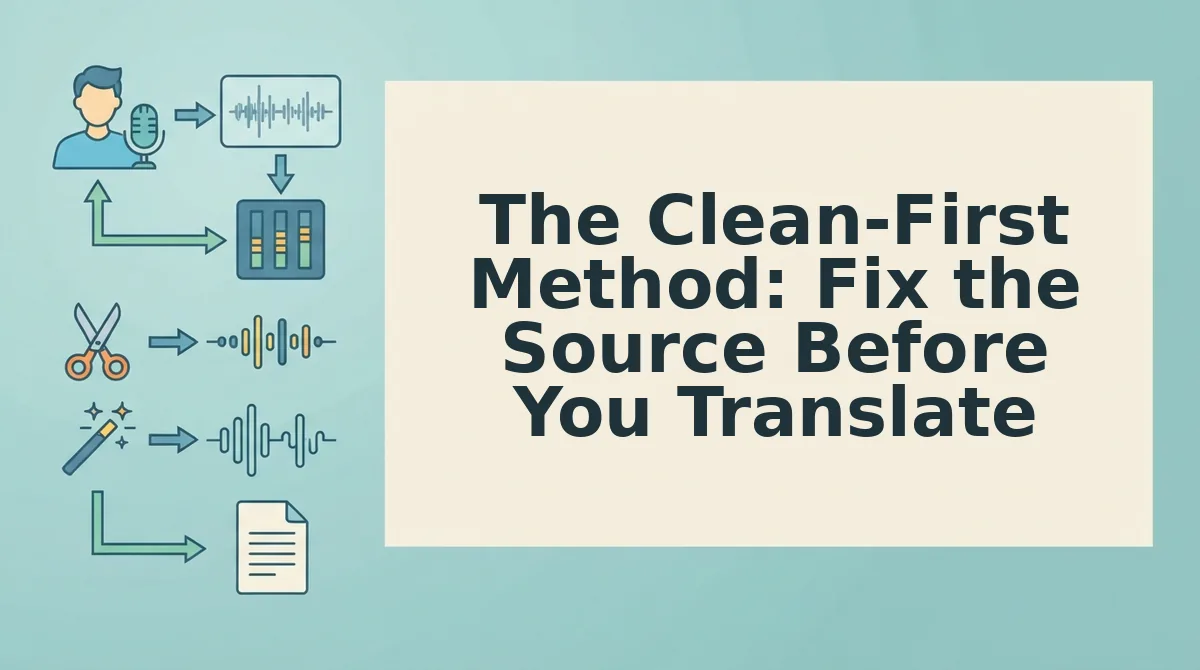
Cleaning your source audio before translation removes fillers, false starts, and grammar slips so the target language output is polished in both languages. Skipping this step means every "um" and "basically" gets translated too, degrading the final message.
You need a raw voice recording and a tool that can process audio before translation. VClar handles both steps in one workflow, but the principle applies to any voice translation setup.
- Record your message in one take. Open your voice recorder or messaging app and speak naturally. Do not re-record to fix mistakes, the cleaning step handles that. Expected outcome: a raw audio file with your authentic delivery, fillers and all. This takes under 30 seconds.
- Upload the audio to a filler word remover. Select your file and run it through a tool that detects and removes verbal fillers like "um," "ah," "like," and "basically." You should see a cleaned timeline where hesitations are gone but your pacing remains intact. VClar's remove filler words from audio feature does this automatically. Expected outcome: a tighter recording that sounds decisive, not scripted. Processing takes a few seconds.
- Fix grammar in the cleaned audio. Run the filler-free recording through a grammar correction pass. This repairs subject-verb mismatches, run-on sentences, and awkward phrasing that crept into your spontaneous speech. You should hear the same voice, same tone, but with grammatically sound sentence structure. Use the fix grammar in voice message step before any translation. Expected outcome: a source message that reads as clearly as it sounds.
- Verify the cleaned source. Play back the processed audio. You should hear your voice without hesitations or grammatical stumbles. If anything sounds off, adjust the cleaning settings and re-run. Expected outcome: a source recording you would be confident sending in your own language.
Here is why this order matters: Fillers like "um" or "basically" get translated too, degrading the target language output. Cleaning first ensures the translated message is grammatically sound and free of verbal hesitations in both the source and target languages. A messy source produces a messy translation, no matter how good the translation engine is.
Once your source audio is clean, you are ready to translate it into the target language while keeping your voice intact.
How to Translate a Voice Message Step by Step
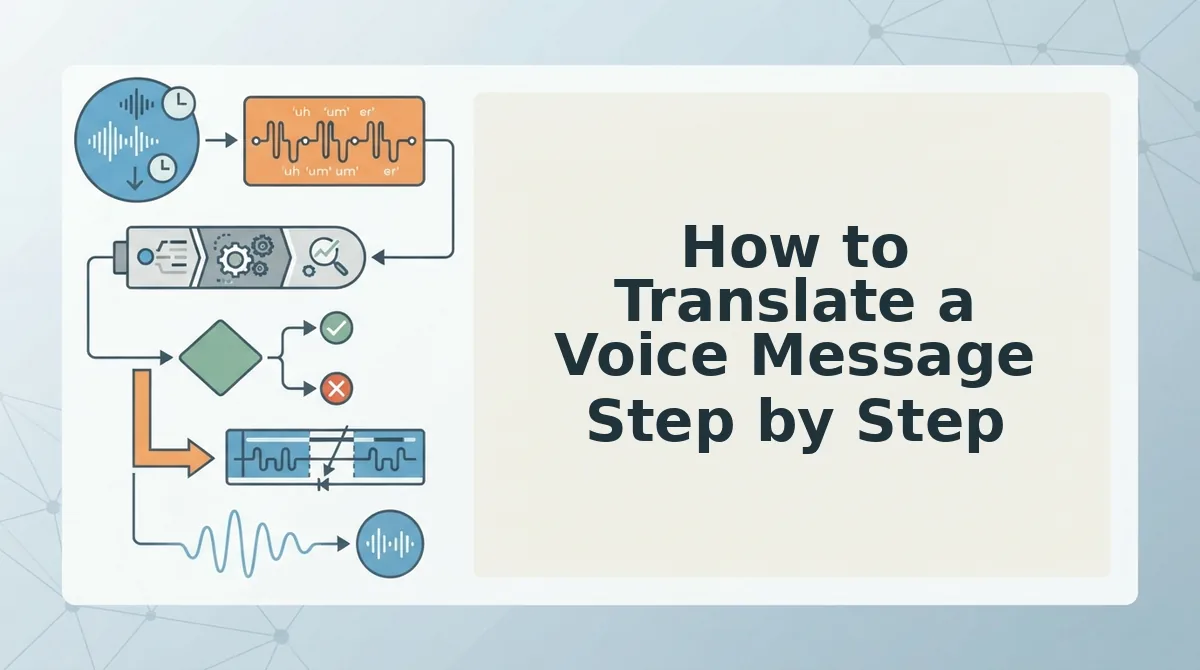
To translate a voice message, record or upload your audio into a voice-preserving translation tool like VClar, select the target language, and download the translated audio, the entire workflow takes under five minutes when the source audio is clean. VClar supports 90 language pairs, though quality varies by pair, so choose the target language based on who will actually listen to the message.
Prerequisites: A smartphone or computer with a microphone, a voice message file (or the ability to record one), and a VClar account. No manual transcription or re-speaking is required, the workflow completes in one pass.
- Open VClar and select "New Translation." Log in at vclar.com and click the New Translation button on the dashboard. You should see an upload window with two options: Record Now or Upload Audio.
- Record or upload your voice message. Click Record Now to capture your message in real time, or drag an existing audio file into the upload area. Supported formats include MP3, M4A, WAV, and voice memo exports. You should see a waveform preview appear within 2-3 seconds.
- Confirm the source language. VClar auto-detects the spoken language, but verify it in the Source Language dropdown. If the detection is wrong, select the correct language manually, this takes about 5 seconds and prevents cascading translation errors.
- Select the target language. Open the Target Language dropdown and choose from the 90 supported language pairs. Pick the language your audience actually speaks, not the one that sounds most impressive, translation quality is strongest for high-resource pairs like English - Spanish, English - French, and English - German. See the full list of supported languages.
- Enable filler word removal. Toggle on Clean Audio First in the processing settings. This removes ums, ahs, false starts, and repeated phrases before translation, which measurably improves output accuracy. You should see a confirmation badge appear next to the toggle.
- Click "Translate." Press the Translate button and wait 30-90 seconds depending on audio length. You should see a progress bar, followed by a green checkmark when processing completes.
- Review the translated transcript. Read the on-screen transcript to verify meaning, names, and numbers survived translation. If anything looks off, click Edit Transcript and correct it before finalizing, this takes under a minute and prevents embarrassing errors in the audio output.
- Download or share the translated audio. Click Download Audio to save the translated voice message, or use Share Link to send it directly through WhatsApp, Telegram, or email. The output preserves your original voice, tone, and cadence, not a synthetic clone.
If you send voice messages to international clients or team members, this workflow replaces the manual record-transcribe-translate-re-record loop with a single pass. Try translating your next voice message with VClar and see how much faster cross-language communication gets.
WhatsApp, Telegram, and Voice Memos: Platform-Specific Workflows
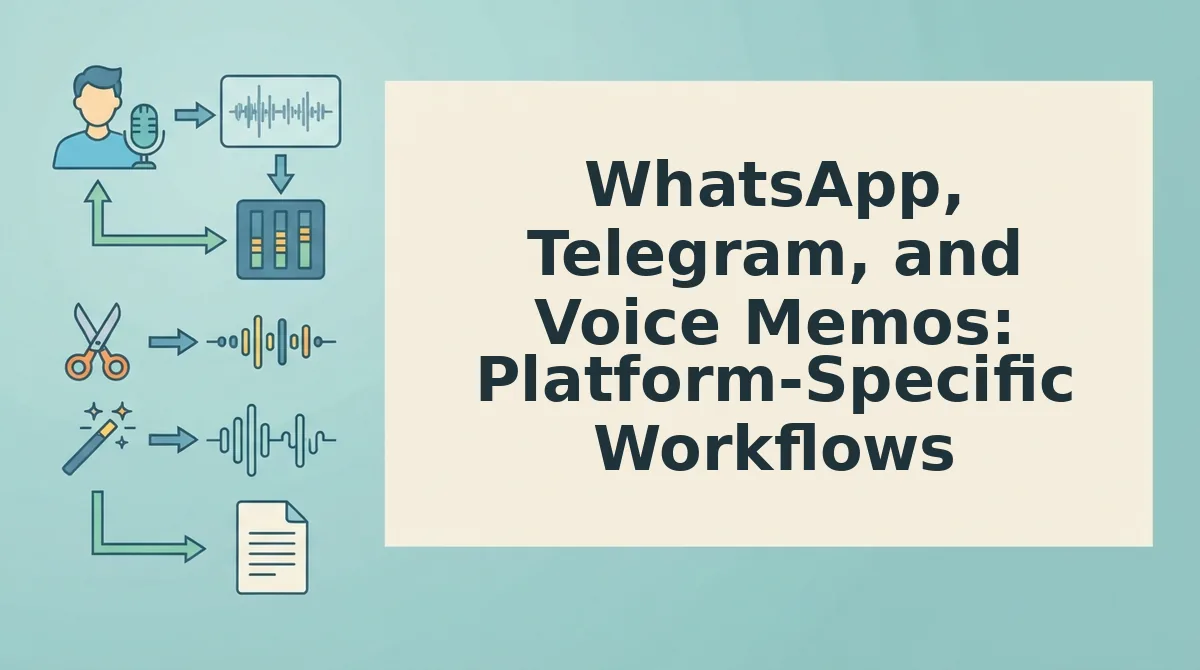
Voice message translation works across WhatsApp, Telegram, and native voice memo apps, but each platform handles audio files differently, knowing the export path for each one saves you from compression-related translation errors. Here is how to move voice messages from each platform into a translation tool like VClar.
- WhatsApp voice notes: Export before translating. WhatsApp compresses voice notes to reduce file size, which can degrade translation accuracy by stripping audio detail. Long-press the voice note, tap Forward, then select Share and choose Save to Files (iOS) or Save to device (Android), then upload the saved file to VClar instead of translating the compressed in-app version.
- Telegram voice messages: Forward to a bot or export the file. Telegram preserves higher audio quality than WhatsApp and allows direct file export. Tap the voice message, select Forward, and send it to your own Saved Messages chat, from there, download the audio file to your device and upload it to VClar. Alternatively, forward the message to a translation bot if you only need a text transcript.
- iOS voice memos: Share directly to a translation app. Open the Voice Memos app, tap the recording, then tap the Share icon and select Save to Files or share directly to VClar if the app is installed. iOS voice memos use M4A format, which VClar processes natively without conversion.
- Android voice recordings: Locate the file in your recorder app. Open your default recorder app, tap the recording, and select Share or Export. Android recorders typically save files as MP3 or M4A in a Recordings folder, navigate there if the share option is missing, then upload the file to VClar.
- WhatsApp audio compression troubleshooting. If a WhatsApp voice note sounds muffled or translation accuracy drops, the compression is the culprit. Ask the sender to re-record in a quieter environment, or request the original audio file, uncompressed source audio consistently produces more accurate translations.
- Telegram bot workflows for quick text-only needs. Telegram's bot ecosystem allows forwarding voice messages to translation bots that return text transcripts in seconds. This is useful for reading a message quickly, but it loses the speaker's voice, for audio-to-audio translation that preserves vocal identity, export the file and use VClar instead.
- Founders sending cross-border voice updates. If you send daily voice notes to international teams or investors, standardize on one export workflow. Telegram's Saved Messages method is the fastest repeatable path. For more on using voice notes as a founder communication tool, see voice notes for founders.
Choosing the Right Translation Method: Text, Clone, or Voice-Preserving
Three methods exist for translating a voice message: text-only translation, synthetic voice cloning, and voice-preserving translation. Each serves a different use case, and the right choice depends on whether you need speed, scale, or authenticity.
| Method | What It Does | Strengths | Limitations | Best For |
|---|---|---|---|---|
| Text-only translation | Converts speech to text, translates the text, and returns a written transcript in the target language. | Fastest option; works with any speech-to-text engine; easy to edit before sending. | Loses vocal identity, tone, and emotional nuance entirely; recipient reads instead of listens. | Internal team updates, documentation, or when the recipient prefers reading over listening. |
| Synthetic voice cloning | Translates the text, then generates new audio using an AI clone of the speaker's voice. | Preserves a recognizable voice; scalable for video dubbing and content production. | Output is synthetic and may lack natural cadence, breathing, and emotional inflection; can sound uncanny in personal messages. | Marketing videos, e-learning content, and scripted media where a human re-recording is impractical. |
| Voice-preserving translation | Cleans and translates the original audio while preserving the speaker's authentic voice, tone, and cadence. | Sounds like the original speaker naturally speaking the target language; ideal for personal and business communication. | Requires a clean source recording for best results; fewer language pairs than text-only tools. | Founders, sales teams, and freelancers sending personal voice messages across languages. |
Text-only translation is the fastest method but strips away everything that makes a voice message personal, the recipient gets a transcript, not a conversation. Voice cloning sounds like you but is synthetic, and the generated audio can lack the natural pauses, emphasis, and cadence that make spoken communication feel human. Voice-preserving translation keeps your authentic voice intact while delivering the message in another language, making it the strongest choice for personal and business voice messages where trust matters.
If you are comparing tools, see how VClar stacks up against VEED's audio translator and HeyGen's video translation for a detailed feature breakdown.
For most voice message use cases, client updates, team check-ins, cross-border sales follow-ups, voice-preserving translation delivers the right balance of speed and authenticity. Start translating your voice messages with VClar and keep your voice in every language you speak.
Still deciding which method fits your workflow? The answers below cover the most common questions about translating voice messages.
Frequently Asked Questions About Translating Voice Messages
Voice message translation raises practical questions about voice preservation, cost, and accuracy. These answers address the most common concerns users ask on Reddit, YouTube, and search engines.
How do I translate a WhatsApp voice note to English?
Forward the voice note to a voice-preserving translator like VClar, which accepts audio uploads and returns both translated audio and a transcript in English. WhatsApp has no built-in translation, so you need an external tool that processes the audio file directly rather than requiring manual transcription first.
Can AI translate my voice without changing how I sound?
Yes. Voice-preserving translation tools analyze your speech patterns, tone, and cadence, then generate the translated audio using those same vocal characteristics. Unlike text-to-speech clones that sound robotic or synthetic, this approach keeps your natural delivery intact while switching the language.
What's the best free voice message translator?
Free options include Google Translate's conversation mode and some browser-based tools, but they typically output text only or use generic synthetic voices. For translated audio that retains your voice, paid tools like VClar offer the only practical route, VClar pricing starts with plans designed for regular voice message users.
How accurate is voice-to-voice translation?
Accuracy depends on three factors: source audio clarity, language pair difficulty, and whether the tool cleans filler words before translating. Clean-first workflows that remove hesitations and false starts before translation consistently produce more accurate output because the translation engine processes only meaningful speech.
Why does my translated voice message sound choppy?
Choppiness usually comes from translating raw, unedited audio that contains pauses, fillers, and false starts. When the translation engine processes these interruptions, it creates awkward breaks in the target language. Removing fillers and normalizing pacing before translation eliminates most choppiness.
Do I need to transcribe the voice message before translating it?
No. Modern voice translation tools handle audio directly, skipping the manual transcription step entirely. Upload the voice message, and the tool handles speech recognition, filler removal, translation, and voice-preserving audio generation in one pass.
Translate Your Voice Message Without Losing Yourself
The clean-first method changes what you expect from voice translation. Instead of accepting awkward, choppy output that sounds like a machine reading a script, you get a translated message that still sounds like you, just speaking another language.
That distinction matters more than most people realize. Your voice carries authority, warmth, and intent that text translation strips away. When VClar translates speech across 90 language pairs while preserving your natural voice and cadence, the recipient hears your message, not a synthetic approximation of it.
The workflow is simple: record once, let the tool remove fillers and false starts, then translate. The clean-first method ensures polished output in both source and target languages, so you never send a message that sounds hesitant in any language.
Next step: upload a voice message to VClar and hear the difference voice-preserving translation makes. One take is all you need.