
You've just left a voice note for a client in São Paulo, and it's riddled with "ums," false starts, and a sentence that trailed off halfway through. Now you're staring at a timeline editor, dragging clips around, wondering why translating a 40-second message feels like editing a podcast. That friction is exactly why the VClar vs Descript for translating voice notes comparison matters, and why so many founders and sales reps abandon polished voice communication altogether.
You're right to expect better. A voice note should take one pass, not a production session. This guide breaks down how each tool handles translation speed, workflow steps, and voice preservation, so you can pick the one that matches how you actually work, not how a video editor assumes you work.
Here's the roadmap: a side-by-side glance at speed and workflow, a step-by-step look at Descript's translation process, and VClar's one-pass alternative. Stick around for the surprising part: the tool with more features may be the slower choice for voice notes, and the reason comes down to one design decision most comparisons miss.
If you need a voice note translator that removes fillers and translates in a single pass without timeline editing, VClar was built for that exact scenario.
VClar vs Descript at a Glance: Which Is Faster for Voice Notes?
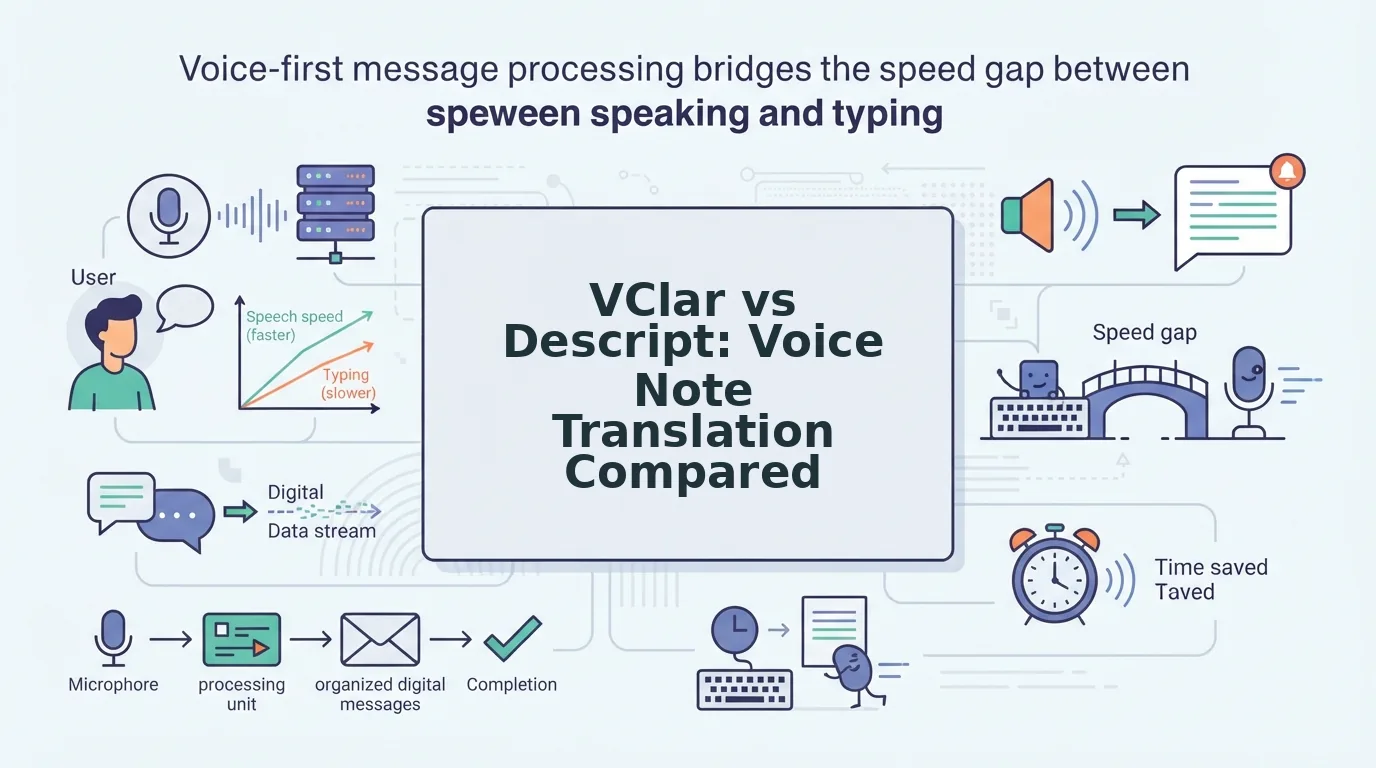
VClar is faster for voice notes because it's built for one-pass translation: upload, translate, receive audio and transcript. Descript is a video-first editing suite where translation is one feature inside a timeline-based workflow, which adds steps and friction for short spoken messages.
Descript is genuinely excellent at what it does. Its dubbing supports 30+ languages, offers lipsync for video, and gives editors granular control over every word on a timeline. If you're producing a multi-speaker video podcast or a training series with on-screen talent, that control is a feature, not a bug.
But voice notes are a different job. You're not syncing lips or adjusting clip boundaries. You're trying to send a clear message in one take. That's where the workflow gap shows up.
| Factor | VClar | Descript |
|---|---|---|
| Core workflow | Upload to translate to receive audio + transcript (3 steps) | Import to select track to apply dubbing to export (4+ steps, timeline-based) |
| Primary use case | Voice notes, spoken messages, quick cross-language communication | Video editing, podcast production, multi-track dubbing |
| Voice preservation | Preserves authentic tone, cadence, and accent while removing fillers | Dubbing and studio sound tools; voice preservation depends on editing choices |
| Filler word removal | Automatic, built into the translation pass | Manual timeline editing or separate cleanup steps |
| Learning curve | Minimal, no timeline required | Moderate to steep, timeline, tracks, and export settings |
| Best for | Founders, sales reps, freelancers, and cross-border operators who need clear voice messages fast | Video creators, podcast editors, and teams producing multi-speaker content |
Here's the passage worth reading twice: if your goal is to send a translated voice note in under two minutes, VClar's three-step flow removes the timeline entirely. You upload raw audio, the engine strips fillers and translates, and you get back a clean audio file plus a transcript. Descript requires you to import media, select the correct track, apply dubbing settings, and export, a sequence designed for projects, not messages. Neither approach is wrong; they're built for different jobs.
Best for founders and sales reps: VClar, because one-pass translation without timeline editing matches the speed of spoken communication. Best for video editors and podcast producers: Descript, because timeline control and lipsync matter when you're polishing multi-track content.
Whichever direction you lean, start with the tool that matches your primary output. If that's voice notes, a voice note translator built for one pass will save you more time than a studio suite you have to navigate.
How Descript Translates Voice Notes (and Where It Slows Down)
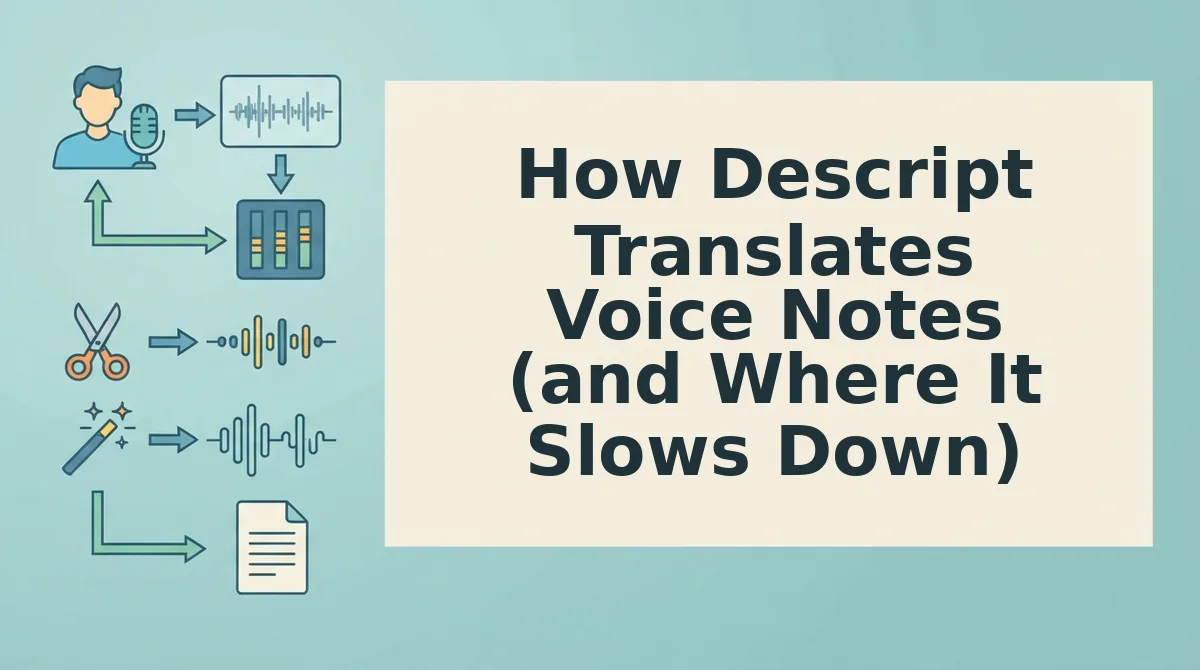
Descript translates voice notes through a timeline-based dubbing workflow that requires importing media, selecting a track, applying dubbing, and exporting, a sequence designed for video projects, not quick spoken messages. You'll need a Descript account and a project open before you start.
Descript's official YouTube tutorials emphasize video dubbing and lipsync, not quick voice messages. That's the tell: the tool assumes you're working with visual media on a timeline, even when your source is just audio.
- Open Descript and create a new project. Click "New Project" from the dashboard, name it, and choose your composition settings. You should see a blank timeline appear on screen.
- Import your voice note audio. Drag the file into the media bin or click "Import" and select it from your computer. The audio appears as a clip in the bin, not yet on the timeline.
- Drag the clip onto the timeline. Click and drag the audio file from the bin to a track. You should see the waveform render across the timeline.
- Select the track and open dubbing. Click the track header to select it, then find the dubbing or translation option in the toolbar or right-click menu. Choose your target language from the list of 30+ supported languages.
- Apply dubbing and wait for processing. Click "Apply" or "Dub" and let Descript process the translation. Processing time varies by clip length and language.
- Review and adjust on the timeline. Play back the dubbed audio. If fillers or awkward pauses remain, you'll need to manually cut or edit them on the timeline before export.
- Export the translated audio. Click "Export," choose your audio format and quality settings, and save the file. You should see a download or save confirmation.
Here's the friction in plain terms: Descript's translation workflow assumes you want timeline control, so it gives you seven steps where a voice note needs three. The import, track selection, and export stages are all necessary in a video editor, but they're overhead when your goal is a clean, translated voice message. If you're sending five voice notes a day, that overhead compounds into real time lost.
Now compare that to a tool built for one pass, no timeline, no track selection, no manual filler cleanup. That's exactly what the next section covers.
How VClar Translates Voice Notes: The One-Pass Difference
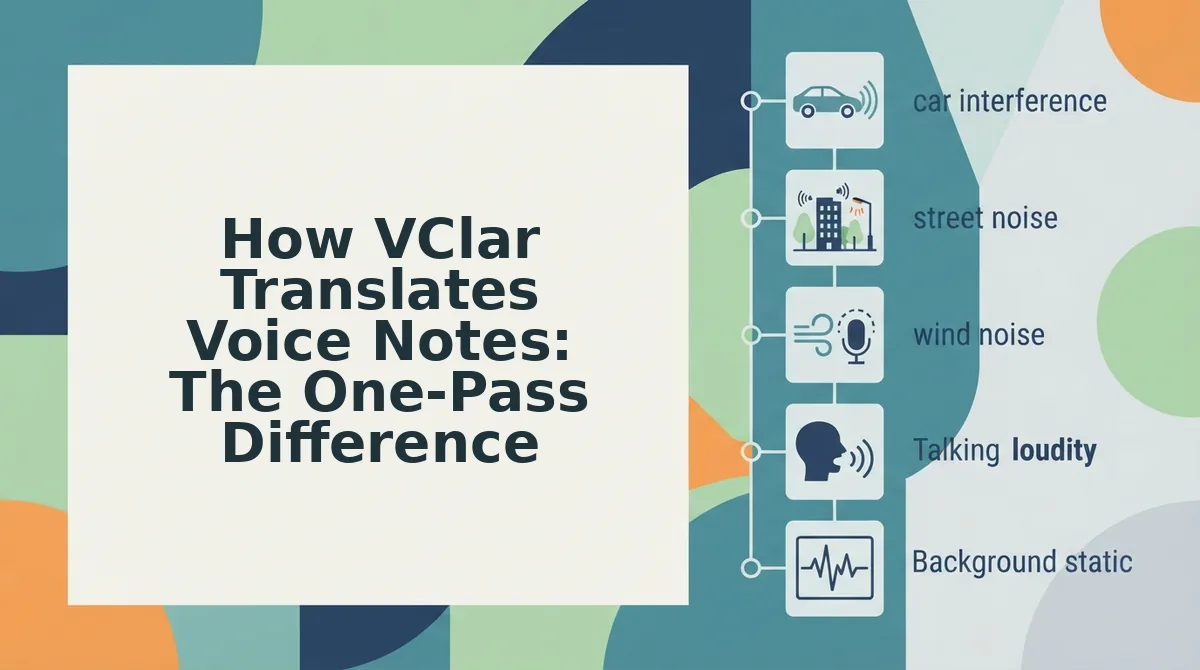
VClar translates voice notes in a single pass, upload, translate, receive, without touching a timeline editor. You need a VClar account and a voice note recorded on your phone or computer.
- Open VClar and click Upload Audio. Select your voice note file (MP3, M4A, WAV, or WebM all work). You should see a progress bar fill within 2-5 seconds for a typical 60-second note.
- Select your target language from the Language dropdown. Choose from the supported list on the voice note translator page. VClar automatically detects the source language, so you don't need to set it manually.
- Click Translate. VClar processes the audio in one pass: it removes verbal fillers, corrects spoken grammar, and translates the speech, all while preserving your original voice, tone, and cadence. You should see a green checkmark when processing completes, typically within 10-30 seconds depending on note length.
- Download the translated audio and transcript. You receive both files simultaneously. The audio sounds like you speaking the target language; the transcript is clean, grammatically sound text ready to paste into Slack, email, or a CRM.
Here's the workflow in practice: a founder records a 90-second product update in English, uploads it to VClar, selects Spanish, and receives a Spanish audio file plus transcript in under 30 seconds. The message keeps her pacing, emphasis, and accent, no synthetic voice clone. VClar also lets you fix grammar in voice messages and remove filler words from audio in the same pass, so you never need a separate cleanup step.
Can VClar translate a voice note without changing how I sound? Yes. VClar's translation engine works on the acoustic properties of your original recording, pitch, pacing, emphasis, and accent, rather than generating a new voice from text. The output is your voice speaking the target language, with hesitations and fillers removed. This differs from synthetic dubbing tools that discard your audio entirely and rebuild speech from a cloned or stock voice model. For cross-border founders and sales teams, that means the recipient hears you, not an AI stand-in.
Voice Preservation vs. Voice Replacement: The Decision Framework Most Comparisons Skip
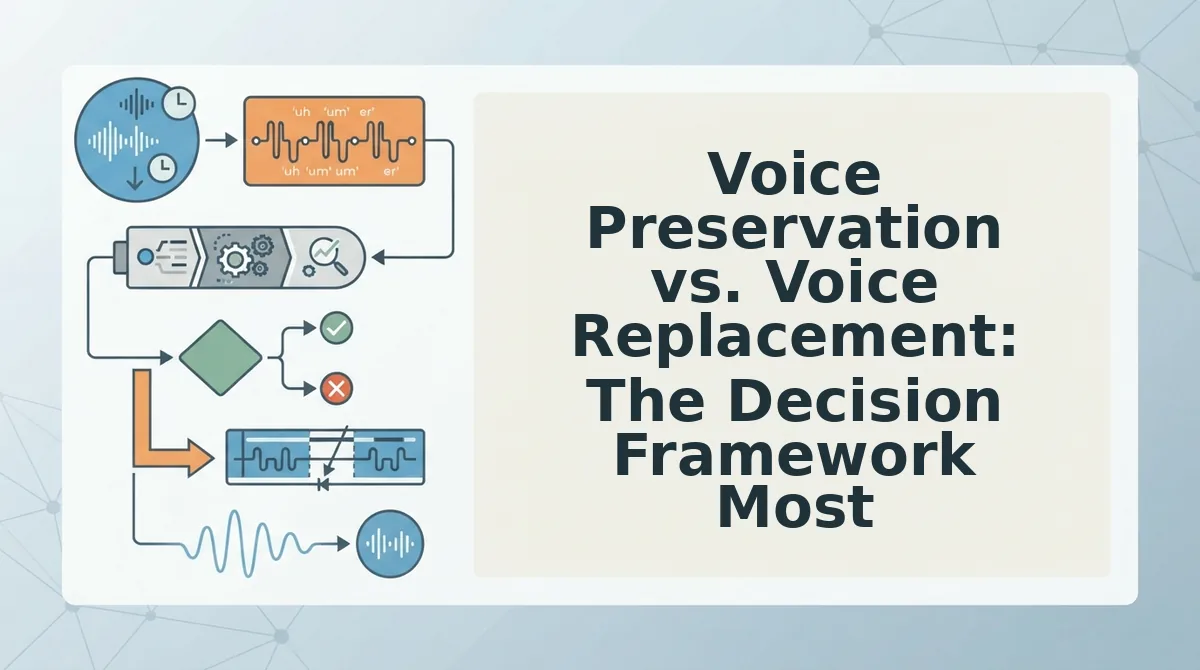
Voice preservation is the practice of cleaning and translating a speaker's original audio while keeping their authentic vocal identity intact, pitch, pacing, accent, and emotional inflection all remain the speaker's own. Voice replacement, by contrast, discards the original recording and rebuilds speech from a synthetic or cloned voice model.
Think of it like photo editing versus CGI. Voice preservation is like color-correcting and cropping a real photograph: the subject is still you, just sharper. Voice replacement is like rendering a 3D avatar of you: recognizable, but not actually you. The distinction matters because listeners trust what they can verify as human.
VClar operates entirely in the preservation camp. It removes fillers, corrects grammar, and translates language, but the audio output is your voice, with your cadence and accent intact. Descript's AI dubbing feature, by contrast, replaces the original voice with a synthetic one for translated or overdubbed content. That's useful for video projects where lip-sync matters, but it introduces a trust question: is the person on screen saying what they actually said, or what a model generated?
No competitor comparison addresses this trust question head-on. For voice notes for founders, the stakes are concrete: a founder sending a cross-border update to investors or partners needs recipients to hear her actual voice making the actual points. A synthetic dub can feel polished but hollow. VClar's approach keeps the human signal intact while removing the friction that makes raw voice notes hard to consume.
What is the difference between voice preservation and voice replacement in AI voice tools? Voice preservation enhances the speaker's original audio, removing fillers, correcting grammar, translating language, while keeping the speaker's authentic voice, tone, and cadence. Voice replacement discards the original recording and generates new speech from a synthetic or cloned voice model. VClar uses voice preservation: the output is your voice speaking the translated or cleaned message. Descript's AI dubbing uses voice replacement: the output is a synthetic voice that mimics you but is not your actual vocal performance. The practical difference is trust, recipients can hear that a preserved voice is genuinely yours, while a replaced voice is an AI reconstruction.
Which Tool for Which Job? Use Cases That Settle the Debate
Match the tool to the job, not the job to the tool. Here are the scenarios where each platform wins.
- Async team update in a second language to VClar. You record a 60-second status update in English, upload it to VClar, and receive a translated audio file plus transcript in under 30 seconds. No timeline editing, no multi-step export. Your team hears your voice, not a synthetic stand-in.
- Sales outreach voice note to an international prospect to VClar. Speed and authenticity decide whether a prospect listens or deletes. VClar's one-pass workflow lets you send a translated voice note for sales in the time it takes to write a follow-up email, with your tone and conviction intact.
- Video dubbing project with on-screen speakers to Descript. When lip-sync and multi-track video editing are non-negotiable, Descript's AI dubbing and timeline editor are the right fit. You trade voice authenticity for visual synchronization, an acceptable trade for produced video content.
- Podcast episode with heavy editing and transcription to Descript. Multi-speaker transcripts, filler removal across a timeline, and studio sound tools make Descript strong for long-form audio production. Translation is a secondary feature, not the core workflow.
- Quick cross-border message where you need both audio and text to VClar. VClar returns translated audio and a clean transcript in the same pass. Descript requires you to work inside a project timeline to get equivalent output, which adds steps for a simple message.
- Founder update to international investors to VClar. Investors need to hear you, your pacing, your emphasis, your conviction. VClar preserves all three while translating the message. A synthetic dub risks undermining the exact credibility you're trying to build.
If you're still weighing options, the next section answers the most common questions head-on.
FAQ: VClar vs Descript for Voice Note Translation
Direct answers to the most common questions about translating voice notes with VClar versus Descript, based on real user queries from Reddit, YouTube comments, and search data.
Can Descript translate a voice note without editing a timeline?
No. Descript requires you to open a project, import audio, and work within its timeline editor before translation runs. There is no one-click voice note path. VClar skips timeline editing entirely, you upload or record, and translation happens in a single pass.
Does VClar keep my voice or replace it?
VClar keeps your voice. It removes fillers, corrects grammar, and translates while preserving your tone, cadence, and accent. Descript offers voice cloning and synthetic dubbing options, which replace the original delivery. If authenticity matters, VClar is the non-replacement choice.
How fast can I translate a 60-second voice note?
With VClar, a 60-second voice note translates in roughly the same time it takes to process, typically under a minute, with no manual editing required. Descript adds setup time: creating a project, importing audio, and navigating the timeline before translation even starts.
Is Descript overkill for voice messages?
Yes, for most voice note use cases. Descript is built for podcast editing, video production, and multi-track projects. If you only need to clean and translate short voice messages, its timeline, transcription editor, and project structure add friction VClar eliminates.
Does VClar remove filler words during translation?
Yes. VClar removes fillers like "um," "ah," and "like" as part of the same pass that translates your message. You do not need a separate cleanup step. Descript can remove filler words from audio, but as a manual or scripted edit inside its editor.
Why does my translated voice note sound different in Descript?
Descript's translation pipeline can apply synthetic voice generation or dubbing models that alter pitch, pacing, and delivery. VClar preserves the original recording's acoustic fingerprint, your voice stays yours, just cleaner and in another language.
The Bottom Line: One Pass Beats a Timeline When Speed Is the Point
Every comparison in this article points to the same conclusion: VClar wins when the job is translating a voice note fast, and Descript wins when the job is producing multi-track video or podcast content. The deciding factor is not translation quality, both tools handle that, but how much interface stands between you and a finished message.
VClar translates in one pass without timeline editing, filler cleanup, or voice replacement. Descript asks you to build a project first. That distinction matters more the shorter and more frequent your voice notes are.
If you send voice messages daily, start with the voice note translator built for that exact workflow. If you are still comparing tools, our VClar vs AudioPen breakdown covers another lightweight alternative. The fastest way to decide is to record one message and see which tool gets it translated before you finish your coffee.