

You record a 40-second voice message in Hindi, hit send, and your English-speaking client replies with "Sorry, can you type that out instead?" The re-record loop begins, and it's costing you deals, not just minutes. If you've ever wondered how to translate a voice message to English without sounding like a robot or losing your natural delivery, you're not alone. Founders, sales reps, and consultants send voice notes daily, only to watch raw audio get mangled by translation tools that choke on fillers, false starts, and broken grammar.
Here's the fix: you can clean and translate a voice message in one pass, preserving your tone, accent, and cadence. This guide walks you through recording naturally, cleaning the audio before translation, and choosing a tool that keeps your voice intact. Stick around, the reason most translations fail isn't the language barrier at all, and it's something you can fix in under a minute with an AI voice message translator.
Why Raw Voice Messages Translate Poorly
Raw voice message translation is the process of feeding unedited spoken audio directly into a translation engine, and it fails because spoken language is messy in ways written text never is. Fillers like "um," "basically," and "you know" have no direct equivalent in many languages, so translation engines either drop them entirely or insert awkward placeholders that break the sentence flow.
Think of a translation engine like a chef following a recipe. If your recipe says "add, uh, basically two cups of flour, wait no, three," the chef has to guess which instruction matters. That's exactly what happens when false starts and sentence fragments hit machine translation: the engine tries to translate every fragment literally, producing garbled English output that sounds nothing like what you meant.
The root problem is that spoken grammar is rarely clean grammar. People think faster than they type, so voice messages capture thoughts mid-formation, incomplete clauses, self-corrections, and trailing sentences. Translation engines trained on written text can't reconstruct meaning from this chaos. The fix isn't a better translation tool; it's cleaning the audio first. Removing fillers, tightening phrasing, and smoothing grammar before translation gives the engine clean input, which produces clean output. You can remove filler words from your voice message in seconds, and the downstream translation quality improves dramatically.
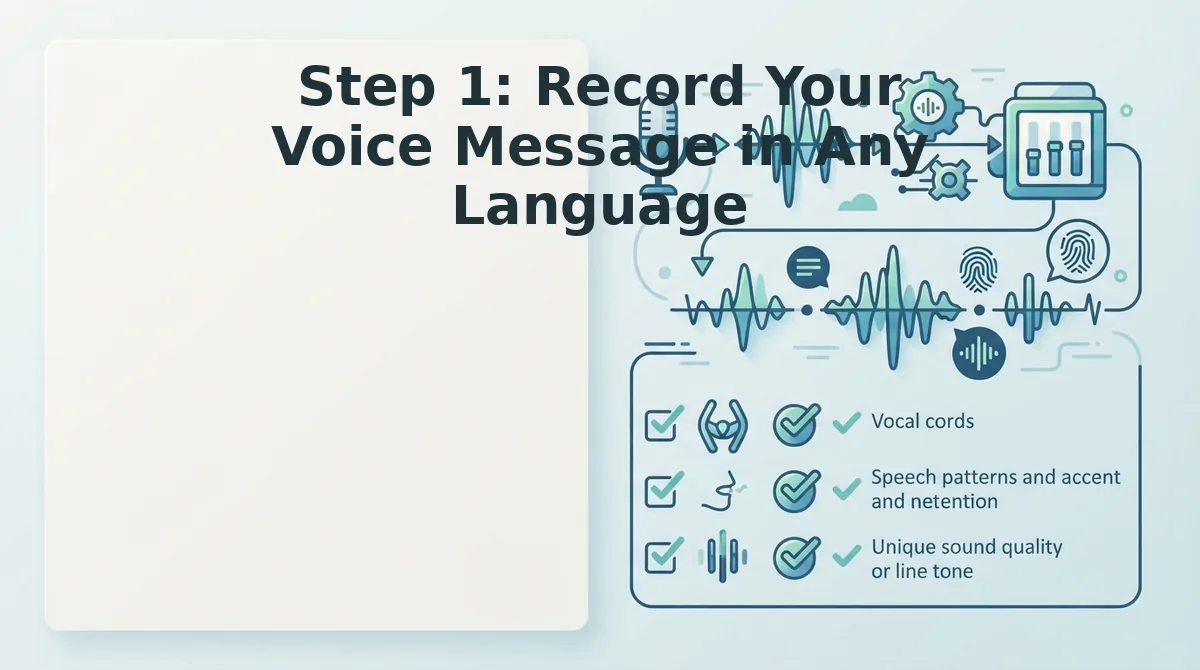
Step 1: Record Your Voice Message in Any Language
Start by recording your message naturally, no script, no rehearsal. The cleanup step will handle fillers and grammar, so you don't need a perfect take.
Prerequisites: A quiet room, your phone or computer microphone, and about 30-60 seconds.
- Open your voice recorder app or the VClar recording interface on your device. You should see a red record button ready to tap.
- Tap Record and speak naturally in your preferred language. Hindi, French, Japanese, or any of the 11 supported languages. Don't pause to fix mistakes; keep talking as if you're leaving a voicemail for a colleague. Expect to hear yourself say "um" or restart a sentence, that's normal and will be cleaned later.
- Stop recording when you've made your point. Aim for one clear idea per message. You should see the audio file saved with a timestamp and duration.
- Play back the first 5 seconds to confirm your voice is audible and background noise is minimal. You should hear your voice clearly without needing to strain.
Recording naturally removes the pressure of a perfect take, the cleanup engine handles the rest. Next, clean the message before translating.
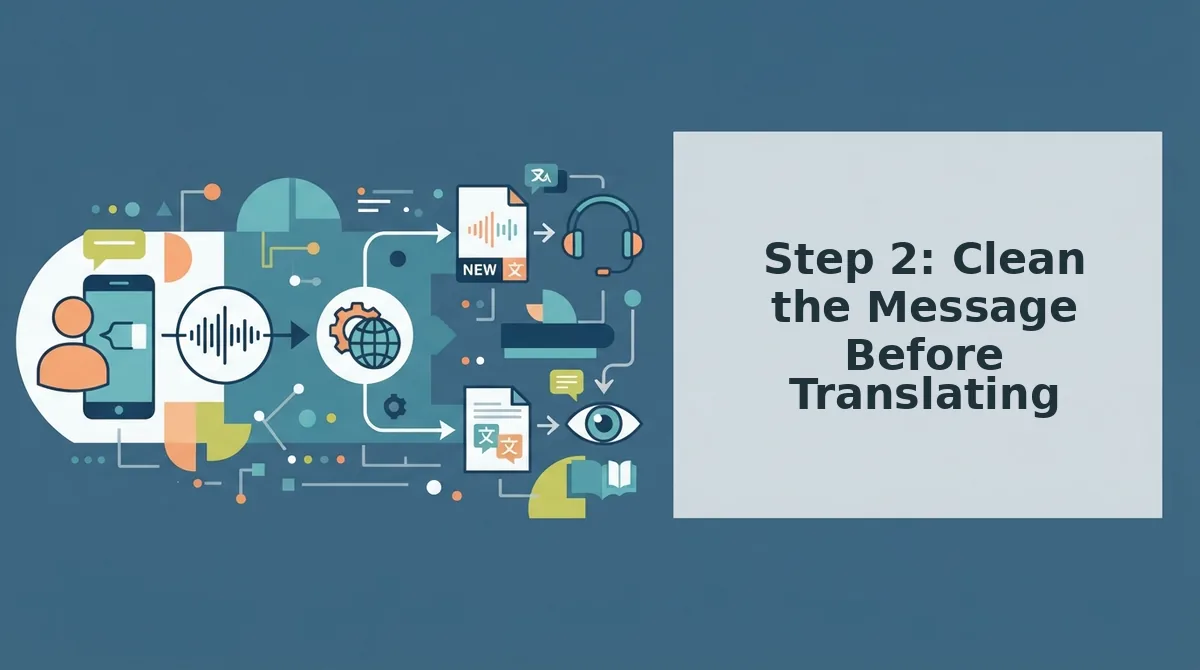
Step 2: Clean the Message Before Translating
Cleaning your voice message before translation removes fillers, fixes spoken grammar, and reduces background noise so the English output reads clearly on the first pass. The Clean First, Translate Second framework. Record to Clean to Translate, is the step most translation tutorials skip, and it is the single biggest lever for accurate output.
Prerequisites: a recorded voice message in any of the 11 supported languages, and a tool that can remove filler words from your voice message without altering your voice.
- Upload your raw voice message. Open your cleaning tool and select the audio file from your phone or desktop. You should see a waveform preview appear within a few seconds.
- Run filler word removal. Click the Clean or Remove Fillers control. The engine detects and strips ums, ahs, "like," "basically," "you know," and false starts. Expect this to take under 10 seconds for a 60-second clip. You should see a cleaned timeline with the filler gaps closed seamlessly.
- Fix spoken grammar. Select the Grammar Fix option to correct run-on sentences, subject-verb mismatches, and incomplete thoughts. This step matters because translation engines amplify grammatical errors, a garbled Hindi sentence becomes a garbled English sentence. Use a tool that can fix grammar in your voice message before translating.
- Reduce background noise. Enable noise reduction to suppress traffic, keyboard clicks, breath sounds, and mouth clicks. You should hear a noticeably quieter track with your voice intact.
- Play back the cleaned audio. Confirm your tone, accent, and rhythm are unchanged. If the message sounds like you, just sharper, the clean is successful and the file is ready for translation.
Here is why cleaning first matters. A raw Hindi voice memo containing "um, basically, you know, I think we should, uh, finalize the pricing today" translates into English as a hesitant, fragmented sentence. The same memo cleaned to "I think we should finalize the pricing today" produces a direct, confident English output. Translation engines do not know which words are filler, they translate everything you give them. Cleaning first means the English version inherits your clarity, not your hesitation.
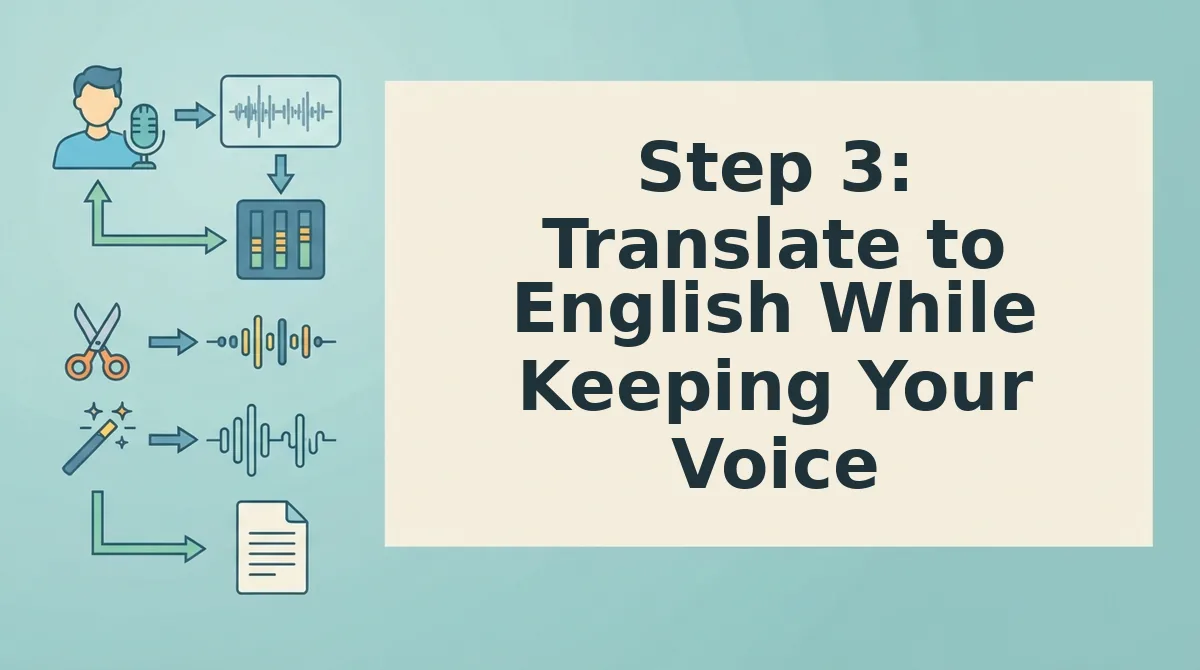
Step 3: Translate to English While Keeping Your Voice
Voice-preserving translation is converting spoken audio into another language while retaining the original speaker's vocal characteristics, tone, accent, cadence, and emotional inflection. Instead of producing a robotic text-to-speech readout, it delivers English audio that still sounds like you.
Think of voice-preserving translation like a skilled interpreter who mimics your delivery style. A standard text translator is more like reading a transcript aloud in a monotone computer voice. Both convey the words, but only one preserves the human signal.
Start simple: upload your cleaned voice message and select English as the target language. The tool transcribes the cleaned speech, translates the text, then re-synthesizes the English audio using your original vocal profile. You should hear your own voice speaking English, with the same pauses and emphasis you used in the source language.
At the intermediate level, review the English transcript alongside the audio. Check that idiomatic phrases carried over correctly, a literal word-for-word translation often misses meaning. Adjust any awkward phrasing and regenerate the audio.
For advanced workflows, batch-translate multiple voice messages for a team or client. VClar supports translation across 11 languages and 110 directions, so a single Hindi voice memo can become English for one recipient and Japanese for another, all from the same cleaned source file, all in your voice.
If you have been sending voice messages that get ignored or misunderstood across language barriers, this workflow removes the friction: clean once, translate to English, and send a message that sounds polished and personal.
Platform-Specific Translation Options
Most messaging platforms offer partial or no built-in voice message translation, which forces users into workarounds. The table below compares what WhatsApp, WeChat, and Telegram actually support today.
| Platform | Built-in Voice Translation | Workaround Required | Best For |
|---|---|---|---|
| None, no native voice message translation | Transcribe first, then translate text manually or use a third-party tool | Casual users who rarely need cross-language voice messages | |
| Voice-to-text for Chinese; limited translation for other languages | Works well within Chinese, but weak for English and other language pairs | Mandarin speakers messaging within China | |
| Telegram | No native voice message translation | Relies on third-party bots or external apps, which vary in quality | Privacy-focused users willing to configure bots |
WhatsApp's gap is the most consequential given its global reach: users sending Hindi, Spanish, or Portuguese voice notes to English-speaking contacts have no in-app path to translation. WeChat handles Chinese voice-to-text well but falls short for cross-language voice translation. Telegram's bot ecosystem offers flexibility, but bot quality is inconsistent and setup friction is real.
For anyone who regularly sends voice messages across languages, a dedicated voice-preserving translator closes the gap these platforms leave open. The most common questions about this workflow are answered below.
FAQ
Direct answers to the most common questions about translating voice messages to English, drawn from real user searches and community discussions.
How do I translate a voice message to English without losing my natural tone?
Use a voice-preserving translator like VClar instead of a text-to-speech tool. VClar cleans your original recording, removing filler words, fixing grammar, and reducing noise, then translates the speech while keeping your actual voice, accent, cadence, and emotional delivery intact. Standard translation apps convert speech to text, translate the text, then synthesize a new robotic voice. VClar works directly on the audio timeline, so the output sounds like you speaking English naturally, not an AI reading a script. This matters most for sales pitches, founder updates, and personal messages where tone carries as much weight as the words themselves.
Why does my translated voice message sound robotic?
Because most translation tools use text-to-speech synthesis: they transcribe your speech, translate the text, then generate audio with a synthetic voice. Your pitch, pauses, emphasis, and emotional inflection are discarded in that pipeline. Voice-preserving translation instead processes your original audio waveform directly, translating the linguistic content while retaining your vocal characteristics. The difference is audible immediately, one sounds like a GPS reading a script, the other sounds like you speaking a language you just learned fluently.
Can I translate a voice message from WhatsApp or Telegram to English?
Yes. Export or forward the voice message to a translation tool that accepts audio uploads, or use a platform with direct integration. VClar accepts raw audio uploads from any messaging app, so you can save a WhatsApp or Telegram voice note, upload it, and receive a cleaned, translated English version in your own voice within seconds.
How accurate are AI voice message translations compared to human translators?
Modern AI voice translation handles conversational speech with high accuracy for common language pairs, especially when the source audio is cleaned first. Removing filler words, false starts, and background noise before translation significantly improves output quality because the model processes clearer input. For formal documents or legal content, human review is still recommended, but for everyday voice messages, AI translation is fast, reliable, and improving with every model iteration.
What languages can I translate a voice message from into English?
VClar supports translation across 11 languages and 110 language directions, including Hindi, French, Japanese, Korean, German, Russian, Portuguese, and more into English. The full list is available on the languages page. Each direction preserves the speaker's original voice and tone, so a Hindi voice note becomes natural English speech in the same voice.
Do I need to type out the voice message before translating it?
No. Voice-preserving translation tools process audio directly without requiring manual transcription. You record or upload the voice message, the AI cleans and translates it, and you receive both translated audio and a text transcript. Typing is only necessary if you want to edit the transcript before finalizing the audio output.
Translate Voice Messages Without Losing Your Voice
The three-step framework. Record, Clean, Translate, works because each step solves a specific failure point in traditional voice translation. Raw audio confuses translation models with fillers and noise. Text-to-speech output strips away the human qualities that make your message persuasive. Cleaning first, then translating the audio itself, sidesteps both problems.
What this means in practice: you stop re-recording messages to sound "professional enough," stop apologizing for your accent, and stop settling for robotic translations that undermine your credibility. You record once, in your natural voice, and the output sounds like you, just clearer and in English.
Start with one voice message. Record it the way you normally would, run it through the AI voice message translator, and compare the output to what a standard translation app produces. The difference in tone preservation is immediate. When you are ready to scale, explore the full 11 languages and 110 translation directions to cover every conversation you need to have across borders.
Your voice is already the message. The right tool just makes sure it arrives intact.