
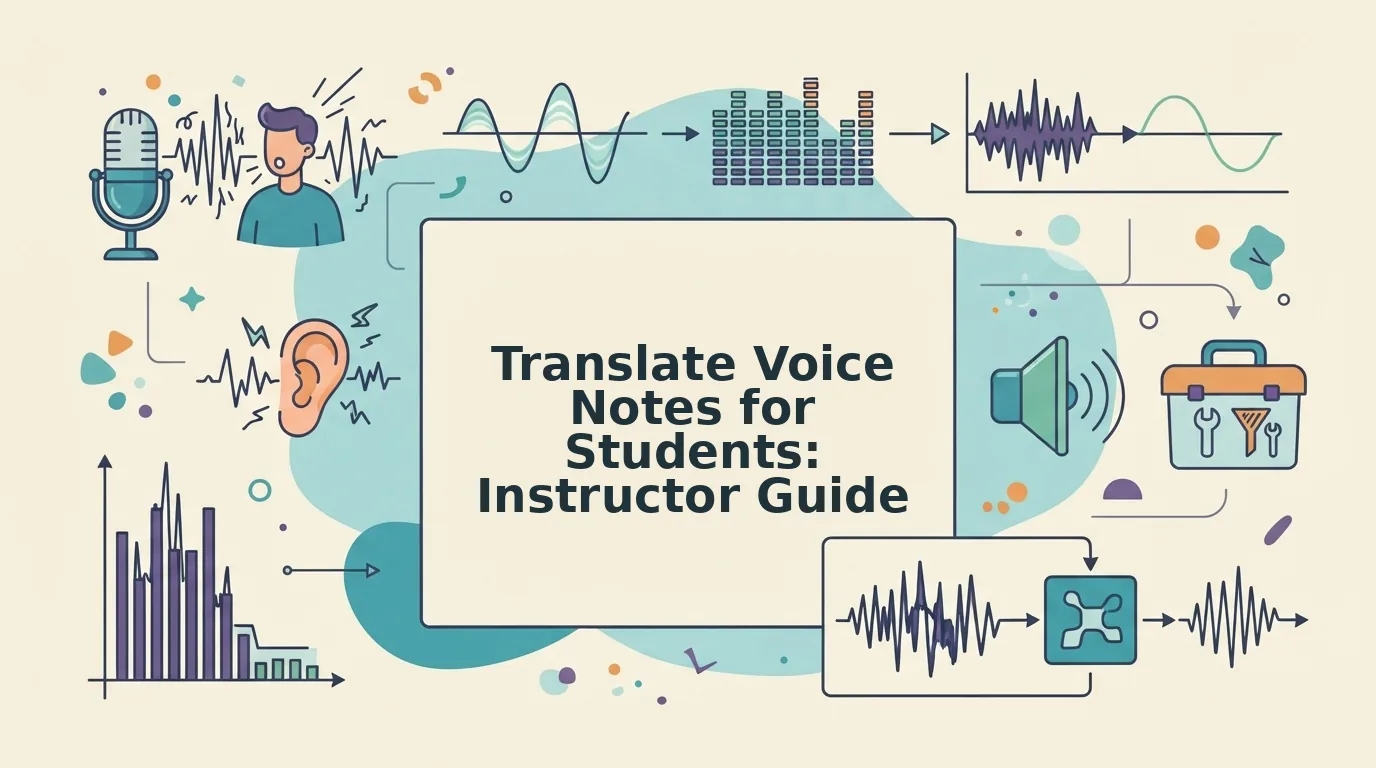
You record a five-minute voice note explaining a complex concept, hit send, and realize halfway through you said "um" fourteen times, trailed off twice, and accidentally switched to your native language for a full sentence. Now imagine your student is trying to follow that in a second language. If you need to translate voice note for course instructor communication, the raw recording is working against you.
You're right to use voice notes, they're the fastest way to give feedback and explain nuance. But raw voice memos contain verbal fillers, awkward pauses, and disjointed grammar that undermine your authority and confuse translation engines. This guide walks you through a three-step workflow: record, clean, then translate. You'll learn why cleaning comes first, how to do it in one pass, and which tool handles both steps without flattening your teaching tone.
VClar translates cleaned voice notes for course instructors across 11 languages, covering 110 translation directions, while preserving your accent, cadence, and intent. The surprising part? The cleaning step matters more than the translation engine itself. Here's why.
How to Translate a Voice Note for Students Who Speak Another Language
The fastest way to translate a voice note for students is to clean the audio first, remove fillers, fix grammar, and reduce noise, then translate the cleaned version. VClar does both in one pass across 11 languages, preserving your teaching tone and improving translation accuracy.
Before you start, you need: a smartphone or computer with a microphone, the VClar app or web dashboard, and a rough idea of which language your student needs. The full workflow takes under three minutes.
- Record your voice note as you normally would. Don't script it or re-record. Speak naturally for 30 seconds to five minutes. The point is to capture your explanation in one take. VClar handles the cleanup. You should see the audio waveform appear in the app immediately after you stop recording.
- Upload the recording to VClar and run the cleaning step. Click Upload Audio, select your file, then click Clean. VClar removes ums, ahs, "like," "basically," and false starts, fixes spoken grammar, tightens phrasing, and reduces background noise, breath sounds, and mouth clicks. You should hear a noticeably tighter version of your own voice, same tone, same accent, no fillers. If you want to hear the difference, use the remove filler words from audio tool to compare before and after.
- Select the target language and translate. Open the Translate tab, choose your student's language from the 11 supported options, and click Translate. VClar produces a translated audio file and a text transcript. You should see both outputs appear within seconds, with your original pacing and emphasis intact.
If you're working with a student who needs the message in text form for reference, download the transcript and attach it alongside the translated audio. This gives them two ways to absorb the material. For a deeper look at the translation engine itself, see the voice message translator overview.
VClar's workflow is built for this exact sequence: record a rough voice note, let the cleaning engine strip out anything that would confuse a translation model, then translate the polished result. The cleaning step is not optional, it's the difference between a translation that sounds like you and one that sounds like a machine guessing at what you meant.
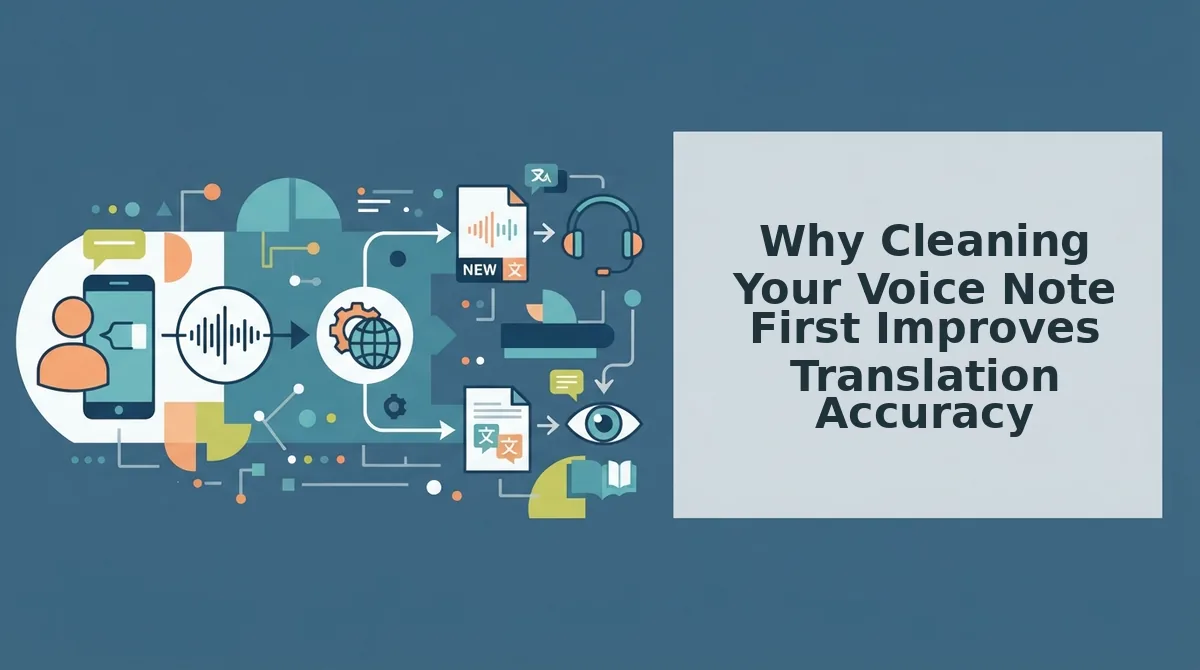
Why Cleaning Your Voice Note First Improves Translation Accuracy
Voice note cleaning is the process of removing verbal fillers, sentence fragments, and acoustic noise from a recording before it reaches a translation engine. The cleaner the input, the more accurate the output.
Think of translation like photocopying a handwritten page. If the original has crossed-out words, coffee stains, and smudged ink, every copy amplifies the mess. If you retype the page cleanly first, every copy comes out sharp. Filler words like "um" and "you know" are the smudges, they don't carry meaning, but they force the translation model to make guesses about sentence boundaries and intent. Sentence fragments do the same thing at the grammar level. Background noise, breath sounds, and mouth clicks add another layer of interference that degrades audio-to-text conversion before translation even begins.
VClar removes fillers, fixes grammar in voice messages, tightens phrasing, and reduces background noise, breath sounds, and mouth clicks, all while preserving your natural tone, accent, and rhythm. That last part matters for instructors: a translation that strips your cadence also strips your emphasis, and emphasis is how students know what to write down.
Here's the workflow in practice: record a rough explanation of a concept, run it through VClar's cleaning step, then translate the cleaned version. You'll notice the translated audio sounds like you speaking the target language, not like a synthetic voice reading a transcript. That's the difference between cleaning first and translating raw.
Next, we'll compare this workflow to live translation tools and explain when each one makes sense for instructors.
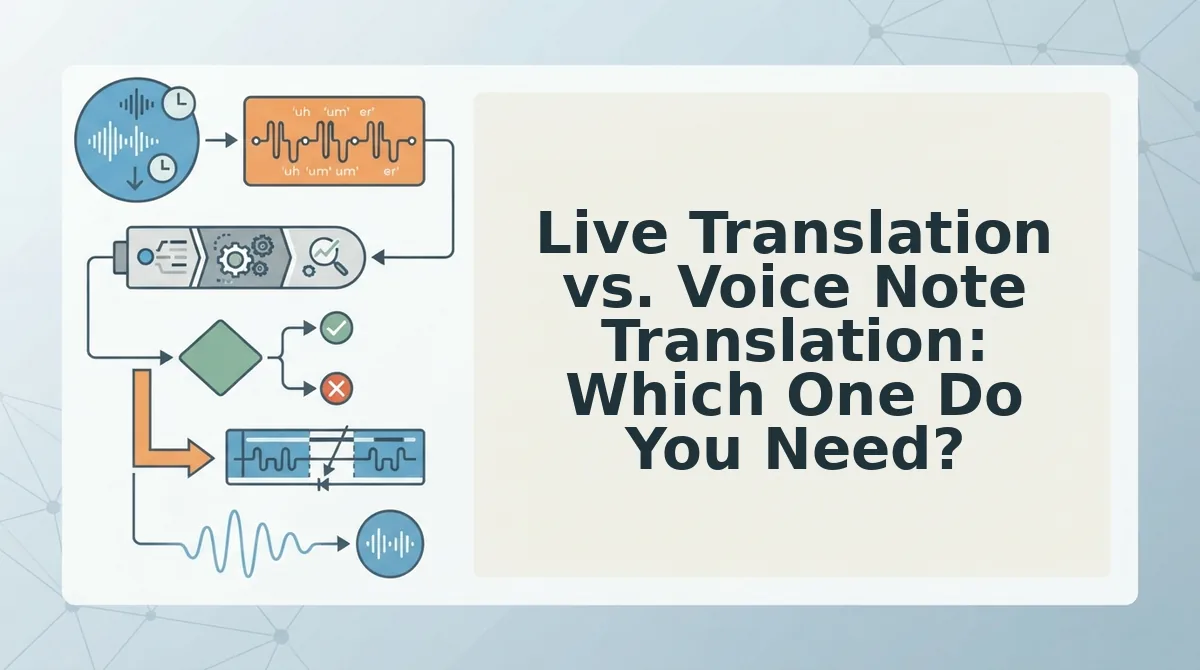
Live Translation vs. Voice Note Translation: Which One Do You Need?
Live translation tools like Microsoft Translate and ChatGPT voice mode are built for real-time conversations and lectures, not recorded voice notes. Async voice-note translation with VClar cleans and translates recorded messages, preserving tone and accuracy for feedback that students can replay.
| Feature | Live Translation (Microsoft Translate, ChatGPT voice mode) | Voice Note Translation (VClar) |
|---|---|---|
| Input format | Real-time speech, in-person or on a call | Recorded voice memo or uploaded audio file |
| Filler word removal | Not available, translates raw speech as spoken | Removes ums, ahs, false starts before translation |
| Grammar correction | Limited; preserves spoken errors | Fixes spoken grammar before translation |
| Tone and accent preservation | Varies by tool; often neutralizes voice | Preserves natural tone, accent, and rhythm |
| Output | Live captions or spoken translation | Cleaned translated audio plus transcript |
| Best for | Instructors delivering live lectures to multilingual classes | Instructors sending recorded feedback, announcements, or explanations |
Live translation earns its place when you are standing in front of a class and need instant captions. Microsoft Translate handles that scenario well, and ChatGPT voice mode offers conversational back-and-forth for one-on-one office hours.
But recorded voice notes are a different job. A voice note you send after class needs to be replayed, quoted, and understood without you present. VClar's async approach removes the hesitations and background noise first, then translates the cleaned message, so the student hears your actual teaching voice, not a robotic neutralization. For a deeper look at how this compares to general-purpose AI voice tools, see VClar vs ChatGPT voice.
Best for live lectures: Instructors who teach synchronously and need captions in the moment. Best for recorded feedback: Instructors who send voice notes after class and want students to receive a polished, accurate translation in their own language.
How to Preserve Your Teaching Tone When Translating
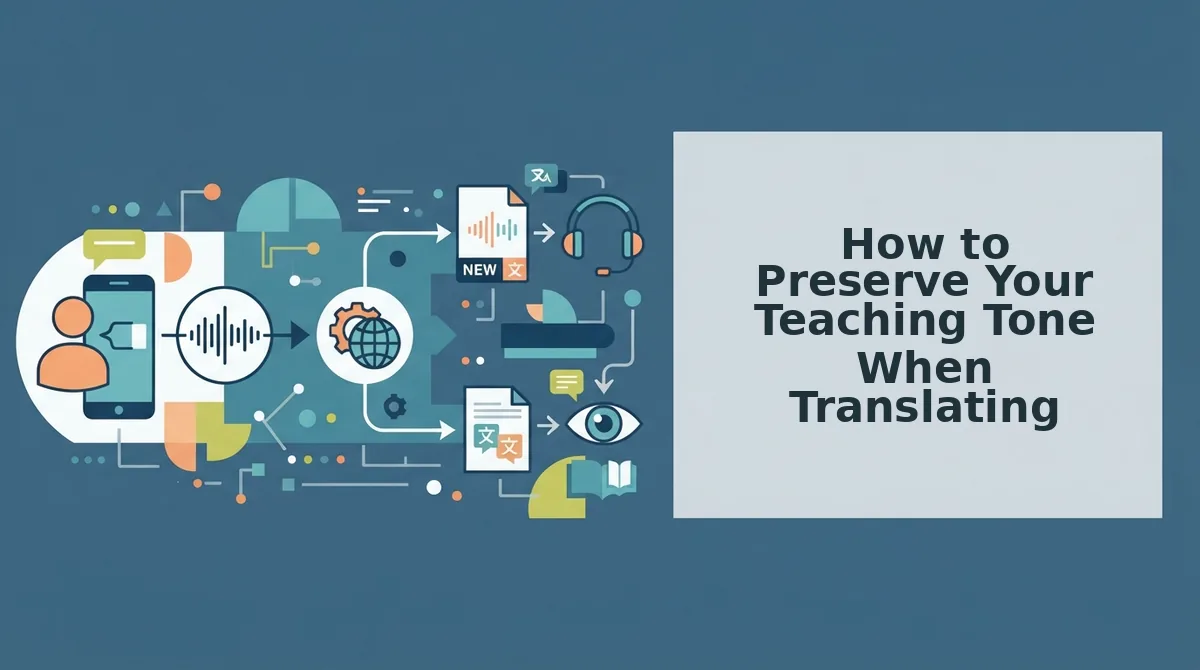
Tone preservation is a translation quality metric, not an afterthought. VClar preserves the speaker's natural tone, accent, and rhythm while cleaning and translating, so your students hear you, not a synthetic stand-in. Here are the three tone elements to protect and how to keep them intact.
- Pacing, keep your natural speaking speed. Your students learn to follow your rhythm, whether you pause before key terms or speed up through examples. A translator that stretches or compresses your delivery breaks that familiarity. VClar removes fillers without re-timing your speech, so the cleaned audio keeps your original cadence.
- Emphasis, protect the words you stress. When you emphasize "this is on the exam" or "read chapter four," that stress carries meaning. Translation tools that flatten intonation strip away those cues. VClar's cleaning engine targets hesitations and noise, not your vocal stress patterns, so emphasis survives the translate voice message process intact.
- Warmth, keep your accent and vocal character. Students connect with a voice that sounds like a person, not a text-to-speech engine. VClar preserves your accent, tone, and vocal identity across all 11 supported languages, so a Hindi-speaking student hears your warmth in Hindi, not a cold synthetic voice.
Frequently Asked Questions About Translating Voice Notes for Students
Translating a voice note for a student means cleaning the audio first, then converting it to the student's language while keeping your natural voice. A voice message translator like VClar handles both steps in one pass.
Can I translate a voice note without losing my teaching tone?
Yes. VClar preserves your natural tone, accent, and rhythm while removing fillers, fixing grammar, and translating across 11 languages. The output sounds like you speaking the target language, not a synthetic voice clone.
What's the fastest way to send a translated voice note to a student?
Record your message once, upload it to VClar, and select the student's language. The platform cleans the audio, translates it, and produces a shareable voice note plus transcript in under a minute, no re-recording or manual editing required.
Do I need to type out the translation or can I send audio?
You can send audio. VClar outputs a translated voice note in your own voice, so students receive a playable message rather than a text-only translation. A transcript is also generated if you want to include written notes.
How do I clean up a voice note before translating it?
Upload the raw recording to VClar and let the engine remove ums, ahs, false starts, background noise, and mouth clicks automatically. Cleaning happens before translation, which improves accuracy and makes the translated audio sound decisive and clear.
Ready to send polished, translated voice notes without re-recording? Start translating voice notes in one take.
Start Translating Voice Notes in One Take
The workflow is simple: record once, clean automatically, translate, and send. No re-recording loops. No second-guessing whether your message landed clearly.
VClar handles 110 translation directions across 11 languages, so the same three-step process works whether you're reaching one student in Tokyo or an entire cohort spread across five time zones.
Here's what that looks like in practice:
- Start small. Record one voice note, run it through VClar, and hear the difference when filler words and background noise disappear.
- Go wider. Take that cleaned note and translate it for a single student who needs it in their native language.
- Make it your default. Use VClar for every multilingual voice message you send, announcements, feedback, reminders, and follow-ups.
Every minute you spend re-recording is a minute you're not teaching. The translation accuracy gains you read about earlier only compound when your source audio is clean from the start.
Your voice carries the lesson; translation just removes the distance.