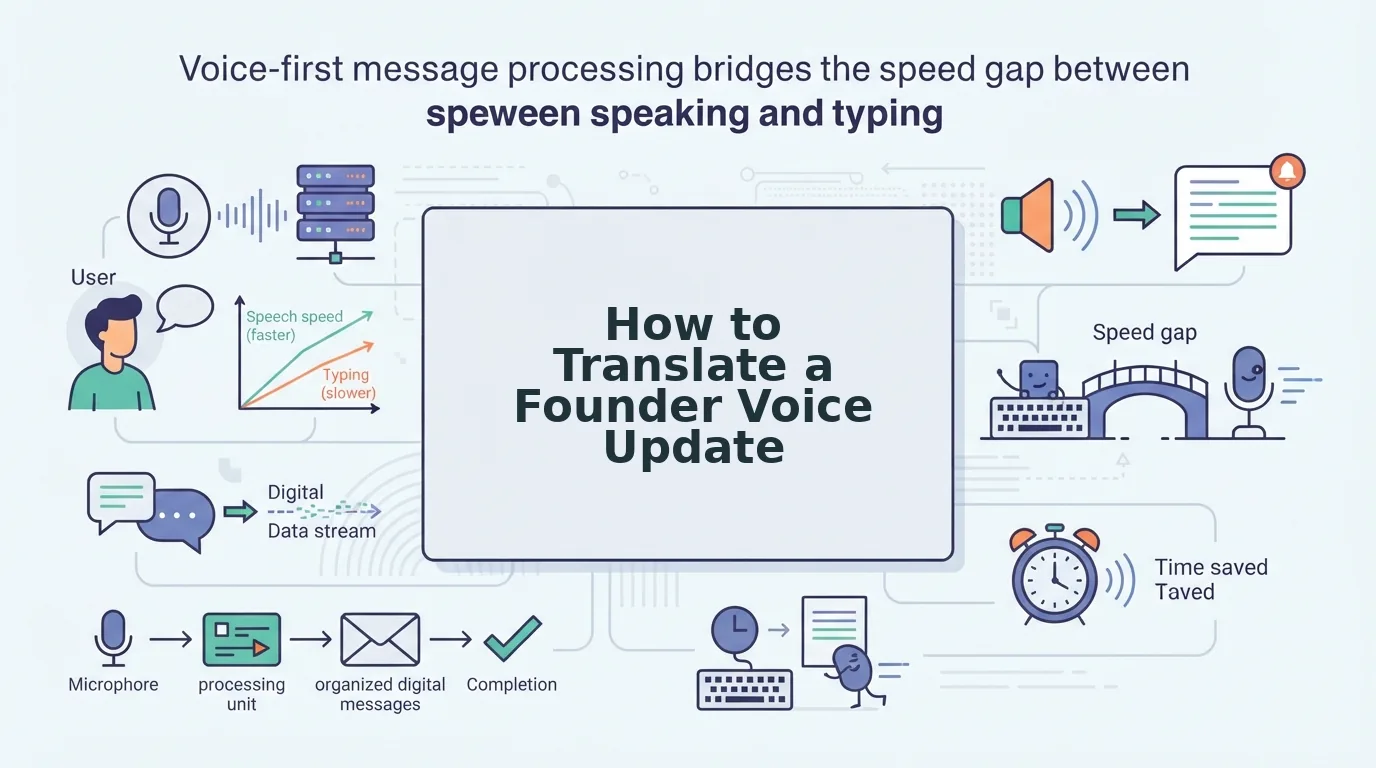

You've recorded the same voice note four times. Each take gets deleted because the grammar slipped, the accent felt too heavy, or an "um" crept in at the wrong moment. Non-native speakers re-record voice notes 3-5 times before sending due to fear of sounding unprofessional, and that hesitation costs real time every single day.
You're right to care about how you sound. A voice note is a first impression delivered in your own voice, and you want it to land cleanly. Here's the promise: by the end of this guide, you'll know exactly how to translate a voice note for non native speakers without losing your natural tone, accent, or intent, and without recording more than once.
We'll cover why raw voice notes translate poorly, how to clean your audio before translating, and how to pick the right translation workflow. Along the way, you'll discover a counterintuitive finding: the order of operations matters more than the tool you pick. Most people translate first and clean later, and that's exactly backwards. VClar's approach flips the sequence so your translated note sounds as decisive as your original intent.
Start with the cleaning step. Everything else follows from there.
Why Raw Voice Notes Translate Poorly
A raw voice note is an unedited spoken message that still contains verbal fillers, false starts, grammar slips, and background noise, all of which translation engines treat as meaningful content. When you feed that raw audio into a translator, every imperfection gets processed as if it were intentional speech.
Translation engines treat fillers like "um" and false starts as meaningful content, producing garbled output. The engine doesn't know that "um" is a hesitation, it assumes the sound carries semantic weight and attempts to translate it. The result is a target-language sentence peppered with nonsense syllables or awkward pauses that make you sound less fluent than you actually are.
Grammar errors in the source language get amplified in translation, making the output sound worse than the original. A small subject-verb mismatch in English can become a structurally broken sentence in Japanese or German, where word order and case markers punish imprecision. The translator doesn't correct your grammar; it faithfully reproduces your mistakes in a language where they're even more visible.
Think of it like photocopying a wrinkled document. Every crease and smudge on the original shows up darker on the copy. Translation works the same way: it magnifies whatever you feed it. Clean the original first, and the copy comes out sharp.
The fix isn't a better translation engine, it's a cleaner input. Removing fillers, false starts, and grammar errors before translation prevents the engine from trying to translate meaningless sounds and broken structures. This clean-first logic is what separates polished multilingual voice notes from ones that sound like a rough draft read aloud.
Step 1: Clean Your Voice Note Before You Translate
Cleaning your voice note means removing fillers, false starts, and grammar errors from the audio before any translation happens. This step takes under two minutes and determines whether your translated note sounds professional or garbled.
You'll need your raw voice note file and a tool that can remove fillers from your voice note without altering your vocal delivery.
- Upload your raw voice note. Open your cleaning tool and select the audio file you recorded. Most tools accept common formats like M4A, MP3, or WAV. You should see a waveform or transcript preview appear within a few seconds.
- Run filler word removal. Click the option to detect and remove fillers, ums, ahs, "like," "basically," and repeated false starts. The tool scans the audio timeline and deletes these sounds seamlessly. You should hear the same voice, same pace, but without the hesitations. This step prevents the translation engine from trying to translate meaningless sounds.
- Apply grammar correction. Select the grammar fix option to fix spoken grammar without rewriting your voice. The tool corrects subject-verb agreement, tense slips, and word order while preserving your natural tone, accent, and cadence. You should hear the same speaker, just grammatically accurate.
- Preview the cleaned audio. Play back the result once. Listen for any remaining noise, breath sounds, or mouth clicks. If the tool offers noise reduction, enable it. You should hear a decisive, direct version of your original message that still sounds unmistakably like you.
Removing fillers and false starts before translation prevents the translation engine from trying to translate meaningless sounds. Fixing spoken grammar without rewriting your voice preserves natural tone and accent, so the translated version carries your authentic delivery, not a synthetic approximation.
Once your voice note is clean, you're ready to translate it.
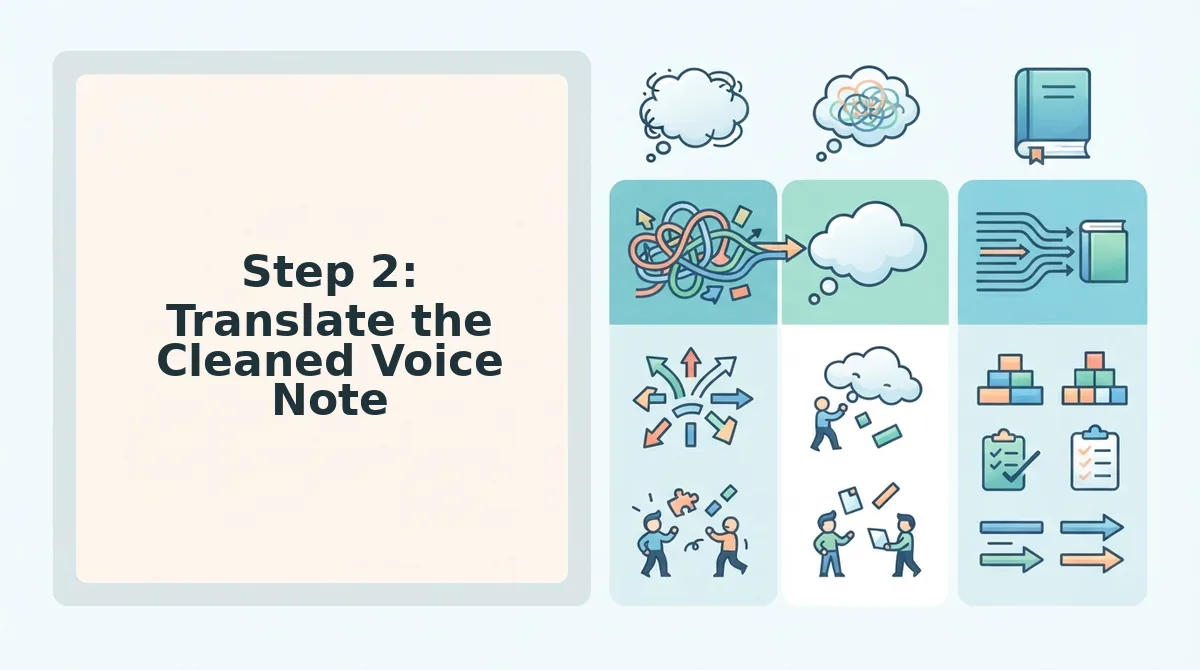
Step 2: Translate the Cleaned Voice Note
Once your voice note is cleaned of fillers and background noise, translation preserves your actual voice, accent, and cadence across 11 languages and 110 translation directions, something text-only tools like VEED or AnyToSpeech cannot do, since they strip the speaker's voice entirely and return a flat, synthetic result.
Prerequisites: A cleaned voice note from Step 1, a VClar account, and your target language selected from the 11 supported options.
- Open the VClar dashboard and click the Translate tab on the left sidebar. You should see your cleaned voice note listed under Recent Files.
- Select the cleaned voice note by clicking its filename. A preview player opens with the cleaned audio ready to translate.
- Click the Target Language dropdown and choose one of the 11 supported languages. Hindi, English, French, Japanese, Korean, German, Russian, Portuguese, and three more. The interface confirms your selection with a checkmark next to the language name.
- Click the blue Translate Voice Note button. Processing typically takes 30-60 seconds for a 60-second note. A progress bar appears; wait for it to reach 100%.
- Verify the result by playing the translated audio. You should hear your own voice, tone, and rhythm speaking the target language, not a synthetic text-to-speech voice. A green checkmark appears next to the file when translation completes successfully.
- Download the translated audio or copy the transcript using the Export button in the top-right corner. The file saves in your chosen format without altering the original cleaned version.
If you need to translate the same note into multiple languages, repeat steps 2-5 for each target language. VClar keeps your original cleaned file intact for every direction.

Step 3: Deliver with Confidence
Delivering a translated voice note without a final check is how non-native speakers end up sounding unprofessional. A quick before/after comparison confirms the result sounds natural to a native listener before you hit send.
Prerequisites: Your translated voice note from Step 2 and a quiet space to listen.
- Open the translated voice note in the VClar player and click the Compare Original toggle. You should hear your cleaned original first, then the translated version back-to-back.
- Listen for your own voice, accent, and cadence in the translated audio, not a robotic or synthetic voice. If the tone sounds off, re-run the translation from the cleaned file rather than re-recording.
- Play the translated note once more at normal speed and confirm the meaning matches your intent. You should feel confident a native listener will understand both the words and the delivery.
- Send or share the translated voice note through your usual channel. The clean-first workflow removes the need to re-record multiple takes, so one recording covers every language you need.
Frequently Asked Questions About Translating Voice Notes
Direct answers to the questions non-native speakers ask most about translating voice notes, clean first, translate second, deliver third.
How do I translate a voice note without losing meaning?
Clean the audio first to remove fillers, false starts, and background noise, then translate the cleaned version. This preserves the speaker's intent and tone because the translation engine works from clear, unambiguous speech instead of raw, messy audio. VClar automates both steps in one workflow.
Why does my translated voice note sound robotic?
Most translation tools convert speech to text, translate the text, then generate new audio with text-to-speech, which strips the original voice, accent, and emotion. VClar preserves the speaker's actual voice, accent, and cadence across all 11 supported languages, so the result sounds like the same person speaking naturally.
Can I translate a voice note into multiple languages at once?
Yes. VClar supports 11 languages and 110 translation directions from a single cleaned recording. You select each target language one at a time, and the original cleaned file stays intact so you can generate as many language versions as you need without re-recording.
Do I need to re-record my voice note to make it sound professional?
No. The clean-first workflow removes filler words, fixes spoken grammar, and reduces background noise before translation, so one recording is enough. You avoid the re-recording loop entirely and deliver a polished, natural-sounding note in any supported language on the first take.
Ready to put this workflow into practice? Translate your next voice note the right way.
Translate Your Next Voice Note the Right Way
Translation quality is decided before you ever hit translate. A voice note full of fillers, false starts, and background noise produces a translation that carries every one of those flaws into the target language. The clean-first workflow, clean, translate, deliver, changes that equation entirely.
Here is the sequence that actually works:
- Clean first. Remove ums, ahs, repeated phrases, and mouth clicks so the source audio is decisive.
- Translate second. Convert the cleaned message into any of 11 languages without losing your tone or accent.
- Deliver last. Send a message that sounds like you, just in another language.
This matters most when the stakes are high. Founders sending voice notes for high-stakes communication cannot afford a translation that amplifies hesitation instead of authority. A cleaned source produces a translated message that lands with the same confidence as the original.
Try VClar on your next cross-language voice note. Record once, clean automatically, and deliver a translation that keeps your voice, accent, and meaning intact across all 11 supported languages. No re-recording loops, no synthetic voice replacement.
A voice note is only as translatable as it is clear, clean it first, and the translation takes care of itself.