
You record a voice note in Spanish, French, or Mandarin, hit send, and your English-speaking client receives a flat, lifeless text block, or worse, a robotic synthetic voice that sounds nothing like you. That's the reality of most translation tools today. You're not wrong to want a better way to translate a voice note to English without losing the personality that made you record it in the first place.
You already know voice notes are faster than typing and more personal than email. What you may not realize is that the order of operations matters more than the translation engine itself. This guide walks you through a three-step workflow: clean the spoken grammar first, translate audio and transcript together, then verify your tone survived. One step in particular, cleaning before translating, improves accuracy more than switching translation providers ever will.
Step 1: Clean Up the Original Voice Note Before Translating
Translation engines choke on verbal clutter. Filler words, false starts, and sentence fragments confuse the model and produce stilted, inaccurate English output. Cleaning the spoken grammar first is the single highest-leverage action you can take before translating.
Prerequisites: A raw voice note recording (any format), a quiet recording environment, and a tool that can remove fillers without altering your voice.
- Upload your raw voice note to a speech-cleaning tool. VClar accepts direct recordings or uploaded audio files. You should see a waveform preview appear within seconds.
- Run filler word removal. The engine detects and strips "um," "ah," "like," "basically," "you know," and repeated false starts from the audio timeline. Expect this to take under 30 seconds for a one-minute note. You should hear a seamless, decisive version of your original message.
- Apply spoken grammar correction. This repairs sentence fragments and awkward phrasing without changing your vocal timbre or cadence. The output should sound like you on your best day, not a scripted robot.
- Play back the cleaned audio once. Confirm the message still sounds natural and complete. If a sentence was cut mid-thought in the original, the grammar engine should have reconstructed it. You should hear a coherent, polished voice note ready for translation.
This grammar-first principle is what most translation workflows miss. A voice note full of hesitations produces a translated transcript full of awkward pauses and broken sentences. Clean up the grammar in your voice note first, then remove filler words before translating, and the translation engine receives clean input it can actually work with.
VClar's spoken grammar correction removes verbal hesitations and repairs fragments without changing the speaker's voice, a capability that matters because translation should preserve how you sound, not just what you said.
Step 1: Clean Up the Original Voice Note Before Translating
Before you translate a voice note to English, remove filler words and repair broken grammar in the original audio. Translation engines struggle with ums, false starts, and sentence fragments, cleaning the spoken grammar first produces a translation that preserves your intent instead of guessing at it.
Quotable fact: A voice note with clean grammar translates more accurately than a raw recording, because translation models map sentence structure, not just individual words.
Prerequisites: You need the original voice note file (any common audio format) and access to a speech-cleaning tool. VClar handles both grammar repair and filler removal without changing your voice, tone, or cadence.
- Upload your raw voice note. Open VClar and select the audio file you recorded. You should see the waveform appear on screen within a few seconds.
- Run filler word removal. Use the remove filler words before translating tool. VClar detects and strips ums, ahs, "like," "basically," "you know," and repeated false starts from the audio timeline. Expect this to take under a minute for most voice notes.
- Repair spoken grammar. Next, clean up the grammar in your voice note first. The engine corrects spoken grammar and repairs sentence fragments without altering your authentic vocal identity. You should hear the same voice, now speaking in complete, decisive sentences.
- Review the cleaned transcript. Play back the processed audio and read the generated transcript side by side. Confirm that the meaning matches what you intended to say, not just what you literally said.
Worked Example
A founder records a 90-second voice note explaining a product update to an overseas partner. The raw audio contains 14 filler words and three false starts. After running VClar's filler removal and grammar correction, the cleaned audio is 68 seconds long and reads as a coherent, single-thought explanation. When this cleaned version is translated to English, the output preserves the founder's original structure and emphasis, no garbled sentences, no dropped clauses.
Pro tip: If the cleaned transcript still reads awkwardly, re-record only the problem sentence and run it through the same cleanup flow. One clean take beats three translation attempts.
Once your voice note is clean and grammatically intact, you're ready to translate both the audio and its transcript together.
Step 2: Translate the Audio and Transcript Together
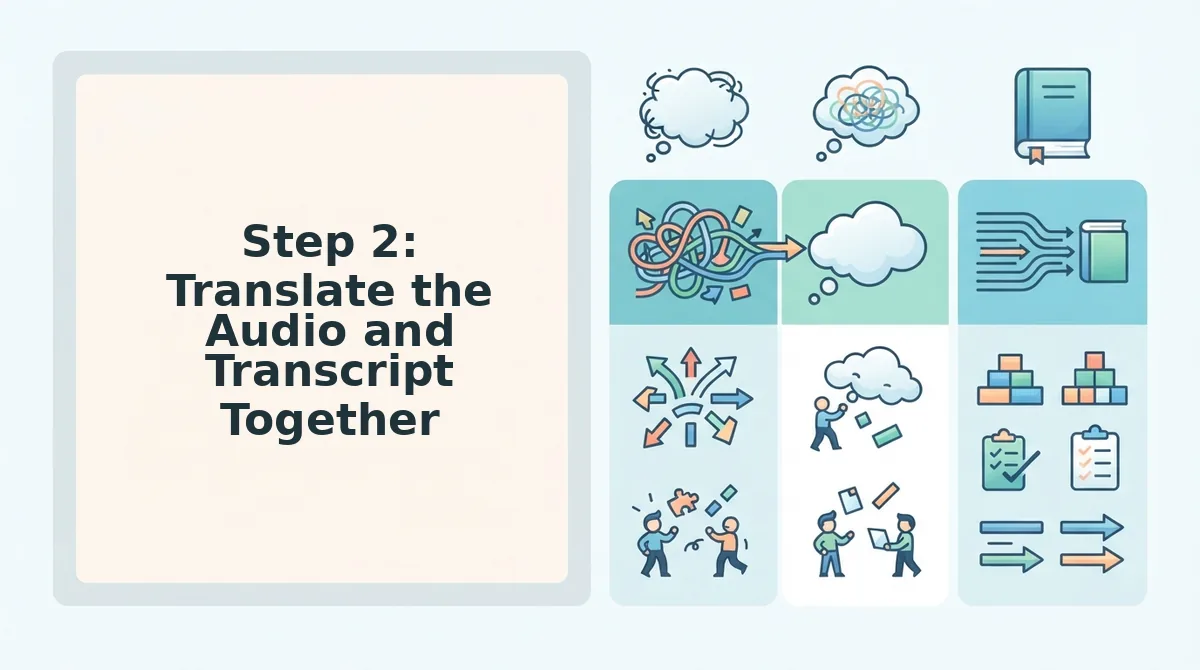
Dual-output translation is the process of converting both the spoken audio and its written transcript into the target language simultaneously, so you receive a natural-sounding English voice note plus a readable text version. This is the step most tools skip entirely.
Transcription and translation are different operations. Transcription converts speech to text in the same language, your Spanish voice note becomes Spanish text. Translation converts meaning from one language into another, that Spanish text becomes English text. A text-only workflow stops at translated text, which means your recipient reads your message but never hears it. A dual-output workflow translates the audio timeline itself, preserving your vocal timbre, accent, and cadence in the English version.
Think of it like dubbing a film versus subtitling it. Subtitles give you the meaning but strip away the actor's voice. Dubbing preserves the performance. Most voice note tools only subtitle your message. VClar dubs it, the English audio still sounds like you, just speaking a different language.
To run a dual-output translation, upload your cleaned voice note and select English as the target language. The engine processes the audio and transcript in parallel. You should receive two outputs: an English audio file that retains your original voice characteristics, and an English transcript you can paste into an email, Slack message, or document. Check the supported language pairs to confirm your source language is covered.
This workflow matters because recipients process spoken and written messages differently. The audio conveys tone, urgency, and warmth. The transcript provides a searchable, quotable record. Getting both from one upload eliminates the need to run separate tools or re-record anything.
Once you have both outputs, the final step is verifying that your tone actually survived the translation.
Step 3: Check That Your Tone Survived the Translation
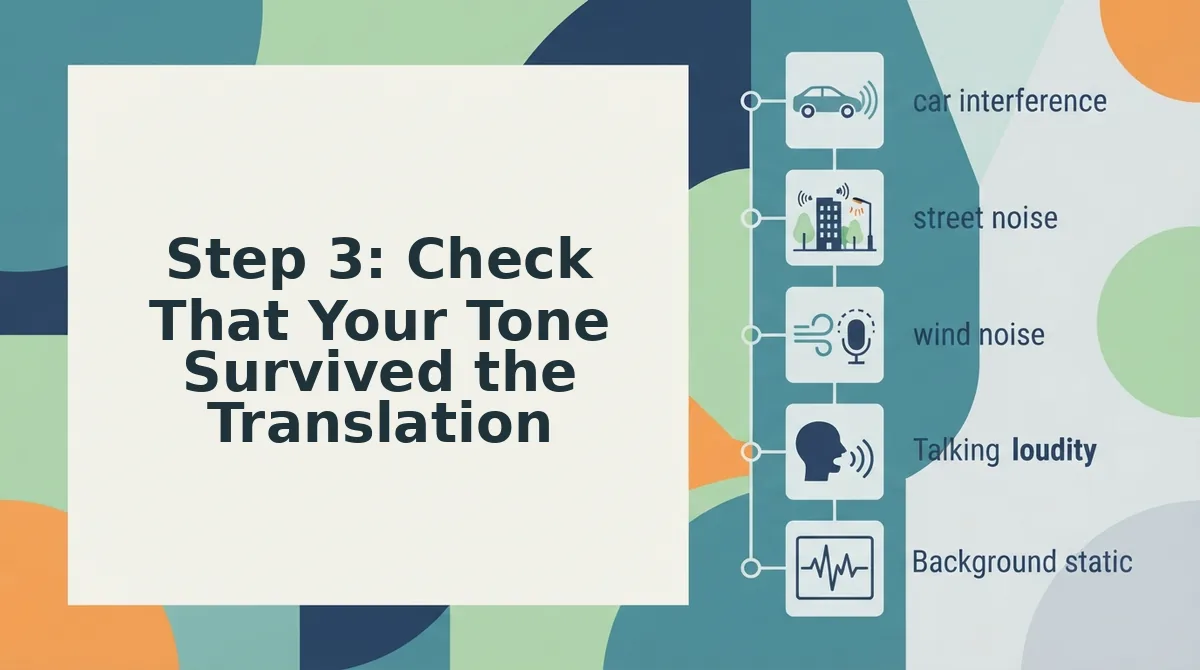
Tone preservation means the translated voice note still sounds like you, your cadence, emphasis, and natural pauses, not a synthetic clone. Before sending, run a side-by-side comparison of the original and translated audio.
Prerequisites: You need the original voice note file, the translated audio from Step 2, and a tool that supports side-by-side playback. VClar's side-by-side audio comparison feature lets you verify tone preservation directly without exporting files to a separate editor.
- Open the comparison view. In VClar, click Compare next to your translated voice note. Both audio tracks load in a split panel with the original on the left and the translated version on the right. You should see two waveforms stacked vertically.
- Play the original first. Click the Play Original button and listen for three things: where you pause naturally, which words you stress, and how quickly you move between sentences. Note these mentally or jot them down.
- Play the translated version immediately after. Click Play Translated and listen for the same three markers. The translated audio should match your original pacing within a second or two per sentence. If a sentence runs noticeably longer or shorter, the translation may have compressed or stretched your delivery.
- Check emphasis on key words. Replay both tracks and focus on the two or three words you stressed most in the original. In the translated audio, the equivalent words should carry the same weight. If they sound flat, the translation engine flattened your intonation.
- Verify natural pauses. Listen for where you paused to breathe or think. The translated version should preserve those pauses rather than inserting new ones or removing them entirely. You should hear a natural rhythm, not a robotic stream of words.
- Confirm your accent survived. Pay attention to vowel sounds and consonant patterns unique to how you speak. The translated voice note should retain your accent and vocal texture. If it sounds like a generic voice, the tool replaced your delivery rather than translated it.
If any of these checks fail, re-run the translation with tone preservation enabled or try a different supported language pair to see whether the issue is language-specific. A translated voice note that loses your tone loses half its value, the listener needs to hear you, just in a different language.
What About WhatsApp Voice Notes?
WhatsApp has no built-in translation for voice notes, so users need a tool that accepts uploaded audio and returns translated audio without extra apps. The workflow below takes under two minutes once you have your voice note saved.
Prerequisites: A WhatsApp voice note saved to your phone, the VClar app or web dashboard open, and a stable internet connection.
- Save the voice note to your device. In WhatsApp, tap and hold the voice note, then tap Forward and select Save to Files (iOS) or Save to Downloads (Android). You should see a confirmation that the audio file is saved.
- Open VClar and upload the file. Click Upload Audio and select the saved voice note from your file browser. The upload should complete in a few seconds, and you should see the waveform appear on screen.
- Select your target language. Click the Language dropdown and choose English. VClar accepts uploaded voice notes and returns translated audio, eliminating the need for multiple apps.
- Run the translation. Click Translate and wait for the processing indicator to finish. You should see a green checkmark when the translated audio is ready.
- Download and send. Click Download to save the translated voice note, then return to WhatsApp and send it as a new voice message.
YouTube videos from TechUnow and How To-ish show users resorting to manual transcription or screenshot workarounds for WhatsApp voice notes because the platform offers no native translation. Those workarounds produce text, not audio, which defeats the purpose of a voice note. Uploading directly to a translator that returns audio keeps the exchange voice-first from start to finish.
Frequently Asked Questions About Translating Voice Notes
Voice note translation raises practical questions about apps, voice quality, and language coverage. These answers address the most common concerns from Reddit threads, YouTube comments, and search queries.
Can I translate a voice note without an app?
No reliable method exists without some software. You can manually transcribe the audio yourself, run the text through a web translator, then re-record the translation in your own voice, but that takes several minutes per note and introduces transcription errors. A dedicated tool like VClar handles the entire process in one upload.
Does translating a voice note change how I sound?
It should not, if the tool preserves tone. VClar keeps your cadence, accent, and natural pauses intact while converting the language. If a translation sounds robotic or synthetic, the tool replaced your voice rather than translated it. Always run a side-by-side comparison before sending.
What languages can I translate voice notes to and from?
VClar supports a wide range of language pairs, including English, Spanish, French, German, Mandarin, Arabic, and more. Check the full list of supported language pairs to confirm your specific combination is available before uploading.
Is it better to transcribe first or translate directly?
Translate directly when you need audio output. Transcribing first adds an intermediate step that can introduce errors and strips away vocal tone. Direct translation preserves the voice note format and your delivery, which is the entire point of sending a voice message instead of a text.
Why does my translated voice note sound longer or shorter than the original?
Languages expand and contract at different rates. A good translation engine adjusts pacing to keep your natural rhythm without unnatural speed changes.
Ready to put these answers into practice? Translate your next voice note without losing your voice.
Translate Your Next Voice Note Without Losing Your Voice
Most translation tools treat your voice as disposable, they extract the words and discard the delivery. The Clean to Translate to Preserve framework exists because tone loss is the failure point competitors ignore.
Here's what changes when you follow all three steps:
- Your filler words disappear before translation, so the target language doesn't inherit your hesitations.
- Your transcript and audio translate together, keeping meaning and delivery aligned.
- Your cadence, accent, and emotional intent survive the language switch intact.
That third step is the one that separates a translated voice note from a robotic voiceover. You don't just want English words, you want your English words, spoken the way you'd actually say them.
Open one voice note right now and run it through the workflow at translate a voice note to English. You'll hear the difference in under a minute.
Translation should change your language, not your voice.