

You've spent twenty minutes recording the same voice note in a second language, deleting every take because the translation app turns your voice into a flat, robotic monotone. That re-record loop isn't a discipline problem, it's a design flaw in how most translation tools handle your voice. If you've ever wondered how to translate a voice note without losing your accent, you're not alone: YouTube tutorials for changing Google Translate's voice accent have racked up over 122,000 views, proof that millions of people are fighting the same synthetic-voice wall.
You're right to be frustrated. Standard translation erases the very thing that makes you sound like you, and no text competitor explains why; they just show you how to pick a different robotic voice. By the end of this article, you'll understand the three-step pipeline that causes accent loss, the two-layer framework that separates what you say from how you sound, and a step-by-step workflow for translating voice notes while keeping your timbre, cadence, and intonation intact. One surprising finding: accent loss isn't a translation failure at all, it's a deliberate design choice baked into the final stage of every standard pipeline. VClar's approach flips that choice, keeping your vocal identity layer untouched while only the words change.
Why Standard Voice Translation Erases Your Accent
Standard voice translation erases your accent because it replaces your entire voice with a synthetic text-to-speech (TTS) voice in the final step of a three-stage pipeline. The accent isn't lost in translation, it's deleted by design.
Here's the pipeline every mainstream tool follows. First, automatic speech recognition (ASR) converts your spoken audio into text, discarding everything about how you sound, your pitch, rhythm, and pronunciation patterns, and keeping only the words. Second, machine translation (MT) converts that text into the target language. Third, text-to-speech (TTS) generates a new voice from scratch, typically a generic, accent-neutral synthetic voice that has no connection to your original recording.
Think of it like faxing a handwritten letter: the fax machine doesn't preserve your handwriting, it transmits only the words and reprints them in a standard font. Your accent is the handwriting; TTS is the standard font.
An accent is the set of paralinguistic features, timbre, cadence, intonation, and phonetic patterns, that ride on top of linguistic content. These features are separate from the words themselves, which is why two people can say the same sentence and sound completely different. Standard translation tools treat the entire audio signal as disposable once the text is extracted, which is why the third step rebuilds a voice that sounds nothing like you.
In short: accent loss is not a translation failure. It's a design choice to replace the vocal identity layer with a synthetic voice, and it happens every time a tool routes your audio through the ASR to MT to TTS pipeline without preserving the original vocal characteristics.
The Linguistic Content vs. Vocal Identity Framework
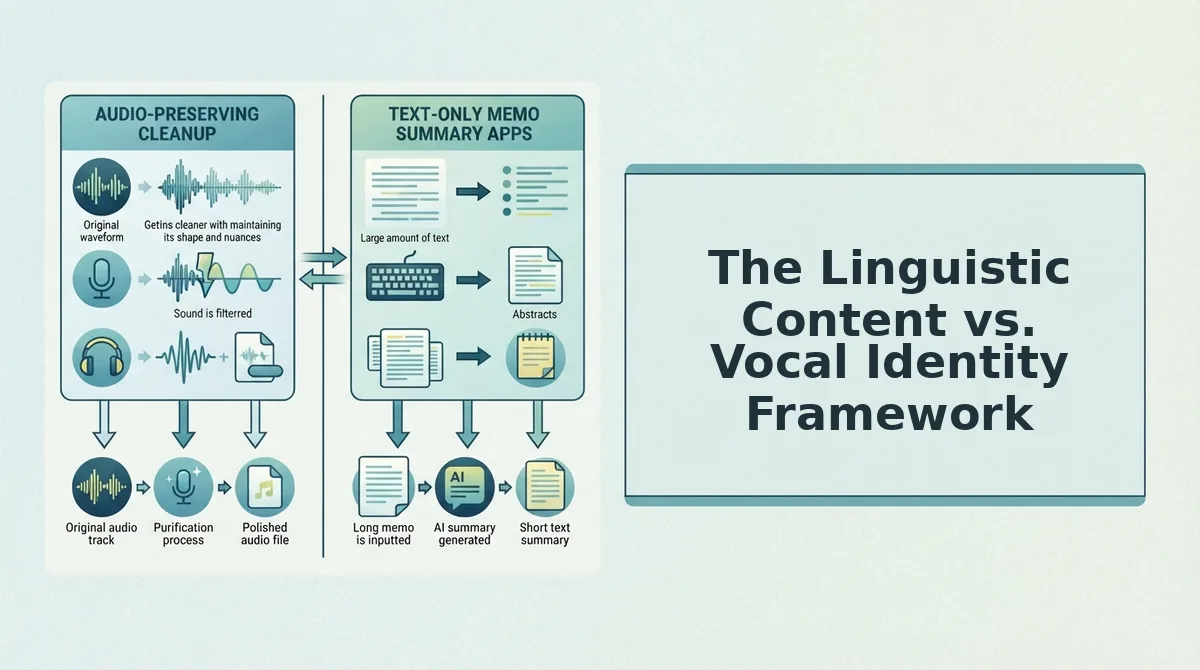
The linguistic content vs. vocal identity framework is a two-layer model that separates what you say (words, grammar, meaning) from how you sound (timbre, cadence, intonation, accent). Most translation tools conflate the two layers, which is why they fail to preserve your accent.
Think of a song cover. The lyrics are the linguistic content, anyone can sing the same words. The vocal identity is the singer's unique delivery: their breath control, vibrato, phrasing, and tonal color. A good cover artist can change the language of the lyrics while keeping the singer's signature sound. A bad one replaces both.
Voice-preserving translation works the same way. It changes only the linguistic layer, the words and grammar, while leaving the vocal identity layer untouched. Your accent, cadence, and natural rhythm stay intact because they were never part of the translation task to begin with. The translation engine operates on extracted text, but the audio output is rebuilt from your original recording, not from a synthetic TTS voice.
Here's the practical takeaway: when a tool routes your voice through a standard ASR to MT to TTS pipeline, it discards the vocal identity layer entirely and rebuilds it from scratch. When a tool preserves your original audio as the output foundation, it can translate the linguistic layer while keeping your accent, timbre, and cadence exactly as you recorded them. The next section walks through exactly how to do that step by step.
How to Translate a Voice Note Without Losing Your Accent Step by Step
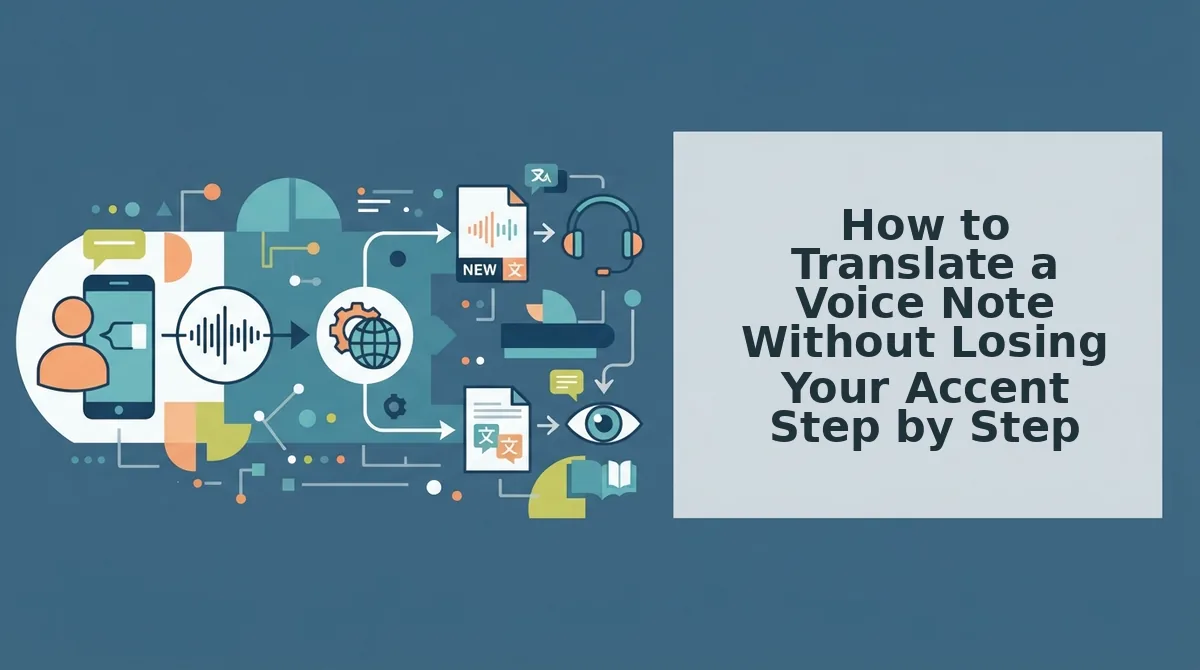
You can translate a voice note without losing your accent by cleaning the audio first, then applying voice-preserving translation that separates linguistic content from vocal identity. This five-step workflow takes under three minutes per message.
Prerequisites: a smartphone or laptop with a microphone, your original voice note (recorded or uploaded), and a voice note translator that offers voice preservation rather than text-to-speech output.
- Record your message naturally, without self-editing. Open your voice notes app or VClar and speak as you normally would, fillers, pauses, and all. Do not re-record to sound "cleaner." Expected outcome: a raw audio file under 60 seconds that captures your authentic cadence and accent. You should see the recording appear in your library immediately after you stop.
- Clean the audio before translating. Click Clean or upload your file to a filler word remover to strip ums, ahs, and false starts. This step matters for accent retention: the translation model receives cleaner linguistic input, so it maps your phonemes more accurately instead of guessing around verbal noise. Expected outcome: a tighter audio timeline with your voice intact. You should hear the same voice, just without the hesitations.
- Select voice-preserving translation, not TTS. In the translator settings, choose Voice Preservation or Keep Original Voice, this is the one setting most people miss. Voice-preserving translation changes the language while keeping your timbre, cadence, and accent. Avoid any option labeled Text-to-Speech or AI Voice, which replaces your vocal identity with a synthetic one. Expected outcome: a translated audio file where the words are in the target language but the voice still sounds like you.
- Verify accent and cadence before sending. Play back the translated audio and listen for three things: accent consistency, natural pacing, and any dropped phrases. If the accent drifts, re-run the cleaning step on the original file and translate again. Expected outcome: a translated note you can listen to without cringing. You should recognize your own voice immediately.
- Send or iterate once. Click Share to send the translated audio, or make one targeted fix and re-export. Do not loop more than once, the goal is one-take confidence. Expected outcome: a delivered message in the recipient's language that still carries your vocal identity.
Worked example: A founder records a 45-second Hindi voice update about a product launch. She uploads it to VClar, runs the filler remover to strip "matlab" and "basically," then selects voice-preserving translation to English. She verifies the output, same accent, same cadence, English words, and sends it to her US-based investor. Total time: two minutes. For more on this workflow, see voice notes for founders.
If your translated note still has awkward grammar in the target language, run it through a grammar fixer for voice messages before sending. Cleaning first, translating second, and verifying third is the sequence that preserves your accent every time.
Voice Cloning vs. Voice Preservation: What's the Difference?
Voice cloning creates a synthetic copy of your voice for text-to-speech output, while voice preservation keeps your original audio's vocal identity during translation. The difference determines whether your translated note sounds like you or like a robot pretending to be you.
Voice cloning has legitimate uses, it lets you generate new speech from text without recording, which is useful for audiobooks or automated customer service. But it introduces a synthetic layer between your intent and the listener. Voice preservation, by contrast, never rebuilds your voice; it reuses your actual recorded audio and changes only the linguistic layer.
| Method | Accent Retention | Naturalness | Setup Time | Best For |
|---|---|---|---|---|
| Text-to-Speech (TTS) | Zero, synthetic voice replaces yours | Robotic, flat prosody | None | Accessibility readouts, IVR menus |
| Voice Cloning | High, clone mimics your accent | Synthetic feel, slight uncanny valley | Minutes to hours of voice samples | Creators who need unlimited TTS in their voice |
| Voice Preservation | High, original audio retained | Natural, because it is your audio | Instant, no training required | Founders, sales teams, and anyone sending one-off translated voice notes |
Best for founders and operators: voice preservation. You send a handful of translated voice notes per day, not hours of generated speech, and you need the recipient to trust that the voice is genuinely yours.
Best for content creators scaling audio output: voice cloning. If you produce daily videos or podcasts in multiple languages, the upfront training time pays off in volume.
Troubleshooting callout: If you notice accent drift in a preserved translation, re-clean the original audio, filler words and background noise confuse the translation model. Unnatural pauses usually mean long silences in the source file; trim them before translating. Mixed-language phrases (code-switching) can trip up standard translators; translate phrase-by-phrase or use a tool that handles code-switching natively.
FAQ: Translating Voice Notes Without Losing Your Accent
Voice-preserving translation separates what you say from how you sound, so the language changes but your accent, tone, and cadence stay intact. These answers cover the three questions people ask most after learning that accent loss is avoidable.
Can I translate a voice note without losing my accent?
Yes. Voice-preserving translation separates linguistic content from vocal identity, changing the language while keeping your original audio's timbre, cadence, and accent. Standard translation pipelines lose accents because they convert speech to text, then regenerate audio with a synthetic TTS voice. Choose a tool that skips the TTS step entirely.
Why does Google Translate change my voice?
Google Translate changes your voice because its speech pipeline ends with text-to-speech, which replaces your vocal identity with a synthetic voice. The app transcribes your speech, translates the text, then reads the result aloud using a default TTS engine, your accent, tone, and cadence are discarded at the transcription stage.
Can I translate a WhatsApp voice note and keep my voice?
Yes. Export the WhatsApp voice note as an audio file, upload it to a voice-preserving translator, and select the target language. The tool cleans and translates the audio while retaining your original vocal identity. Send the translated file back through WhatsApp or any messaging app.
Ready to send your next voice note with your accent intact?
Send Your Next Voice Note With Your Accent Intact
Accent preservation stops being a trade-off the moment you separate linguistic content from vocal identity. The two-layer framework makes this explicit: what you say is editable, how you sound is not. That distinction is the difference between a translated message that still sounds like you and one that sounds like a stranger reading your words.
The five-step workflow collapses into a single habit: record naturally, clean the audio, choose voice-preserving translation, verify your accent, send. Each step takes seconds once the tool handles the heavy lifting.
Here's the pattern interrupt worth internalizing:
- If you re-record to fix grammar, you lose spontaneity.
- If you translate with voice cloning, you lose identity.
- If you preserve vocal identity while cleaning content, you lose nothing.
Your next voice note doesn't need a retake. Run it through a voice note translator that preserves your tone, cadence, and accent while fixing the words underneath. The result: one take, eleven languages, zero identity loss.
Your accent is not noise to be filtered out. It's the signature that makes your message unmistakably yours, and the right translation tool treats it that way.