
You record a 60-second voice memo for your contractor in Madrid, hit send, and then realize they don't speak English. Now you're either re-recording in broken Spanish, pasting text into a translation app and losing every ounce of warmth, or typing an email that takes three times as long as the thought itself. That friction is why async teams default to text even when voice would close deals faster.
You're right to be frustrated. Most translation tools treat voice memos as text problems, stripping away tone, cadence, and the human signal that made you record audio in the first place. This article shows you how to translate voice memos for async teams without installing enterprise software, re-recording takes, or sacrificing your vocal identity.
You'll learn a 4-step workflow called the One-Take Translation Loop, see how browser-first tools stack up against heavy meeting platforms, and discover why audio-preserving translation, not text-only output, is the missing piece most competitors ignore. One finding in particular will change how you think about accents and non-native speakers in cross-language voice updates.
The One-Take Translation Loop: A 4-Step Workflow for Cross-Language Teams
The One-Take Translation Loop is a repeatable workflow for turning a single spontaneous voice memo into a polished, translated audio message that preserves your tone and cadence, no re-recording, no typing, no heavy software. You need a browser, a microphone, and a voice note translator that outputs translated audio, not just text.
Here's a worked example: a founder in Austin needs to send a 60-second project update to a Spanish-speaking contractor in Madrid via WhatsApp. The entire loop takes under three minutes.
- Record once, without editing yourself. Open your browser-based voice translator, click Record, and speak the update naturally, ums, false starts, and all. Don't stop to fix grammar. Expected outcome: a raw audio file captured in one take, roughly 45 - 90 seconds long.
- Clean the audio automatically. Click Process or Enhance. The tool removes filler words like "um," "basically," and repeated false starts from the audio timeline. Expected outcome: a tighter, more decisive voice memo that still sounds like you, no robotic gaps or synthetic artifacts.
- Translate while preserving your vocal identity. Select the target language. Spanish in this example, and click Translate. The engine converts the spoken content into Spanish while keeping your original tone, pacing, and accent intact. Expected outcome: an audio file in Spanish that sounds like you speaking Spanish, not a text-to-speech clone. This audio-preserving step is what separates VClar from tools like Whisper Memos, which auto-translates voice memos but only within its own single-tool ecosystem.
- Deliver in the recipient's preferred format. Download the translated audio or copy the transcript, then paste either into WhatsApp, Slack, or email. Expected outcome: your contractor receives a clear Spanish voice update they can listen to immediately, no text wall, no lost nuance.
Most tutorials stop at step two. They show you how to clean audio or generate a transcript, but the moment you need cross-language delivery, you're forced to paste text into a separate translation app and lose the vocal signal entirely. The One-Take Translation Loop closes that gap by treating translation as an audio-native step, not a text afterthought.
For teams sending daily async updates across time zones, this workflow removes the re-recording loop entirely. You record once, clean once, translate once, and deliver, which is why the loop earns its name.
Browser-First vs. Heavy Software: What Async Teams Actually Need
Browser-first voice translation tools handle short, spontaneous voice memos in minutes without installation, while heavy meeting platforms are built for synchronous, multi-participant sessions, and that distinction matters more than feature count for async teams.
Meeting transcription tools like Microsoft Teams and Tactiq are genuinely strong at what they do. Microsoft Copilot's live translated captions serve real-time, multi-speaker meetings well, and Tactiq excels at capturing searchable meeting notes. But a 45 - 90 second voice update from one person doesn't need speaker diarization, meeting agendas, or enterprise deployment. Those features add friction, not value, for async voice memos.
ChatGPT can transcribe audio to text, but it does not output translated audio with your preserved voice, you get a text translation, and the tone, cadence, and vocal identity disappear. For a founder sending a voice update to a contractor, that's a downgrade from the original medium.
| Tool | Best for | Async voice memo fit | Output type |
|---|---|---|---|
| VClar (browser-first) | Founders, freelancers, and cross-border operators sending short voice updates | Purpose-built: record, clean, translate, deliver in minutes | Translated audio with preserved voice + transcript |
| Microsoft Teams / Copilot | Enterprises running live, multi-participant meetings | Overbuilt for one-to-one async memos; requires platform adoption | Live captions, meeting transcripts |
| Tactiq | Teams that need searchable meeting notes and summaries | Strong for meetings, unnecessary for 60-second voice updates | Text transcripts, summaries |
| ChatGPT audio-to-text | Quick text transcription and general Q&A | Transcribes audio but loses vocal identity in translation | Text only |
If you're already using a heavier editing suite, the VClar vs Descript comparison breaks down where a full audio editor helps and where it slows down async voice workflows. The short version: Descript is a capable editor for podcasts and video, but its timeline-based interface is more than a 60-second voice memo requires.
Async teams don't need more features, they need fewer steps between thought and delivery. That's where browser-first voice translation wins, and it's also where accents, non-native speakers, and cross-language nuance start to matter.
Handling Accents, Non-Native Speakers, and Cross-Language Nuance
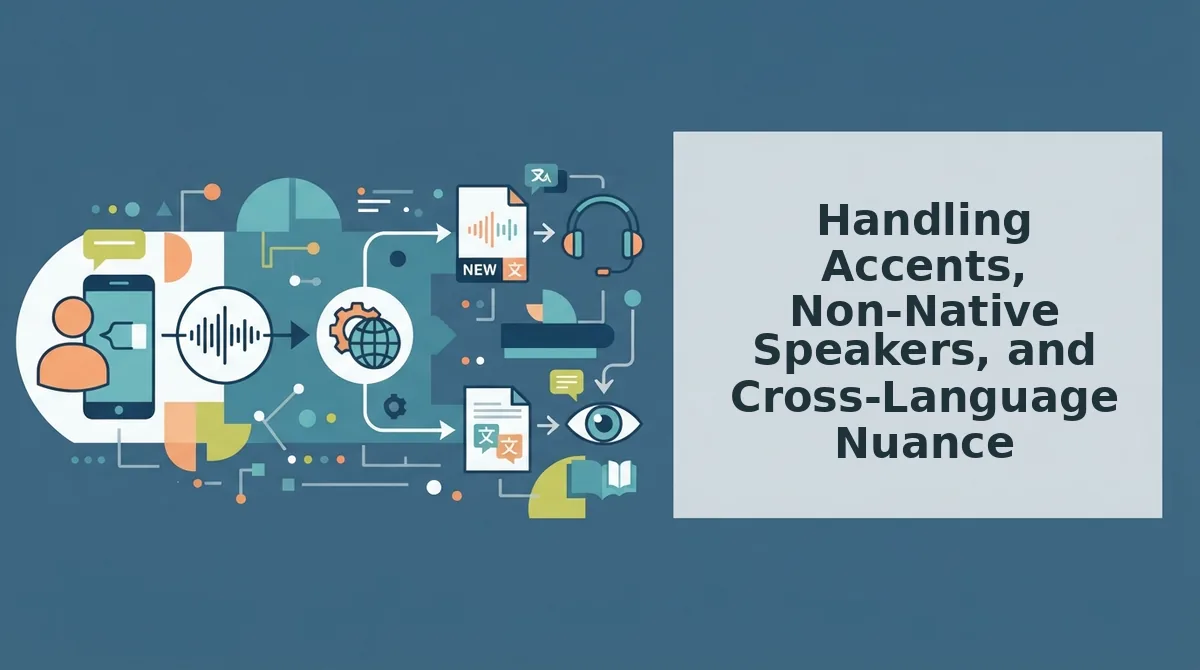
Accent-aware translation is the process of cleaning a voice message's grammar and filler words before translating it, so the translation engine receives clean input without erasing the speaker's vocal identity. This two-step approach matters because translation accuracy drops sharply when the source audio contains hesitations, false starts, and non-standard grammar.
Start Simple: Clean Before You Translate
Think of translation like sending a package through customs: the cleaner the paperwork, the fewer delays and misrouted items. When a non-native speaker records a voice memo with fillers like "um," "basically," or repeated false starts, the translation engine has to guess at intent. Removing those fillers first gives the engine a clear, grammatical sentence to work with.
VClar's workflow handles this automatically: it detects and removes verbal fillers, corrects spoken grammar, and then translates the cleaned audio. The result is a translation that reflects what the speaker meant, not the rough edges of how they said it.
Intermediate: Grammar Correction Enhances Identity, It Doesn't Erase It
Many async teams worry that fixing grammar will make a non-native speaker sound robotic or generic. The opposite is true. Grammar correction removes ambiguity so the listener focuses on the speaker's actual point, not on decoding awkward phrasing. The speaker's accent, cadence, and natural tone remain intact because VClar preserves the original vocal characteristics while only adjusting grammatical structure.
This matters for cross-border teams where a founder in São Paulo, a developer in Berlin, and a sales lead in Manila all need to sound like themselves while being clearly understood. The goal is clarity, not homogenization.
Advanced: Troubleshooting Stiff Translations
If a translated voice memo sounds stiff or overly formal, the issue is usually that the source audio contained too many incomplete thoughts. Record shorter messages, under 90 seconds, and speak in complete sentences. When the input is already grammatical, the translation engine has less to "fix," and the output retains more natural rhythm.
YouTube tutorials and most competitor tools assume native English input, which leaves cross-border accent handling as a gap no one addresses. VClar's approach of cleaning first, then translating, is built specifically for teams where English is a second, third, or fourth language. For teams that need to fix grammar in voice message workflows before sending updates across time zones, this cleaning step is the difference between a message that lands and one that gets re-read three times.
When to Use Voice Memos vs. Live Meetings vs. Text (Decision Matrix)
Voice memos win for cross-timezone updates under 90 seconds, live meetings for real-time collaboration, and text for formal documentation. Here's the decision framework team leads can apply immediately.
- Async voice memo (45 - 90 seconds) for cross-timezone status updates. A short voice note conveys tone, urgency, and nuance that text strips away, and it lands in the recipient's inbox without requiring simultaneous availability. Use this when a teammate in another timezone needs context on progress, blockers, or a quick decision, record under 90 seconds and send it through your existing chat tool.
- Live meeting for real-time collaboration and brainstorming. When two or more people need to build on each other's ideas in the moment, synchronous conversation is irreplaceable. Use this for whiteboarding sessions, conflict resolution, or complex design discussions where back-and-forth is the point.
- Text for formal documentation and searchable records. Decisions that need to be referenced later, compliance requirements, or anything that must be auditable belongs in writing. Use text when the message needs to be copied, pasted, searched, or legally binding.
- Voice memo for feedback that would sound harsh in text. Written criticism often reads colder than intended. A 30-second voice note with warm tone and specific praise before the critique preserves the relationship while delivering the message. Use this for code reviews, design feedback, or performance notes where tone matters.
- Live meeting for relationship-building and team culture. Async work erodes social bonds over time. Schedule recurring low-stakes video calls purely for connection, no agenda, no deliverables. Use this to prevent the isolation that remote and async teams report after months without face time.
- Text for multi-step instructions and checklists. When a teammate needs to follow a sequence of steps, written instructions are easier to reference than re-listening to audio. Use this for onboarding docs, deployment runbooks, or anything requiring copy-paste of commands or URLs.
- Voice memo for urgent but not emergency updates. When something needs attention within hours but doesn't justify interrupting someone's focus, a voice note with clear urgency in the tone beats a text that might get buried. Use this for deadline shifts, client feedback, or scope changes, and for founders, voice notes for founders are the fastest way to keep investors and team leads aligned without scheduling another call.
FAQ: Translating Voice Memos for Async Teams
Direct answers to the most common questions about translating voice memos without heavy software, preserving tone, and handling accents across time zones.
How do I translate a voice memo without installing heavy software?
Upload the audio to a browser-based tool like VClar, which cleans fillers and grammar, then translates the message while preserving your original voice. No desktop installation or enterprise deployment is required, the entire workflow runs in a browser tab, so teammates in any timezone can use it immediately.
Does translating a voice memo change the speaker's tone or accent?
No. VClar preserves the speaker's natural tone, cadence, and accent while correcting grammar and removing fillers. Unlike text-only translation tools that strip vocal identity entirely, audio-preserving translation keeps the speaker sounding like themselves in the target language.
What's the fastest way to translate a WhatsApp voice note for a teammate in another timezone?
Export the voice note from WhatsApp, upload it to a voice note translator, and receive a translated audio file with your original voice intact. The entire process takes under a minute and works without requiring the recipient to be online.
Why does my translated voice memo sound stiff or unnatural?
Stiff translations usually result from source audio with incomplete thoughts, long pauses, or heavy filler words. Record shorter messages in complete sentences, and use a tool that cleans fillers before translating, cleaner input produces more natural output.
Can AI voice translation handle non-native English speakers with strong accents?
Yes, when the workflow cleans grammar and fillers first. Translation accuracy improves significantly when the engine receives grammatical input, and VClar's cleaning step is designed specifically for non-native speakers rather than assuming native English fluency like most YouTube tutorials and competitor tools do.
One Take Is the New Standard
The One-Take Translation Loop isn't a workflow hack, it's a structural shift in how async teams communicate. When recording, cleaning, and translating happen in a single browser session, the re-recording loop disappears entirely. No export-import dance. No waiting on a localization vendor. No typing out what you already said.
Browser-first tools preserve your vocal identity while cleaning and translating, which means the message that lands in your teammate's inbox still sounds like you, just clearer, grammatically correct, and in their language. That's the payoff the intro teased: async voice memos stop being a compromise and become the fastest channel you have.
Here's the pattern interrupt:
- Record once, in your natural voice.
- Let the tool remove fillers and fix grammar.
- Translate without losing cadence or accent.
- Send. Done. No re-takes.
Your next step: open the AI voice message translator and run one real voice memo through it, a message you'd normally re-record twice. Time the difference. The result you can expect is a message that sounds decisive on the first pass, in any language your team needs.
Async teams don't need heavier software. They need shorter loops. When translation, grammar correction, and filler removal happen in one take, the voice memo becomes the fastest written message you never had to type.