
You just left a 90-second voice note for a client, and somewhere between "um, basically" and "you know what I mean," you lost the thread, and maybe the deal. If you've ever wondered whether Grammarly can clean up that spoken mess before you hit send, here's the blunt truth: Grammarly cannot process audio at all. So when you search for VClar vs Grammarly for fixing spoken grammar, you're not comparing two grammar tools. You're comparing a text editor to a voice-first speech enhancer.
You're right to want this fixed. Founders and sales reps think at 150 words per minute but lose hours transcribing, fixing, and re-recording voice notes. Grammarly fixes what you type. VClar fixes what you say, directly in the audio, while preserving your vocal timbre, cadence, and accent. In the next few minutes, you'll learn exactly where Grammarly stops, what VClar does instead, and why one workflow takes 10 seconds while the other takes 10 minutes. Stick around: the comparison table in the next section reveals a gap most people never see coming.
What Is the Core Difference Between VClar and Grammarly?
VClar is a voice-first speech enhancer that corrects spoken grammar directly inside audio files, while Grammarly is a text-first grammar checker that only works on typed or pasted text. The difference comes down to one question: does the tool hear you, or does it read you?
Think of Grammarly like a proofreader who only accepts printed manuscripts. Hand them a recording of your voice and they'll stare back blankly. VClar is more like a broadcast editor who sits in the control room, cleans up your live take, and hands you back the same voice, just sharper.
Here's the framework that clarifies everything: Text-First vs Voice-First. Grammarly operates on text you have already produced. You must type, paste, or dictate into a text field before it can analyze anything. VClar operates on speech you have already spoken. You record or upload audio, and the engine removes fillers, corrects spoken grammar, and smooths false starts, without converting your voice into synthetic text-to-speech.
This distinction matters because spoken language and written language break differently. In text, Grammarly catches comma splices and subject-verb disagreements. In speech, the real problems are "um," "like," "basically," and sentences that restart three times before landing. Grammarly has no mechanism to hear those. VClar was built specifically for them.
| Dimension | Grammarly | VClar |
|---|---|---|
| Input | Typed or pasted text only | Raw audio or live voice recording |
| Processing | Text grammar, spelling, tone suggestions | Filler removal, spoken grammar correction, acoustic cleanup |
| Output | Edited text document | Cleaned audio + polished transcript |
| Voice Preservation | Not applicable, no audio | Preserves timbre, cadence, accent, and intent |
If your goal is to fix grammar in a voice message without retyping or re-recording it, VClar is the only tool in this comparison that can do that. Grammarly simply never touches the audio layer.
Here's a self-contained answer to the question most people actually search: Can Grammarly fix grammar in a voice note? No. Grammarly has no audio input, no transcription engine, and no way to process spoken words. To use Grammarly on a voice note, you must first transcribe the audio yourself using a separate tool, paste the resulting text into Grammarly, accept its corrections, and then either send the text instead of the voice note or re-record the entire message. Grammarly edits text; it never edits sound.
Can Grammarly Fix Grammar in a Voice Note?
No. Grammarly has no audio input, no transcription feature, and no way to process a voice note. To use Grammarly on spoken content, you must convert your voice to text first, and even then, you lose the audio entirely.
Here is the painful 3-step workaround people actually go through when they assume Grammarly handles audio:
- Record your voice note in your messaging app or voice recorder. You now have an audio file Grammarly cannot open.
- Transcribe the audio manually or with a separate tool. Open a transcription app, play the voice note, and copy the resulting text. Expect 2-5 minutes of work for a 60-second message, plus cleanup of transcription errors.
- Paste the text into Grammarly and apply fixes. Grammarly will correct grammar and suggest tone changes, but you now have polished text, not polished audio. To send the corrected version as a voice note, you must re-record the entire message from scratch.
This workflow strips away everything that made the voice note valuable: your tone, your cadence, your emphasis. You end up either sending a text message that sounds nothing like you, or re-recording and hoping you don't stumble again.
Users on social platforms consistently report the same disappointment: they assume Grammarly handles audio because it handles "everything else," then discover there's no upload button for voice files. The assumption is reasonable. The product reality is not.
VClar removes this entire workaround. You upload the voice note once, and the audio comes back clean, fillers gone, grammar corrected, your voice intact. Here's what that looks like in practice.
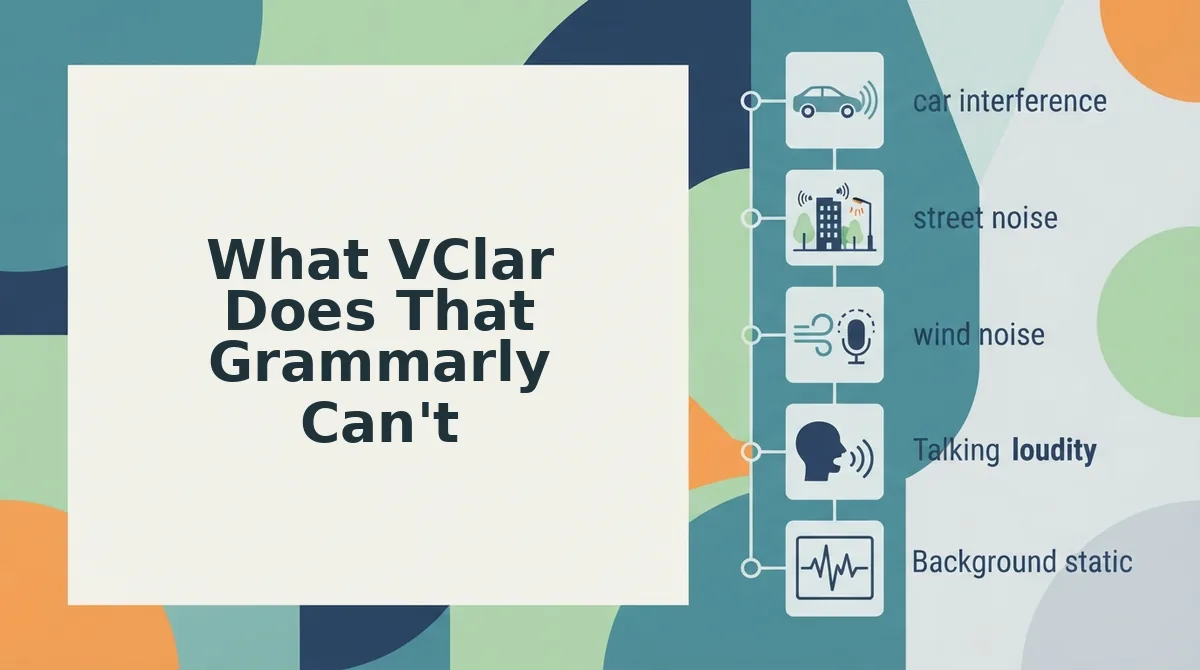
What VClar Does That Grammarly Can't
VClar operates on the audio itself, not just the text. Grammarly can polish a transcript, but it cannot change what the listener actually hears. Here are the capabilities that make VClar the only tool that fixes spoken grammar without replacing your voice.
- Removes filler words directly from the audio timeline. VClar detects and deletes ums, ahs, "like," "basically," and false starts from the recording itself, so the listener never hears them. This matters because a clean transcript is worthless if the audio still sounds hesitant. Use the remove filler words from audio tool before sending any voice note to a client or investor.
- Corrects spoken grammar without altering timbre, cadence, or accent. VClar fixes subject-verb agreement, tense slips, and awkward phrasing while keeping your natural vocal signature intact. This matters because listeners trust a voice that sounds like you, not a synthetic clone. Record once, let VClar clean the grammar, and send the same take.
- Provides a side-by-side comparison of original and corrected audio. VClar shows you exactly what changed between your raw recording and the polished version before you send it. This matters because you stay in control of the final message and can verify nothing was lost in cleanup. Review the comparison, confirm the edit, and send with confidence.
- Translates voice notes across languages while preserving the speaker's voice. VClar converts your spoken message into another language and keeps your tone, pacing, and vocal identity in the translated audio. This matters for cross-border teams and international clients who need to hear you, not a robotic interpreter. Use the voice note translator for async updates to global stakeholders.
- Eliminates the re-recording loop entirely. Grammarly's text-only fixes force you to either re-record the corrected version yourself or send text instead of audio. VClar fixes the audio in one pass, so your first take becomes the final take. This matters because re-recording burns time and kills the spontaneity that makes voice notes effective.
- Cleans acoustic distractions from the recording. VClar removes background noise, mouth clicks, and other audio artifacts that make voice messages sound unprofessional. This matters because grammar is only half the battle; a grammatically perfect message recorded in a noisy room still sounds amateur. Record anywhere and let VClar handle the cleanup.
- Keeps the message as audio, not just text. Grammarly's output is a corrected document; VClar's output is a corrected voice message you can actually send. This matters because voice notes carry tone, urgency, and personality that text cannot replicate. Fix grammar in a voice message without downgrading it to a text-only exchange.
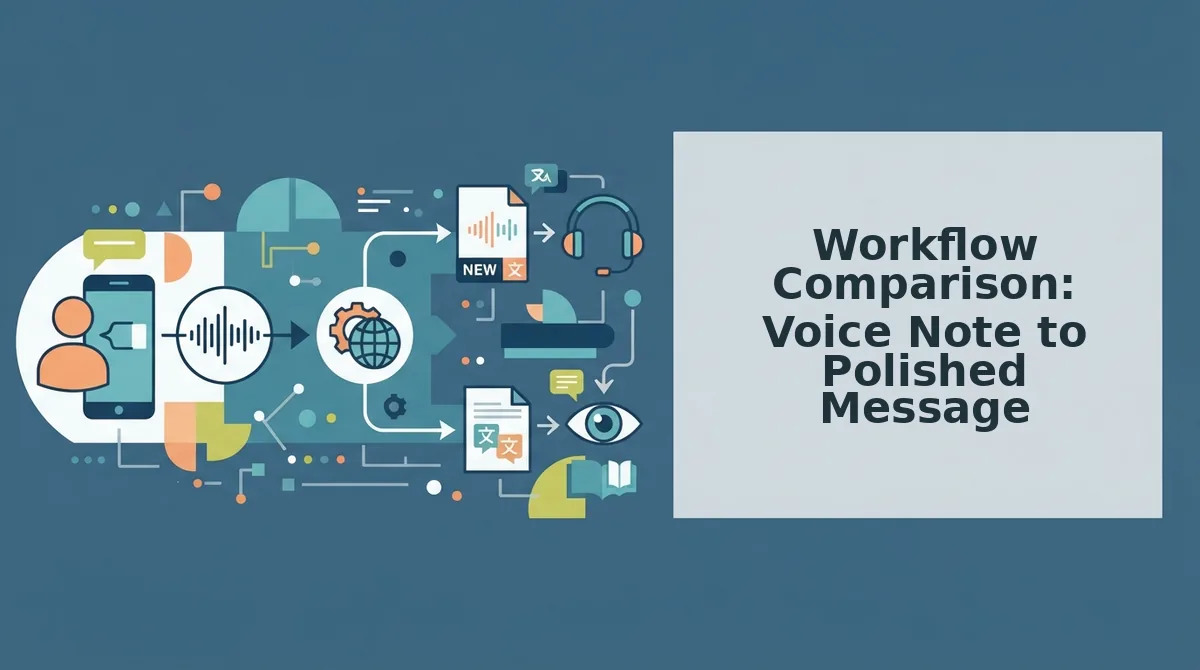
Workflow Comparison: Voice Note to Polished Message
Grammarly and VClar take fundamentally different paths from raw voice note to sendable message. Grammarly's workflow is a five-step detour through text; VClar's is a two-step direct route. Here is how each path breaks down.
| Step | Grammarly Workflow | VClar Workflow |
|---|---|---|
| 1 | Record the voice note in your messaging app | Record the voice note in VClar or upload raw audio |
| 2 | Transcribe the audio to text manually or with a separate tool | VClar fixes grammar, removes fillers, and cleans acoustics in the audio |
| 3 | Paste the transcript into Grammarly | Review the side-by-side comparison and send the polished voice note |
| 4 | Accept or reject text corrections | , |
| 5 | Re-record the corrected version or send text-only | , |
Grammarly is a strong text editor, and for written documents its suggestions are genuinely useful. But for voice notes, it forces you to abandon the audio format or re-record from scratch. VClar removes the transcription, copy-pasting, and re-recording steps entirely, which means a voice note that took five steps with Grammarly takes two with VClar.
Best for founders and sales teams: VClar. If you send async updates, follow-ups, or pitches as voice notes, the one-take flow keeps your momentum and gets the message out in seconds. Voice notes for founders are a core use case where the re-recording loop is a dealbreaker.
Best for writers and editors: Grammarly. If your output is a document, an email draft, or a long-form article, Grammarly's text-first workflow is the right tool. The friction only appears when the starting point is spoken audio.
When Grammarly Still Makes Sense (And When It Doesn't)
Grammarly is not obsolete; it is simply built for a different medium. The right tool depends on whether your final deliverable is text or audio. Here is a practical breakdown of when each tool earns its place.
- Choose Grammarly for written documents, essays, and emails. Grammarly excels at polishing long-form text where tone suggestions, clarity rewrites, and style consistency matter. Use it when the final output is a document someone will read, not hear.
- Choose VClar for voice messages, async updates, and sales follow-ups. VClar is the only tool that fixes grammar in the audio itself without re-recording. Use it when the message needs to stay a voice note and sound like you on the first take.
- Choose Grammarly when you have time to edit and revise. Grammarly's workflow assumes you are willing to review suggestions, accept changes, and iterate. Use it for writing sessions where editing is part of the process.
- Choose VClar when speed and one-take confidence matter. VClar removes the transcription and re-recording steps entirely, so a voice note goes from raw to sendable in seconds. Use it when the message needs to go out now.
- Choose Grammarly for text-only communication channels. If your team communicates exclusively through Slack threads, docs, and email, Grammarly's text corrections are all you need. Use it where audio never enters the workflow.
- Choose VClar for cross-border and multilingual voice communication. VClar's voice note translator preserves your voice across languages, which Grammarly cannot do for spoken audio. Use it when your voice notes need to cross language barriers without losing your vocal identity.
For voice-note workflows, Grammarly adds steps; VClar removes them. The choice comes down to whether your message lives as text or as sound. Here are the most common questions readers ask when deciding between the two.
Frequently Asked Questions About VClar vs Grammarly
VClar fixes spoken grammar directly inside voice messages, while Grammarly corrects grammar in written text. The two tools serve different stages of communication: VClar handles the audio itself, and Grammarly handles what you type.
Can Grammarly transcribe voice notes?
No. Grammarly cannot transcribe voice notes or process audio files. It only analyzes text that you type or paste into its editor. To fix grammar in a spoken message with Grammarly, you must first transcribe the audio yourself, then copy the text into Grammarly for corrections.
Does VClar replace Grammarly for written documents?
No. VClar is a voice-first tool and is not a replacement for Grammarly on written documents like emails, essays, or reports. Grammarly remains the stronger choice for text-only editing. VClar is built specifically for voice messages, where Grammarly has no native audio capability.
How does VClar preserve my voice while fixing grammar?
VClar corrects grammar at the acoustic level, editing the audio timeline directly rather than generating a synthetic voice. It removes fillers, fixes spoken errors, and smooths delivery while keeping your original tone, accent, and cadence intact. No text-to-speech cloning is involved.
Can VClar translate voice notes?
Yes. VClar functions as a voice note translator that converts spoken messages across languages while preserving the speaker's voice, tone, and cadence. The translation happens directly in the audio, so the recipient hears a natural-sounding message in their language rather than a robotic text-to-speech output.
For voice-note workflows, the practical difference is time. Grammarly requires a manual transcription step before any grammar correction can happen, which means copying, pasting, editing, and often re-recording the message anyway. VClar removes that entire loop by correcting the spoken grammar inside the audio file itself, delivering a polished voice message in one pass without transcription, retyping, or re-recording.
The Verdict: Fix Grammar in Your Voice, Not Just Your Text
VClar is the only tool that fixes spoken grammar directly inside voice messages, without transcription or re-recording. Grammarly remains the best choice for written documents. The distinction is simple: text-first tools edit what you type, while VClar edits what you say.
For voice-note workflows, VClar eliminates the entire transcription-retype-rerecord loop. You record once, and the message comes out polished, grammatically sound, and still recognizably you. That is the payoff the comparison promised: spoken grammar errors do not require a text workaround.
Your next step is to fix grammar in a voice message with VClar on your next voice note. Record it the way you naturally speak, and let the tool handle the cleanup while your authentic voice carries the message.