
You record a 60-second investor update in your parked car, trim out every "um" by hand, and press play. The audio jumps, the engine hum flickers, and your sentences crash into each other. If your voice note sounds choppy after editing, the cause is almost never your voice.
Choppiness usually comes from hard cuts that break the waveform. Background noise, breaths, and timing also stop lining up across each edit, so every cut leaves a seam your ear can hear.
You can still get a cleaned note that sounds like you. The fix isn't cutting less. It's cutting differently, and step 4 shows why.
Before you start, have three things ready: the original unedited file, a pair of headphones, and the editing app or tool you used. Below, you'll learn the four seams that cause choppy audio, one fix for each seam, and how to tell whether the problem is your edit or your playback. These steps matter most if you send voice notes for investor updates, where one rough take can undercut a strong message.
Why Does My Voice Note Sound Choppy After I Edit It?
Your voice note sounds choppy because each edit leaves an audible seam. Most seams fall into four types: the waveform, the background noise, the breaths, and the timing between words.
An editing seam is the audible break left behind when two pieces of audio are joined. It shows up as a click, a sudden drop in background sound, a missing inhale, or words that collide. Most voice note choppiness comes from these seams, not from playback lag.
Think of it like taping two photos together. If the edges don't line up, the eye goes straight to the join. Audio works the same way, and these are the four places the edges fail to match.
1. Clicks at Cut Points (the Waveform Seam)
Sound is stored as a wave that swings above and below a center line. The point where it crosses that line is called the zero crossing. If you cut anywhere else, the wave jumps abruptly from one level to another, and you hear a click or pop.
2. Background Noise That Drops Out (the Noise Seam)
Room tone is the steady background sound of the space you recorded in. In the car recording, that's the low engine hum. Delete a filler word and you delete the hum along with it, so the hum cuts in and out at every edit.
3. Missing Breaths (the Breath Seam)
Listeners expect a speaker to inhale before a new thought. Removing a breath entirely, or cutting it halfway through, makes the next phrase start too suddenly. Half-cut breaths are worse because they sound like a gasp.
4. Sentences That Collide (the Timing Seam)
Pauses tell the listener where one idea ends and the next begins. Strip them all out and sentences run together with no space to land. The result sounds rushed, even when every word is clear.
A single filler cut can create all four seams at once. You remove an "um," the cut lands off a zero crossing, the engine hum vanishes for a split second, and the breath before your next sentence disappears with it. Tools like VClar avoid these problems by reducing background noise, breath sounds, and mouth clicks in one pass while keeping your natural rhythm intact.
How to Fix Choppy Cuts in 5 Steps
To fix choppy cuts, apply one fix per seam: cut at zero crossings, add crossfades, keep room tone under gaps, leave short breaths, and use seamless filler removal. Plan for about 15 to 20 minutes on a one-minute note if you edit by hand.
Before you begin, open the original unedited file in your editing app, put on headphones, and zoom into the waveform view so you can see individual cuts.
- Cut at zero crossings (fixes the waveform seam). Zoom in until you can see the wave crossing the center line, then place each cut exactly on that line. Many editors offer a snap-to-zero-crossing option, so turn it on if yours has one. Expect about 1 minute per cut. Success: the click at the cut point disappears on playback.
- Add short crossfades (smooths any remaining jumps). Select each join and apply a crossfade, which fades the end of one clip out while the next fades in. Keep it very short, just long enough to soften the join without blurring your words. Success: joins sound smooth instead of abrupt.
- Keep consistent room tone under gaps (fixes the noise seam). Copy a few seconds of background-only audio from the start or end of your recording, then paste it under any gap where the noise drops out. In the car recording, this keeps the engine hum running continuously, so the listener never notices where the "ums" used to be. Expect 3 to 5 minutes. Success: the background sound stays steady from start to finish.
But here's the catch.
- Leave short breaths and pauses (fixes the breath and timing seams). Silence is not the enemy. Deleting every pause makes a voice note sound robotic, because natural cadence depends on short gaps between thoughts. Keep a full breath before each new sentence and a brief pause at each idea break. Success: your note sounds relaxed and still finishes faster than the original.
- Use seamless filler removal instead of hard cuts (fixes all four seams at once). Upload the original file to a tool that can remove filler words without hard cuts. VClar detects ums, ahs, "like," "you know," and repeated false starts. It cleans the timeline while preserving your natural tone, accent, and rhythm, and it also reduces background noise, breath sounds, and mouth clicks. Success: the note sounds decisive and still sounds like you.
Pro tip: Before you send, listen back once at normal speed with headphones. Sped-up playback and phone speakers can hide clicks and noise dropouts that your recipient will hear.
If you record investor updates or client notes in one take, skip the manual trimming loop entirely. Record once, run it through VClar to clean fillers and noise, and send a polished message in your own voice.
Next, confirm the choppiness is actually gone.
How to Check It Worked (Is It Your Edit or Your Playback?)
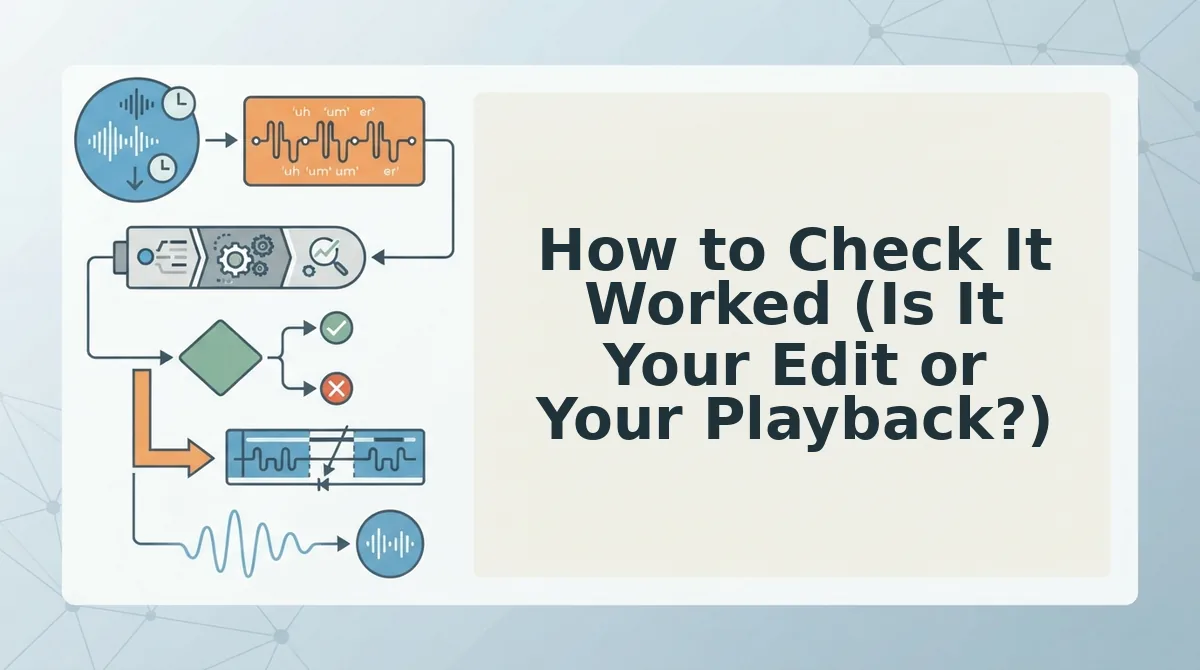
An edit-vs-playback check is a two-question test that shows whether choppiness comes from your cuts or from the device playing the file. Answer both questions before you re-edit, because each answer points to a different fix.
- Does the choppiness sit exactly at your cut points? Listen at each seam, the spot where two kept pieces of audio meet.
- Does the original, unedited file play smoothly on the same device? Play it start to finish on that phone or laptop.
If you answer yes to both, you have a seam problem. The clicks, jumps, or dead silence live inside the edited file, so return to the five steps above and add crossfades and room tone at each cut. If the original file stutters too, the issue is playback: the device, the messaging app, or buffering, which means the player is still loading audio while it plays. Most DaVinci Resolve, Premiere, and YouTube guides only address playback stutter, so they won't repair a hard cut.
Think of a skipping record. If it skips on every turntable at the same spot, the scratch is on the record. If only one turntable skips, the turntable is the problem.
Picture a sales rep recording a follow-up in a home office. Before sending, they replay a few seconds around each cut, hear a click at one seam, add a short crossfade, and confirm the original plays cleanly on the same phone.
The follow-up now sounds like one confident take, with no re-recording needed.

FAQ
These answers cover fixes, tools, and whether your voice stays yours.
Can I fix choppy audio without re-recording?
Yes. Apply short crossfades and a layer of room tone to the existing edit so each seam blends instead of jumping. If the cuts are too rough to salvage, run the original, unedited file through seamless filler removal and skip manual cutting entirely.
Is a timeline editor worth it for a short voice note?
Usually not. Timeline editors like Descript suit long-form podcast editing, where detailed control pays off across long recordings. A 45-90 second message rarely justifies that work. See VClar vs. Descript for how the two approaches compare.
Will removing filler words change how my voice sounds?
No. VClar removes fillers while preserving your natural tone, accent, and rhythm, and it uses no synthetic voice cloning. Listeners hear your actual recorded voice, minus the ums, false starts, and hesitations that made the original sound less decisive.
Why does my voice note play fine on one device but stutter on another?
That points to playback, not your edit. If the file runs smoothly anywhere, the seams are fine. The stuttering device likely has an app, storage, or buffering issue, so try another player or download the file fully first.
Send Voice Notes That Sound Like You, Just Cleaner
Now the good news: choppy audio after editing is almost never a problem with your voice. It comes from the seams between cuts, and seams are fixable.
- Cut at zero crossings, where the waveform passes its center line, so no click lands at the seam.
- Keep room tone and breaths so gaps sound like a pause, not a dropout.
- Check edit vs. playback before you re-edit anything.
Once the fillers are gone, the next layer is phrasing. A clean seam can still carry a tangled sentence, so fix spoken grammar in a voice message to make the words as tight as the audio.
The bigger win is breaking the re-record loop altogether. Record once, let VClar remove fillers without hard cuts, and send a message that keeps your tone, accent, and rhythm intact.
Your first take can be your final take.