
You record a 60-second project update between meetings, stumble twice, and now face a familiar choice: re-record the whole thing or give up and type a text. That re-record loop is why freelancers compare AudioPen or VClar for client updates, and the two tools solve it in very different ways.
You are right to keep using voice. Speaking an update is faster than typing it, and it carries context that a bullet list drops. The only problem is that raw takes rarely sound finished.
This guide gives you a clear pick. AudioPen's own demo frames it as going from fuzzy thought to clear text: voice in, text out. VClar is built for 45-90 second voice messages and keeps your voice in the output.
You will run four quick tests on your next update. One of them decides the choice for most freelancers, and it is probably not the one you expect.
The goal is a one-take client update that your client can hear or read. Before you start, you need three things:
- A phone or laptop mic
- A 45-90 second update
- A sense of whether your client prefers listening or skimming
Use AudioPen when your client wants a written summary instead of audio. Use VClar when your client should hear your actual voice, cleaned of fillers and stumbles, with a transcript attached. Your client's preferred format should decide which tool you open.
Should freelancers use AudioPen or VClar for client updates?
Choose VClar when your client should hear you, and choose AudioPen when your client only wants a written note. The deciding factor is how your client prefers to receive updates, not which tool has more features.
AudioPen turns a voice note into a structured text summary. Its output is text only, so your recording becomes a written note and your voice is not part of what the client receives. VClar takes the opposite approach. It keeps your recording as audio and removes fillers such as "um," "like," "you know," and false starts. It also fixes spoken grammar and reduces background noise, breath sounds, and mouth clicks while preserving your tone, accent, and rhythm. Then it attaches a transcript. The practical difference is whether the client gets a document about your update or a cleaned version of the update itself.
Three terms are useful for this comparison:
- Text summary: a rewritten, condensed written version of what you said.
- Cleaned voice message: your original recording with fillers, stumbles, and noise removed.
- Spoken grammar correction: fixing grammar slips in the audio itself, not only in the text.
| Factor | AudioPen | VClar |
|---|---|---|
| Output | Structured text summary | Cleaned audio plus transcript |
| Tone retained | No, text only | Yes, including tone, accent, and rhythm |
| Noise handling | Not applicable to the output | Reduces background noise, breaths, and clicks |
| Translation | Not covered in this comparison | 11 languages |
| Best client scenario | The client skims or files notes | The client listens to updates |
The 4-Test Fit Check
Answer yes or no to each test. Each "yes" to the first three tests points to VClar.
- Voice: Does the client need to hear you?
- Language: Does the client work in another language?
- Environment: Did you record the update in a noisy place?
- Record: Does the client need a skimmable written note?
The Voice test decides the choice for most freelancers. A summary can flatten the reassurance your tone carries. For example, "we're two days behind, but it's handled" sounds calm when you say it. The same news can read as alarming when it appears as a single summary line.
The Environment test matters too. If you record an update in a car or on a busy street, VClar filters out the background noise so the client hears you rather than the traffic.
AudioPen wins the Record test. Choose it when your client only skims written notes or wants a document to file.
Best for AudioPen: freelancers whose clients read updates and never play audio. Best for VClar: freelancers whose clients value hearing them, or who need to fix grammar in a voice message without re-recording it.
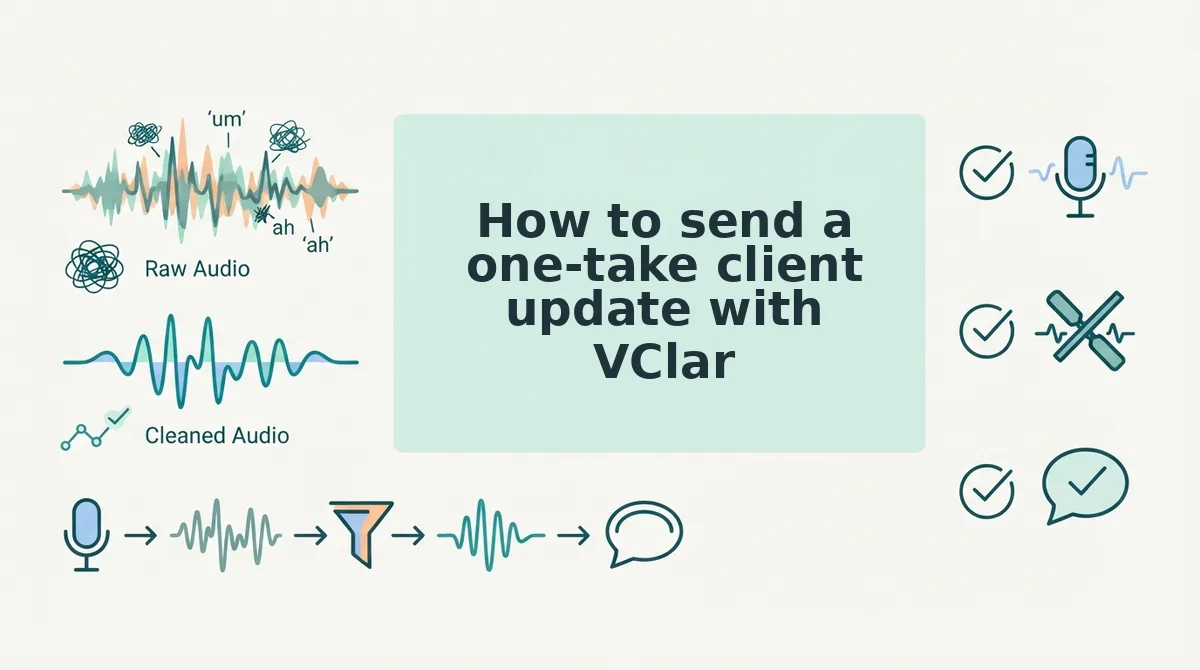
How to send a one-take client update with VClar
Record your update once, let VClar clean it, check the transcript, and send the audio with the transcript attached. The whole process starts with a 45-90 second recording, and you never need to re-record.
Before you start, you need a phone or laptop mic, the key points of your update, and your client's preferred language.
- Record a 45-90 second update in one take. Speak naturally and keep going when you stumble. This step takes 45-90 seconds. When you finish, you should have one complete recording with no restarts.
- Let VClar clean the recording. VClar will remove filler words from audio, cut false starts, and fix spoken grammar. You should hear a tighter, more decisive version of your update that still sounds like you.
- Translate the update if your client works in another language. This step is optional. Choose the client's language, and you should get a cleaned, translated version of the same message.
- Review the transcript against what you meant to say. Read it once, which takes about a minute for a 90-second update. Check that dates, deliverables, and names are correct.
- Send the cleaned audio with the transcript attached. Your client can now listen to the update or skim it.
Can you translate a client voice note and keep your voice?
Yes. VClar translates cleaned voice messages across 11 languages: Hindi, English, French, Japanese, Korean, German, Russian, Portuguese, Spanish, Italian, and Chinese. That covers 110 translation directions, so a freelancer working in Spanish can send an update to a client in Japanese, German, or any other supported language. The translation is applied to the cleaned recording, which means fillers and false starts are already gone before the message changes language. Your client receives a clear update in their own language, plus a transcript they can read or forward. For cross-border client work, you avoid typing out a separate translated email.
If your updates go to clients in different countries, start with the voice note translator for 11 languages and send your next update in one take.
Before you click send, run one final check on the update.

How to check your client update worked before you send it
Play the cleaned message once and run four quick checks: voice, fillers, noise, and transcript. If one check fails, adjust that part instead of re-recording the whole update.
A pre-send check is a single listen-through that confirms your cleaned voice note still sounds like you and says what you meant. Think of it like glancing at your reflection before a video call. You are not redoing your outfit, only making sure nothing is out of place.
- Voice: Confirm it still sounds like you. VClar preserves your natural tone, accent, and rhythm (the pace and pauses of your speech), so the client should hear the same person they hired.
- Fillers: Listen for leftover "ums," "you knows," or false starts, which are sentences you began and then abandoned.
- Noise: If you recorded in a car or on a street, check that background noise, breath sounds, and mouth clicks are reduced.
- Transcript and length: Read the transcript against your intent and confirm the update runs 45 to 90 seconds.
One limitation matters here. Cleaning tightens how you deliver a message, but it cannot fix a muddled one. If the client's next step is unclear in what you said, it will stay unclear after cleaning.
AudioPen vs VClar FAQ for freelancers
These answers cover the practical questions freelancers ask after comparing both tools. Each one addresses format, accents, or editing workflow.
Does AudioPen output audio?
No. AudioPen turns your recording into a text summary only, so the client never hears your voice. That works if your client prefers to skim written notes. It works less well if hearing you builds trust in the relationship.
Can clients get a transcript with a VClar voice note?
Yes. Every cleaned VClar voice message comes with a transcript. Clients can listen to your polished audio or scan the text, depending on how they prefer to catch up between meetings.
Which tool works better for non-native English speakers?
VClar is the better fit. It corrects spoken grammar while keeping your accent, and it can translate the cleaned message across 11 languages. You get a clearer message without sounding like someone else.
Is VClar a timeline audio editor like Descript?
No. VClar cleans voice messages without timeline editing or synthetic voice cloning. For a detailed breakdown, read the VClar vs Descript comparison.
Which tool should you pick for your next client update?
Pick the tool based on how your client consumes updates, not on which feature list is longer. The format, voice, noise, and language tests point to a clear verdict for each situation:
- Your client only skims written notes: choose AudioPen.
- Your client should hear you, you recorded in noise, or your client works in another language: choose VClar.
- You want both audio and text: choose VClar, because the cleaned voice note ships with a transcript.
For your next step, record your next client update in one take and run it through VClar. You can explore more workflows in our guide to voice notes for freelancers. Your clients hired your thinking, so let them hear it clearly.