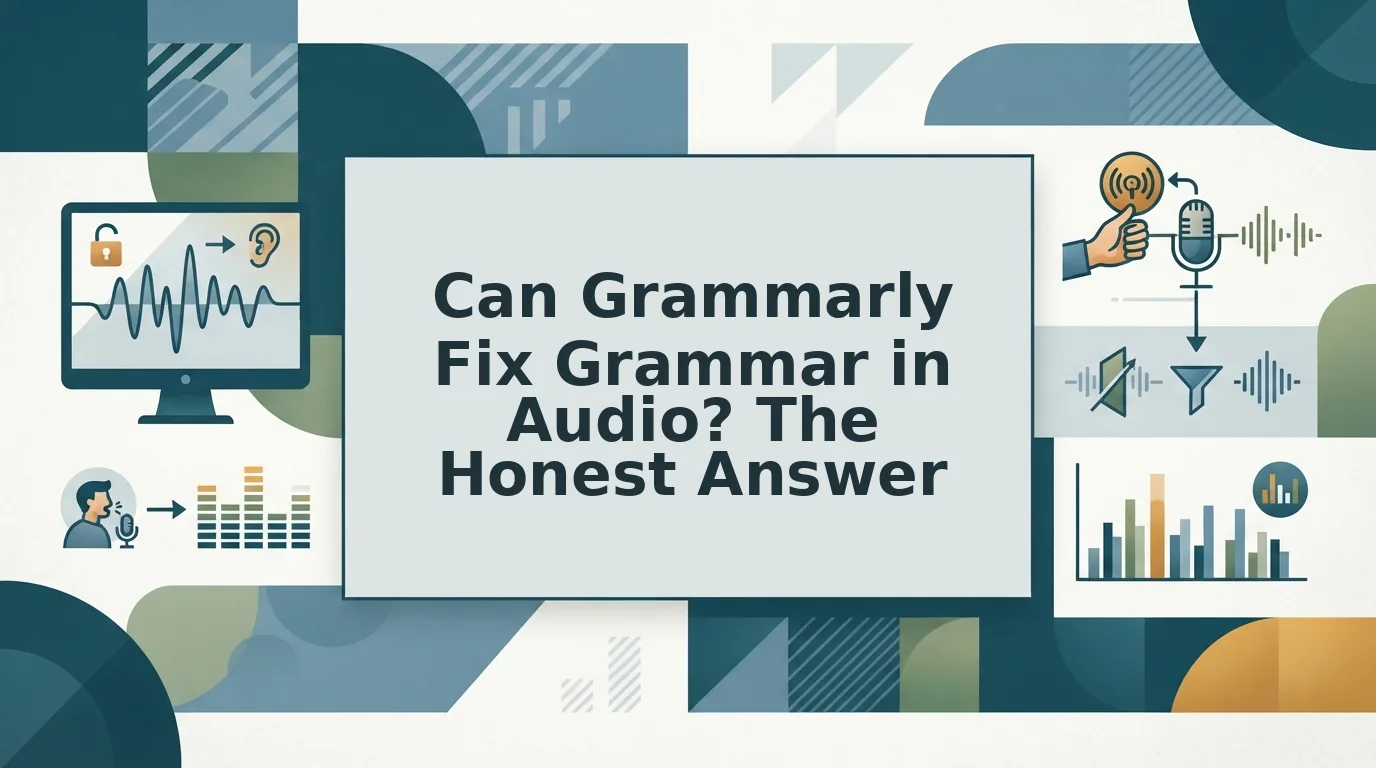

Can Grammarly fix grammar in audio, like the voice message you just recorded? No. Grammarly checks written text, not audio. You can paste a transcript into it, but the recording your listener hears stays unchanged.
Key Takeaway: Grammarly edits what people read, not what they hear. Even its "Proofreader agent" video frames the product around writing "as you write." To fix grammar inside a voice message, you need a tool that corrects the recording itself, so the listener hears the cleaned version.
Picture a founder who records an investor update between meetings and wants the grammar cleaned before sending. The take has a few ums, a restarted sentence, and a subject that drifts from its verb halfway through a point about runway. Grammarly has nowhere to plug in, because a voice message offers no text box, only a waveform the investor will hear exactly as recorded, and typing the update instead throws away the speed that makes voice notes for founders worth sending.
You want voice notes that sound as clear as your thinking. This guide shows a one-take path. It covers the two layers of every message and then explains how to fix grammar where your listener actually hears it.
The obvious workaround fixes the text, but it creates a second problem.
Why Grammarly Can't Fix the Audio in Your Voice Message
Grammarly can't fix the audio because it never processes sound. It reads characters on a screen, so the voice your recipient plays back passes through untouched.
Grammarly is a written-text assistant that checks grammar, spelling, clarity, and tone in drafts you type or paste. As of writing, it is built around typed drafts rather than audio files, so confirm its current scope on official Grammarly pages.
The Two-Layer Problem
Every voice message has a heard layer and a read layer. The Two-Layer Problem is the gap between them: a tool that edits one layer leaves the other exactly as it was.
| What the listener hears | What Grammarly edits |
|---|---|
| Tone, pace, and accent | Transcript text, if you paste it in |
| Fillers and pauses | Spelling and punctuation |
| Background noise, breaths, and clicks | Written grammar and word choice |
| Spoken grammar as delivered | Sentence clarity on the page |
Spoken grammar is the looser structure of talk, including fragments, restarts, and trailing clauses that sound natural aloud. A transcript is a text copy of a recording. Audio-level correction edits the recording itself, so the fix lives in the file your listener plays.
Think of it like proofreading a film's subtitles. The captions can be flawless while the actor still stumbles on screen.
- What Grammarly checks (as of writing): typed sentences, spelling, punctuation, and word choice in written drafts.
- What it can't hear: ums and false starts as sound, pacing, room noise, breaths, and mouth clicks.
The fix for this cause is simple: decide which layer your recipient consumes before you choose a tool. If they read, Grammarly fits. If they listen, use audio-level correction such as VClar, which removes fillers, fixes spoken grammar, and reduces background noise while keeping your natural tone and accent. Compare both approaches in VClar vs Grammarly.
Can You Run a Voice Note Transcript Through Grammarly?
Yes, but the workaround breaks in two places. Grammarly flags normal speech patterns as written errors, and the corrected text stops matching your recording.
Before you start: you need a recorded voice note, a transcription tool, Grammarly, and a quiet spot to record again.
- Record your message in your messaging app (tool 1). Time: the length of the message. You should have one audio file.
- Upload the file to a transcription tool, then copy the text (tool 2, handoff 1). Time: about a minute. You should see raw text, fillers included.
- Paste the transcript into Grammarly (tool 3, handoff 2). You should see underlines on fragments and fillers. These follow speech norms, so they are not mistakes in how you talk.
- Accept the suggested corrections. This is the break point. The text is now clean, but it no longer matches the audio.
- Re-record from the corrected text (back to tool 1, handoff 3). You should end up with a second take that often sounds more scripted than the first.
The total is three tools, three handoffs, and two recordings. Picture a B2B sales rep sending an enterprise follow-up who transcribes it, corrects it, and then has to record it again, which is the re-record loop that one-take confidence is meant to end.
You can use Grammarly on a voice note transcript, but it only improves the text, not the message your recipient plays. Grammarly will flag fillers, fragments, and restarts because transcripts follow speech patterns rather than written conventions, and accepting those fixes leaves you with clean text that no longer matches the recording. To send the corrected version as audio, you must re-record it, so the transcript route works best when your recipient reads instead of listens.
| Spoken error | Flagged in transcript? | Fixed in audio? |
|---|---|---|
| Fillers | Can't verify | No |
| False starts | Can't verify | No |
| Fragments | Can't verify | No |
| Circular phrasing | Can't verify | No |
| Background noise | No, never appears in text | No |
| Breath and mouth clicks | No, never appears in text | No |
Text that is correct on the page often sounds stiff when you read it aloud, because written grammar isn't how people talk. Tools that remove filler words from audio keep your natural rhythm intact instead.
The better fix happens inside the recording itself.
How to Fix Grammar Directly in the Voice Message
To fix grammar in a voice message itself, correct it at the audio layer rather than only in the transcript. That way, what your listener hears matches what they read.
Grammarly is excellent at polishing written text. A transcript run through Grammarly also works well when your recipient only reads. Once they press play, though, the corrected text and the original audio no longer match.
VClar edits the recording itself. It corrects spoken grammar, removes fillers like "um" and "you know," and tightens phrasing. It also reduces background noise, breath sounds, and mouth clicks.
Your natural tone, accent, and rhythm stay intact. VClar does not use a synthetic text-to-speech clone.
| Your situation | Right tool | Best for |
|---|---|---|
| You send text | Grammarly | Writers polishing emails, documents, and chat replies |
| Your listener only reads | Transcript plus Grammarly | Teams sharing written summaries or meeting notes |
| Your listener hears the audio | Audio-level correction (VClar) | Founders, sales reps, and creators who send voice notes |
Worked example: A freelancer records a client update in their second language. They clean up the grammar and fillers in one pass. Then they use VClar's voice note translator to send the update in the client's language, choosing from 11 languages and 110 translation directions.
If your recipients listen rather than read, fix grammar in a voice message before you hit send.
Record Once and Send a Clean Voice Message
Grammarly can't fix the audio in your voice message, but you don't need to re-record it either. The Two-Layer rule sums it up: correct the layer your recipient actually uses, whether that's the text they read or the voice they hear.
Before your next voice note, ask one question: will they read it or play it? If they play it, skip the re-record loop and correct the recording itself, so the message still sounds like you.
Your next step is to upload or record a message and fix grammar in your voice message with VClar. Speak the way you think, and let one take be enough. Record once, send clean.