
You record a quick update, play it back, and hear a loud gasp before every sentence. Phone mics sit inches from your mouth, so every inhale lands almost as loud as your words.
You can remove breath sounds from voice note recordings in minutes without sounding robotic. Breath noise is the audible rush of air when you inhale or exhale between phrases. Mouth clicks are the small, wet snaps made by your lips, tongue, and saliva.
How do I remove breath sounds from a voice note? Use one of three paths. Prevent breaths at the mic by angling the phone and exhaling before you record. Reduce them manually in a free editor like Audacity. Or run a one-pass voice cleanup that lowers breaths, clicks, and noise while keeping your natural tone.
Most tutorials assume desktop voiceover sessions. This guide covers short async voice notes recorded on a phone. You'll move from prevention, to deciding which breaths to cut, duck, or keep, to manual editing, to one-pass cleanup.
You need a phone recording, plus the free Audacity editor or a cleanup tool if you want to edit. Before you start, know that deleting every breath usually backfires. The next section explains why.
Should You Remove Every Breath? Use the Cut, Duck, or Keep Matrix
No. Cut the breaths that distract, duck the ones that carry pacing, and keep the ones that mark natural pauses. Removing every breath strips out rhythm and makes speech sound rushed and robotic, so match each breath type to an action.
Ducking means making a breath noticeably quieter rather than silent. It is common voiceover practice.
| Breath type | Action | Why |
|---|---|---|
| Sharp intake gasp | Cut | Close-mic gasps are loud and pull attention from your first word. |
| End-of-phrase exhale | Keep (duck if loud) | It signals a finished thought and gives the listener a beat. |
| Mid-sentence breath | Duck | Silencing it jams two related clauses together. |
| Mouth click | Cut | It carries no meaning and sounds like a glitch. |
| Nose whistle | Duck | A full cut can leave an unnatural gap mid-phrase. |
Popular Audacity and Adobe Audition tutorials explain selection and silencing techniques thoroughly. None of them argue for keeping any breaths, though.
Why does removing every breath make a voice note sound robotic? Breaths are part of how listeners read your meaning. A small inhale tells them a new idea is coming, and an exhale tells them a thought is complete. When you delete all of them, sentences run into each other with no audible transitions. The pacing feels rushed, and the speaker can sound scripted or synthetic. The fix is selective editing: cut only the jarring sounds, duck breaths that bridge ideas, and leave quiet pauses alone so your natural cadence survives.
Pro tip: Duck rather than delete breaths that sit between two related clauses. The idea stays connected, and the noise stops competing with your words.
Worked example: A founder records an investor update in a parked car. She cuts the gasp before each metric and the mouth clicks between sentences. She ducks the breath between "revenue grew" and "because we expanded," and keeps the exhale after her closing ask. For more workflows, see voice notes for founders.
VClar follows the same principle. It reduces breath sounds and mouth clicks while preserving your natural tone, accent, and rhythm.
How to Remove Breath Sounds from a Voice Note Step by Step
Follow these four steps, ordered from least to most effort. Prevent breaths at the mic, edit the remaining ones in Audacity, use a noise gate only with caution, and run a one-pass cleanup for short messages.
Prerequisites: a phone voice recording, plus Audacity (free) or a voice cleanup tool.
- Prevent breaths before you record (under a minute). Hold the phone slightly to the side of your mouth instead of directly in front of it. Keep the same distance throughout, then exhale fully before you tap record. On playback, your first word should start cleanly with no gasp in front of it.
- Edit breaths manually in Audacity (a few minutes per message). Import the file, then click and drag across a breath on the waveform. To cut a breath, press Ctrl+L (Silence Audio). To duck one, open Effect, then Amplify, and enter a negative value. Apply the Cut, Duck, or Keep matrix as you go. Gasps should drop out, while bridging breaths remain faintly audible. Adobe Audition offers similar selection-based edits.
- Use a noise gate only with caution. Popular noise gate tutorials present it as a shortcut. Test it on a short clip before you process the whole message.
- Run a one-pass cleanup for 45 to 90 second messages. Upload or record the message in VClar. Its acoustic cleanup reduces breath sounds, mouth clicks, and background noise while keeping your tone, accent, and rhythm. You should get back one polished file, with no manual waveform edits.
Why does a noise gate make a voice sound choppy? A noise gate mutes audio whenever the level drops below a threshold you set. Speech does not stay at a steady volume, so the gate can clip the quiet tails of words and soft consonants like "f," "s," and "th." The result is speech that seems to start and stop abruptly. Meanwhile, loud breaths recorded close to a phone mic often exceed the threshold, so they pass straight through untouched. You end up with damaged words and the same breaths you were trying to remove.
Consider a 60-second message. Manual editing means finding, selecting, and treating each breath one at a time. A one-pass cleanup processes the whole file at once. Studio workflows are built for long voiceovers, which is overkill for a one-minute async update.
VClar also bundles cleanup tasks you would otherwise handle separately. It can remove filler words from audio and fix grammar in a voice message in the same pass. If you are weighing editors, read VClar vs. Descript.
Worked example: A freelancer records a client update from a home office. She angles her phone, exhales, and records once. Then she runs the file through VClar to clear breaths, clicks, and a few "ums" before sending.
If re-recording loops are eating your mornings, try one take plus one cleanup pass in VClar.
Before you hit send, run one last check.
How to Check Your Voice Note Still Sounds Natural
But there's a catch. Over-processing can make a voice note sound less human than the breathy original, so run five listening checks before you send, starting with the most common mistake.
- Listen for dead air. Dead air is the unnatural gap left when a breath is cut to pure digital silence instead of lowered. It is the clearest sign of an edited message because real rooms always carry faint background tone. Duck the breath or fill the gap with room tone.
- Check word endings. An aggressive noise gate clips soft consonants like trailing "s," "t," and "f" sounds. Clipped endings sound abrupt and hurt clarity. Replay quiet sentence endings and lower the gate threshold if a syllable vanishes.
- Feel the pacing. Too many cuts strip out the micro-pauses listeners use to absorb a point. The message then feels rushed, even when every word is clear. Restore a short pause before key details like a date or an ask.
- Listen for warbly artifacts. Stacking noise reduction passes adds a watery, robotic shimmer to your voice. Like aggressive gating, it signals over-processing. Undo back to one moderate pass.
- Replay on a phone speaker. Most recipients hear voice notes through a phone, not studio headphones. Small speakers expose clipping and gaps that headphones hide. Play it once at normal volume, the way the recipient will.
Worked example #3: A sales rep records a two-minute recap for an enterprise buyer after a demo. Before sending, she replays it on her phone speaker, restores a pause before the pricing line, and confirms "contract" keeps its final "t." Reps following up with enterprise buyers can run this same check on every message.
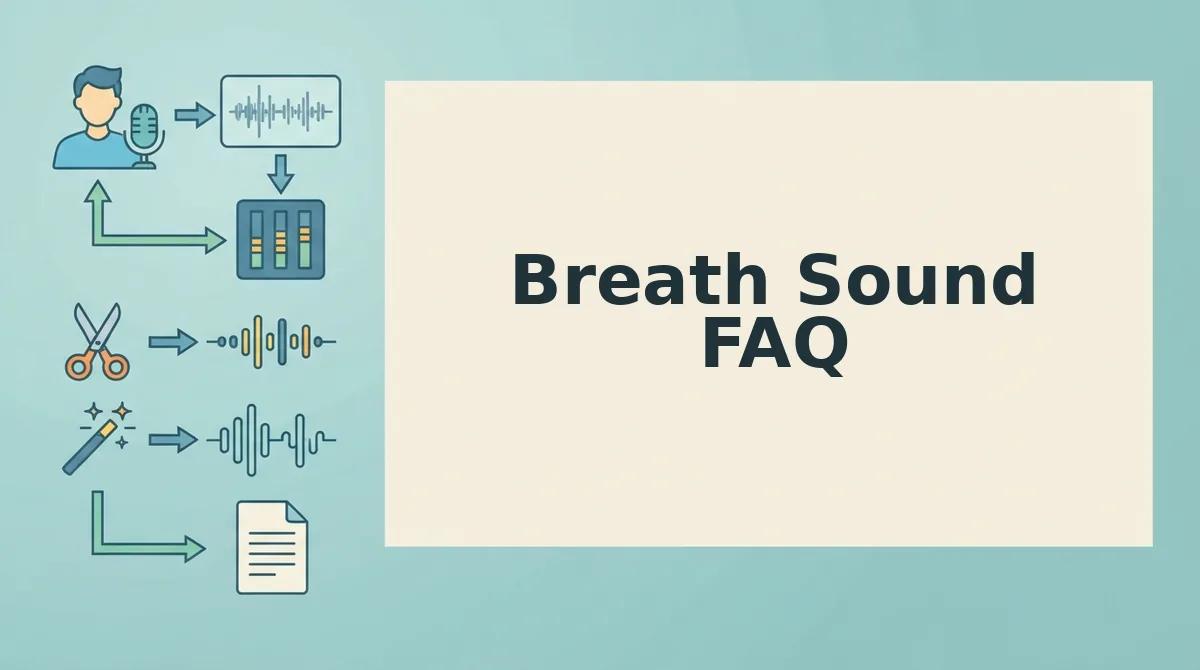
Breath Sound FAQ
These answers cover the questions the steps above leave open, from listener perception to mouth clicks and accent preservation.
Do breath sounds really matter to listeners?
Yes, but only when they are loud or constant. A few natural breaths make a voice note sound human and help listeners follow your phrasing. Repeated gasps close to the mic distract from the message and can make you sound rushed or nervous.
Can you remove mouth clicks the same way as breaths?
Not quite. Mouth clicks are very short transients, so they are usually cut out entirely rather than ducked. Breaths last longer and carry rhythm, which is why lowering them often sounds more natural than deleting them.
Will removing breaths change my tone or accent?
It shouldn't, if the edit targets only the breath. Careful breath removal leaves your words, cadence, and accent untouched. Preserving natural tone and accent is a core part of how VClar cleans voice messages, unlike synthetic voice tools that replace your delivery.
Is manual breath editing worth it for a 60-second message?
Usually not. Manually marking every breath in a waveform editor can take longer than the message itself. For short, everyday voice notes, a one-pass cleaner saves time, while manual editing suits high-stakes recordings where you want full control.
Clean Your Next Voice Note in One Take
Natural-sounding breath removal comes down to four moves: prevent, decide, edit or clean, then check. The goal is not perfect silence, because digital silence creates the dead air that gives edits away.
- Prevent: Angle the mic slightly off your mouth so fewer breaths reach it.
- Decide: Apply Cut, Duck, or Keep to each breath instead of deleting all of them.
- Check: Skip aggressive gates and replay once on a phone speaker.
Choose your tier. Try the mic-position fix on your next recording, use Audacity when you need full manual control, or clean voice memos online in one pass with VClar, keeping your own tone and accent.
Record once, clean once, and send with confidence.