
You hit record, say "um" twice, lose your sentence halfway through, and start over. Then you do it again. That re-record loop drains your time, and the fillers, awkward pauses, and broken grammar that cause it make a confident idea sound unsure.
You don't need a perfect take. You need a reliable way to review edits to a voice note before sending, so you can record once, review once, and send. This guide shows you how to see exactly what changed, confirm the message still says what you meant, and catch the details that matter most.
The short answer:
Open the side-by-side view and compare your original transcript with the improved wording. Check every removed filler and grammar change against what you meant, and confirm that names, numbers, and dates are intact. Then play the cleaned audio once before sending. If an edit changes your meaning, fix that line first.
Below, you'll learn the 4-pass check: Meaning, Facts, Fillers, and Final Listen. One pass covers an edit you should sometimes undo, even when the cleanup was technically correct.
Can You Preview a Voice Note Before Sending?
Yes. WhatsApp lets you pause and resume a recording and play it back before you send it, and iPhone Voice Memos lets you trim a recording before you share it.
Tutorial videos from Techverse, Joy Tech, and Techrona walk through these built-in controls step by step. The controls work well for a quick check. However, playback shows how a note sounds, not what changed in it.
| Check | Native playback (WhatsApp, Voice Memos) | Side-by-side review |
|---|---|---|
| What you hear | Your recording as captured or trimmed | The cleaned audio in your own voice |
| What you see | A waveform and a timer | The original transcript next to the improved wording |
| Catches grammar changes | No | Yes, each rewrite is visible |
| Catches removed fillers | No, you trim by ear | Yes, each removal is listed |
Replaying a voice note tells you whether it sounds acceptable. Reviewing a voice note tells you whether the edits kept your meaning. Native playback is best for casual notes to friends, where a stray "um" costs nothing. Side-by-side review is best for founders, sales reps, and cross-border operators, because wording affects trust in their messages. When software cleans your speech, you need to see each change in text before the polished audio goes out.
Before you start the review steps, you should know what the side-by-side view contains:
- Original transcript: Your words exactly as spoken, including fillers and false starts.
- Improved wording: The cleaned version of the message that the new audio follows.
- Removed fillers: Words such as "um," "like," and "basically" that were taken out.
- Grammar changes: Fragments, tense slips, or word order that were corrected so you can fix grammar in a voice message.
For example, suppose a founder records a 60-second voice note for an investor update. The view shows "um, basically" removed and a sentence fragment rewritten as a full sentence. The founder reads both changes before the note goes out.
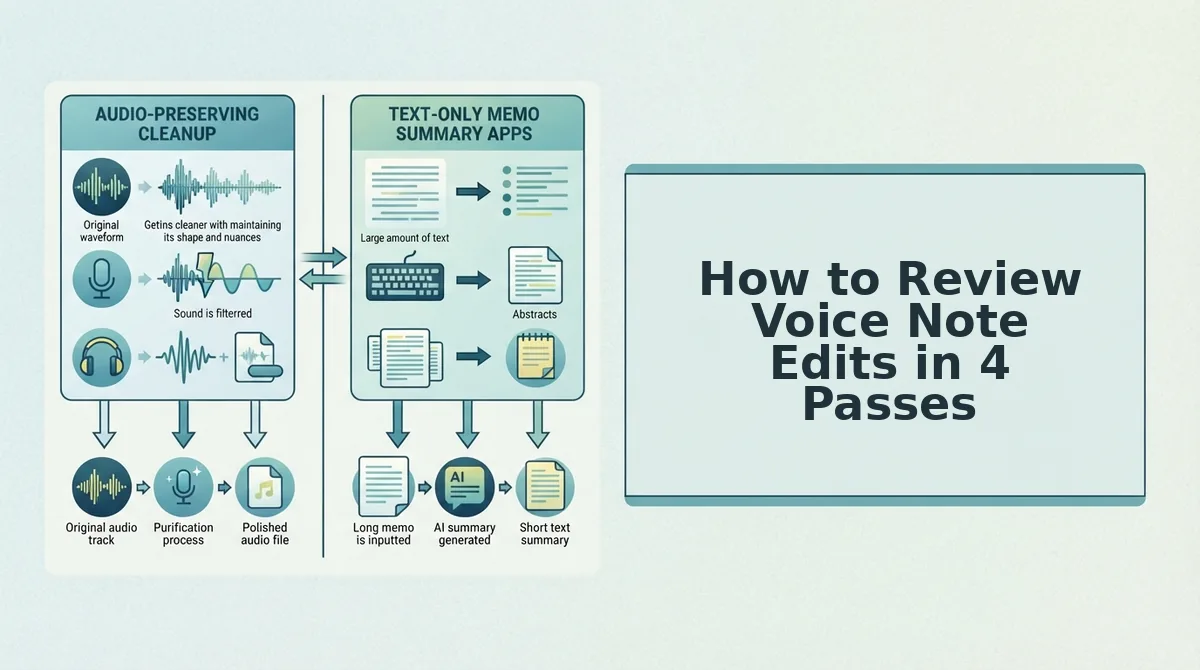
How to Review Voice Note Edits in 4 Passes
Review your edits in four passes: Meaning, Facts, Fillers, and Final Listen. Answer one check question in each pass. For a 60-second note, each pass usually takes under a minute.
Before you start, you need: a note recorded or uploaded in VClar, the side-by-side view open, and headphones for the final pass.
-
Pass 1: Meaning
Check question: Does the improved wording still say what I meant?
Read the improved wording one sentence at a time, and compare each sentence with the original transcript beside it. When this pass is complete, every sentence should express the same intent as your spoken version.
-
Pass 2: Facts
Check question: Did names, numbers, prices, and dates survive the cleanup?
Scan both columns for proper nouns and figures, and confirm that each one matches. For example, a B2B sales rep sending voice notes for sales follow-ups checks that the quoted price and the follow-up date appear in the improved wording exactly as spoken. When this pass is complete, every fact matches.
-
Pass 3: Fillers, Keep or Cut
Check question: Did any removed word carry intent?
Go through the list of removed fillers one item at a time. This pass covers the edit you should sometimes undo.
Should you keep some filler words in a voice message? Sometimes, yes. Tools that remove filler words from audio correctly cut "um" and false starts, but not every softening word is a filler. A hedge such as "I think" can tell an investor that you are honestly uncertain, which is often more credible than false precision. A deliberate pause before bad news gives the listener a moment to prepare. Treat these words and pauses as tools, not mistakes. If a removal stripped out intent you need, re-record that one line or rephrase it before sending.
When this pass is complete, every remaining hedge and pause is there because you chose it.
-
Pass 4: Final Listen
Check question: Does this still sound like me?
Play the cleaned audio once from start to finish without stopping. VClar preserves your natural tone, accent, and rhythm, and this pass confirms that. When this pass is complete, you should hear your own voice, sounding more decisive, with no gaps where words were cut.
If any pass shows a change in meaning, do not re-record the whole message. Fix only that line, recheck it, and send. This workflow replaces the re-record loop with one take and one review.
Next, confirm that your review worked before you send or translate the message.
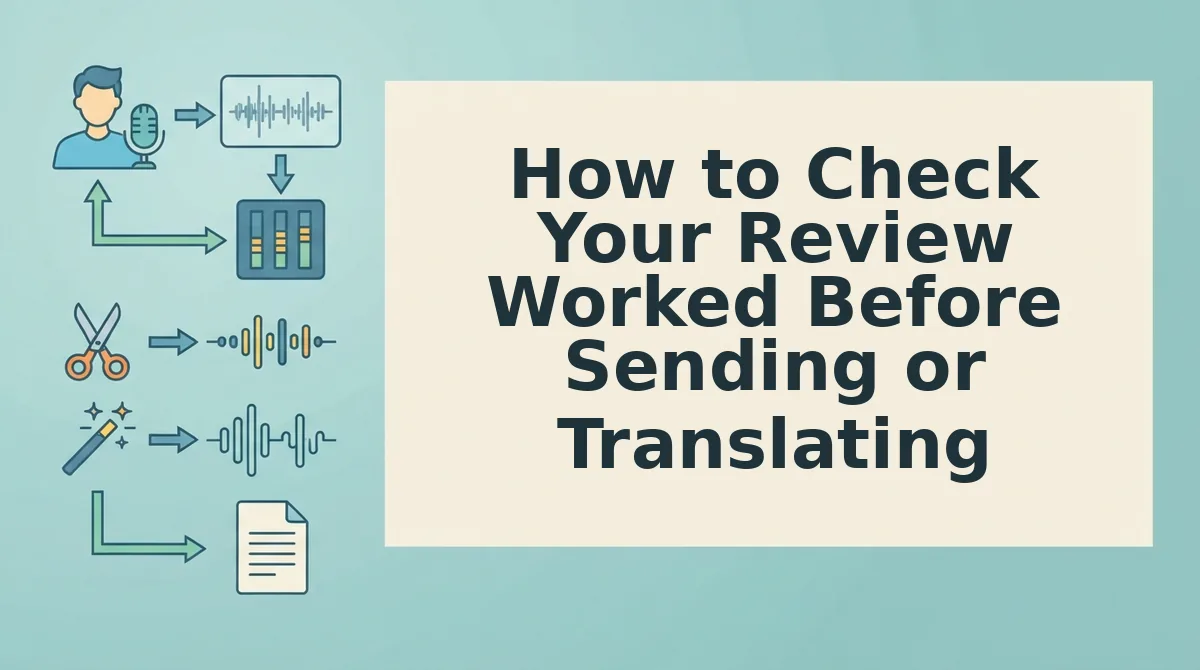
How to Check Your Review Worked Before Sending or Translating
Your review worked if the cleaned transcript passes five checks: meaning, names, numbers, dates, and fillers. Run them before translating, because any source error carries into every version across VClar's 11 languages and 110 translation directions.
- Confirm the meaning matches your intent. Read the cleaned transcript against what you meant to say. A tightened sentence that shifts your point is the costliest error to miss.
- Verify that names are spelled correctly. Client, product, and place names are the words most often misheard. Fix them in the source so every translation keeps them intact.
- Check every number. Prices, quantities, and percentages must survive cleanup exactly. Compare each figure to your notes or invoice.
- Validate dates and deadlines. "The fifteenth" and "the fifth" sound close in a fast take. Confirm the day and month before the date is translated.
- Decide which fillers stay. A casual "so" can carry warmth. Keep it on purpose and cut the rest.
For example, a freelancer confirms the client's name, the delivery date, and the quote in her English transcript. Then she uses the voice note translator to send the update in Spanish. Learn more about voice notes for client updates.
| Symptom | Cause | Fix |
|---|---|---|
| A grammar fix changed the meaning | An ambiguous spoken phrase | Re-record the line more explicitly |
| A name was transcribed wrong | An uncommon or unclear name | Say the name slowly and re-record |
| The audio sounds clipped | A filler sat mid-word | Pause cleanly, then repeat the phrase |
| The note sounds too formal | Casual phrasing was tightened | Keep chosen fillers and use shorter sentences |
Frequently Asked Questions
These answers cover voice preservation, review time, and how to handle a wrong edit.
Does reviewing edits change my voice?
No, reviewing and cleaning a voice note does not change your voice. VClar removes fillers, fixes grammar, and reduces noise while keeping your natural tone, accent, and rhythm. It never swaps your delivery for a synthetic text-to-speech clone.
How long should review take for a 45â90 second message?
As a practical guideline, plan on one to two minutes. That covers one listen to the cleaned audio and one read of the transcript. Most of that time goes to checking names, numbers, and dates.
What do I do if one edit is wrong?
Re-record that line or rephrase it before sending. A clearer second take usually resolves meaning shifts or misheard names. You only need to repeat the affected sentence, not the whole message.
Record Once, Review Once, Send
One focused review ends the re-recording loop. Listen for flow, read for meaning, check names, numbers, and dates, then send or translate.
The side-by-side view does more than catch errors. Over time, it shows which fillers you lean on and which sentences you tend to restructure. Each grammar correction becomes a quiet lesson in how you speak.
Open VClar and run your next voice note through all four passes. Your one-take messages will keep getting sharper while still sounding like you.