
You record a 60-second update, play it back, and hear three "ums" and a sentence you restarted halfway through. You delete it and record again, then again. That re-record loop is why so many people want voice note cleanup without timeline editing. Opening a full audio editor for a quick message feels like overkill, and it is.
Timeline editing means cutting and adjusting audio waveforms clip by clip in an editor. You can skip it entirely. This guide covers a one-pass method built on three layers of cleanup: Sound, Speech, and Sense.
Can you clean up a voice note without editing it on a timeline? Yes. One-pass AI cleanup removes verbal fillers, fixes spoken grammar, and reduces background noise, breaths, and mouth clicks without cutting waveforms on a timeline. Your tone, accent, and cadence stay the same. You record once, run one pass, and send.
Picture a founder who records an investor update in one take. Instead of re-recording, they run one cleanup pass that removes fillers and fixes fragments. Then they send the note in their own voice. The same workflow suits voice notes for founders, sales follow-ups, and client check-ins.
One surprise before you start: noise is actually the smallest of the three problems.
What Does Voice Note Cleanup Actually Fix?
Voice note cleanup is a process that removes distractions from recorded speech across three layers: Sound, Speech, and Sense. Sound covers background noise. Speech covers stumbles in delivery. Sense covers how clearly your sentences carry meaning. A full cleanup handles all three without changing your voice.
Two terms come up often. Verbal fillers are sounds and words that hold your place while you think, such as "um," "ah," "like," and "you know." Spoken grammar is the looser structure of talk: fragments, restarts, and sentences that circle back on themselves. Everyone speaks this way, including native speakers and people working in a second language.
| Layer | What it includes | Example |
|---|---|---|
| Sound | Background noise, breaths, mouth clicks | Traffic hum under a message recorded on the street |
| Speech | Verbal fillers, false starts | "Um, so, basically, we, we shouldâ¦" |
| Sense | Sentence fragments, circular phrasing | "The launch, the date, I mean, it's moving, the launch is moving to Friday." |
To see the Speech layer in action, try the tool to remove filler words from audio on one voice note.
Think of cleanup like washing a car window. Noise removal clears the glass, but the clutter inside the car is still there. Most one-click "studio sound" fixes, VEED-style, only handle the Sound row. That resolves the earlier puzzle: noise is the easiest layer to fix and the least important to your meaning.
Is noise removal enough for a voice note? No. Noise removal handles only the Sound layer of a voice note. Take a message recorded in a car or on a busy street. Noise reduction can quiet the engine or traffic, but the "um, so, basically" and the restarted sentences are still there. Those stumbles affect clarity far more than background hum does. To sound clear, you also need the Speech layer, which removes fillers and false starts, and the Sense layer, which repairs fragments and circular phrasing. One honest limit applies: very heavy noise can restrict what any cleanup tool can recover.
The contrarian take is that "studio sound" is the wrong goal. A voice note should sound like you on a good day, not like a radio booth. To finish the job, fix grammar in a voice message while your tone and accent stay intact. The only prerequisite is a recorded or uploaded note. You don't need any editing skills.
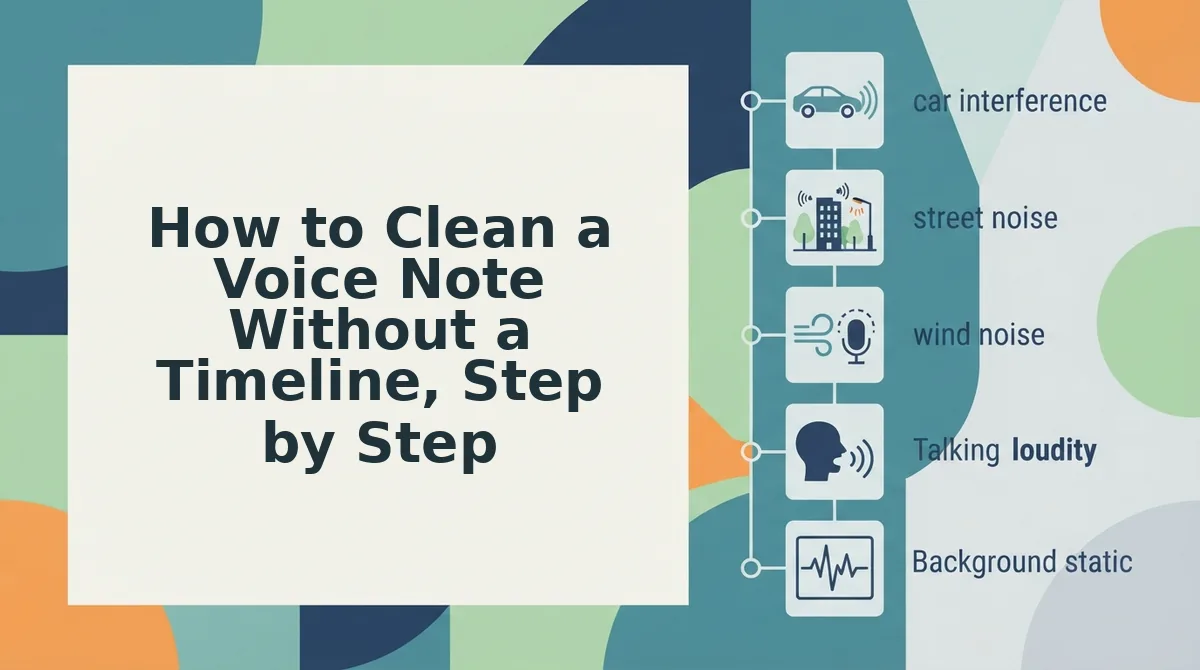
How to Clean a Voice Note Without a Timeline, Step by Step
You can clean a voice note in five steps: record or upload it, run one auto-clean pass, compare the two versions, review the transcript, and send or translate. Everything happens in your browser, so you never touch a waveform.
What you need: a browser on desktop or mobile and a voice note, either fresh or already recorded. You don't need an app-specific editor or audio skills. Editor tutorials, such as those written for Resolve, walk you through manual noise steps that assume you already know how to edit. This workflow skips that learning curve.
- Record or upload your note in the browser. Record directly on your phone or computer, or upload an existing audio file. Time: the length of your message. You should see your note loaded and ready to process.
- Run the auto-clean pass. Start one cleanup pass that covers all three layers. It reduces noise, breaths, and mouth clicks (Sound), removes fillers and false starts (Speech), and tightens fragments and circular phrasing (Sense). When it finishes, you'll have a cleaned version alongside your original.
- Compare the original and cleaned versions side by side. Play both and listen for whether your tone, accent, and rhythm still sound like you. Time: about as long as the note itself. Success means the cleaned version sounds direct and still sounds like you.
- Review the transcript. Read the transcript to check the Sense layer. Confirm the meaning matches what you intended and that the phrasing reads naturally. If a sentence says what you meant, move on.
- Send, or translate first. Share the cleaned note as it is. If the recipient speaks another language, translate it into one of VClar's 11 supported languages before you send. Your recipient gets one clear take with no re-recording loop.
Pro tip: Speak in complete thoughts instead of restarting sentences. If you stumble, keep going and let the cleanup pass handle the "ums" and false starts. Restarting mid-sentence creates more fragments to fix than simply finishing the thought.
Before you send, run a quick quality check.
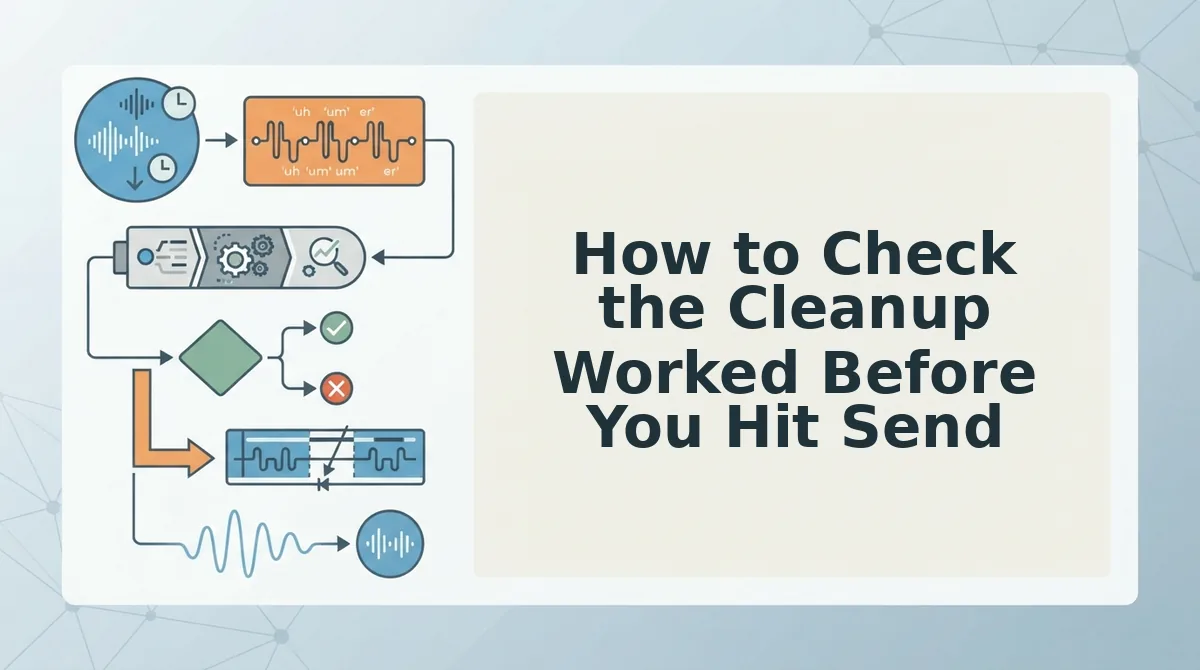
How to Check the Cleanup Worked Before You Hit Send
Listen once to the cleaned version and confirm two things: the distractions are gone, and your voice is still yours. Use this checklist to run that pass.
Should be gone
- Fillers and false starts. Listen for ums, ahs, "like," "basically," and restarted sentences. If any slipped through, your message will sound less decisive, so note where they appear.
- Grammar fragments. Check that every sentence finishes the thought it started. Half-sentences force the listener to guess your meaning, especially when they listen at speed.
- Noise, breaths, and clicks. Background hum, heavy breaths, and mouth clicks should no longer pull attention. Use headphones for this check, because phone speakers hide these sounds.
Must stay untouched
- Your tone and cadence. Your pacing and emphasis should match how you naturally speak. VClar preserves your natural tone and rhythm, so the result should not sound flat or robotic.
- Your accent. Your accent is part of your identity, not an error to correct. If it sounds neutralized, treat that as a failed check.
- Your real voice. You should hear yourself, not a synthetic clone. VClar does not use voice cloning or text-to-speech replacement.
If the cleaned version doesn't sound like you, compare it side by side with the original instead of re-recording. That comparison also shows which filler habits you repeat most, so your next take improves without any self-criticism.
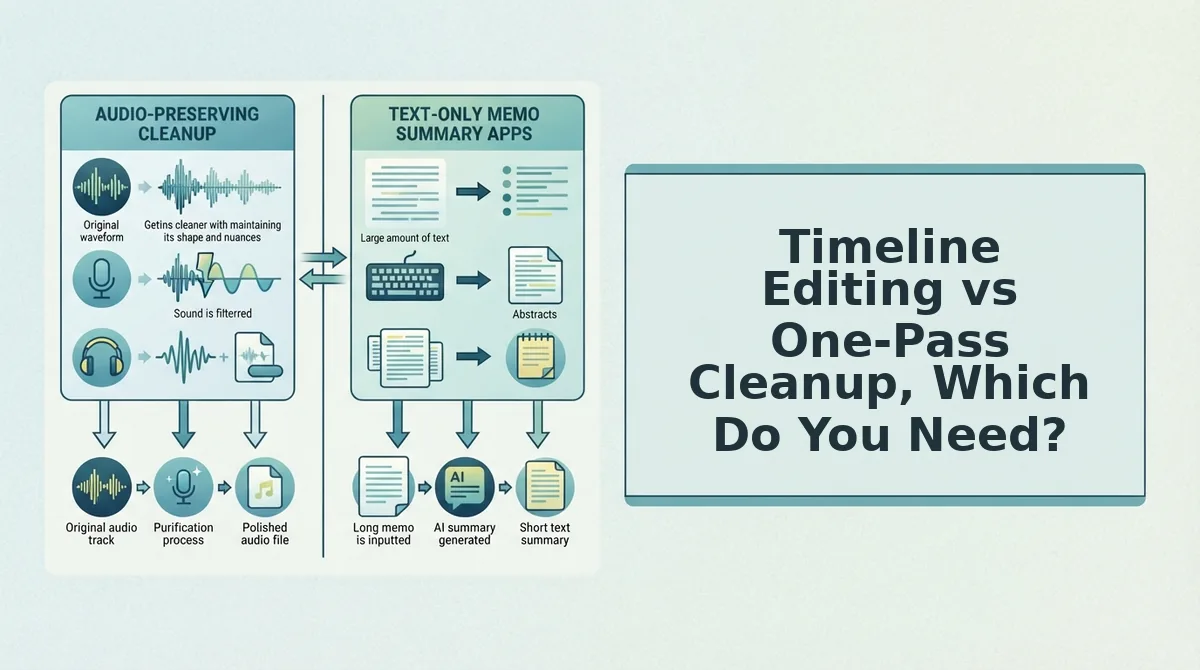
Timeline Editing vs One-Pass Cleanup, Which Do You Need?
You need a timeline editor for long, multi-track productions and one-pass cleanup for short voice messages. Base the choice on message length, audience, editing skill, and the output you need.
| Factor | Timeline editor (Descript, DaVinci Resolve) | One-pass cleanup (VClar) |
|---|---|---|
| Message length | Long-form episodes and recordings | Short voice notes, often 45 to 90 seconds |
| Audience | Public listeners and viewers | Clients, teammates, and buyers in async chats |
| Editing skill | Requires comfort with tracks and cuts | None, because you record or upload once |
| Output | Fully produced, multi-track media | Cleaned audio plus a transcript |
Yes, you can clean up a voice note without a timeline. One-pass cleanup removes filler words, fixes spoken grammar, and reduces background noise, breaths, and clicks in a single step, then returns polished audio and a transcript. For a 45 to 90 second message to a client or teammate, that covers everything the listener will notice. A timeline is still worth it when you produce podcasts, long-form content, or multi-track work, because you need manual control over music, multiple speakers, and precise cuts. For those projects, timeline editors are the stronger tool.
Best for podcasters and video creators: a timeline editor. Best for founders, sales reps, and freelancers sending quick updates: one-pass cleanup.
If you mostly send short async messages, see how the two workflows compare feature by feature in VClar vs. Descript.
Send Your Next Voice Note in One Take
You don't need a timeline to send a clear voice note. You need one cleanup pass and one quick check.
Keep three habits:
- Clean all three layers: fillers, grammar, and noise.
- Run the side-by-side check instead of re-recording.
- Keep your own tone, accent, and cadence.
Cleanup also prepares a message for translation. Take a B2B sales rep who records a follow-up for an enterprise buyer. The rep cleans the note, translates it into the buyer's language, and sends it in their own voice. The voice note translator covers 11 languages and 110 translation directions.
Clean your next voice note with VClar and send it on the first take.