
A founder records a two-minute investor update, hears four ums and a false start, runs it through AudioPen, and gets back a tidy written note. Then forwards the original recording anyway â ums intact.
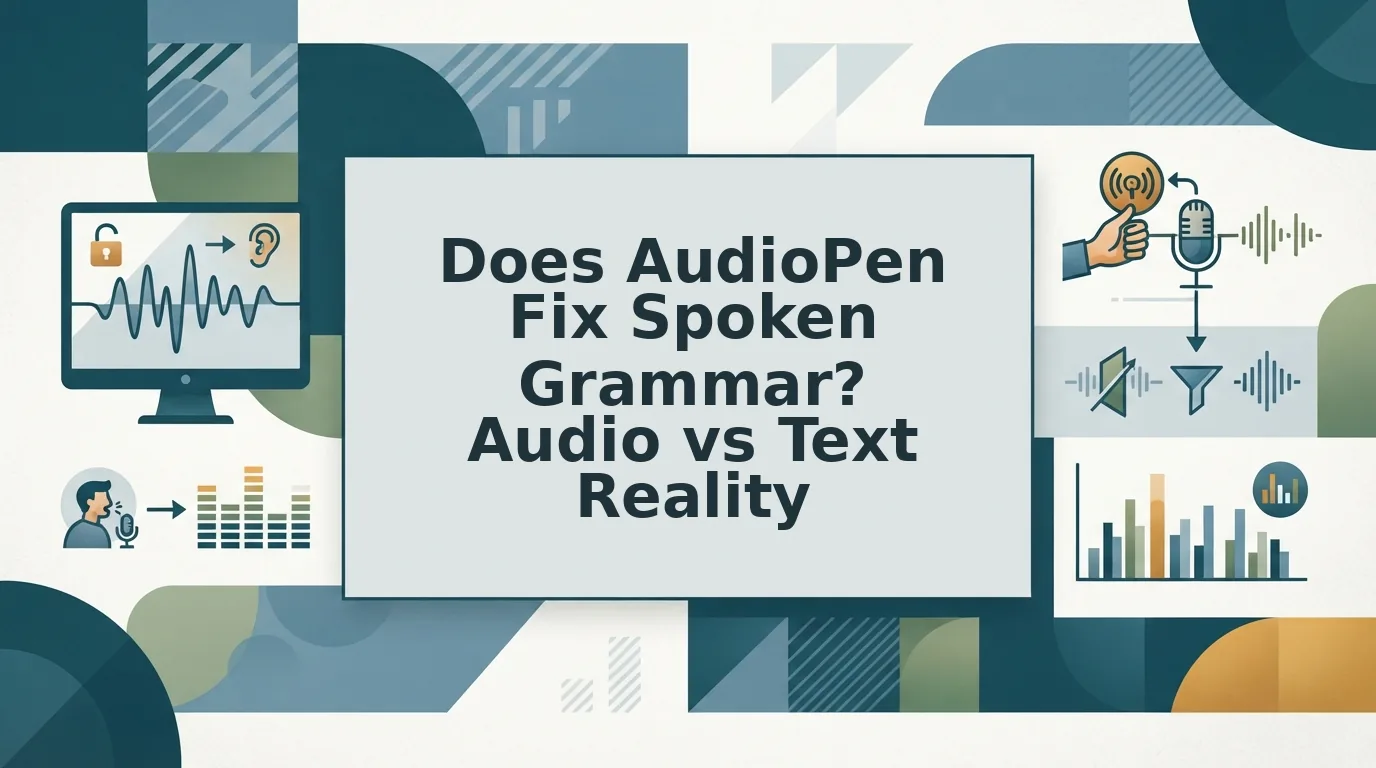
That scenario is the short answer to does audiopen fix spoken grammar. AudioPen cleans the text it generates from your voice, not the audio itself. The file your listener presses play on never changes.
If you have been re-recording voice messages to sand off the hesitations, you are not being precious. You are doing unpaid studio work on a thought that took seconds to form and minutes to deliver.
Below: which layer AudioPen actually edits, what its cleanup changes inside your phrasing, and how to repair grammar inside a recording without a second take. There is a second layer almost nobody in this category addresses â and it is the one your listener actually hears.
VClar targets that layer. Ums, false starts, breath sounds and mouth clicks come out of the audio timeline while your accent, tone and cadence stay exactly where they were.
Does AudioPen fix spoken grammar in the audio or only in the written note?
Only in the written note. AudioPen's output is text, so every fix it makes lives in the transcript it generates; the recording you uploaded comes back to you unchanged.
The transcript layer is the readable text version of a voice message â what someone sees when the note opens. The audio layer is the waveform itself â what someone hears when they press play.
Think of correcting a printed menu while the kitchen keeps cooking from the old recipe card: the diner reads the fixed version, the plate arrives exactly as before.
At the surface, you speak and AudioPen transcribes. One level down, it restructures â merging fragments, dropping repetition, tightening phrasing, which is a rewrite rather than a repair. At the deepest level, none of that reaches the file: no export path in a text-output tool rewrites a waveform.
| Layer | What you read or hear | What the file carries | Who is affected |
|---|---|---|---|
| Transcript layer | Clean text: fillers gone, sentences joined | New characters in a text box | Anyone reading the note |
| Audio layer | The original recording, untouched | The same ums, false starts, room noise and clicks | Anyone pressing play |
| Export path | A note, doc or summary | No waveform rewrite exists | Voice-note recipients on WhatsApp, Slack or email |
Removing a filler word from a transcript does not remove it from the recording. Those are two separate edits on two separate layers: the transcript is generated text, the recording is a stored waveform, and a tool that outputs text can only change the first. So when a transcript reads clean while the forwarded audio still holds four ums and a false start, nothing has malfunctioned. The tool did what it was built to do, on the only layer it can reach. The layer your listener hears was never in scope.
For a layer-by-layer view of which tool edits what, see VClar vs AudioPen side by side.
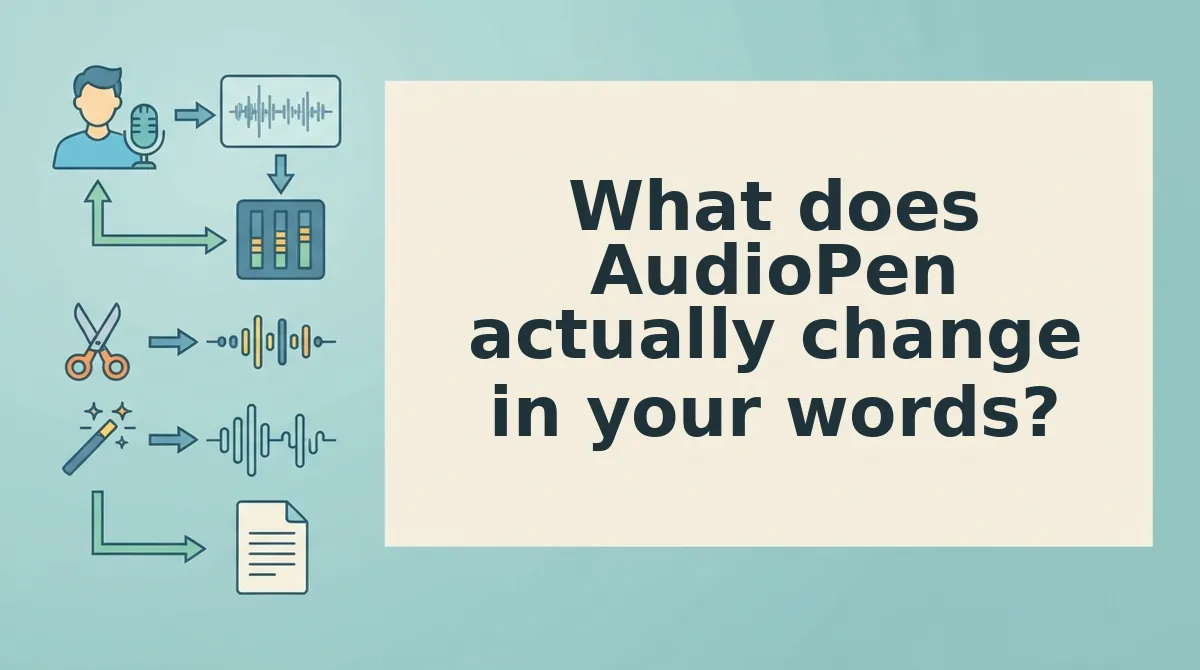
What does AudioPen actually change in your words?
Three things, all of them on the transcript layer: fillers dropped, structure rebuilt, content compressed. None of them is a grammar repair of what you actually said.
- Fillers and false starts leave the written text. Ums, ahs, "like," "you know" and abandoned sentence stems are stripped from the transcript. That win is real â the note reads faster than the ramble did. The audio still carries every one of them, which is why the transcript and the recording can disagree while sitting in the same message.
- The ramble is restructured into a readable note. Fragments get merged, tangents get reordered, and spoken syntax is swapped for written syntax. Useful if a note is what you wanted. The sentence you half-finished, though, comes back as a sentence you never said.
- Content is compressed into a summary. Longer inputs shrink toward the points that matter. This is where the trade-off sits: summarization replaces the speaker's phrasing rather than repairing it, so broken syntax does not return grammatical â it returns rewritten, or it returns gone.
AudioPen's own demo framing gives this away. The Clean Transcripts walkthrough is titled and pitched at the transcript, and reviewer coverage such as Tim Verdouw's evaluates the written output. Both judge the note rather than the spoken repair â fairly, since the note is what the product sells.
Text checkers hit the same ceiling from the other side; text checkers versus voice enhancement maps where each one stops.
Which leaves the question nothing on the SERP answers: how do you fix spoken grammar inside the voice message itself?
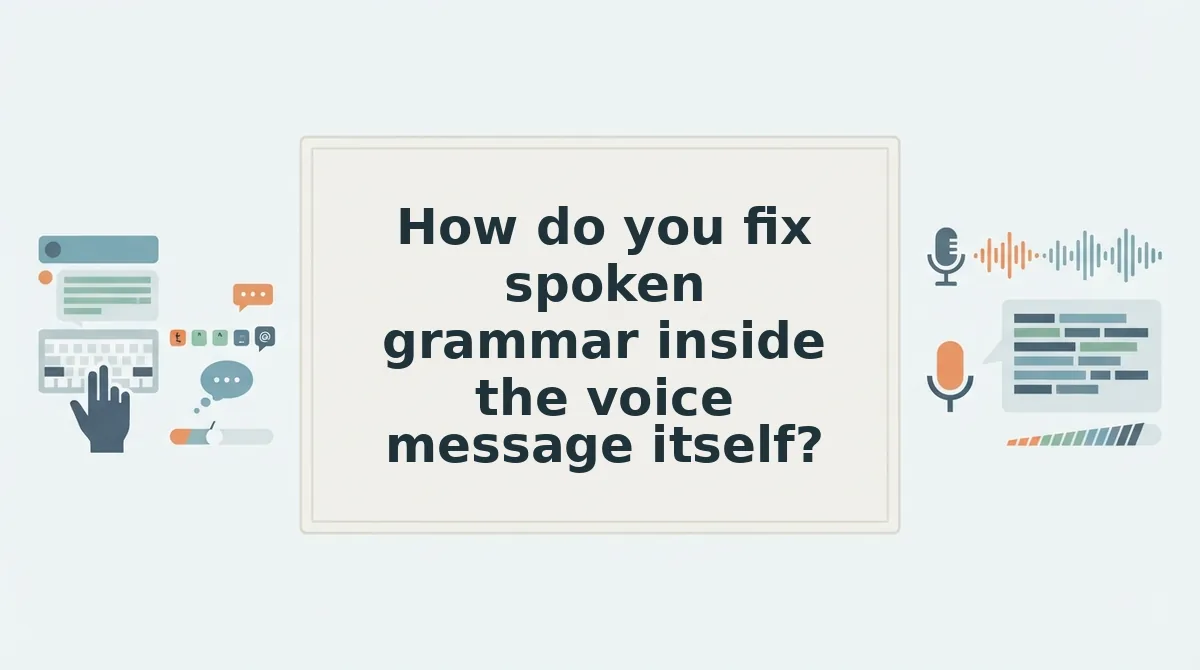
How do you fix spoken grammar inside the voice message itself?
The repair happens on the timeline, not in a text box: verbal fillers and false starts are cut at the waveform, breath and mouth clicks come down, and your vocal timbre, accent and rhythm stay intact.
Before you start: you need one unscripted 30â90 second memo and an editor that writes to the audio layer, such as VClar's fix grammar in a voice message workflow. Budget about four minutes.
- Record the memo once (60 seconds). Talk the way you normally talk and let the ums happen; you should end with a file that still contains your real hesitations.
- Upload the clip (30 seconds). Click Upload, pick the file, and confirm the waveform duration matches your recording. A mismatch means you loaded the wrong take.
- Select the clean-up controls and run (roughly the clip's own length). Switch on Filler word removal, then breath and mouth-click reduction. You should see both active, and the output should come back as an audio file, not a rewritten note.
- Play both versions back-to-back (60 seconds â the same-clip test). Listen for silence where you remember hesitating instead of reading for it. Success is your pitch and pacing unchanged with the filler gone. Outputs vary by input, so a noisy room will clean differently than a quiet one.
The um is gone from the recording only if the file itself changed. Test it physically: open both versions in a player that shows a waveform and check the gap where the filler sat. A transcript edit leaves the duration identical and the stumble audible. A timeline edit shortens the file and leaves a clean seam. Duration plus an audible gap separates audio-layer repair from text-layer rewriting â same clip, two files, one measurable difference, which is why the comparison beats a listening impression.
| Recipient and stakes | What you send |
|---|---|
| Peer, quick status update | Cleaned text note |
| Client who already knows your voice | Enhanced audio |
| Negotiation, apology, sensitive feedback | Both â audio for tone, note for the record |
For a high-stakes investor or enterprise message, the text note strips the tone and pacing that carried the commitment, so send the recording and let the note ride alongside it.
If filler words are the bulk of the damage, start with removing filler words from the audio and work up to a full timeline cleanup.
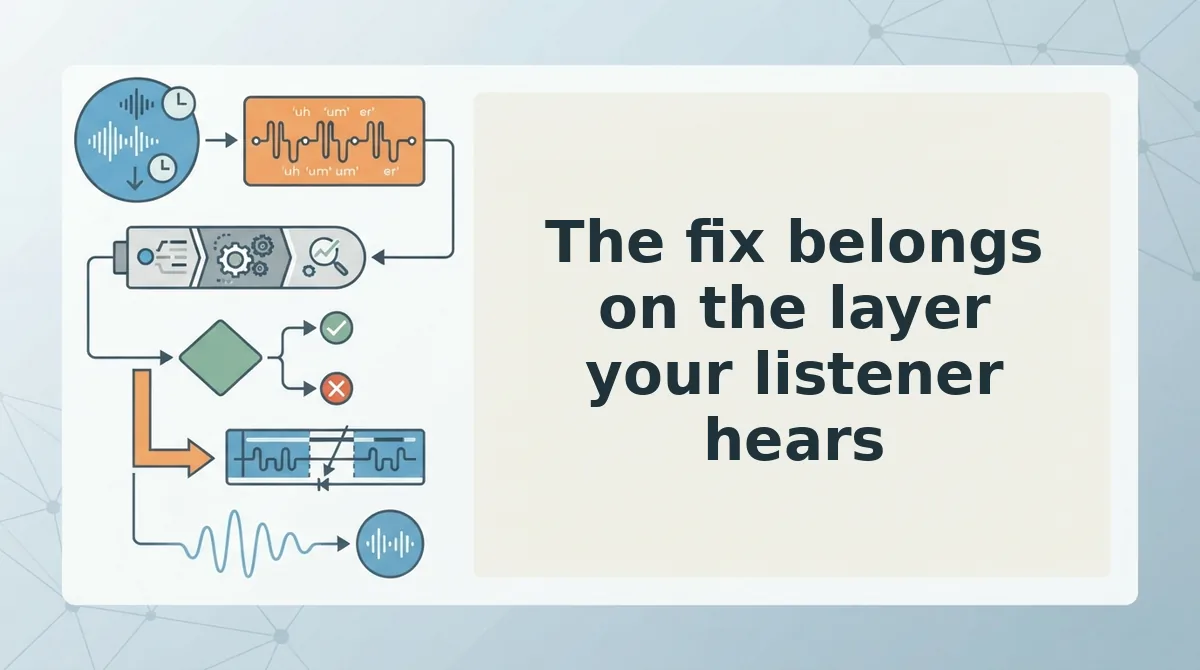
The fix belongs on the layer your listener hears
AudioPen edits the words you read; the recording your recipient plays comes back untouched. That split is the entire answer, and it decides which tool you open.
Start small: run one memo you already sent through an audio-layer cleanup and compare the two files side by side. If voice is how you sell, the workflow in voice notes for founders applies the same steps to investor updates and async deal notes.
Then stop re-recording entirely. Open VClar, upload the take you already have, and send the one-take version that sounds like you on your best speaking day â the fix should land where your listener actually listens.
You can also remove fillers from a recording.