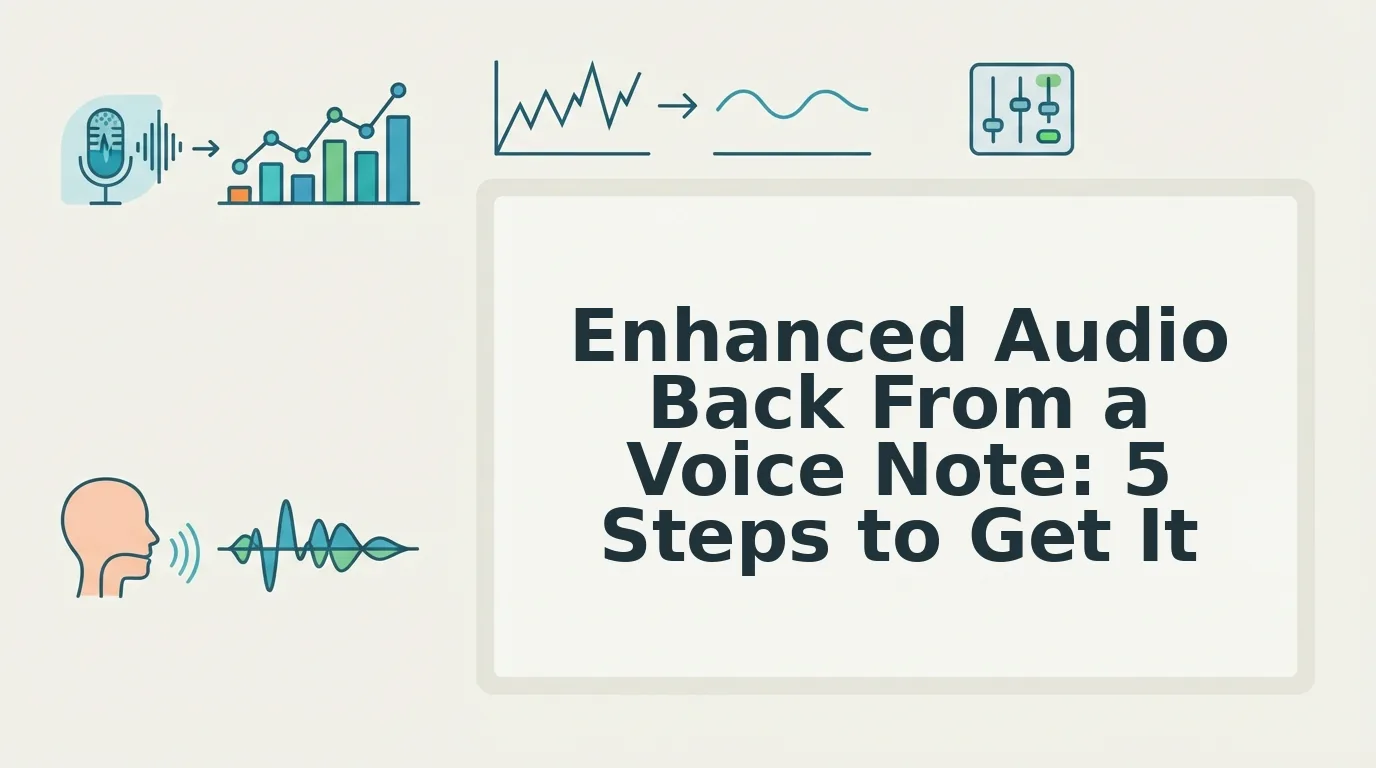

You record a 60-second voice note, run it through an AI tool, and a paragraph of text comes back. Your first instinct is that the phone's recorder failed. It didn't â transcription tools are built to pull the words out and drop the audio track, so there was never a file to return.
Getting enhanced audio back from a voice note is possible, and it starts with picking a tool whose product is a listenable file rather than text. This guide covers what that returned artifact actually is, the five steps that produce it, and how to confirm the result before you forward it to anyone.
One thing worth flagging early: "enhanced" is two separate jobs stacked under a single word â acoustic cleanup and verbal cleanup â and tools that promise one often deliver only the other. That distinction is what decides which output shape you should request, and it is where most people pick wrong. Hearing a message and reading it are genuinely different artifacts, as voice vs text lays out.
What Does Getting Enhanced Audio Back Actually Mean?
Enhanced audio is your own recording, cleaned and returned as a playable file: same speaker, same cadence, minus filler words, false starts, and room noise. What distinguishes it is the output shape â a file you can play and forward.
Most people never receive one because transcription-first tools are architected around word extraction. They convert speech to text and drop the audio track. Nothing broke; the file was never the product.
Think of a receipt scanner: it reads the total and hands you numbers, not a cleaned photo of the paper. Both outputs are useful, but only one of them lets you hear how something was said.
One question settles the choice: does the listener have to hear you, or read you? If your delivery carries the message, request audio. If they need to scan, quote, or search it, request text.
| Output shape | What you receive | Use it when |
|---|---|---|
| Text only | A transcript, no audio | You need to quote or paste into a doc |
| Enhanced audio | One cleaned audio file | The listener needs your tone and emphasis |
| Audio plus transcript | A matched audio-and-text pair | You are unsure, or need both record and delivery |
| Translated enhanced audio | The same pair in the target language | The listener does not speak your language |
A finished enhanced file arrives as two matched artifacts: a downloadable audio file in a standard format, and a transcript of the cleaned text that matches it word for word. The transcript is what you paste into a document; the audio is what you send when delivery carries meaning. Request a translation and you get the same pair in the target language â VClar cleans and translates across 11 languages, including Hindi, English, French, Japanese, Korean, German, Russian, and Portuguese, keeping your own voice rather than substituting a synthetic one.
Prerequisites are minimal: a recording in any common format or the ability to record fresh in a browser, roughly one minute to decide on your listener, and a chosen output shape.
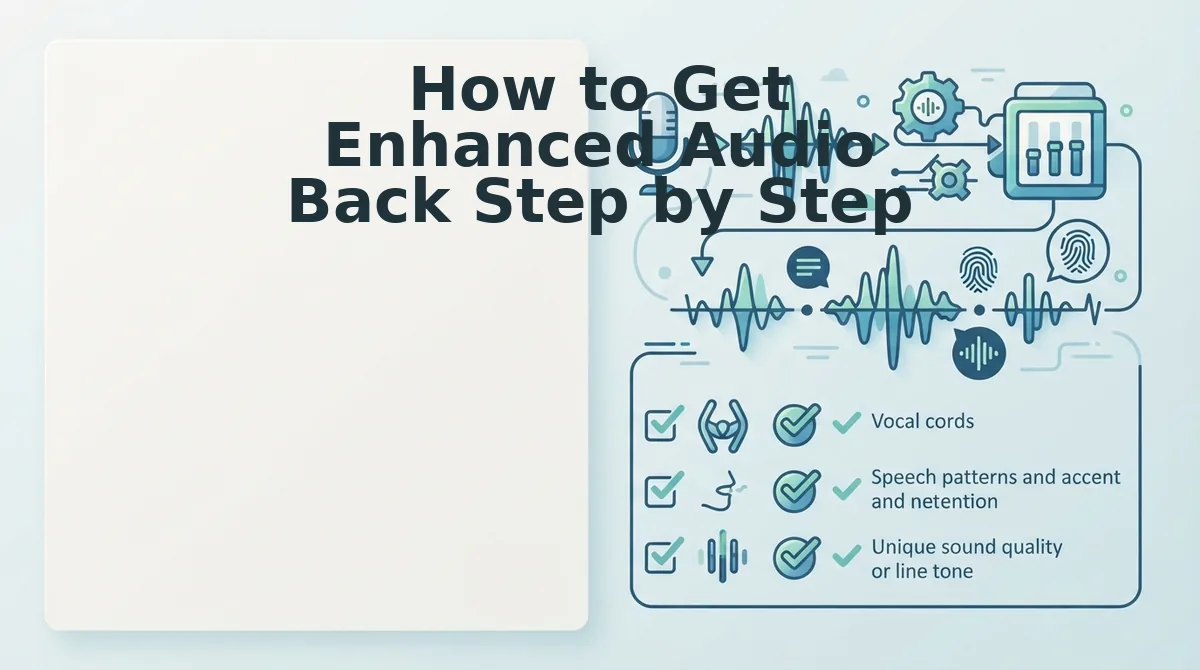
How to Get Enhanced Audio Back Step by Step
You need one existing recording â the memo you already sent, or a fresh take in the browser â plus a decision on output shape. A one-minute note takes under five minutes end to end.
- Open the recorder or upload control. Drop in the file you already sent, or press record and speak once. Any common audio format works; a 60-second WhatsApp export is fine.
- Choose audio plus transcript. Select both when you are unsure. You should see the output selection confirmed before processing begins.
- Run the enhancement. The engine removes fillers â "um," "like," "you know," "basically" â plus repeated false starts, corrects spoken grammar, and reduces breath, mouth clicks, and room noise. The cleaned file runs shorter than the original; the missing time was filler.
- Review the track against the transcript. Play it once end to end and read along. Confirm no sentence lost meaning where a filler was cut, and that names, numbers, and dates survived.
- Export and forward. Download the audio and transcript as a matched pair. Send the audio to anyone who needs your delivery; paste the transcript where it must be searched or quoted.
Recording Conditions That Still Matter
A car cabin adds road rumble and reflects your voice off glass. An earbud mic sits close enough to catch breath and fabric rustle. A home office adds keyboard clicks and HVAC hum. Each changes what the enhancer must remove, not whether it can â so park with the engine off and keep the earbud mic below your chin.
Pro tip: manual timeline editing in Audacity or DaVinci Resolve only pays off on files long enough to justify the setup. Past roughly 45 to 90 seconds of talking, cutting fillers by hand stops being worth the hour; below that, a browser enhancer finishes first.
Take the worked shape: a founder records an investor update in a parked car, uploads it, and gets back a shortened clean audio file plus a matching transcript containing situation and action only â no re-recording, no editing timeline. More patterns like it sit in voice notes for founders.
Producing the file is the easy half; confirming it actually improved is where most people skip a step.
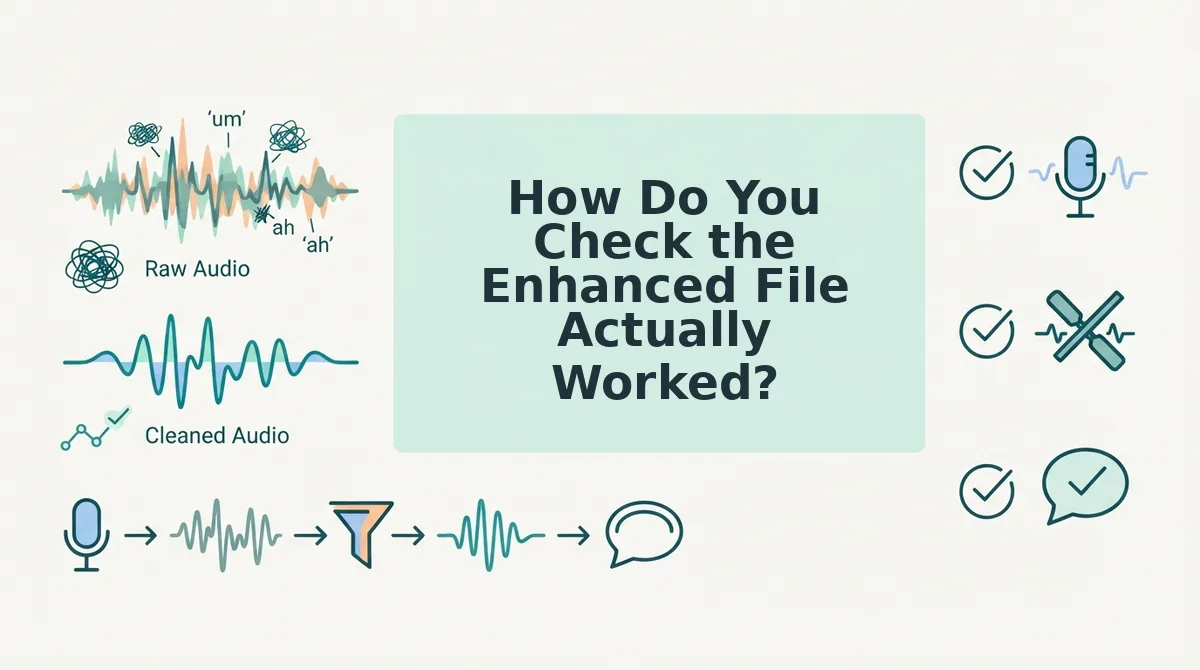
How Do You Check the Enhanced File Actually Worked?
Check the file at the cut points, not the loud parts: smooth passages hide edits, seams expose them. Acoustic cleanup handles noise, breath, clicks and plosives, and fails quietly as hum or pumping; verbal cleanup handles fillers, false starts and circular phrasing, and fails audibly as clipped words or jumped pacing.
- Fillers removed, not muted. A muted filler leaves a dip; a removed one keeps the rhythm. Replay where you said "um" twice.
- Pacing preserved. Compare gaps with the original; a rush or drag means time, not silence, was cut.
- No artifacts at cut points. On headphones, check each seam for clicks and clipped half-words.
- Transcript matches the audio. Read along for thirty seconds; drift means the text was regenerated, not aligned.
Why does a cleaned voice note sound choppy at the edits? Filler removal is a timing operation, not a mute. Deleting "um" from the waveform also requires matching room tone on both sides and preserving the speaker's natural pause. Cheap cuts leave a one-frame silence or a sudden shift in background hiss, and the ear catches that seam before it notices the missing word. Pumping means the noise gate is overworking; clipped consonants mean a cut landed mid-syllable of speech.
Troubleshooting: Long files may return trimmed or split, so check duration. Surviving hum means noise was sampled from speech, not silence. Transcript drift signals regeneration. A forwarded file that will not play is usually a container mismatch.
Run the next one through the filler word remover and grammar fixer before sending.
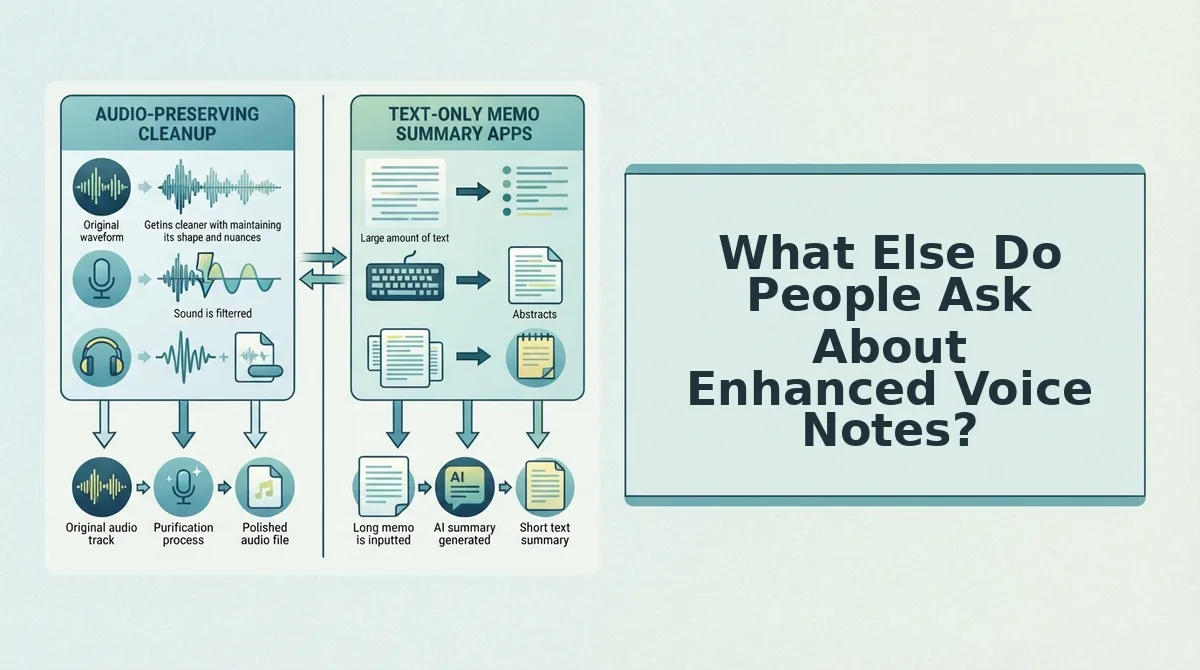
What Else Do People Ask About Enhanced Voice Notes?
Enhancement preserves the original speaker, returns an audio file plus transcript, and works best on steady noise rather than sudden sounds. The questions below cover voice cloning, file format, recording conditions, and phone-native limits.
Does enhancing a voice note change or clone my voice?
No. Enhancement edits the original recording instead of regenerating a synthetic speaker, so your pitch, accent, and cadence stay intact. It removes noise and fillers, not vocal identity. A service that asks you to train a voice model first is cloning, not cleanup.
What format comes back, and can I forward it?
You get a playable audio file plus a matching transcript, not text alone. The audio forwards through messaging apps like any other voice note, and the transcript pastes into email or chat. Check duration first, because long files may be split.
Does enhancement work for car and earbud recordings?
Partly. Steady road hum and fan noise respond well to acoustic cleanup, but horns, passing traffic, and wind gusts can survive because they overlap speech frequencies. Recording closer to your mouth gives the cleanup more to work with than a speakerphone across a cabin.
How do I enhance audio on a phone recording natively?
Phone recorders trim clips and sometimes reduce background noise, but they do not remove filler words or repair spoken grammar. Native tools treat the file as audio only. Verbal cleanup needs a tool that processes the speech itself, not just the waveform.
Send the Next Voice Note Someone Actually Listens To
The finding worth carrying away is simple: the problem was never your recorder. It was that you asked one file to do three jobs. A single clean recording can return enhanced audio for people who listen, a tightened transcript for people who read, and a translation for anyone across a language line. That is the Three-Output Model, and it makes "enhanced audio back from a voice note" a workflow question rather than a repair question.
Before you record again, ask the diagnostic question: does this person need to hear me or read me? That one answer decides which output you send, and it takes less time than re-recording.
The habit is reusable: speak once, clean once, send the version the listener can use. Try a recording while the memo is still in your hand.
You can also remove fillers from a recording.