
You record an investor update in the car, play it back, and hear three "ums," a false start, and a sentence that trails off. So you delete it and start again. That re-record loop is why so many people search for grammarly for whatsapp voice notes.
The frustration is fair. Typing feels too slow when you think faster than you type, and raw voice memos carry fillers, awkward pauses, and loose grammar that undermine your authority. Many voice notes for founders start exactly this way.
This guide shows you how to send one clean take without losing your voice. You'll get the direct answer, a tool comparison, and four steps, plus the one layer of every voice note Grammarly never touches.
Grammarly checks typed text, but a WhatsApp voice note is audio, so you need a tool that cleans the recording itself. The result is a cleaned voice note that still sounds like you. All you need is the original voice note, a phone or WhatsApp Web, and a few minutes.
Can Grammarly Fix a WhatsApp Voice Note?
No. Grammarly corrects text you type, and a WhatsApp voice note is a sound file it cannot read or edit.
A WhatsApp voice note is an audio message recorded and sent inside a chat, so its mistakes live in the sound rather than on a page. Those mistakes include verbal filler (meaningless sounds like "um," "ah," and "you know"), spoken grammar errors (false starts, broken tenses, and sentence fragments you would never type), and acoustic distractions such as background noise, breaths, and mouth clicks. Fixing them requires audio cleanup, which means editing the recording itself rather than a written version of it.
Think of Grammarly as a spell-checker pointed at a podcast. The tool is good at its job, but the material it was built for isn't there.
| Layer | What it contains | Does Grammarly reach it? |
|---|---|---|
| 1. Typed text | Words you type in a chat | Yes |
| 2. Spoken words | Fillers, false starts, fragments | No |
| 3. Sound | Background noise, breaths, mouth clicks | No |
Grammarly does help with typed messages in WhatsApp Web and typed text on Android. Video tutorials on this topic cover those typed setups and never voice notes.
Voice typing doesn't solve the problem either. Dictation turns speech into text, so your voice is gone before Grammarly sees a word.
Layers 2 and 3 need a tool that removes fillers, fixes spoken grammar, and reduces noise while keeping your tone and accent. See how VClar compares to Grammarly.
Grammarly vs Dictation vs Audio Cleanup: Which Do You Need?
Choose by how the recipient will receive your message. If they read it, Grammarly is the strongest choice for grammar and clarity; if they hear it, only an audio cleanup tool fixes it, because dictation converts speech to text and Grammarly never touches sound.
Can you transcribe a voice note and run Grammarly on the transcript instead? You can, but the output is a text message, not a voice note, so your tone, accent, and rhythm disappear along with the ums. That defeats the reason you chose voice in the first place, because the listener wanted to hear how you sound, and a polished transcript reads like any other typed reply in their chat list.
| Situation | Right tool | What you keep | What you lose | Best for |
|---|---|---|---|---|
| Typed reply | Grammarly | Corrected, clear text | Nothing; no voice involved | People who type comfortably |
| Dictated text | Voice typing, then Grammarly | Speaking speed | Your voice entirely | Quick replies where voice doesn't matter |
| Sending as voice | Audio cleanup (VClar) | Tone, accent, rhythm, intent | Fillers, false starts, noise, clicks | Founders, sales teams, creators |
| Sending in another language | AI voice message translator (VClar) | Your natural voice across 11 languages | The language barrier | Cross-border operators |
Grammarly remains excellent for written messages, and VClar doesn't replace it there. VClar enhances your real voice without synthetic cloning.
The next section shows how to clean a WhatsApp voice note in four steps.
How to Clean a WhatsApp Voice Note in 4 Steps
To clean a WhatsApp voice note, export the audio from the chat, upload it to VClar, run the cleanup, then review the result and send the polished file back. Most of the loop is listening time, so plan for a few minutes per message.
Before you start, you need: WhatsApp on your phone or desktop, the voice note you want to fix, and VClar open in your browser.
1. Export the Voice Note From WhatsApp
- Press and hold the voice note in the chat (or right-click it on desktop).
- Use the share or forward option to send the audio to yourself, a notes app, or your device's files.
- Open the destination and tap the file to confirm it plays.
Time: under a minute. You should have a playable audio file that sits outside the chat.
2. Upload the Raw Audio to VClar
- Open VClar and select the upload option.
- Choose the exported file from your files or downloads folder.
Time: about 30 seconds. Upload the original, untrimmed file so the engine hears your full delivery. You should see the file listed and ready to process.
3. Clean the Audio
Run the cleanup to remove filler words from audio, including ums, ahs, "like," "basically," "you know," and repeated false starts. VClar also fixes spoken grammar, tightens loose phrasing, and reduces background noise, breath sounds, and mouth clicks.
You should hear a shorter, more decisive message in your own voice.
Worked example: A B2B sales rep records a follow-up to an enterprise buyer between meetings. The draft opens with two false starts ("So I just, I wanted to, so about the pilotâ¦") and trails into fragments. After cleanup, the message opens with a complete sentence about the pilot, the fragments become finished thoughts, and the rep's natural pace and warmth stay intact.
4. Review and Send It Back
- Play the side-by-side comparison to hear the original against the cleaned version.
- Read the corrected transcript to confirm every grammar fix matches what you meant.
- Download the cleaned file, open the WhatsApp chat, and attach it as an audio file.
Time: one to two minutes. Your recipient should receive a single, clear voice message instead of a rambling first take.
Pro tip: Scan the corrected transcript for the words that were removed. Most people lean on the same two or three fillers, and spotting yours makes your next recording cleaner before you even upload it.
If spoken grammar is your main worry, see how VClar handles it to fix grammar in a voice message without re-recording.
How to Check the Cleaned Voice Note Worked
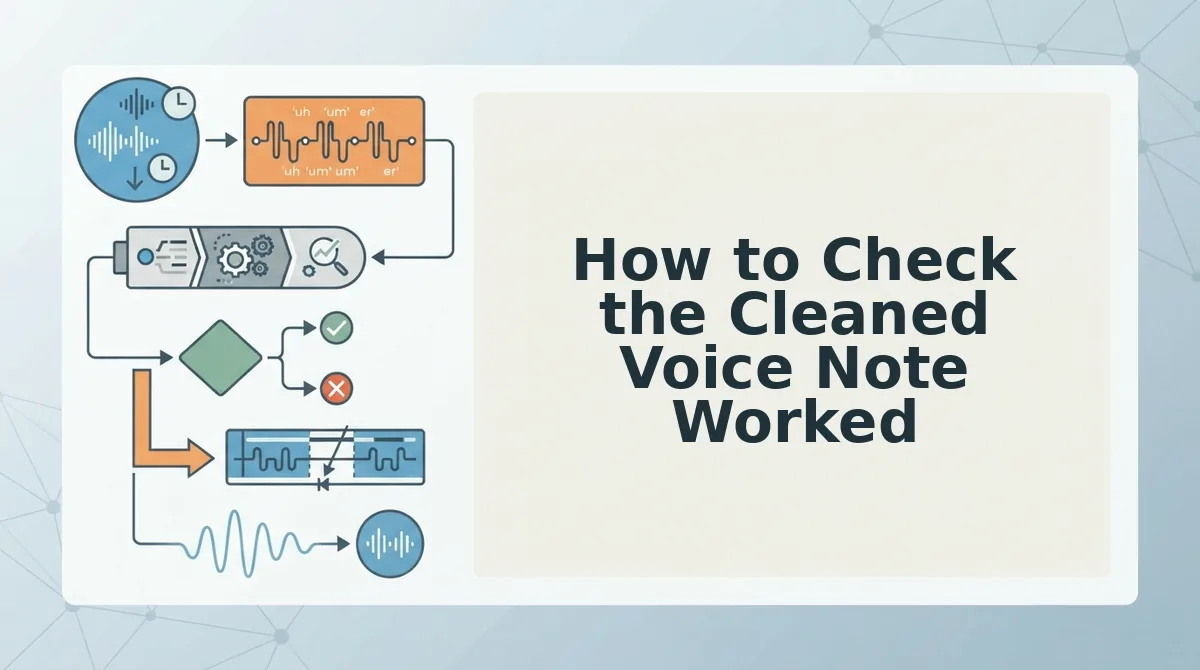
A cleaned voice note worked if it sounds tighter but still unmistakably like you. Run through these four checks before sending.
- Fillers and false starts are gone. Listen to the first ten seconds, where restarts usually cluster. A clean opening sets a confident tone.
- Sentences are complete. Read the corrected transcript for fragments. Finished sentences keep your listener from replaying the message.
- Background noise is reduced. Check pauses for hum, breaths, or clicks. Quiet gaps make your words easier to follow.
- It still sounds like you. Your accent, tone, and rhythm should match the original. VClar is built to preserve them, so compare side by side to confirm.
Troubleshooting
- Can't find the exported file: Check where you shared it, then your downloads folder.
- Upload rejected: Confirm the supported file formats on VClar rather than guessing, then re-export if needed.
- Cleaned audio sounds off: Compare side by side and re-run the cleanup on the original file, not an edited copy.
- Recording mixes languages: That's common for multilingual speakers. Review the transcript closely, and consider recording in one primary language for best results.
Send It Clean, or Send It in Their Language
Grammarly polishes what you type, but anything you send as voice needs audio cleanup. That's the rule this whole workflow comes down to.
Now, what if your listener speaks another language? A cross-border team lead records a project update in English, cleans out the false starts, then translates it into Japanese for the Tokyo office. VClar supports 11 languages and 110 translation directions, so you can translate your voice note into 11 languages after it's polished.
Clean first, translate second, and your message lands clearly in any language without losing your voice.
Upload your next voice note before you hit send. One take is all you need.