
A founder records a two-minute investor update on the walk to a meeting. The thinking is sharp, but the audio is full of "ums" and a few tangled sentences, so they paste the transcript into a text tone checker. The "fixed" version reads cleanly, but it no longer sounds like them.
That gap sits at the center of grammarly tone suggestions vs spoken tone. Wanting polish makes sense, because nobody wants to send investors a rambling update. Most guides bury the verdict, so here it is: Grammarly's tone suggestions are the right tool for typed messages. For voice messages, fix the grammar and fillers in the recording itself and keep your real delivery.
Key Takeaway: Grammarly analyzes and rewrites written words. Spoken tone also lives in pace, pauses, accent, and rhythm.
This guide covers how the two approaches compare across three tone layers, what Grammarly's tone features actually do, and how to clean up voice notes for founder updates without sounding scripted. It also names the one tone layer no text tool can hear.
How Do Grammarly Tone Suggestions Compare to Your Natural Spoken Tone?
Grammarly tone suggestions change the written layers of tone, which are word choice and sentence structure. Your natural spoken tone adds a third layer, delivery, which includes pace, pauses, pitch, accent, and rhythm. Text tools cannot hear delivery, so voice messages need cleanup in the audio rather than a rewritten script.
The 3-Layer Tone Model puts it simply. Layer 1 is word choice. Layer 2 is sentence structure. Layer 3 is delivery.
Can Grammarly fix the tone of a voice message? Only indirectly. Grammarly works on text, so you would have to transcribe the message, accept its tone suggestions, and then read the new script aloud or re-record it. That workflow handles Layer 1 and Layer 2 well, because both live on the page. It cannot touch Layer 3, the layer the introduction hinted at, because pace, pauses, pitch, accent, and rhythm never appear in a transcript. A voice-layer cleanup tool works the other way. It edits the original recording to remove fillers and fix spoken grammar, and it leaves your delivery intact.
| Criteria | Grammarly tone suggestions | Voice-layer cleanup (e.g., VClar) |
|---|---|---|
| Tone layer addressed | Layers 1 and 2 | Layers 1 and 2 in spoken form, with Layer 3 preserved |
| Input type | Typed text | Recorded or uploaded audio |
| What gets changed | Word choice, phrasing, formality, sentence structure | Filler words, false starts, spoken grammar, background noise, breath sounds, mouth clicks |
| Accent and cadence preserved? | Not applicable to text. Re-recording a rewrite replaces them with read-aloud delivery. | Yes. Natural tone, accent, and rhythm are kept. |
| Best use | Emails, documents, chat messages | Voice notes, async updates, cross-language voice messages |
Best for writers: Grammarly fits people who draft emails and documents and want consistent formality across the places they type. It does that job well.
Best for speakers: Voice-layer cleanup fits founders, sales reps, and creators who think faster than they type and want to send a message in one take.
If you send voice messages often, the full VClar vs Grammarly comparison covers each workflow in detail. It includes translating a cleaned voice message into 11 languages while keeping your own voice.
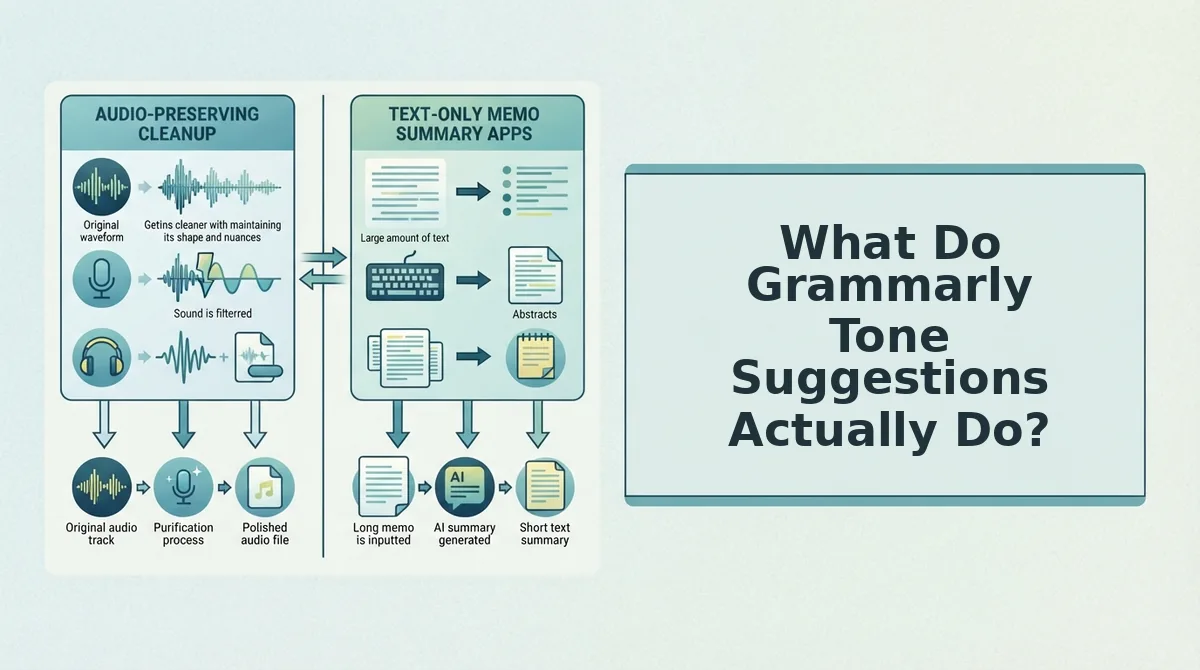
What Do Grammarly Tone Suggestions Actually Do?
Grammarly's tone suggestions analyze your written text and recommend edits that make it sound more confident, friendly, formal, or direct. They are useful for drafts, but every feature works on words on a page, not on sound.
- Tone detector: This feature reads your draft and labels how it is likely to come across, such as confident, friendly, or formal. It catches an accidentally curt email before you send it. Check the labels before an important message, and remember that the detector reads written text only. It cannot hear pace, pauses, or accent.
- Goals settings: This feature lets you set the audience, formality, and intent for a document. The settings shape which suggestions appear, so a casual note and an executive brief get different edits. Set your goals at the start of a draft instead of fixing tone afterward.
- Paraphraser tone rewrites: This feature rewrites a sentence or passage in a chosen tone or style. It is a quick way to turn a hedged line into a firmer one. Use it on typed copy, and review each rewrite to confirm it still says what you meant.
LanguageTool also works at the text layer. It offers grammar and style help on written words, so the same limit applies.
Rewrites You Wouldn't Say Out Loud
This is the part tutorials skip. A "confident" rewrite usually tightens sentences and removes hedges. That reads well, but when you speak it aloud or re-record it, it can sound scripted, because it was built for the eye, not the ear.
Picture a B2B sales rep following up with an enterprise buyer by voice. The rep's natural warmth, relaxed pauses, and familiar accent are what built rapport. A text-optimized script read back word for word flattens all of that.
A better workflow keeps the original take. You can fix grammar in a voice message directly, removing fillers and noise while your cadence stays yours.
That leads to the practical question of how to protect your delivery.

How to Keep Your Real Spoken Tone in a Voice Note
To keep your real spoken tone, edit your original recording instead of re-recording it. Record once, remove fillers, fix fragments, reduce noise, and leave your cadence alone.
Spoken tone has three layers: word choice (Layer 1), sentence structure (Layer 2), and delivery (Layer 3). Delivery is carried by pace, pauses, pitch, accent, and rhythm. Together these are called prosody, the musical shape of speech, and cadence, your natural rise-and-fall pattern. Filler words are sounds and phrases such as "um," "ah," "like," "basically," and "you know" that buy thinking time but add no meaning. Re-recording to remove them often swaps a relaxed delivery for a stiff, rehearsed one, which is the very tone you wanted to keep.
Every re-record trigger damages one specific layer, and none of them means you spoke badly. Fillers interrupt Layer 2-3 flow. Fragments break Layer 2 structure. Background noise, breath sounds, and mouth clicks blur Layer 3 clarity.
What you need: a phone or laptop microphone, a reasonably quiet room, and a VClar account.
- Record your message in one take. Speak as you would to a colleague, and keep going through any stumbles. Aim for 45-90 seconds. When you finish, you should have one continuous file with your natural pace intact.
- Upload the file and remove filler words. Run VClar's remove filler words from audio tool on the recording. Then spend about a minute listening back. The ums, ahs, and false starts should be gone, and the audio should flow without audible cuts.
- Fix fragments and spoken grammar. Let VClar complete half-finished sentences and tighten loose phrasing. Your main points should now land as full, direct sentences.
- Reduce background noise, breath sounds, and mouth clicks. Apply noise reduction to the cleaned file. Your voice should sit clearly in front, with no distractions behind it.
- Check that your cadence survived. Play the full message at normal speed, which takes 1-2 minutes. Listen for your usual pauses, pitch, and accent. Success sounds like you on a good day, not a voiceover artist.
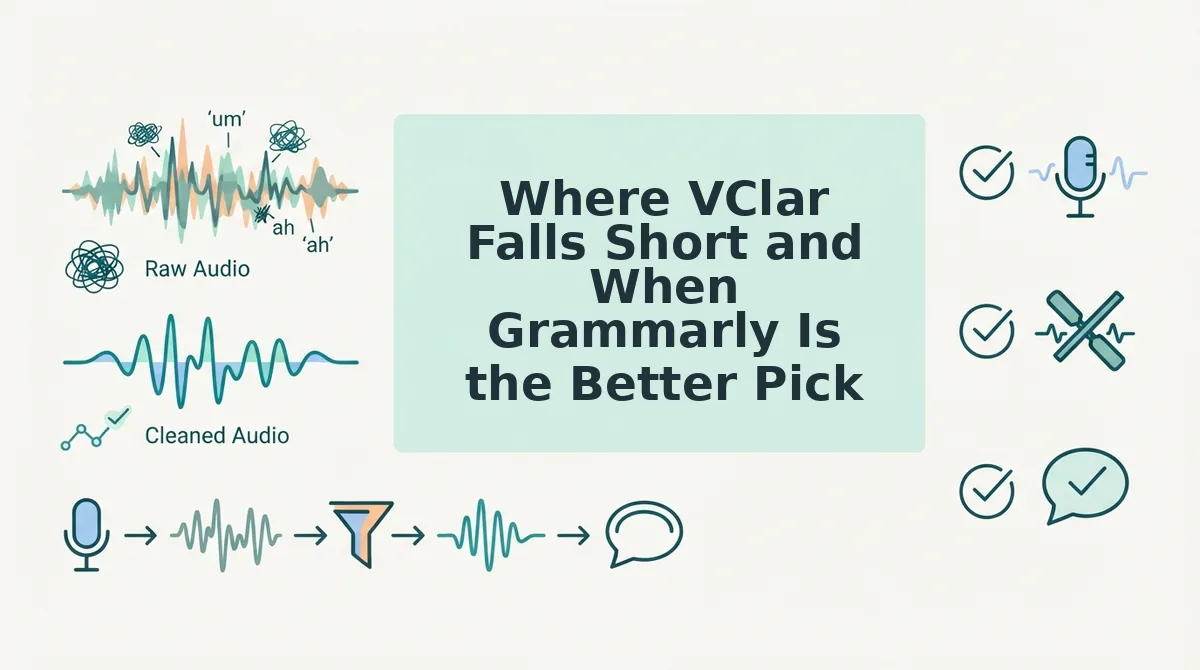
Where VClar Falls Short and When Grammarly Is the Better Pick
VClar only works on voice messages, so Grammarly is the better pick for anything you type. Most people who communicate in both formats need both tools.
Voice-layer cleanup is editing applied to recorded audio. It removes fillers, fixes spoken grammar, and reduces noise while keeping the speaker's real voice. Grammarly is a text-layer tool: it reads typed words and suggests changes to word choice and structure.
Think of Grammarly as a copy editor for a printed letter and VClar as a sound engineer for a phone call. A copy editor can't fix a mumbled sentence, and a sound engineer won't rewrite your memo.
The simplest limit is the channel. Grammarly wins for written channels such as email and Slack text. VClar doesn't touch typed emails or documents at all.
The next limit is scope. VClar won't rewrite your writing, and it won't replace your voice with a synthetic clone. If you want a generated voice reading a script, that isn't what VClar does.
The most specific limit is translation. VClar translates voice messages across 11 languages: Hindi, English, French, Japanese, Korean, German, Russian, Portuguese, Spanish, Italian, and Chinese. That gives 110 translation directions. Languages outside that list need another tool.
| Message type | Best tool | Tone layer addressed |
|---|---|---|
| Grammarly | Layers 1-2 (word choice, structure) | |
| Slack text | Grammarly | Layers 1-2 (word choice, structure) |
| 45-90 second voice update | VClar | Layers 2-3 (structure, delivery) |
| Translated voice note | VClar | Layers 1-3 (words, structure, delivery) |
The honest answer is to use both tools: Grammarly for what you type and VClar for what you say.
Frequently Asked Questions
These answers cover the questions people most often ask about tone checking for speech, filler removal, and voice translation.
Can Grammarly check the tone of a voice message?
No, Grammarly cannot check tone in speech or voice messages. It analyzes written words, so it can't hear your pace, pauses, or accent. At most, it can review a transcript, and a transcript leaves out the delivery layer that carries much of your spoken tone.
Does removing filler words change my accent?
No. Filler removal edits the words, not the voice. It cuts sounds like "um" and "you know" from the timeline and keeps your accent, pitch, and rhythm as you recorded them. What's left still sounds like you, just more direct.
Is Grammarly or LanguageTool better for tone?
Neither one helps with spoken tone. Grammarly and LanguageTool are both text-layer tools that address only Layers 1-2, word choice and structure. Choose between them based on your writing needs. For tone in audio, you need a voice-layer tool.
Can I translate a voice note and keep my own voice?
Yes. VClar can translate voice notes across 11 languages and keeps your natural tone instead of switching to a synthetic clone. That covers 110 language directions, including Hindi, Japanese, Spanish, and Chinese.
That leaves one simple principle to close on.
Polish the Words, Keep the Voice
Use Grammarly for what you type, and clean voice messages at the recording level instead of rewriting them. That resolves the tension from the intro. Tone suggestions improve text, but in a voice note, your spoken tone is the thing worth keeping.
- Typed channels: Let Grammarly refine your emails and documents.
- Voice notes: Clean Layers 1 and 2, which cover fillers, false starts, spoken grammar, and background noise.
- Layer 3: Protect your tone, accent, and cadence.
Picture a freelancer sending a client a project update. They record it once, run that take through VClar, and send a clear message that still sounds like them. There is no loop of re-recording to remove every "um."
Text tools fix what you wrote; voice cleanup fixes what you said without changing how you sound.
Record your next client update in one take, then clean it with VClar.