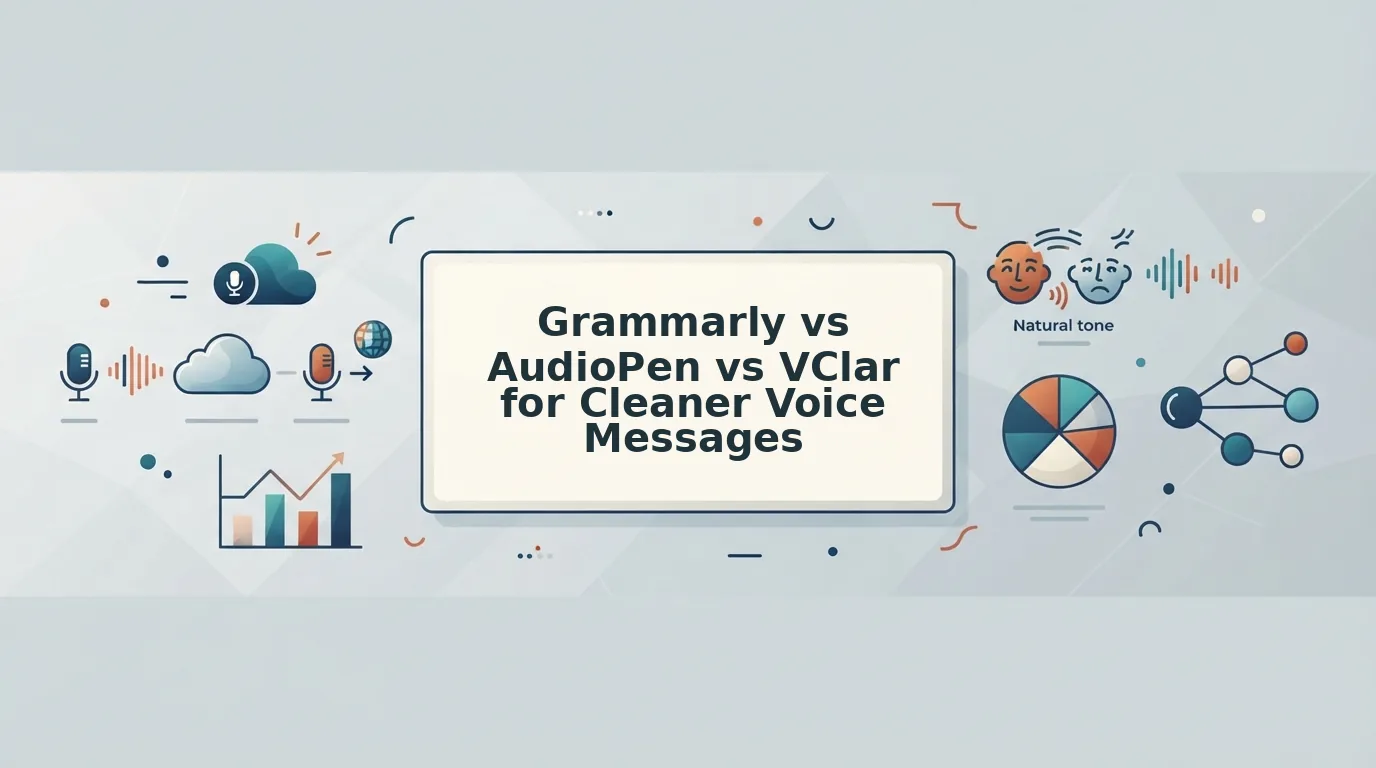

A founder records an investor update in one take, plays it back, hears the "ums," a false start, and a half-finished sentence, then deletes it and records again. When you compare grammarly vs audiopen vs vclar, the question that matters is simple: what should your recipient actually receive?
Short answer: Grammarly corrects typed text. AudioPen turns speech into written notes. VClar cleans the audio itself by removing fillers, fixing spoken grammar, and reducing noise while keeping your tone and accent. For messages the recipient should hear, use VClar. For written notes, use AudioPen. For typed writing, use Grammarly.
If you think faster than you type, the re-record loop is familiar. It is not a confidence problem. You are probably using a tool built for a different step of the job.
Full disclosure: VClar publishes this comparison. Where Grammarly or AudioPen is the better choice, the article says so.
Below, you will see a side-by-side matrix of what each tool delivers, where each one sits in your workflow, and which reader each tool fits best. One detail settles most decisions: only one of these three tools keeps your actual voice in the final message.
Before you read on, decide whether your recipient will listen to your message or read it.
What Does the Recipient Actually Get From Each Tool?
For spoken messages the recipient will hear, VClar is the better fit because it is the only one of the three that edits the audio itself and returns your own voice, cleaned. AudioPen is better when you want a voice-to-text summary to read or paste. Grammarly is better once your words are already typed. The real difference is the output: Grammarly returns corrected text, AudioPen returns written notes instead of audio, and VClar returns a polished voice message with fillers, spoken grammar errors, and background noise reduced while your tone, accent, and rhythm stay intact.
- Text checker: software that reviews typed writing for errors before you send it.
- Voice-to-text summarizer: a tool that transcribes speech and rewrites it as written notes.
- Spoken grammar correction: editing that fixes grammar inside the recording, so the corrected message is still heard in your voice.
| What the Recipient Gets | Grammarly | AudioPen | VClar |
|---|---|---|---|
| Input the tool works on | Typed text | Spoken audio | Recorded or uploaded voice message |
| Output delivered | Corrected text | Written text notes only, no audio | Cleaned audio plus transcript |
| Where it acts in the pipeline | Before sending typed text | Instead of the audio (a summary replaces the recording) | On the audio itself |
| Speaker's voice kept | No audio involved | No; wording intent is kept as text | Yes, including tone, accent, and rhythm |
| Translation | Check vendor page | Check vendor page | 11 languages, 110 translation directions |
| Best for | Professionals writing emails, documents, and typed chat | Creators and thinkers capturing ideas as readable notes | Founders, sales teams, and cross-border operators sending voice messages |
The Voice Fidelity Ladder
- VClar: keeps your tone, accent, and rhythm. The recipient hears you, minus the fillers and noise.
- AudioPen: keeps your wording intent as text. Your ideas survive, but your voice does not reach the recipient.
- Grammarly: needs typed text to start with. Your voice never enters the process.
This answers the question from the introduction: VClar is the only one of the three that keeps your actual voice in the final message.
Can Grammarly Fix a Voice Message?
No. Grammarly is a text checker that reviews typed writing, so it can only act after speech has become text. It never changes the audio a recipient hears, which means the fillers, pauses, and background noise in your recording stay exactly where they were.
In the simplest case, you record a voice note and send it. Grammarly has nothing to work on, because it works on typed text, not on audio.
A slightly more involved workflow looks like this:
- Transcribe your recording with a speech-to-text tool.
- Paste the transcript into Grammarly and accept its corrections.
- Send the corrected text instead of the voice message.
That works, but the recipient now reads a message rather than hearing one. Think of it like proofreading the printed transcript of a phone call: the page gets cleaner, but the call sounds exactly the same.
Grammarly deserves credit here. For emails, documents, and typed messages, it remains the right tool, and nothing in a voice workflow replaces it.
The gap shows up with recorded messages. Tone, filler words, and background noise all live in the audio, outside anything a text checker can touch. VClar works on that layer, removing fillers, fixing spoken grammar, and reducing breath sounds and mouth clicks while keeping your natural delivery. For a feature-by-feature breakdown, see VClar vs Grammarly in detail.
That raises the next question: is AudioPen good for voice notes?
Is AudioPen Good for Voice Notes?
Yes, if you want text. AudioPen turns rambling speech into a clean written note, but it is not built for sending your voice because its output is text only.
- Journaling without typing. AudioPen lets you talk through your day and get back a tidy written entry. Spoken reflection is faster than typing, and the cleanup happens automatically. Use it for end-of-day recaps you only need to read later.
- Drafting posts and long-form copy. AudioPen converts a loose spoken monologue into structured text you can shape into a post or article. This helps creators who think out loud better than they write. Use it to get a first draft, then refine it in your editor.
- Capturing ideas on the move. AudioPen turns a half-formed thought recorded on a walk into a readable note. Ideas often fade before you reach a keyboard. Use it as an inbox for raw ideas you will sort later.
The Catch Most Reviews Skip
The recipient never hears you. AudioPen produces text notes only, so your tone, accent, warmth, and emphasis drop out once the audio becomes words on a screen.
That works for private notes. It costs you in a client follow-up or team update, where the way you sound carries trust.
VClar is the AudioPen alternative for people who want to send audio rather than replace it. The message stays in your own voice and becomes cleaner and tighter.
How Does VClar Clean Voice Messages Without Changing Your Voice?
VClar edits the recording you already made. It removes distractions and fixes spoken errors while keeping your real tone, accent, and rhythm. It is not synthetic text-to-speech, a voice clone, or a voice avatar.
Voice message enhancement is the process of cleaning a spoken recording so it sounds clear and intentional without re-recording it. It works like a film editor trimming a scene: the actor's performance stays, and only the flubbed lines and microphone noise get cut.
Simple: Remove Fillers
The first layer lets you remove filler words from audio, including "um," "ah," "like," "basically," "you know," and repeated false starts. VClar then joins the audio back together so the message sounds decisive.
Intermediate: Fix Spoken Grammar and Tighten Phrasing
Spoken errors differ from written ones. They include false starts ("We should, actually, let'sâ¦") and circular phrasing, which means restating the same point several ways. VClar can fix grammar in a voice message and tighten wordy sentences.
A side-by-side comparison shows your original next to the cleaned version, along with grammar-correction details. Over time, you can spot your own verbal habits and improve them.
Advanced: Clean the Acoustics and Translate
VClar reduces background noise, breath sounds, and mouth clicks, which are small sounds that phone microphones tend to exaggerate. It also works as a voice note translator across 11 languages: Hindi, English, French, Japanese, Korean, German, Russian, Portuguese, Spanish, Italian, and Chinese. Together they cover 110 translation directions.
Worked Example
A B2B sales rep records a follow-up to an enterprise buyer from the car. The recording has road noise, a few "ums," and a restarted sentence about next steps.
VClar removes the road noise and fillers and smooths the false start. The rep then sends the message in their own voice without recording it again.
If you keep re-recording quick updates, VClar is built for that format: 45-90 second messages, recorded once, cleaned, and sent.
Where VClar Falls Short and Which Tool to Choose
VClar is built for short spoken messages that someone will hear. It is the wrong tool for long recordings, written summaries, or document editing, so most people get the best results by pairing tools according to the output they need.
- Short messages only. VClar is designed for quick 45-90 second messages, not long recordings. Use it for updates, follow-ups, and replies.
- Eleven languages only. Translation covers 11 languages and 110 directions. Confirm your language pair before relying on it for cross-border work.
- No written summaries. VClar returns your cleaned voice rather than a summarized text note like AudioPen does. Use AudioPen when the deliverable is text.
- No document editing. VClar does not edit emails or docs the way Grammarly does. Keep Grammarly for anything typed.
Consider a non-native English consultant sending a client update. VClar corrects the phrasing in the audio and keeps their accent, so the update sounds polished without making the speaker feel corrected. The same workflow applies to voice notes for founders.
Which should you choose: Grammarly, AudioPen, or VClar? Choose based on what the recipient receives. If they read typed writing such as email or documents, use Grammarly. If the output is a private journal entry, a post draft, or a captured idea in text, use AudioPen. If someone will hear your message, use VClar, because it cleans up fillers, spoken grammar, and noise while keeping your real voice. You rarely need just one tool. Pair Grammarly for email with VClar for voice, or AudioPen for private notes with VClar for outgoing audio.
Here is how to put that into practice on your next message.
Send Your Next Voice Message in One Take
The right tool depends on what your recipient should receive: Grammarly returns corrected text, AudioPen returns written notes, and VClar returns cleaned audio in your own voice.
That split resolves the question this comparison opened with. Only one of the three lets you skip the re-recording loop and still sound like yourself.
Test it on a real message:
- Record your next voice message the way you naturally speak, with the fillers and false starts left in.
- Run it through VClar to remove the ums, fix spoken grammar, and reduce background noise.
- Play the original and the cleaned version side by side. Listen for whether your tone, accent, and rhythm survive.
You should hear the same speaker without the hesitations. Try VClar on a voice message and judge the before and after yourself.
A cleaner message is not a different voice. It is your voice, saying exactly what you meant the first time.