
You're in the car, recording an investor update between meetings. Forty seconds in, you say "um," hit delete, and start over for the third time. If that sounds familiar, you're not alone. You can stop re-recording voice messages without becoming a flawless speaker.
Raw voice memos almost always carry fillers, awkward pauses, and half-finished sentences. That is how people talk when they think out loud. The trouble starts with the re-record loop: deleting and restarting a message again and again over minor mistakes that listeners would barely notice.
Record once, and let cleanup handle the fillers and fragments. Re-record only if you got a fact wrong, picked the wrong recipient, left out a key point, or used the wrong tone. Everything else can be fixed after you finish recording.
This guide gives you a simple triage rule and a four-step one-take method. Only four mistakes ever justify a redo, and most people re-record for none of them.
Which Mistakes Actually Need a Re-Record?
Only four mistakes need a re-record: a wrong fact, a wrong recipient, a missing key point, or the wrong tone. To stop re-recording over small slips, record once, let cleanup remove fillers and fragments, and check for those four errors before you send.
| Mistake | Cleanup fixes it | Re-record required |
|---|---|---|
| Verbal fillers (ums, ahs, "like," "you know") | Yes | No |
| False starts and sentence fragments | Yes | No |
| Circular phrasing | Yes | No |
| Background noise, breaths, mouth clicks | Yes | No |
| Wrong number or fact | No | Yes |
| Wrong recipient | No | Yes |
| Missing key point | No | Yes |
| Wrong tone for the relationship | No | Yes |
A verbal filler is a sound or word that adds no meaning, such as "um" or "basically." A false start is a sentence you begin and then abandon. A sentence fragment is an incomplete thought that never finishes.
A voice message only needs a redo when the content itself is wrong. If you state an incorrect number, send it to the wrong person, leave out the point the message exists to deliver, or strike a tone that doesn't fit the relationship, no editing can repair it. Those are content errors. Fillers, false starts, fragments, rambling loops, and background noise are delivery errors. They change how the message sounds, not what it says, so cleanup can handle all of them after a single recording.
The loop happens partly because your recorded voice sounds unfamiliar to you, and perfectionism holds you to a standard listeners don't apply. Listeners judge whether a message is clear, not whether it is flawless.
Most popular video fixes show how to disable or hide the iPhone audio button. That is useful if you keep sending voice notes by accident, and it suits people who rarely use voice at all. But the medium isn't the problem. For anyone who thinks faster than they type, cleanup is the better fix. Founders sending updates on the move can see how this workflow fits into their week on our voice notes for founders page.
How to Send a Voice Message in One Take
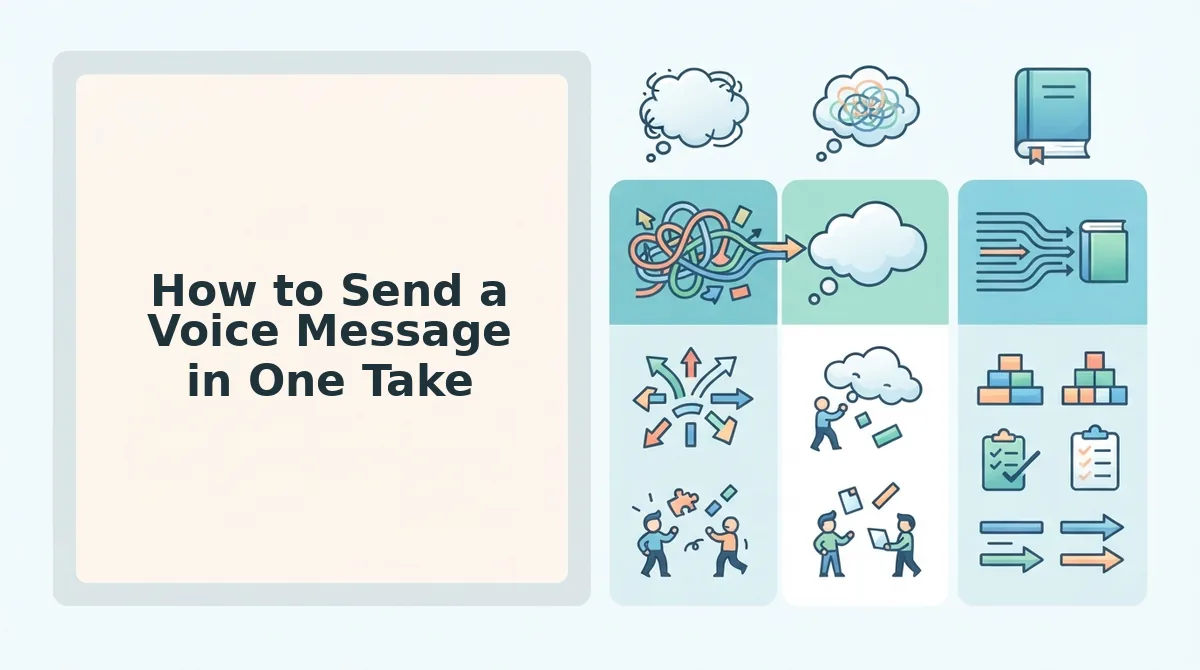
Use the One-Take Loop, a four-step method:
- Outline your three points.
- Record once, in 45 to 90 seconds.
- Let cleanup handle the fillers, fragments, and noise.
- Skim the transcript for the four redo triggers.
Prerequisites: A phone or computer with a microphone and a voice cleanup tool such as VClar. The whole loop takes about three minutes.
The One-Take Loop is a method for sending clear voice messages without restarting over small mistakes. First, you outline three points so you know where the message is going. Second, you record a single take of 45 to 90 seconds. Third, a cleanup tool removes filler words, fixes spoken grammar, and reduces background noise. Fourth, you read the transcript instead of replaying the audio. That check catches the only four errors worth a redo: a wrong fact, a wrong recipient, a missing key point, or the wrong tone.
Step 1: Outline three points before you hit record
Write three short bullets in your notes app. This takes about 30 seconds. You'll know your opening, your middle, and your ask before you start talking.
Pro tip: Write the first point as the exact words you'll say to open. If your first sentence is already scripted, you won't need a false start.
Step 2: Record once and keep it to 45-90 seconds
Press record and work through your three points without stopping. If you stumble, keep going. You'll finish with one complete take within the 45 to 90 second range.
Step 3: Let cleanup handle fillers, fragments, and noise
Upload or record the message in VClar. It removes filler words, fixes spoken grammar, tightens phrasing, and reduces background noise, breath sounds, and mouth clicks. Your natural tone and accent stay intact.
For more detail, see how to remove filler words from audio and how to fix grammar in a voice message. You'll get a cleaner version that still sounds like you.
Step 4: Skim the transcript, not the audio
Read the transcript, which takes about 20 seconds. Reading is faster than replaying the audio, and it makes the four redo triggers easy to spot. If none of them appear, send the message.
Worked example: A sales rep records a follow-up to an enterprise buyer on a busy street, with traffic noise and a few "you knows" along the way. Instead of finding a quiet spot to try again, the rep runs the take through cleanup and checks the transcript for the four triggers.
Next, here's exactly what to look for in that final check.
How to Check Your Cleaned Message Before You Send It
Your cleaned message should sound clearer while still sounding like you. A pre-send check is a quick listen-and-read review that confirms the cleanup fixed delivery without changing who you are or what you meant.
Think of it like proofreading an email. You are not rewriting it. You are confirming that the spell-check didn't swap a word you needed.
Start simple. Cleanup should never change your tone, accent, rhythm, or intent. VClar preserves your natural voice and does not use a synthetic voice or a text-to-speech clone, which is software that generates speech that imitates you.
Next, run the four-question checklist:
- Does it still sound like me?
- Are all three points present?
- Is the recipient right?
- Is the tone right for the relationship?
For example, a freelancer records a client update, checks the transcript against the triage matrix, and sends.
The process involves no waveform trimming or cut-by-cut edits. You can skip timeline editing entirely, unlike tools built around a timeline, which is a frame-by-frame audio editing track.
Troubleshooting
- The recording cut off: If a point is missing, re-record only that point as a short follow-up.
- The message runs past 90 seconds: Split it into two messages or drop the least urgent point.
- You still hate your voice on playback: That reaction is common and rarely matches how listeners hear you. Judge the message on clarity.
- Accidental sends: This is a separate problem, often tied to iPhone audio and video message gestures. Fix it in your phone settings, not by re-recording.
Voice Message Re-Recording FAQ
These answers cover the questions the steps above leave open.
Why do I hate hearing my own recorded voice?
Recordings sound unfamiliar because you normally hear your voice through your own head. On a recording, you hear it the way others do. Listeners have heard that version all along, and they judge whether your message is clear, not whether it is flawless.
How do I stop sending voice messages by accident?
Accidental sends are a phone-settings issue, not a recording issue. Review your messaging app's record and send gestures, and turn off any shortcuts you trigger by mistake. Re-recording won't prevent the next accidental send.
Can I translate a cleaned voice message for an international client?
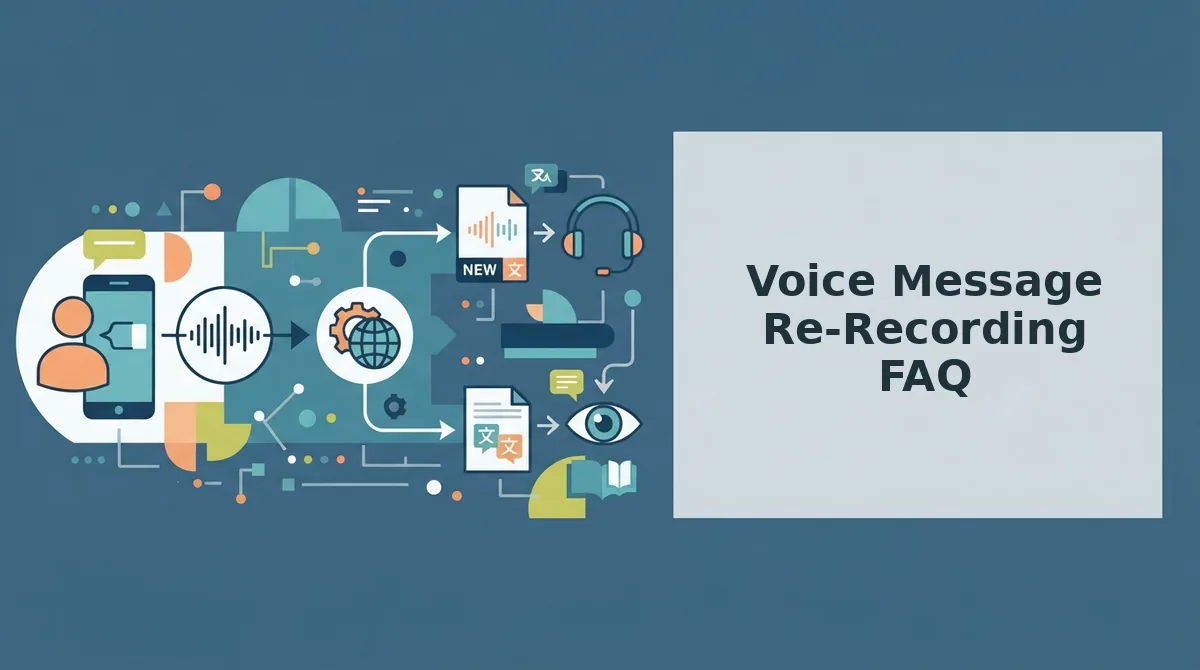
Yes. VClar translates cleaned voice messages across 11 languages, covering 110 translation directions. You can translate your cleaned message after cleanup, so the recipient gets a polished version in their language.
Do I need to re-record if I said "um" several times?
No. Filler words like "um," "like," and false starts can be removed automatically after recording. Save re-records for content problems, such as a wrong fact or a missing point.
Record Once, Then Let Cleanup Do the Rest
Most small mistakes never needed a re-record. They needed cleanup. That is the payoff promised at the start, and it changes how you treat every voice message.
Keep voice as your medium, because speaking is faster than typing for most people. Use one rule to triage: redo only for a wrong fact, a missing point, the wrong recipient, or the wrong tone. Anything else, including stumbles, fillers, and background noise, belongs to cleanup.
Then run the One-Take Loop: record, clean, check, and send.
For your next step, record your next message once and clean it with VClar. Your first take is now your final one.