
You record an investor update between meetings because typing it would take too long. Then you play it back, wince at every "um" and false start, and hit record again.
Grammarly already polishes everything you type, so that loop can feel like a solved problem. It isn't. Grammarly never sees the raw memo, because it never touches the audio.
Searching "VClar worth it with Grammarly" mostly turns up feature dumps. This guide gives you a clear stack-or-skip answer for people who think faster than they type, including anyone who relies on voice notes for founders and investor updates.
You'll get an overlap map that shows exactly where the two tools meet, a test of the workaround most people try, and decision steps. That workaround deserves a warning: it breaks the very thing that makes a voice message worth sending.
Key Takeaway: VClar is worth adding if you send voice messages for work. Grammarly fixes typed text. VClar fixes recorded voice (fillers, noise, spoken grammar) and adds translation. Skip it if you rarely hit record.
Is VClar Worth It If You Already Use Grammarly?
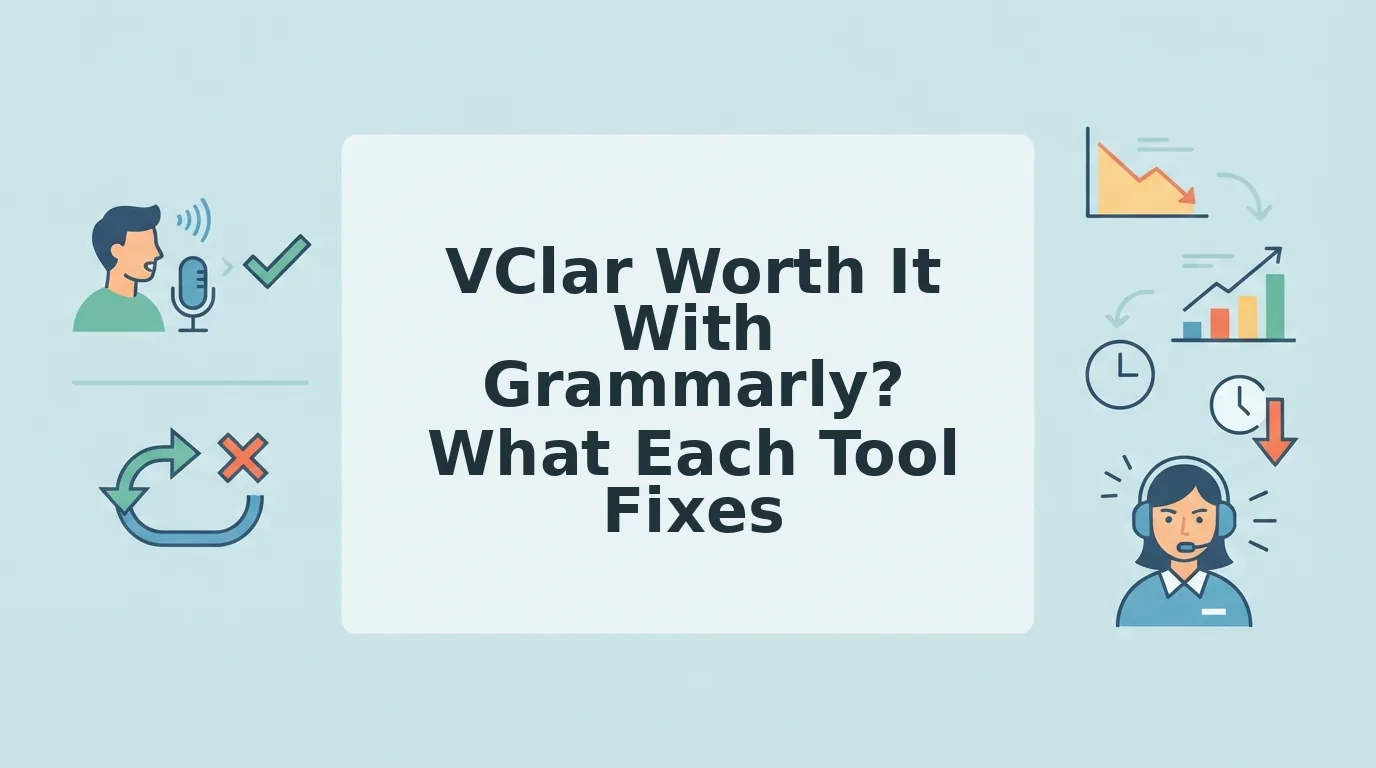
VClar is worth adding to Grammarly if voice messages are part of your work, because the two tools fix different layers. Grammarly edits what you type. VClar cleans what you record, removing fillers, noise, and spoken-grammar slips, then translates the result. If you only type, VClar is redundant.
Grammarly earns its place. Its own video, "Elevate Your Impact on the Job", frames the product around clear written communication at work. Its videos "See How Your Marketing Message Will Land" and "Ensure Your Writing Sounds True to You" cover Reader Reactions, the AI Detector, and the AI Rewriter.
The Text Layer vs Voice Layer Overlap Map
| Capability | Grammarly | VClar |
|---|---|---|
| Editing typed documents and email | Yes | No |
| Reader Reactions (how your writing might land) | Yes | No |
| AI Detector and AI Rewriter | Yes | No |
| Polished written output | Yes, via editing | Yes, via transcript |
| Removing filler words and false starts from audio | No | Yes |
| Removing breaths and mouth clicks | No | Yes |
| Reducing background noise in cars or streets | No | Yes |
| Spoken-grammar repair inside the audio | No | Yes |
| Voice message translation (11 languages, 110 directions) | No | Yes |
| Preserving your tone, accent, and rhythm in audio | Not applicable | Yes |
Where do Grammarly and VClar actually overlap? The two tools overlap in only one place: both can hand you polished written text. Grammarly gets there by editing what you type. VClar gets there because every cleaned recording ships with a transcript. Everything else splits cleanly by layer. Grammarly handles typed documents, email, Reader Reactions, the AI Detector, and the AI Rewriter. VClar handles the recording itself, including fillers, false starts, breaths, mouth clicks, background noise, and spoken grammar, plus translation across 11 languages. If your work produces both typed drafts and voice messages, the tools complement each other rather than compete.
Picture a sales rep recording an enterprise follow-up in the car. VClar strips the road noise and keeps the rep's own voice. Grammarly has no role in that audio.
- Grammarly is best for writers, marketers, and anyone whose output is mostly email and documents.
- VClar is best for founders, sales teams, creators, and cross-border operators who hit record instead of typing.
- Both are best for professionals who write proposals by day and send voice follow-ups on the move.
To hear the difference on a single recording, try VClar's tool to remove filler words from audio, or read the full VClar vs Grammarly comparison.
Can You Just Transcribe a Voice Memo and Run It Through Grammarly?
You can, but it only fixes the text, not the recording your listener hears. The transcribe-and-paste workaround is a two-step process that converts speech to text, then edits that text in Grammarly while the original audio stays unchanged.
Think of it like proofreading a film's subtitles while the soundtrack still carries every stumble. The captions look perfect, but the audience still hears the mistakes.
Before and After the Workaround
Before: you transcribe the memo, paste it into Grammarly, and get clean text. That part works.
After: the recipient still hears the original audio, with its ums, background noise, and broken sentences. To fix that, you have to re-record or switch to typing, which is exactly the friction you recorded to avoid.
The deeper cost appears if you send the cleaned text instead. You lose your tone, accent, and cadence, the human signals that made a voice message worth sending in the first place.
Does Grammarly work on audio? No. Grammarly is positioned around written communication, so it edits text you type or paste, not sound files. If you transcribe a voice memo and run the transcript through Grammarly, you get corrected text, but the recording itself keeps every filler word, false start, breath, and background noise. The audio layer, which is what your recipient actually hears, stays untouched. To clean the recording, you need a tool that works on the audio directly, or you have to record the message again from scratch.
VClar takes that direct route. It lets you fix grammar in a voice message inside the audio while keeping your natural tone, accent, and rhythm, with no synthetic voice clone. Record once, clean it, and send.
The right setup depends on how often you actually hit record.
How to Decide Whether You Need Both Tools
Trace each work message from where it starts to where it ends. Grammarly covers typed messages. VClar covers spoken messages sent as audio and spoken messages sent to someone who speaks another language. The full check takes about 15 minutes.
Before you start: Open your last two weeks of sent work messages in email, Slack, WhatsApp, or similar apps. Keep a notepad or spreadsheet open to tally results.
- Mark where each message starts. Scroll through your sent folders and label each message typed or spoken. This takes about 5 minutes. You should end up with two tallies.
- Mark where each spoken message ends up. For every spoken message, note whether the recipient got audio or text, such as a transcript or dictated message. This takes about 3 minutes. You should now have three groups: typed-to-text, spoken-to-audio, and spoken-to-text.
- Count your weekly work voice messages. Divide your spoken total by two. This takes 1 minute. You should have one weekly number, such as 2 or 20.
- Flag cross-language messages. Mark any spoken message sent to a client, teammate, or partner who prefers a different language. This takes about 3 minutes. You should see whether translation matters in your work.
- Apply the matrix. Match your largest group to the table below. This takes 1 minute. You should have a clear answer.
| Message starts | Message ends | Tool |
|---|---|---|
| Typed | Text | Grammarly |
| Spoken | Audio | VClar |
| Spoken | Text | Overlap, so choose by preference |
| Spoken in one language | Listener in another | VClar translation |
Here is an example. A freelancer sends a client update in their second language. They do not re-record until the phrasing sounds right. They record once and run it through VClar's voice note translator in 11 languages. You can see more workflows like this in voice notes for freelancers.
How to Check It Worked
Clean your next real voice note with VClar once. If you sent it without re-recording, the tool did its job.
Who Should Skip VClar
- People who rarely send voice messages for work.
- People who work only in typed documents and email, because Grammarly already covers that.
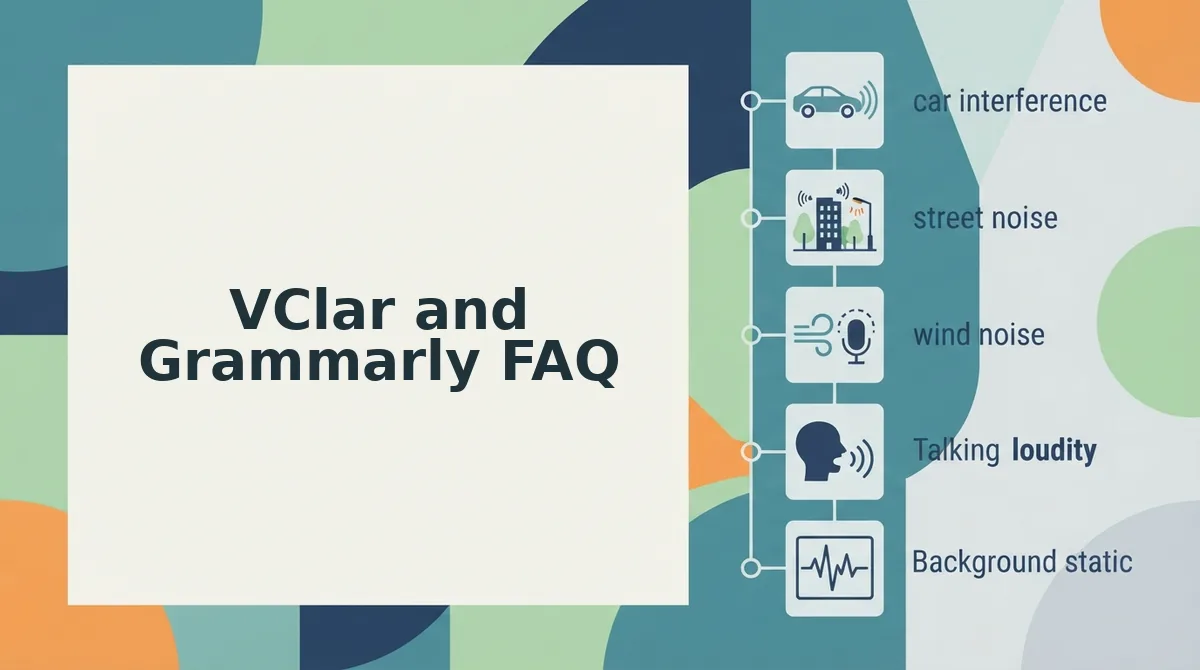
VClar and Grammarly FAQ
These answers cover the questions the sections above do not address.
Does VClar change my voice?
No. VClar removes fillers, fixes grammar, and reduces background noise. It keeps your natural tone, accent, and rhythm. It does not swap your voice for a synthetic clone, so listeners still hear you.
Which languages does VClar translate?
VClar translates between 11 languages: Hindi, English, French, Japanese, Korean, German, Russian, Portuguese, Spanish, Italian, and Chinese. That gives you 110 translation directions for voice messages.
Can I use VClar and Grammarly together?
Yes. The two tools do not overlap much. Use Grammarly for emails, documents, and chat messages you type. Use VClar for voice messages you record and send as audio.
Does VClar remove background noise?
Yes. VClar reduces background noise, breath sounds, and mouth clicks during cleanup. This lets a voice note recorded in a café or car sound clear without a studio setup.
Should You Add VClar to Your Grammarly Setup?
Add VClar only if voice messages carry real work for you. Grammarly can't fix what you never typed.
The deciding factor isn't which tool is better. It's where your words start. If you think out loud but send polished text, you are paying for one fix while sending a rough message. Keep Grammarly for everything you type. Add VClar when investor updates, sales follow-ups, or client updates go out as voice notes.
Test the decision on one real message instead of a hypothetical one. Record your next update once and clean it with VClar. You won't need to re-record or retype it. Your first take is enough.