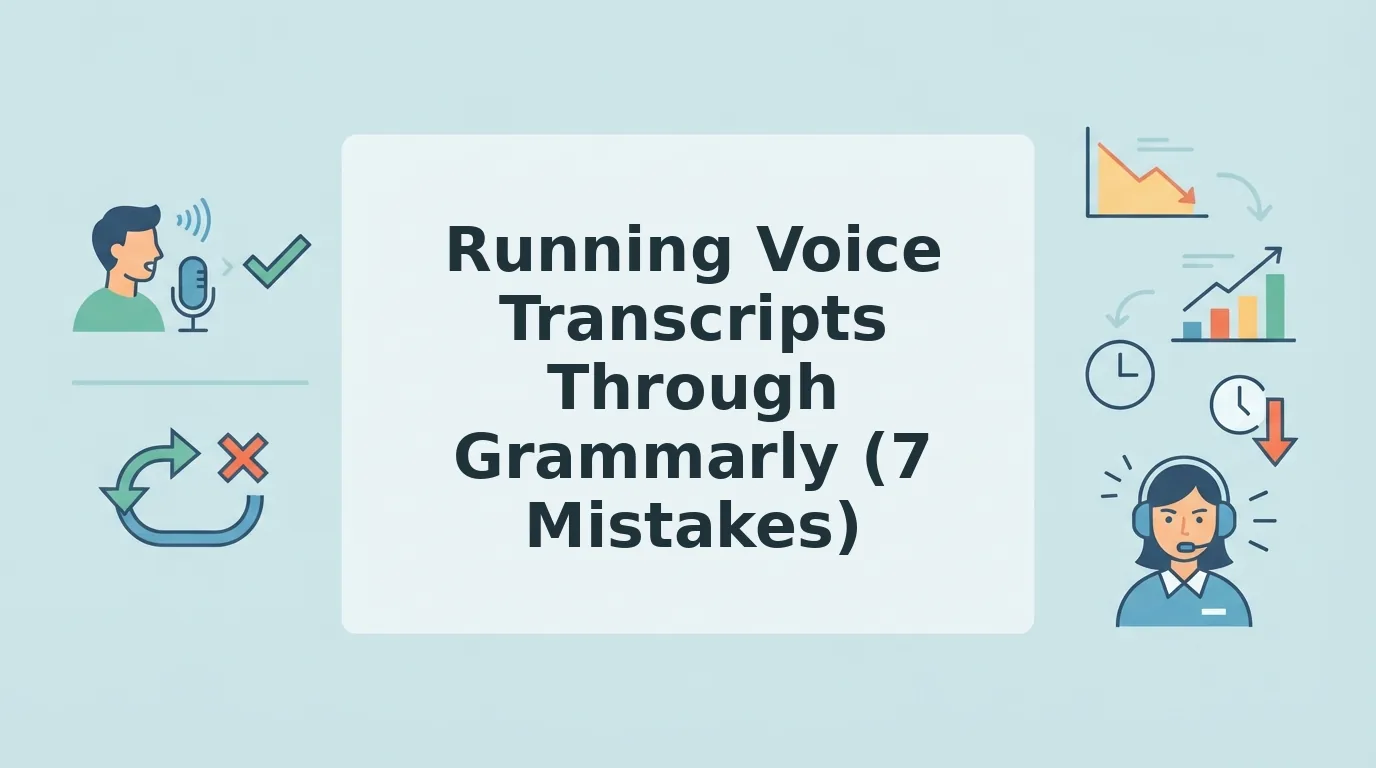

You record a 60-second investor update between meetings, transcribe it, and paste the text into Grammarly before you hit send. Running voice transcripts through Grammarly feels like the responsible move. The voice note your investors actually play, however, hasn't changed at all.
Grammarly corrects the written transcript, not the recording. Spelling, grammar, and punctuation get fixed, while every um, false start, pause, and breath stays in the audio. If you send the voice note, the listener hears the unedited version.
The instinct behind this workflow is sound. Grammarly even has a video titled "Your Credibility Is in Your Voice," and that framing fits the problem: credibility depends on what people hear, not only on what they read.
This guide shows which layer a grammar checker leaves untouched. It then covers seven common mistakes and the fix for each. Watch for #5, because it's the fix that makes things worse. If you send updates like this every week, start with this guide to voice notes for founders.
What Goes Wrong When You Run a Voice Transcript Through Grammarly?
Running a voice transcript through Grammarly is a text-only edit. It fixes the transcript layer, and the audio layer stays exactly as you recorded it. Your listener still hears every filler, pause, and breath, even when the written version reads cleanly.
A voice message has two parts. The transcript layer is the written text a speech-to-text engine produces from your recording. The audio layer is the sound file your recipient actually plays.
A verbal filler is a word or sound that adds no meaning, such as um, ah, "like," or "you know." A false start is a sentence you begin, abandon, and restart. Grammarly works only on the transcript layer, where it corrects spelling, grammar, punctuation, and word choice. Every filler and false start therefore survives in the voice note you send.
Think of it like proofreading a film's subtitles. The captions improve, but the actors still say exactly what they said on set. Most transcript-cleanup guides and workflow videos stop at the text and never name this split.
| Layer | What Grammarly fixes | What is left |
|---|---|---|
| Transcript layer | Spelling, grammar, punctuation, word choice | Words the speech-to-text engine misheard, unless you catch them |
| Audio layer | Nothing, because the recording is never edited | Ums, false starts, pauses, breath sounds, mouth clicks, background noise |
To close the gap, you need a tool that edits the recording itself. VClar removes fillers, corrects spoken grammar, and reduces background noise in the audio while keeping your natural tone. That way you can fix grammar in your voice message, not just its transcript.
7 Mistakes People Make With Grammarly and Voice Transcripts
The biggest mistake is assuming a cleaner transcript means a cleaner voice note. The other six come from treating speech like writing. They are ordered here from highest to lowest impact.
- Assuming filler words disappear from the audio. Deleting "um" from the transcript does nothing to the recording. Your recipient still hears every hesitation, so the polish only reaches people who read the text. If you're sending audio, remove filler words from audio at the source with an editor that cleans the recording itself.
- Trusting a checker to flag conversational fillers. Words like "like," "basically," and "you know" are often grammatically valid, so a grammar checker may leave them alone. They read as correct on the page but still sound hesitant out loud. Scan for them yourself, or use a tool built to detect spoken fillers rather than grammar errors.
- Polishing words the speech-to-text engine misheard. If transcription turned "churn" into "turn," a grammar checker will happily build a fluent sentence around the wrong word. A small transcription slip then becomes a confident, wrong statement.
Troubleshooting: Play the audio while you read the transcript. Correct any misheard words first, and only then run the checker.
- Forcing written grammar onto spoken rhythm. Speech runs on fragments, run-ons, and asides that a checker treats as errors. If you accept every suggestion, the text turns stiff and no longer sounds like you said it. Fix real mistakes, but keep the short bursts and pacing that make spoken updates easy to follow.
- Sending a clean transcript with messy audio. This is the fix that makes things worse, because the listener hears what the reader didn't see. Picture a sales rep following up with an enterprise buyer. The buyer reads a crisp summary, then plays a voice note full of ums and restarts, and each version undercuts the other.
VClar cleans the recording and the transcript together, so your buyer hears the same polished message they read.
- Letting rewrites change your tone. Grammarly has a video on its Humanizer, and the topic raises a fair question: how much rewriting is too much? Your accent, cadence, and phrasing carry trust, and that includes non-native phrasing that is perfectly clear. Accept edits that fix meaning, and reject edits that make you sound like someone else.
- Expecting a checker to translate the voice note. Grammar checkers correct language, but they don't turn an English voice note into Japanese audio. Cross-border teams need translation that keeps the original speaker's voice. VClar supports 11 languages and 110 translation directions, so you can translate cleaned voice notes once they're edited.
Each of these mistakes has a fix, and the next section turns them into a repeatable check you can run before you hit send.
How to Check and Fix a Voice Note Before You Send It
So what actually works? Decide what you are sending, read the transcript against the audio, fix the audio layer at the source, and confirm the text and audio match before you send. Grammarly only helps with the text layer.
Before you start: have the original recording, its transcript, Grammarly for text, and a source audio cleaner such as VClar.
- Decide what you are sending. Pick one path. If it is text only, Grammarly is fine. If it is a voice note, fix the source audio. If it is cross-language, translate the cleaned audio. You should know which layer needs fixing before you edit anything.
- Read the transcript against the audio. Play the recording and follow the transcript line by line. This takes about as long as the recording runs. Mark every filler, false start, and grammar slip. You should end up with a list of errors that you can actually hear.
- Fix the audio layer at the source. Upload the recording to VClar so fillers, spoken grammar, and background noise are cleaned in the audio itself. When you play it back, the marked errors should be gone.
- Check that the text and audio match. Compare the cleaned transcript with the cleaned recording before you send. The wording should be identical in both.
The usual workaround has five steps: record, transcribe, paste into Grammarly, fix the text, then re-record to match. Each re-record can add new fillers, so the loop often starts over. A source fix takes fewer steps. You record once, clean the audio, and send. The recording and transcript stay in sync because both come from the same cleaned take. For a side-by-side breakdown, see how VClar differs from Grammarly.
Pro tip: Keep Grammarly for text-only replies and emails. Clean the audio when the recording itself is what you send.
How to check it worked: you hear no fillers, the text and audio use the same wording, and the tone still sounds like you.
Grammarly and Voice Transcripts FAQ
These answers cover the questions the steps above leave open, from voice typing to keeping your own voice.
Does Grammarly remove filler words from audio?
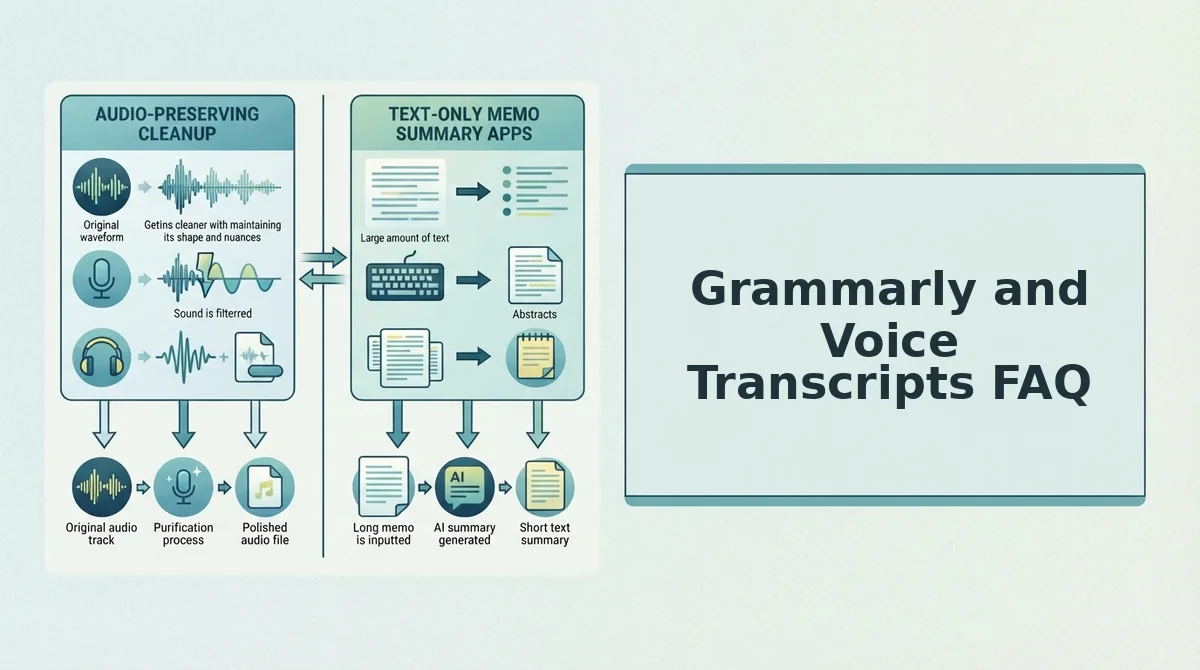
No. Grammarly edits text only. It can flag an "um" in a transcript, but the recording keeps every filler, pause, and false start. To remove filler words from the audio, you need a tool that edits the sound file itself.
Can Grammarly transcribe a voice message?
Grammarly is a writing assistant, not a voice message transcriber. If you searched "Grammarly voice typing," you will need a separate dictation or transcription tool to turn speech into text first. Grammarly can then check that text, but the original audio stays unchanged.
Should I fix the transcript or the audio first?
Fix the audio first if you are sending the recording. A cleaned source produces a clean transcript, so both layers match. If you polish the transcript first, it will no longer match what the listener hears.
Will a cleaned voice note still sound like me?
Yes. VClar removes fillers, fixes spoken grammar, and reduces noise while keeping your natural tone, accent, and rhythm. It does not swap your voice for a synthetic one, so listeners still hear you.
Clean the Voice Note at the Source
The fix belongs where the problem starts: in the recording, not the transcript. Grammarly handles the text layer. Source cleanup handles the audio layer. That is the Two-Layer Fix in one line.
Picture a consultant sending a client update as a voice note. The old way is to transcribe it, paste it into Grammarly, fix the text, and re-record, often more than once, until the take sounds right.
The better way is to record once and clean the fillers, grammar, and noise inside the recording. The client hears a clear, decisive update in the consultant's own voice, sent in one take. See how this works in voice notes for consultants and freelancers.
Your next step is simple: clean your next voice memo online with VClar before you hit send. Speak the way you think, and let every message land the first time.