
You record an investor update from the car, play it back, hear the "ums," and start over. If you think faster than you type and send high-stakes voice messages across languages, you know this loop. Founders, sales reps, freelancers, and cross-border teams all get stuck in it before translation even begins.
This guide shows you how to translate rough voice memo in one take. You record once, clean the audio, and send it in your listener's language without a second attempt.
The frustration is fair. Verbal fillers, awkward pauses, and disjointed grammar weaken your authority and clarity, especially when an investor or buyer is listening in a second language.
Below is a five-step pipeline: Record, Strip, Repair, Translate, Review. It is built around an ai voice message translator that keeps your natural tone and accent. If you send updates like the one above, see how this fits voice notes for founders.
One warning first: translating the raw memo before you clean it makes it sound worse in the target language. The next section explains why.
What is the fastest way to translate a rough voice memo in one take?
The fastest path has five steps: Record, Strip, Repair, Translate, Review. Record the message once without stopping. Strip the filler words, repair broken fragments, translate the cleaned version, and review it before you send. Always clean the audio before you translate it.
A one-take translation workflow is a process that turns a single unedited recording into a clean, translated message without re-recording.
Three terms come up in this workflow:
- Filler words are verbal pauses such as "um" and "like."
- A sentence fragment is an incomplete spoken clause.
- Translation direction is a source-to-target language pair, such as English to Japanese.
Most people translate first and clean later. That order is backward.
Why does a translated voice note sound awkward? Translation stays faithful to its input. Raw speech translated as-is carries every "um," false start, and fragment into the target language, along with any background noise. It works like photocopying a page with coffee stains: the copy reproduces the stains perfectly. The engine cannot tell which half-sentence you abandoned and which one you meant. Your listener hears that hesitation in their own language. Cleaning the source first means the translator only receives the message you intended.
These elements carry over from a raw memo:
- Filler words
- False starts
- Sentence fragments
- Circular phrasing
- Background noise
A cleaned transcript follows a simple before-and-after format. Before: "So, um, I wanted to, like, update you on the, the pilot." After: "I want to update you on the pilot."
VClar handles the Strip and Repair stages for you. You can fix grammar in a voice message and keep your own voice.
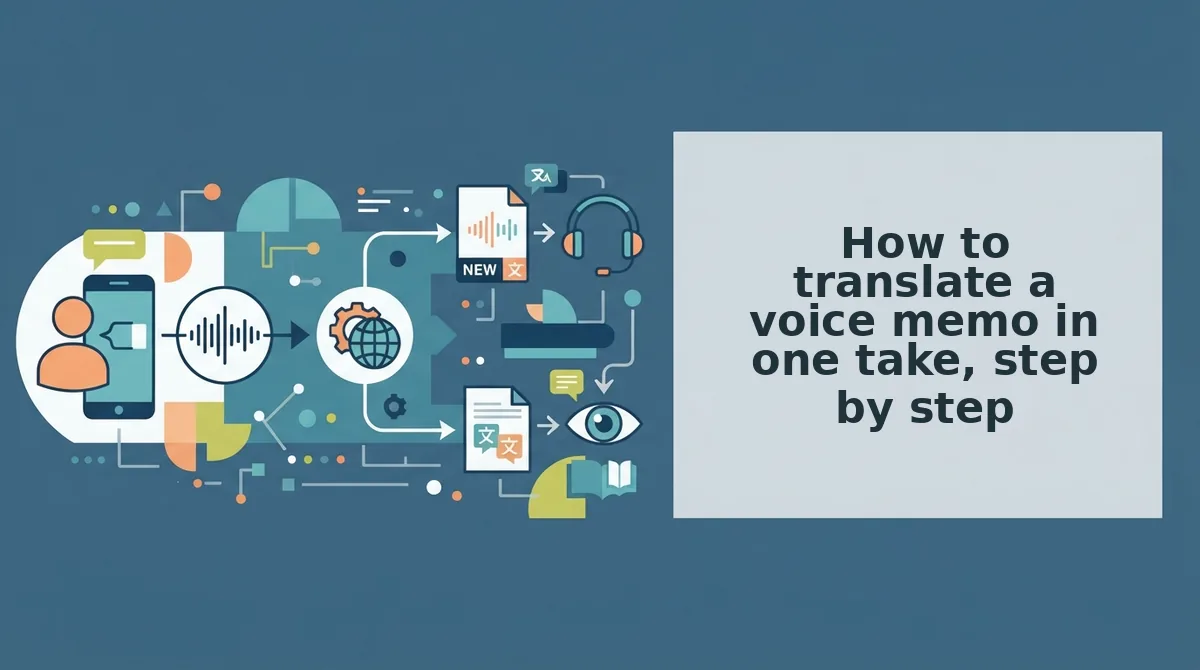
How to translate a voice memo in one take, step by step
Record once, then clean, repair, and translate the message before you review it. Each step below ends with a pass/fail check so you know when to move on.
- Record once without stopping.
- Strip the filler words.
- Repair fragments and circular phrasing.
- Choose a target language.
- Review the side-by-side comparison, then send.
Before you start: You need a phone or laptop microphone, VClar, and one clear point you want to make. You do not need a script.
Step 1: Record once without stopping
Open VClar, start recording, and say the whole message in one pass. Aim for 45 to 90 seconds. If you stumble, keep talking instead of restarting.
Do you need to transcribe the memo before translating it? No. Manual transcription comes from the old workflow, where you typed out your speech, edited the text, and then translated it. In this pipeline, the transcript is produced as part of cleaning and translation. You check it once, at the end, during the side-by-side review. Your only job at this stage is to speak the full thought from start to finish. This also removes the main reason people restart: the worry that every slip will be permanent.
Check: You finished the thought without restarting.
Step 2: Strip the filler words
Run filler removal on the recording. VClar detects "um," "ah," "like," "basically," "you know," and repeated false starts, then closes the gaps in the audio. It also reduces background noise, breath sounds, and mouth clicks. Learn more about how to remove filler words from audio.
Check: No verbal pauses remain in the cleaned transcript.
Step 3: Repair fragments and circular phrasing
Apply spoken-grammar repair. VClar completes broken clauses and tightens phrasing that loops back on itself. Your tone, accent, and rhythm stay intact.
Check: Every sentence is complete.
Step 4: Choose a target language
Select your listener's language. VClar works as a voice note translator in 11 languages: Hindi, English, French, Japanese, Korean, German, Russian, Portuguese, Spanish, Italian, and Chinese. That gives you 110 translation directions.
Check: The source and target languages are set in the correct direction.
Step 5: Review the side-by-side comparison, then send
Open the side-by-side comparison and read the original next to the translation. The review takes about as long as the message itself.
Check: Names, numbers, and intent match the original.
Here is how this works in practice. A B2B sales rep records a follow-up to an enterprise buyer in one take. The rep cleans the memo, translates it into the buyer's language, checks it side by side, and sends it without re-recording. If follow-ups are part of your pipeline, explore voice notes for sales and run your next message through all five steps.
The next question is how this output compares with built-in translators.
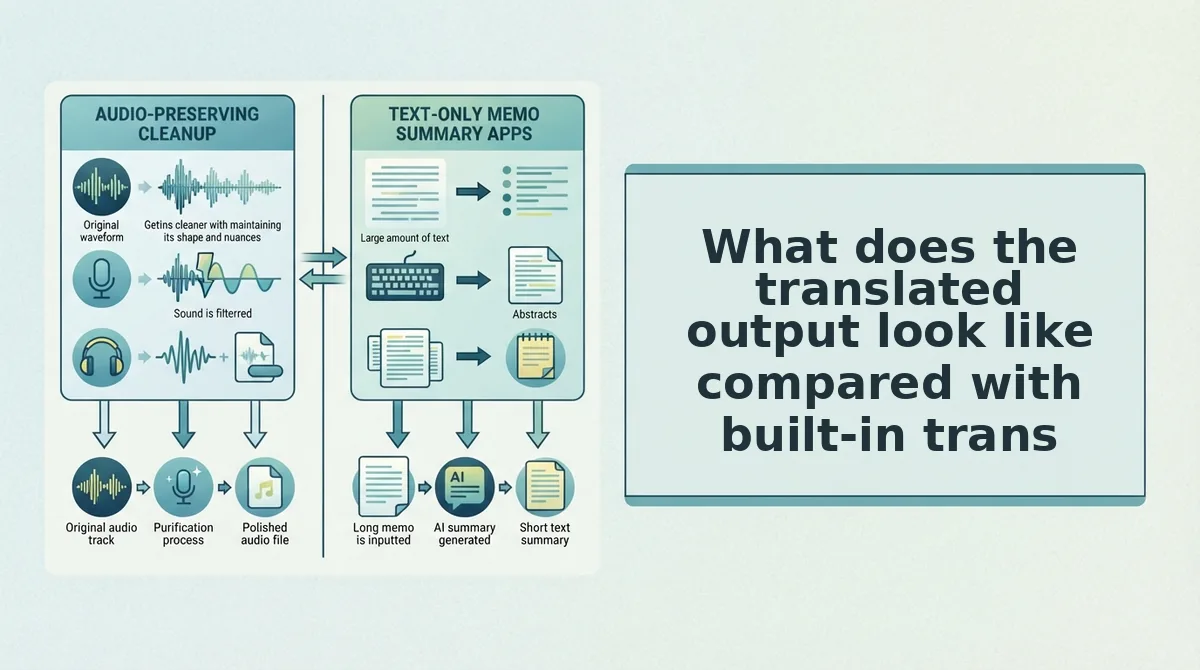
What does the translated output look like compared with built-in translators?
Most built-in tools return text, either a transcript or a translated caption the recipient reads. VClar returns a cleaned voice message plus a transcript, translated, that keeps your tone, accent, and rhythm.
The right choice depends on the message. Text works for a quick read. Cleaned audio works for a high-stakes message where your own voice carries trust.
| Option | Output | Honest strength | Best for |
|---|---|---|---|
| Built-in messaging voice-to-text translation (e.g., WhatsApp) | Translated text | Lives inside the chat app you already use | Casual chats where the reader only needs the gist |
| Phone-native transcription (e.g., iPhone) | Text, no translation | Built into the phone, with no setup | Personal notes in your own language |
| Notes-app transcription (e.g., Reflect Notes) | Text in multiple languages | Stores transcripts alongside your other notes | Knowledge workers building a searchable archive |
| Timeline audio editor | Audio you edit by hand | Precise control over every cut | Editors producing long-form content (see VClar vs. Descript) |
| VClar | Cleaned voice plus transcript, translated across 11 languages | Removes fillers, fixes spoken grammar, reduces noise in one pass | Founders, sales teams, and freelancers sending one-take messages that need to land |
Can WhatsApp translate a voice note? Yes, but the output is text to read, not audio. Will VClar change your voice or accent? No. It enhances your natural voice without synthetic cloning or robotic avatars.
Where does the one-take workflow fall short?
The one-take workflow struggles with heavy noise, misheard names, long memos, and fast speech in a strong accent. Each limit has a symptom, a cause, and a fix that maps to a step you already take.
- Noisy recordings. Symptom: gaps or garbled words in the transcript. Cause: noise reduction helps, but words buried under loud sound may not survive. Fix: re-record somewhere quieter only if the review shows gaps.
- Names and jargon. Symptom: a client name or product term comes out wrong. Cause: proper nouns and niche vocabulary are easy to mishear. Fix: check every name in the side-by-side review before you send.
- Long memos. Symptom: the review takes longer than the recording did. Cause: messages past the 45-90 second range are harder to scan for errors. Fix: split one long thought into separate memos.
- Heavy accent at speed. Symptom: the transcript misses your intent in places. Cause: rapid delivery makes transcription harder, even though your accent is preserved by design. Fix: speak at a steady pace and confirm your meaning in the transcript.
Record your next memo once and let the cleanup do the rest
One take is enough when the cleanup and review steps carry the polish instead of your re-record loop. Run every memo through five checks:
- Record once, in 45-90 seconds.
- Clean out fillers, grammar slips, and noise.
- Review the transcript side by side, names first.
- Translate into the recipient's language.
- Send it in your own voice.
Picture a freelancer recording a rough client update between tasks. They clean it, check the project name, translate it into the client's language, and send it in a few minutes, with no second take.
See how this works for voice notes for freelancers, then record and clean your next memo with VClar. Your first take can be the one you send.